LibreOffice Document Locked by Unknown User: A Safe Fix
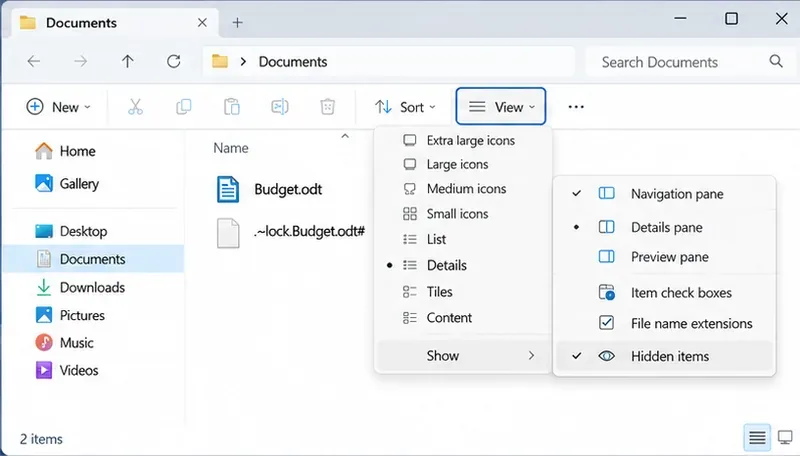
Find the cause of a LibreOffice document lock, safely clear a stale lock file, and confirm that you can edit and save without losing changes.
Is your Windows 11 PC running low on storage? You're not alone—files pile up faster than you can say "full drive." But don't worry! The built-in Windows 11 Disk Cleanup Utility is your secret weapon for reclaiming space without breaking a sweat. This powerful tool scans your system, identifies unnecessary files, and lets you wipe them away safely. In this guide, we'll walk you through everything you need to know about using Disk Cleanup in Windows 11, from basic steps to pro tips. By the end, you'll have a leaner, faster machine that feels brand new. Let's dive in and get your storage sorted! 🚀
The Disk Cleanup Utility is a native Windows feature designed to help you free up disk space by removing temporary files, system caches, and other junk that accumulates over time. Introduced in earlier Windows versions and refined in Windows 11, it targets categories like temporary internet files, thumbnails, recycle bin contents, and even old Windows update files. According to Microsoft's official documentation, this tool can reclaim gigabytes of space effortlessly, improving performance and extending your drive's lifespan.
Why use it? In today's digital world, with high-res photos, videos, and apps eating up storage, Disk Cleanup keeps things tidy. It's safe, free, and requires no third-party software—perfect for beginners and power users alike. Plus, it integrates seamlessly with Windows 11's Storage Sense for automated maintenance. Ready to start? Let's jump into the steps.
Accessing the Windows 11 Disk Cleanup Utility is straightforward. We'll cover the easiest methods, ensuring you can get started in under a minute. Follow these steps, and watch your free space grow! 📈
👆 Start by clicking the Start button (Windows icon) on your taskbar or pressing the Windows key on your keyboard.
2. Type "Disk Cleanup" into the search bar. You'll see the app appear in the results—it's that simple!
3. Select Disk Cleanup to open it. If prompted, choose the drive you want to clean (usually C: for the system drive).

Once open, Disk Cleanup scans your drive and presents a list of file categories. Here's what you'll typically see:
| Category | Description | Potential Space Saved |
|---|---|---|
| Temporary Files | Cache from apps and browsers | Up to 1-5 GB |
| Recycle Bin | Deleted files waiting to be emptied | Varies (often 500 MB+) |
| Thumbnails | Preview images for files | 100-500 MB |
| Windows Update Cleanup | Old installation files | 2-10 GB after updates |
| System Error Memory Dump Files | Crash logs | Up to 1 GB |
Review the list—Disk Cleanup estimates space savings for each. Check the boxes for items you want to remove. For safety, start with obvious junk like temporary files. Hesitant? No problem; the tool explains each category clearly.
For deeper cleaning, click "Clean up system files" in the Disk Cleanup window. This rescan includes more categories like previous Windows installations or delivery optimization files—ideal after major updates.
Pro tip: If you've recently upgraded Windows 11, this can free up massive space from old setup files. Just ensure you don't need to roll back your system before deleting them!
4. Hit "OK" or "Delete Files" to proceed. Windows will confirm your choices—double-check to avoid mistakes.
5. Sit back as the utility does its magic. It might take a few minutes depending on the volume of files.
Done! Check your drive properties (right-click the drive in File Explorer > Properties) to see the freed-up space. Feels good, right? 😊
To supercharge your Windows 11 Disk Cleanup Utility experience, go beyond the basics. These tips will help you maintain a clutter-free PC long-term.
Implementing these will not only free up disk space in Windows 11 but also boost speed—your PC will thank you with smoother multitasking and quicker boot times.
Even the best tools have hiccups. If Disk Cleanup won't open or freezes, try these fixes:
If problems persist, visit Microsoft's support page for more help: Microsoft Free Up Drive Space Guide. It's a reliable resource packed with official troubleshooting steps.
In a world of ever-growing data, the Windows 11 Disk Cleanup Utility stands out as an essential, no-cost solution for keeping your system optimized. It's not just about space—it's about peace of mind. Imagine loading apps instantly or storing more of your favorite memories without worry. By following this guide, you've unlocked a simple way to maintain peak performance.
But wait, there's more! Pair Disk Cleanup with regular backups (using OneDrive or external drives) to safeguard your data. Curious about advanced storage tweaks? Stick around for our next article on Windows 11's full Storage Management features. Your optimized PC awaits—start cleaning today and feel the difference! 👏
Find the cause of a LibreOffice document lock, safely clear a stale lock file, and confirm that you can edit and save without losing changes.
Make image-heavy Writer files easier to edit: test a reversible display setting, compress oversized pictures in a copy, and verify the saved layout.
Find out whether a slow launch comes from extensions, profile settings, or the system, then test the safest fix without losing LibreOffice data.
Connect LibreOffice to Nextcloud over WebDAV, save the server copy with Ctrl+S, and understand how AutoRecovery differs from cloud syncing.
Find out whether Pardus 23 is blocking Bluetooth, missing BlueZ, or failing to detect adapter firmware, then confirm the controller works.
Learn how Gooroom separates trusted and untrusted browsing, what users can change, and how an administrator can safely update site policies.
Diagnose rotated, offset, or inconsistent touch input on a Harmonica OS tablet and choose a Linux calibration method that fits its session and driver.
Switch Gooroom’s desktop session to English, verify the locale, and identify when untranslated Korean labels need an app update instead.
Arrange Pardus XFCE as a familiar bottom taskbar with an app menu, pinned launchers, open-window buttons, and a system tray.
Check your Gooroom release and administrator rules, then follow the official Debian-based setup path for Flatpak or Snap without bypassing system controls.