

Use Regex in LibreOffice Writer to Edit Text in Batches
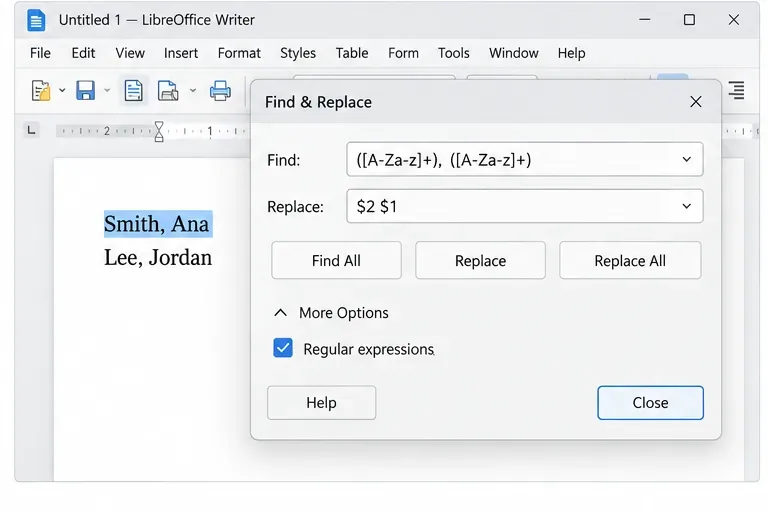
Clean spacing, find structured text, and rearrange names with Writer regex patterns you can preview before replacing.
Imagine watching your favorite video or joining a video call without missing a single word, even in noisy environments or with hearing challenges. That's the magic of Windows 11 Live Captions—a game-changing accessibility feature that provides real-time subtitles for any audio on your PC. Whether you're a student, professional, or simply love multimedia content, this tool makes everything more inclusive and enjoyable. In this guide, we'll walk you through everything you need to know about how to use Windows 11 Live Captions, from setup to advanced tips, so you can dive right in and enhance your experience today.
Windows 11 Live Captions is an innovative feature introduced in the latest Windows updates, leveraging on-device AI to generate accurate, real-time captions for live audio. It works across apps like browsers, media players, and video conferencing tools—no internet required for the core processing. This means captions appear instantly for spoken words in videos, podcasts, meetings, or even system sounds, supporting multiple languages and dialects.
Why does this matter? For users with hearing impairments, it's a lifeline. But even if you're in a loud café or learning a new language, Live Captions boosts comprehension and keeps you engaged. According to Microsoft's accessibility guidelines, it's designed to be fast, private, and customizable, ensuring your data stays on your device. Ready to get started? Let's jump into the setup.

Enabling Windows 11 Live Captions is straightforward and takes just a few minutes. Follow these steps to activate it on your compatible Windows 11 PC (requires version 22H2 or later with a supported processor for on-device AI).
✨ And just like that, you're live! Play a YouTube video or join a Zoom call, and watch the captions roll in with impressive accuracy—up to 95% for clear audio, per Microsoft's testing.
One of the best parts of Windows 11 Live Captions is its flexibility. Don't settle for defaults; tweak it to fit your style and needs. Head back to Settings > Accessibility > Captions for these options:
Feeling empowered? These tweaks not only make Live Captions more personal but also improve focus during long sessions. Imagine captioning a webinar without distractions—pure productivity bliss!
How to use Windows 11 Live Captions shines in real-world scenarios. It's not just for videos; it's versatile across your digital life. Here's how to integrate it seamlessly:
| Scenario | How to Use | Benefits |
|---|---|---|
| Video Streaming (e.g., Netflix, YouTube) | Open the app, start playback, and enable Live Captions. It captures audio directly from your speakers. | Follow plots in foreign films or noisy environments without subtitles delays. |
| Video Calls (e.g., Teams, Zoom) | Join the call and toggle Live Captions—works for both your audio and participants'. | Never miss key points in meetings; great for non-native speakers. |
| Podcasts and Music | Play via Groove Music or Spotify; captions lyrics or spoken content in real-time. | Learn lyrics accurately or catch every podcast insight. |
| Live Events or Games | Use during streams or in-game audio for commentary. | Enhance immersion without audio overload. |
These applications turn everyday tasks into accessible adventures. Users report feeling more connected—whether it's catching up on news or collaborating remotely. What's your first use case? Keep reading for troubleshooting to ensure smooth sailing.
To get the most from Windows 11 Live Captions, consider these insider tips:
Bonus: If you're into gaming, Live Captions can subtitle in-game dialogue, making titles more inclusive. It's these thoughtful touches that make Windows 11 stand out.
Even the best features hit snags sometimes. If Windows 11 Live Captions isn't working as expected, don't worry—most fixes are quick:
Still stuck? Visit Microsoft's support page for deeper dives: Microsoft Live Captions Support. With these steps, you'll be back to seamless captioning in no time.
By now, you see how Windows 11 Live Captions transforms accessibility into an effortless part of your day. It's not just a tool—it's a bridge to clearer communication and richer experiences. Whether boosting productivity or enjoying entertainment, this feature empowers everyone. Experiment with it today, and you'll wonder how you managed without. For more Windows tips, stick around our site—we've got guides on everything from AI integrations to productivity hacks. What's your take on Live Captions? Share in the comments below!
Clean spacing, find structured text, and rearrange names with Writer regex patterns you can preview before replacing.
Enable Writer’s bidirectional controls, set RTL paragraph flow, and check mixed Arabic or Hebrew text without disrupting English words and numbers.
Install metric-compatible Linux fonts or map LibreOffice fallbacks, while keeping Microsoft font licensing and layout differences in view.
Add usable text fields, check boxes, and drop-downs in Writer, then export a PDF recipients can complete and save.
Fix missing or substituted fonts in LibreOffice Writer PDFs, choose the right export profile, and verify which fonts are embedded before sharing.
Convert a folder of Word documents to PDF with LibreOffice commands, handle nested folders safely, and verify the output before sharing.
Set a custom LibreOffice Writer template as the default so new documents open with your preferred styles and page layout.
Install a compatible Java runtime, enable it in LibreOffice, and troubleshoot an empty JRE list without changing unrelated settings.
Build a small LibreOffice container, convert office documents without a GUI, and verify PDF output while limiting host-file access.
Reduce oversized LibreOffice presentation files by compressing embedded photos, choosing sensible image settings, and checking slide quality before sharing.








