

Use Regex in LibreOffice Writer to Edit Text in Batches
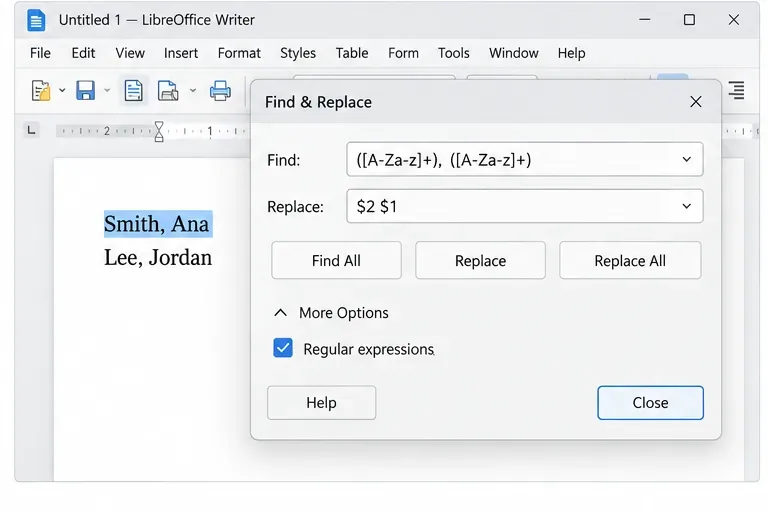
Clean spacing, find structured text, and rearrange names with Writer regex patterns you can preview before replacing.
In today's digital world, staring at screens for hours can leave your eyes feeling tired and strained. But what if a simple built-in tool could make a world of difference? Enter Windows 11 Night Light, a powerful feature designed to protect your eyes by filtering out harsh blue light. This guide will walk you through everything you need to know about using Windows 11 Night Light for eye care, from setup to advanced tips, helping you enjoy longer, more comfortable screen sessions without the discomfort.
Imagine winding down your evening without the glare that disrupts your sleep or causes headaches. With Night Light, you're taking a proactive step toward better eye health. Let's dive in and get you set up—it's easier than you think! 🌟
Windows 11 Night Light is Microsoft's innovative blue light filter that warms up your screen's color temperature, reducing exposure to blue light emitted by displays. Blue light, while great for daytime alertness, can trick your brain into staying awake at night and contribute to digital eye strain during prolonged use.
According to eye health experts, excessive blue light exposure is linked to issues like dry eyes, blurred vision, and disrupted circadian rhythms. By activating Night Light, you create a more soothing viewing experience, mimicking the warm tones of sunset. This isn't just a gimmick—it's a science-backed way to support eye care in the modern age.
Whether you're working late, binge-watching shows, or browsing before bed, enabling this feature can transform your screen time health. Ready to feel the relief? Let's move to the setup.
Setting up Windows 11 Night Light is straightforward and takes just a few minutes. Follow these steps to get started:
That's it! Your screen now has a protective layer against blue light. But for even better eye care, let's schedule it to activate automatically.

Why stop at manual activation? Schedule Windows 11 Night Light to turn on at sunset and off at sunrise, aligning perfectly with your natural light cycle. This hands-free approach ensures consistent blue light filter protection without you lifting a finger.
Here's how:
Pro tip: If you're in a region with varying daylight, the sunset option adapts dynamically, keeping your eye health in check year-round. Feel the difference as your evenings become more relaxing—your eyes will thank you! 😊
Once basics are covered, elevate your setup with these targeted strategies. These tips focus on integrating Night Light into a holistic eye care routine, ensuring you get the most from your Windows 11 device.
| Tip | How It Helps | Implementation |
|---|---|---|
| Combine with Dark Mode | Reduces overall contrast and glare, amplifying Night Light's warmth for less strain. | Go to Settings > Personalization > Colors > Choose "Dark" mode. Toggle it alongside Night Light for evenings. |
| Adjust for Multiple Monitors | Ensures uniform filtering across all screens, preventing mismatched eye exposure. | In Display settings, Night Light applies system-wide. For extended setups, verify each monitor's color profile in advanced display options. |
| Pair with Breaks | Boosts effectiveness by giving eyes periodic rest, following the 20-20-20 rule (every 20 minutes, look 20 feet away for 20 seconds). | Use Windows Focus Assist or third-party apps to remind you. Night Light handles the light; breaks handle recovery. |
| Monitor Battery Impact | Night Light is lightweight, but combining with brightness tweaks saves power on laptops. | Lower screen brightness in tandem—aim for 40-60% during Night Light hours for balanced screen time health. |
These enhancements make Windows 11 Night Light a cornerstone of your daily routine. Experiment to find what feels best—perhaps start with Dark Mode for an instant cozy vibe.
Delving deeper, Windows 11 Night Light works by shifting your display from cool (blue-heavy) to warm (yellow-orange) tones, typically reducing blue light by up to 80% at full strength. This aligns with recommendations from the American Academy of Ophthalmology, which highlights blue light's role in eye fatigue.
Key benefits include:
For more on blue light's effects, check out this resource from a trusted source: American Optometric Association on Digital Eye Strain. It's eye-opening (pun intended) and backs why features like Night Light are essential.
Picture this: No more rubbing your eyes mid-movie or waking up groggy. With these insights, you're equipped to make informed choices for your well-being.
Even the best features can glitch. If Windows 11 Night Light isn't working as expected:
If issues persist, a quick system reset via Settings > System > Recovery can refresh things without losing data. You're almost there—smooth sailing ahead!
Using Windows 11 Night Light for eye care is more than a setting—it's a commitment to feeling great every day. From easy activation to smart scheduling, this feature empowers you to tame blue light and reclaim comfort in your digital life. Start small, notice the changes, and build habits that last.
Have you tried Night Light yet? Share your experience in the comments below—we'd love to hear how it's helping your eye health. For more tips on tech wellness, stick around and explore our guides on productivity and device optimization. Your eyes deserve this—turn it on today! 👏
Clean spacing, find structured text, and rearrange names with Writer regex patterns you can preview before replacing.
Enable Writer’s bidirectional controls, set RTL paragraph flow, and check mixed Arabic or Hebrew text without disrupting English words and numbers.
Install metric-compatible Linux fonts or map LibreOffice fallbacks, while keeping Microsoft font licensing and layout differences in view.
Add usable text fields, check boxes, and drop-downs in Writer, then export a PDF recipients can complete and save.
Fix missing or substituted fonts in LibreOffice Writer PDFs, choose the right export profile, and verify which fonts are embedded before sharing.
Convert a folder of Word documents to PDF with LibreOffice commands, handle nested folders safely, and verify the output before sharing.
Set a custom LibreOffice Writer template as the default so new documents open with your preferred styles and page layout.
Install a compatible Java runtime, enable it in LibreOffice, and troubleshoot an empty JRE list without changing unrelated settings.
Build a small LibreOffice container, convert office documents without a GUI, and verify PDF output while limiting host-file access.
Reduce oversized LibreOffice presentation files by compressing embedded photos, choosing sensible image settings, and checking slide quality before sharing.








