
Use Regex in LibreOffice Writer to Edit Text in Batches
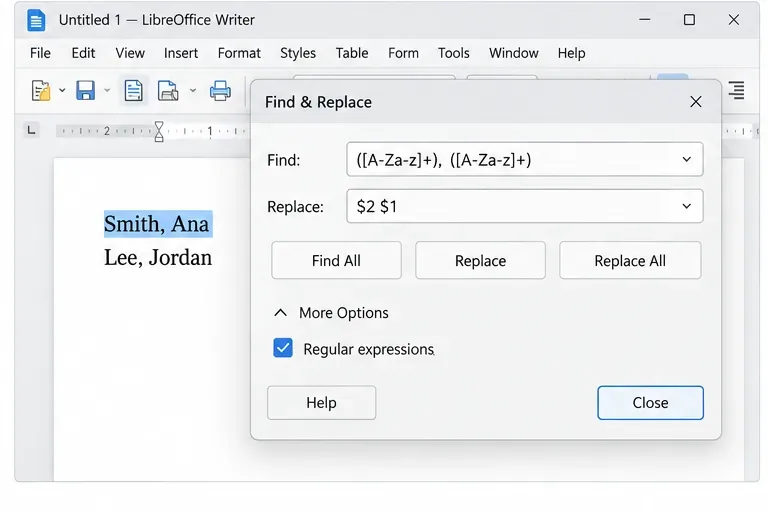
Clean spacing, find structured text, and rearrange names with Writer regex patterns you can preview before replacing.
Imagine zipping through your daily tasks on Windows 11 without the usual hassle. That's the magic of Windows 11 secret menu shortcuts – those tucked-away features that transform your PC from ordinary to extraordinary. Whether you're a tech newbie or a seasoned user, these hidden tools can save you time, reduce frustration, and make computing feel effortless. In this guide, we'll dive straight into the essentials, showing you exactly how to use Windows 11 secret menu shortcuts to supercharge your workflow. Ready to uncover the secrets? Let's get started! 🚀
Windows 11 secret menu shortcuts refer to lesser-known keyboard combinations, hidden folders, and menu tweaks that access advanced settings and tools not immediately visible in the standard interface. Microsoft has packed Windows 11 with these gems to empower power users, but they're often overlooked. Why bother? They streamline everything from file management to system tweaks, cutting down on clicks and boosting efficiency.
Picture this: instead of digging through menus for network settings, you summon them instantly. These shortcuts aren't just convenient – they're a game-changer for productivity, especially in a fast-paced world where every second counts. And the best part? They're built right into the latest Windows 11 updates, ensuring compatibility with the newest features like Snap Layouts and Widgets.
Let's jump into the action. We'll cover the most practical secret menu shortcuts, with clear steps to implement them. No fluff – just actionable advice to get you up and running quickly.
God Mode is the ultimate Windows 11 secret menu shortcut, bundling over 200 system settings into a single folder. It's like having a master key to every tweak imaginable – from display options to administrative tools.
How to Use It:
GodMode.{ED7BA470-8E54-465E-825C-99712043E01C}. (Copy-paste this exactly!)Pro Tip: Use God Mode for quick access to hidden features like power options or credential management. It's especially handy for troubleshooting without scouring Settings. Feeling empowered already? Keep reading for more hidden delights.

The Windows 11 secret menu shortcut for the Quick Access menu (Win + X) is your fast lane to power-user tools. It's evolved in recent updates to include even more options, like quick links to Device Manager and Mobility Center.
How to Use It:
This shortcut shines during multitasking – need to check disk usage? One combo away. It's a subtle but powerful way to feel in total control of your Windows 11 environment.
Windows 11's Start Menu has secret layers waiting to be unlocked. Forget the simplified design; these secret menu shortcuts reveal pinned apps, recent files, and search prowess.
How to Use Them:
| Shortcut | What It Does | Why It's Useful |
|---|---|---|
| Win Key | Opens Start Menu with search focus | Instant app launching – type to find anything fast |
| Win + I | Jumps to Settings | Quick tweaks without menu hunting |
| Win + Period (.) | Opens Emoji Panel | Add flair to messages effortlessly 😊 |
| Drag to Pin | Right-click apps in Start to pin/unpin | Personalize for daily workflow speed |
These aren't just shortcuts; they're your daily efficiency boosters. Experiment with pinning folders directly to Start for even quicker access – your future self will thank you!
File Explorer in Windows 11 hides powerful secret menu shortcuts for managing files without the clutter. Unlock Quick Access, hidden items, and ribbon tools for seamless organization.
How to Use Them:
shell:quickaccess in the address bar for a customizable favorites hub.Bonus: Create a secret folder shortcut by right-clicking and selecting "Send to > Desktop (create shortcut)." It's perfect for burying sensitive files while keeping them handy. These tips turn File Explorer from basic to brilliant.
Dive deeper with these Windows 11 secret menu shortcuts that handle multitasking like a dream:
Integrate these into your routine, and you'll notice a smoother, more intuitive Windows 11 experience. Feeling the productivity surge? There's more to explore.
To truly master these features, practice them daily. Start small: set reminders to use Win + X during work sessions. Customize via Settings > Personalization > Taskbar for tailored shortcuts. For safety, back up your system before deep tweaks like God Mode edits.
If you're on the latest Windows 11 build (as of 2026), these shortcuts align perfectly with enhancements like improved search and AI integrations. Stuck? Microsoft's official support has you covered – check their guides for verified steps.
For more depth on customizing shortcuts, visit Microsoft's Keyboard Shortcuts page. It's a goldmine of official tips.
There you have it – your roadmap to harnessing Windows 11 secret menu shortcuts for a faster, frustration-free setup. From God Mode's vast library to Quick Access's speedy summons, these tools are designed to make your digital life brighter and more efficient. Start experimenting now, and watch your productivity soar. What's your favorite shortcut? Share in the comments below – let's build a community of Windows 11 wizards! 👏
Stay tuned for more guides on hidden OS features. Your journey to tech mastery is just beginning.
Clean spacing, find structured text, and rearrange names with Writer regex patterns you can preview before replacing.
Enable Writer’s bidirectional controls, set RTL paragraph flow, and check mixed Arabic or Hebrew text without disrupting English words and numbers.
Install metric-compatible Linux fonts or map LibreOffice fallbacks, while keeping Microsoft font licensing and layout differences in view.
Add usable text fields, check boxes, and drop-downs in Writer, then export a PDF recipients can complete and save.
Fix missing or substituted fonts in LibreOffice Writer PDFs, choose the right export profile, and verify which fonts are embedded before sharing.
Convert a folder of Word documents to PDF with LibreOffice commands, handle nested folders safely, and verify the output before sharing.
Set a custom LibreOffice Writer template as the default so new documents open with your preferred styles and page layout.
Install a compatible Java runtime, enable it in LibreOffice, and troubleshoot an empty JRE list without changing unrelated settings.
Build a small LibreOffice container, convert office documents without a GUI, and verify PDF output while limiting host-file access.
Reduce oversized LibreOffice presentation files by compressing embedded photos, choosing sensible image settings, and checking slide quality before sharing.








