Install Chrome on Gooroom OS Without Changing Its Policies
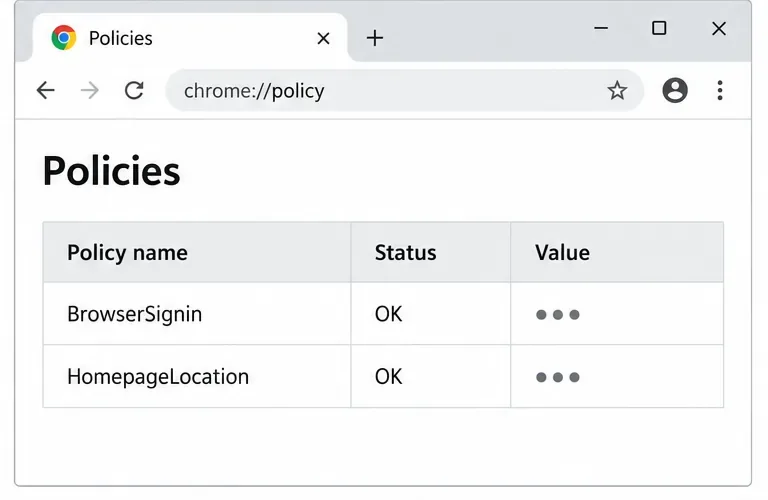
Install the official Chrome package safely on Gooroom OS, check compatibility, preserve device controls, and verify browser policies before use.
Imagine your Windows 11 PC running smoother, your battery lasting longer, and those resource-hungry apps no longer slowing you down. That's the power of Efficiency Mode in Windows 11 Task Manager. This hidden gem is designed to help you reclaim control over your system's resources, making it a must-have tool for gamers, professionals, and everyday users alike. In this guide, we'll dive straight into how to use Windows 11 Task Manager Efficiency Mode effectively, with practical steps and insider tips to supercharge your workflow. Ready to boost your PC's efficiency? Let's get started! 😊
Efficiency Mode is a smart feature introduced in the latest Windows 11 updates to limit the CPU and memory usage of background processes and apps. It prioritizes your active tasks by throttling non-essential ones, reducing power consumption and heat generation. Think of it as a traffic cop for your system's resources—directing energy where it matters most.
Why does this matter? In a world of multitasking, apps like browsers with dozens of tabs or background sync tools can hog resources, leading to lag and shorter battery life on laptops. Activating Efficiency Mode can improve overall performance by up to 20-30% in resource-intensive scenarios, based on Microsoft's own testing. It's especially useful for hybrid work setups or gaming sessions where every bit of efficiency counts.

Getting started with Windows 11 Task Manager Efficiency Mode is straightforward. No need for third-party tools—just your built-in Task Manager. Follow these simple steps to locate and activate it:
Pro Tip: For a broader view, switch to the "Details" tab. Here, you can apply Efficiency Mode to system-level processes too, but be cautious with critical ones like explorer.exe to avoid unintended glitches.
Simply toggling Efficiency Mode is a great start, but to truly master it, integrate these strategies into your daily routine. We'll keep it focused on actionable advice to help you maintain peak Windows 11 performance.
Remember, Efficiency Mode isn't a kill switch—processes still run, just with reduced priority. If an app feels sluggish, simply disable it by right-clicking again. This balance keeps your system responsive without sacrificing functionality.
Even with the best tools, pitfalls happen. Here's how to sidestep them and keep your Windows 11 Task Manager workflow smooth:
| Common Issue | Why It Happens | Quick Fix |
|---|---|---|
| Efficiency Mode Not Available | Outdated Windows version or app incompatibility. | Update Windows via Settings > Update & Security. Ensure you're on the latest build for full Efficiency Mode support. |
| App Performance Drops Too Much | Over-throttling essential tasks. | Disable for foreground apps only. Use Task Manager's "Set priority" option for fine-tuning instead. |
| No Noticeable Improvement | Few resource-intensive processes. | Close unnecessary startups via the Startup tab. Combine with Efficiency Mode for compounded gains. |
If issues persist, restart Task Manager or your PC. For deeper insights, check Microsoft's official documentation on Task Manager features.
By now, you see how Windows 11 Task Manager Efficiency Mode transforms everyday computing. It's not just about speed—it's about sustainability. Reduce your PC's energy footprint while enjoying snappier responses, and feel that satisfying sense of control over your digital life. Whether you're editing videos, browsing endlessly, or just keeping things running smoothly, this feature empowers you to do more with less.
Curious for more? Experiment with combining Efficiency Mode with Windows 11's other optimizations, like power plans or storage sense, to create an ultra-efficient setup. Your future self (and battery) will thank you. What's your first process to optimize? Share in the comments below—we'd love to hear how it boosts your day! 👏
For the latest on Windows features, stay tuned to official sources like Microsoft's Windows 11 page. Happy optimizing!
Install the official Chrome package safely on Gooroom OS, check compatibility, preserve device controls, and verify browser policies before use.
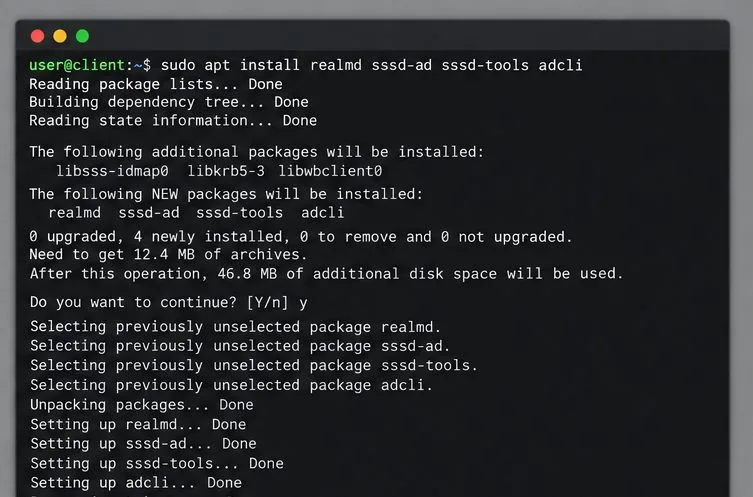
Prepare DNS and time, enroll Pardus with realmd and SSSD, and verify domain membership and user lookup before relying on AD sign-in.
Reduce horizontal tearing in Pardus XFCE by checking your display session, enabling compositor synchronization, and applying Intel’s Xorg TearFree option only when the active driver supports it.
Add an OpenVPN profile to NetworkManager on Pardus, install the right plugin, protect credentials, and verify the VPN is active.
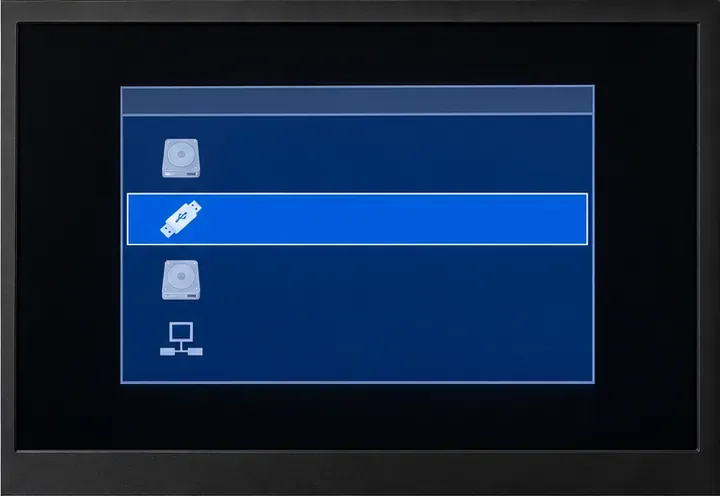
Prepare a bootable USB, check 64-bit hardware compatibility, and install Pardus 23 XFCE while protecting existing files and avoiding common legacy BIOS pitfalls.
Distribute a custom wallpaper to Pardus clients, configure Xfce or GNOME desktops, and apply Lider Ahenk user policies with safe pilot checks.
Fix a 1024 × 768 ceiling by checking SPICE, virtual video, the guest channel, and spice-vdagent—with safe checks when Pardus lacks a package candidate.
Set up the Lider server, configure its installer safely, register Ahenk endpoints, and verify a pilot before expanding central management.
Download the official Pardus 23 desktop ISO, write it safely with Rufus, and boot a Windows PC into a temporary Live session.
Find out why Pardus 23 cannot detect your sound card, then use targeted ALSA, firmware, and PipeWire or PulseAudio checks to restore playback.