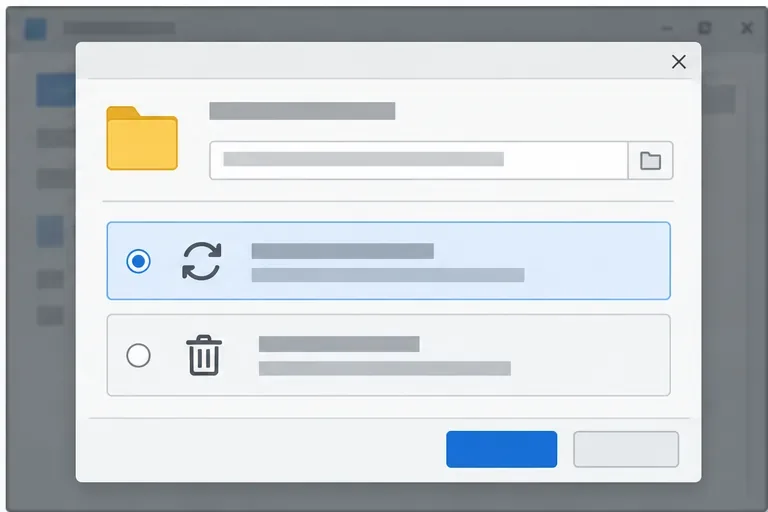
LibreOffice Document Locked by Unknown User: A Safe Fix
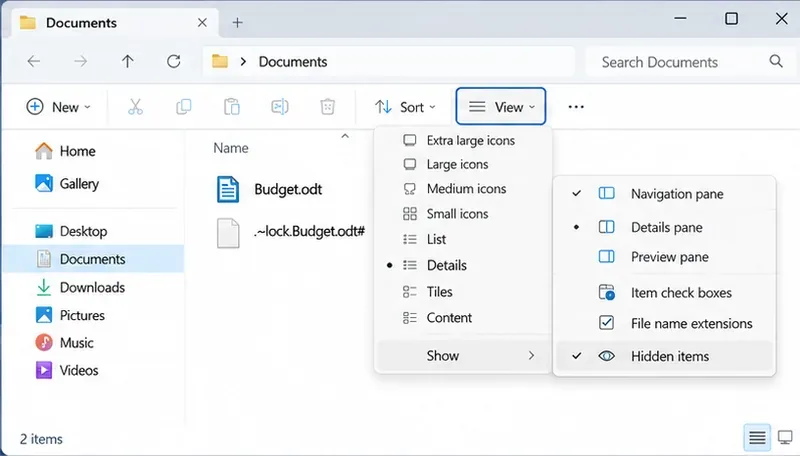
Find the cause of a LibreOffice document lock, safely clear a stale lock file, and confirm that you can edit and save without losing changes.
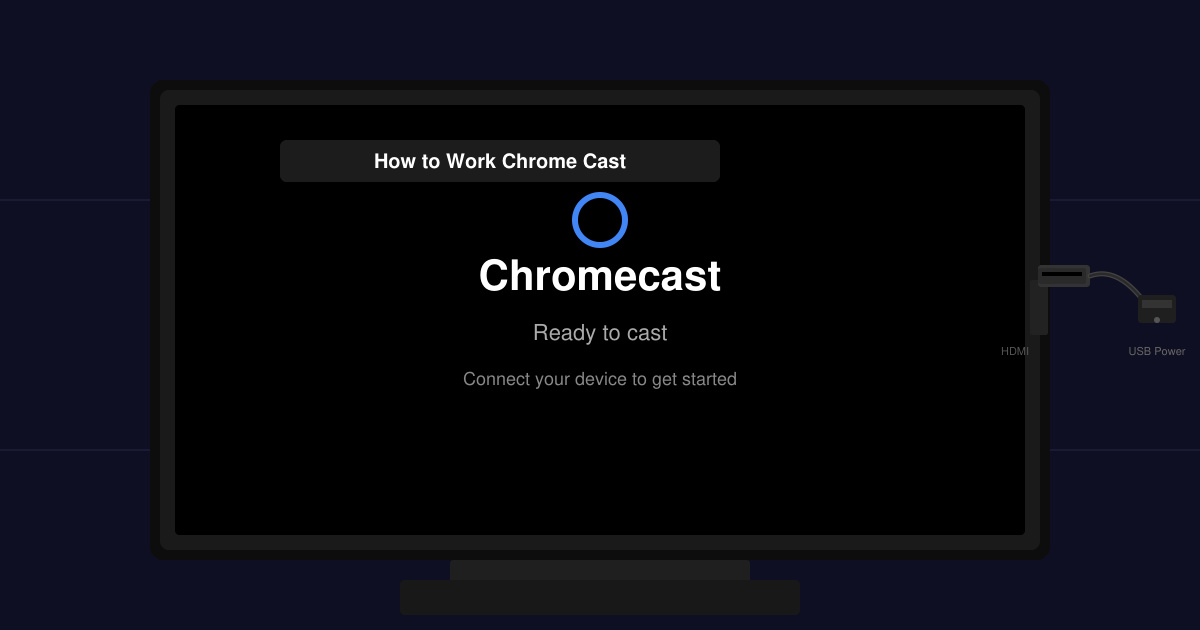
Before any software steps, the physical connection must be correct. Plug the Chromecast dongle into an open HDMI port on your television. Connect the USB power cable from the dongle to the included power adapter or a USB port on the TV itself. Turn the television on and switch the input to the HDMI port where the device is inserted. You should see a setup screen appear after a short boot sequence.
Open the App Store on an iPhone or Google Play Store on an Android phone. Search for Google Home, then tap Install. Once the app finishes downloading, open it and sign in with your Google account. The app will automatically scan for nearby Chromecast devices on the same Wi-Fi network.
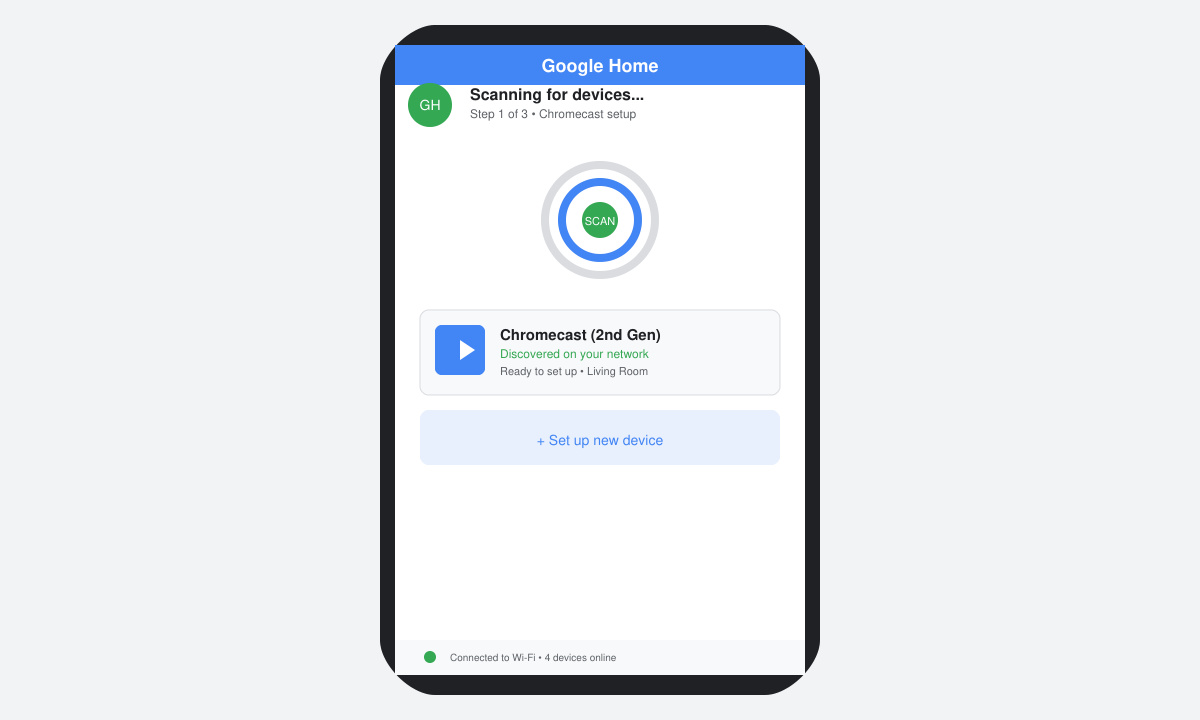
When the app detects your Chromecast, select it and follow the prompts to name the device and choose your home Wi-Fi network. Enter the Wi-Fi password when asked. The Chromecast will download the latest firmware and restart. Confirm the code shown on your TV matches the one displayed in the app to finish pairing.
Open a supported app such as YouTube, Netflix, or Spotify. Look for the cast icon that resembles a rectangle with Wi-Fi waves in the corner. Tap the icon, select your named Chromecast device, and the content will begin playing on the television while your phone acts as a remote. To cast a browser tab from a computer, open Chrome, click the three-dot menu, choose Cast, and select the device.
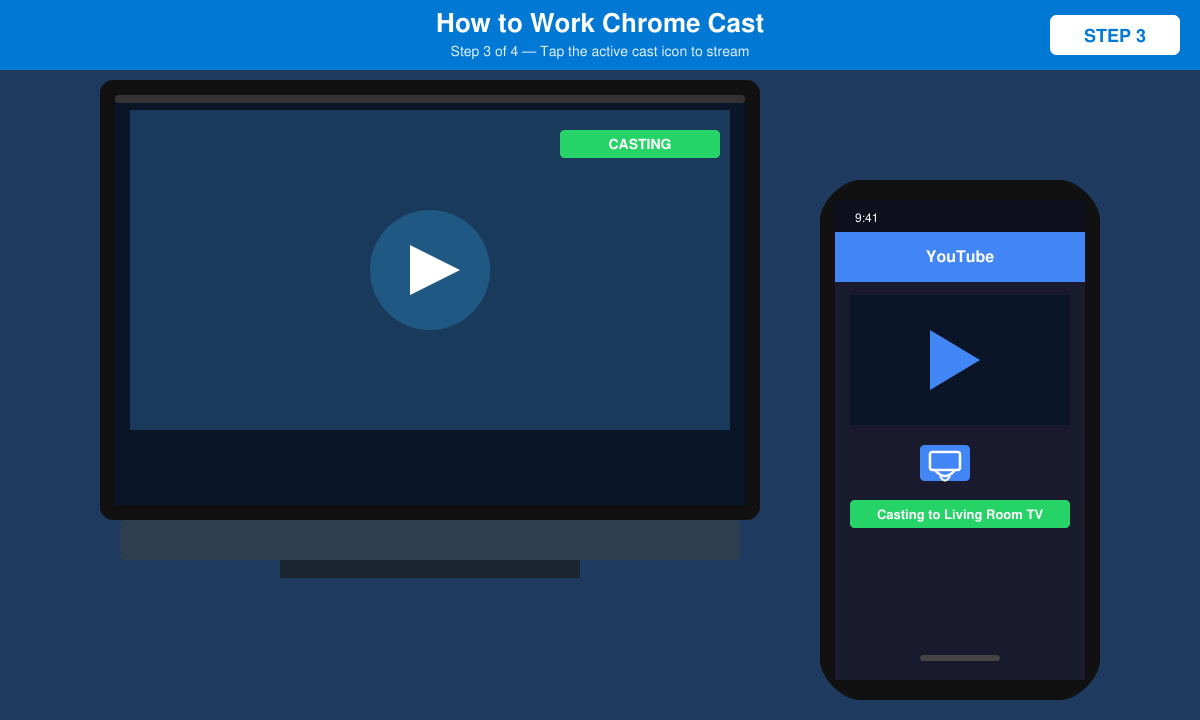
Tap the cast icon again inside the app or browser and choose Stop Casting. The television will return to its previous input or home screen. The Chromecast stays connected to Wi-Fi and ready for the next session without repeating the full setup.
If the device does not appear in the Google Home app, restart both your router and television, then ensure your phone is connected to the same 2.4 GHz or 5 GHz Wi-Fi network. Poor video quality usually results from weak Wi-Fi signal; move the router closer or use a Wi-Fi extender. When the Chromecast overheats, it may disconnect; provide better ventilation around the dongle and avoid covering it with the TV cabinet. Factory reset by pressing the button on the Chromecast for ten seconds if the device becomes unresponsive.
No. The Google Home app is required for initial setup and network configuration on all current Chromecast models.
Yes. The Google Home app and casting features are fully supported on both iOS and Android devices.
Most drop issues trace back to Wi-Fi interference or outdated firmware. Restart the router, update the Chromecast through the Google Home app, and keep the phone near the TV during streaming.
Once you complete the steps above, you will know precisely how to work Chrome Cast and enjoy wireless streaming on any HDMI television.
Find the cause of a LibreOffice document lock, safely clear a stale lock file, and confirm that you can edit and save without losing changes.
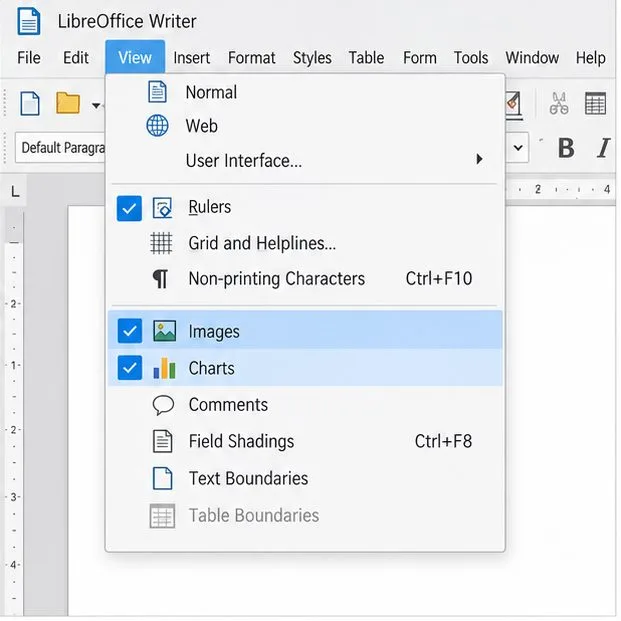
Make image-heavy Writer files easier to edit: test a reversible display setting, compress oversized pictures in a copy, and verify the saved layout.
Find out whether a slow launch comes from extensions, profile settings, or the system, then test the safest fix without losing LibreOffice data.
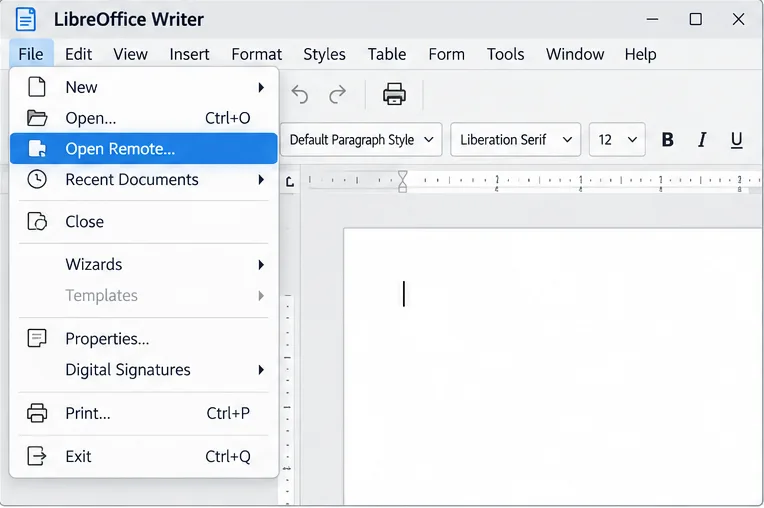
Connect LibreOffice to Nextcloud over WebDAV, save the server copy with Ctrl+S, and understand how AutoRecovery differs from cloud syncing.
Find out whether Pardus 23 is blocking Bluetooth, missing BlueZ, or failing to detect adapter firmware, then confirm the controller works.
Learn how Gooroom separates trusted and untrusted browsing, what users can change, and how an administrator can safely update site policies.
Diagnose rotated, offset, or inconsistent touch input on a Harmonica OS tablet and choose a Linux calibration method that fits its session and driver.
Switch Gooroom’s desktop session to English, verify the locale, and identify when untranslated Korean labels need an app update instead.
Arrange Pardus XFCE as a familiar bottom taskbar with an app menu, pinned launchers, open-window buttons, and a system tray.
Check your Gooroom release and administrator rules, then follow the official Debian-based setup path for Flatpak or Snap without bypassing system controls.