Bluetooth Adapter Missing on Pardus 23? Start with These Checks

Find out whether Pardus 23 is blocking Bluetooth, missing BlueZ, or failing to detect adapter firmware, then confirm the controller works.
Zooming out becomes useful when a webpage cuts off text, a spreadsheet hides columns, or a map shows too little area. Most operating systems and apps support the same core shortcuts, but the exact menu paths differ by platform. Confirm your device type first, then follow the matching steps below.
Prerequisites include using an updated browser or operating system, as older versions may lack certain gesture support. No extra software is required in most cases.
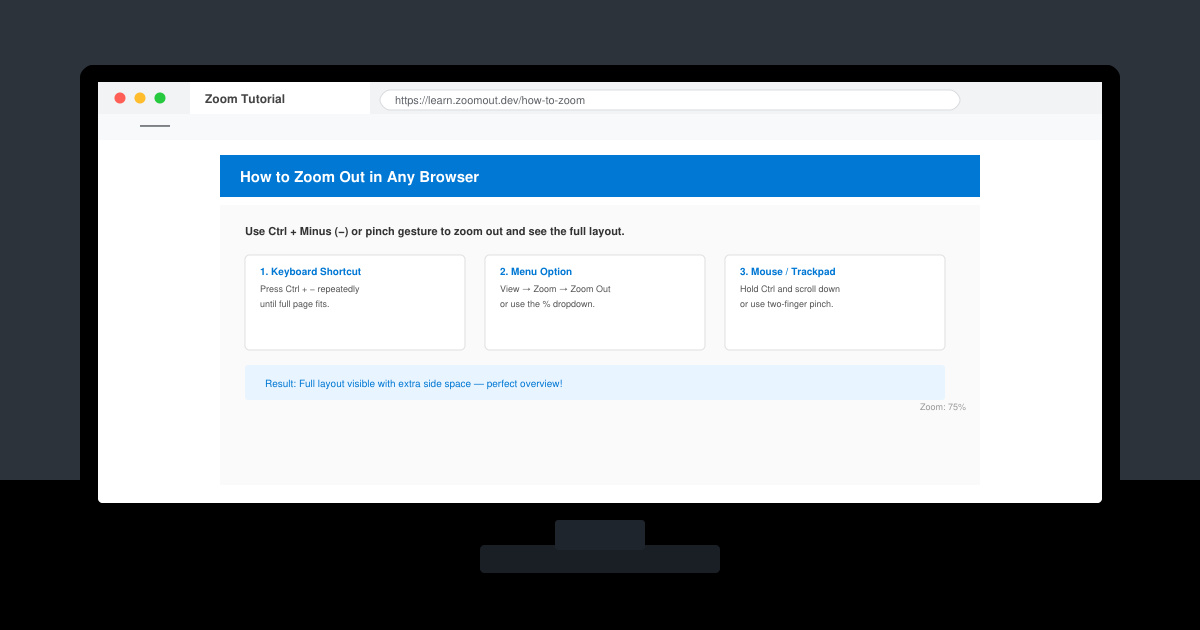
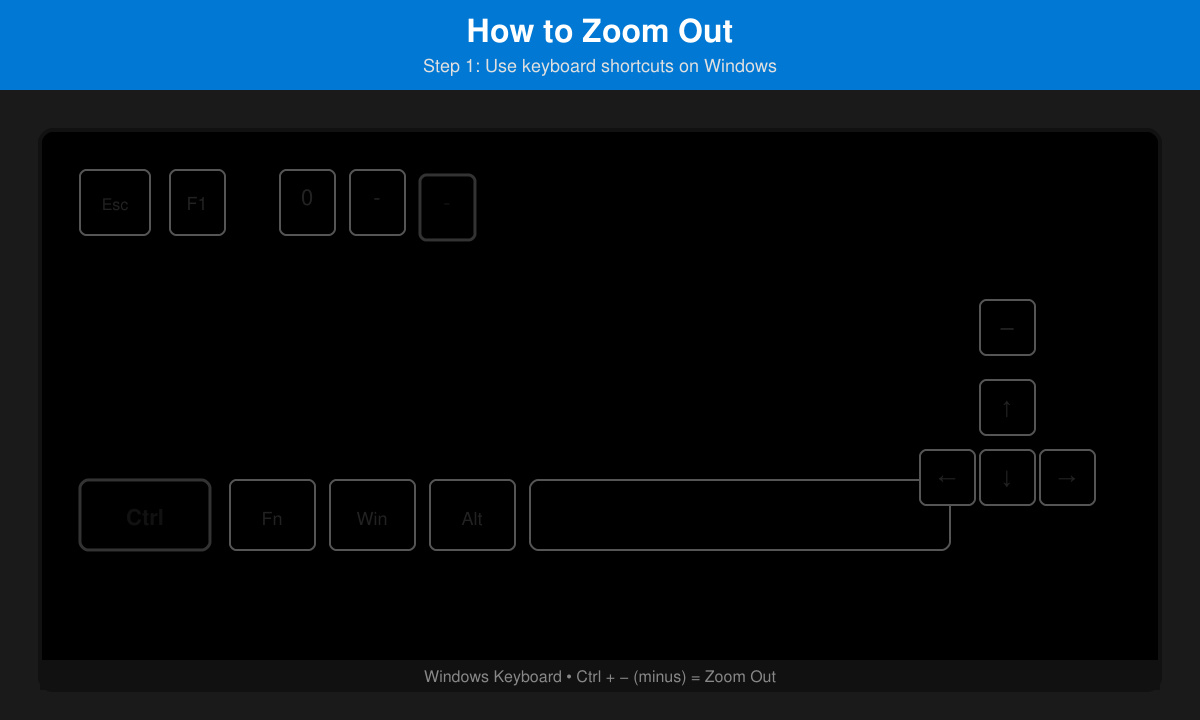
Press and hold the Ctrl key, then tap the minus key (-) repeatedly until the content reaches your preferred size. Release both keys to stop. This works in Chrome, Edge, Firefox, and most Windows apps like File Explorer and Word.
Hold the Command key and press the minus key (-) until the view shrinks. The change applies immediately in Safari, Chrome, Preview, and Finder windows. You can also go to the View menu at the top of the screen and select Zoom Out.
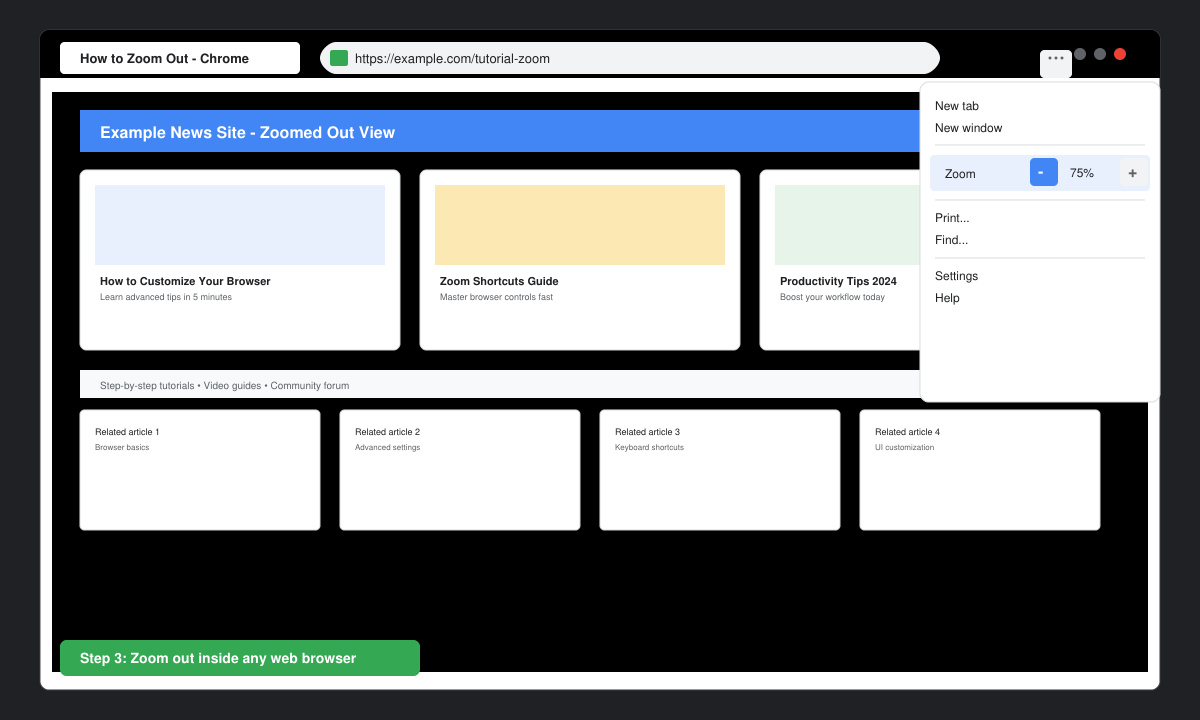
Click the three-dot menu in Chrome or Edge, hover over the Zoom section, then click the minus icon. In Firefox, open the menu and select the minus button next to the current zoom percentage. Repeat until the page fits your needs.
Pinch two fingers together on the screen while viewing a webpage or photo. If using an accessibility shortcut, go to Settings > Accessibility > Magnification and toggle it off or use the three-finger pinch gesture. On iOS, double-tap with three fingers and drag down to reduce magnification.
Yes. In Chrome or Edge, open Settings > Appearance > Zoom and choose a default percentage. This applies until you change it again.
Most programs follow the Ctrl/Command + minus pattern, but some design apps use different keys. Check the View menu if shortcuts fail.
No. Zoom level only changes the on-screen display. Print settings remain independent and use the document's original resolution.
Mastering How to Zoom Out across your devices takes only a few practiced shortcuts and menu clicks. Apply the method that matches your current screen to regain full visibility instantly.
Find out whether Pardus 23 is blocking Bluetooth, missing BlueZ, or failing to detect adapter firmware, then confirm the controller works.
Learn how Gooroom separates trusted and untrusted browsing, what users can change, and how an administrator can safely update site policies.
Diagnose rotated, offset, or inconsistent touch input on a Harmonica OS tablet and choose a Linux calibration method that fits its session and driver.
Switch Gooroom’s desktop session to English, verify the locale, and identify when untranslated Korean labels need an app update instead.
Arrange Pardus XFCE as a familiar bottom taskbar with an app menu, pinned launchers, open-window buttons, and a system tray.
Check your Gooroom release and administrator rules, then follow the official Debian-based setup path for Flatpak or Snap without bypassing system controls.
Learn what Pardus Image Writer can do, how to prepare installation USB safely, and which tools fit custom live images or repeatable fleet deployments.
Install Pardus alongside Windows 11 by shrinking the Windows volume, using unallocated space, and preserving the existing EFI System Partition.
Identify the RTL8821CE, install Pardus-supported Realtek firmware, and verify the driver, Wi-Fi scan, and next troubleshooting step.
Use Pardus’s hardware-aware installer to enable the right NVIDIA driver, reboot safely, and verify the active kernel module.