Bluetooth Adapter Missing on Pardus 23? Start with These Checks

Find out whether Pardus 23 is blocking Bluetooth, missing BlueZ, or failing to detect adapter firmware, then confirm the controller works.
Make sure your keyboard and mouse are connected and working. The methods below apply to most applications, but some programs like image editors may override system shortcuts. Test the keyboard combination first before changing any system preferences.
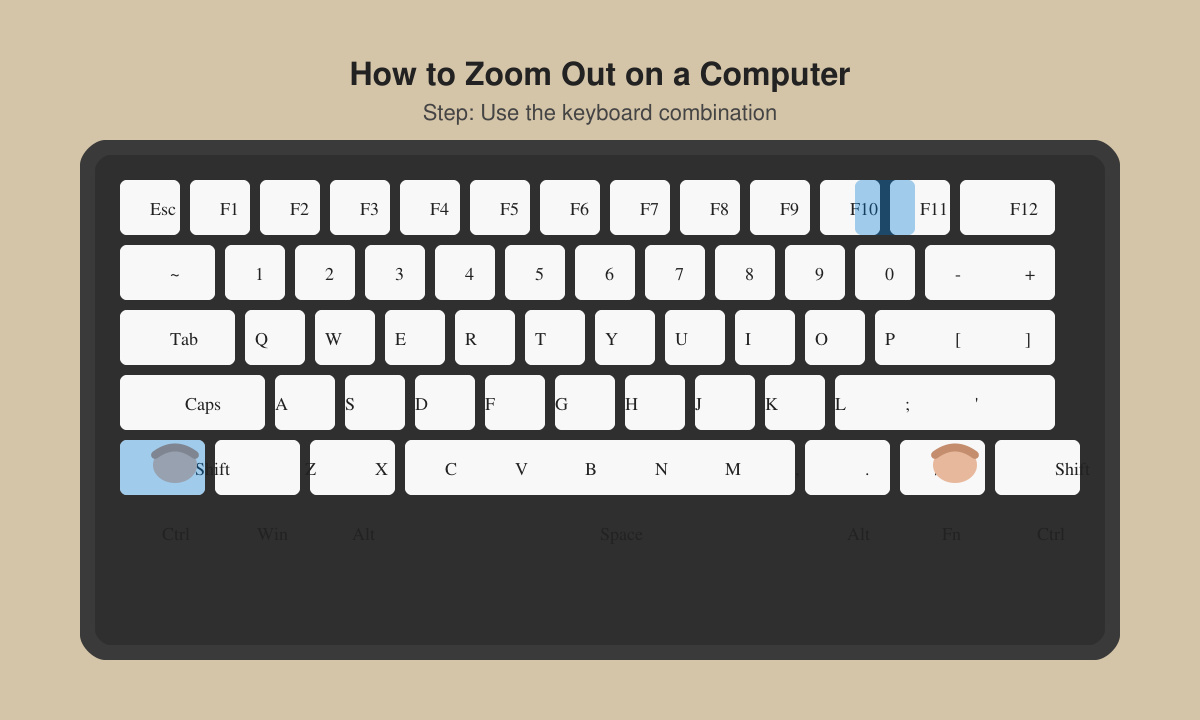
Hold the Ctrl key on Windows or the Command key on Mac, then press the minus (-) key once. Repeat the press to zoom out further in 10-15 percent increments. This shortcut works inside Chrome, Edge, Firefox, Word, Excel, and most desktop apps.
Hold Ctrl (Windows) or Command (Mac) and scroll the mouse wheel downward. Each notch zooms the current window out by one level. Release the modifier key when the view reaches the desired size.
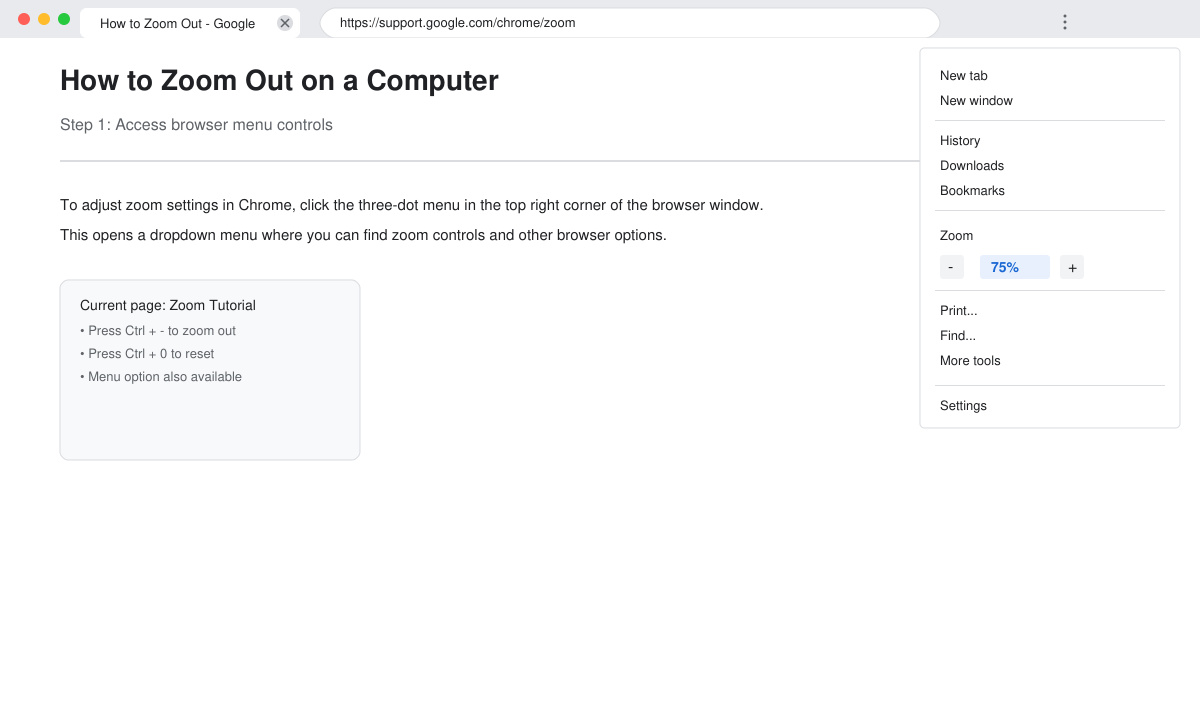
In Chrome or Edge, click the three-dot menu in the top right, then click the minus icon next to the zoom percentage. Continue clicking until the page reaches 75 percent or lower. The same menu exists in Firefox under the three-line hamburger icon.
On Windows, right-click the desktop, choose Display settings, then move the Scale slider left to 100 percent. On Mac, go to System Settings > Displays and select a lower resolution from the Scaled options. These changes affect the entire screen rather than single windows.
Most programs respect the Ctrl/Command + minus shortcut, but some games and specialized software use their own zoom controls inside the app menu.
Yes. Keyboard and browser menu methods affect only the active window or tab, while display scaling settings change the entire computer screen.
Browser zoom is stored per site and resets if cookies are cleared. System scaling stays permanent until you change it again in settings.
Mastering how to zoom out on a computer takes only a few seconds once you memorize the keyboard shortcuts or menu locations.
Find out whether Pardus 23 is blocking Bluetooth, missing BlueZ, or failing to detect adapter firmware, then confirm the controller works.
Learn how Gooroom separates trusted and untrusted browsing, what users can change, and how an administrator can safely update site policies.
Diagnose rotated, offset, or inconsistent touch input on a Harmonica OS tablet and choose a Linux calibration method that fits its session and driver.
Switch Gooroom’s desktop session to English, verify the locale, and identify when untranslated Korean labels need an app update instead.
Arrange Pardus XFCE as a familiar bottom taskbar with an app menu, pinned launchers, open-window buttons, and a system tray.
Check your Gooroom release and administrator rules, then follow the official Debian-based setup path for Flatpak or Snap without bypassing system controls.
Learn what Pardus Image Writer can do, how to prepare installation USB safely, and which tools fit custom live images or repeatable fleet deployments.
Install Pardus alongside Windows 11 by shrinking the Windows volume, using unallocated space, and preserving the existing EFI System Partition.
Identify the RTL8821CE, install Pardus-supported Realtek firmware, and verify the driver, Wi-Fi scan, and next troubleshooting step.
Use Pardus’s hardware-aware installer to enable the right NVIDIA driver, reboot safely, and verify the active kernel module.