Set Up a Windows-Style XFCE Panel on Pardus Linux

Arrange Pardus XFCE as a familiar bottom taskbar with an app menu, pinned launchers, open-window buttons, and a system tray.
Illustrative example: A small design team uses Gooroom on a workstation where one approved desktop app is available as a Flatpak and a vendor utility is offered as a Snap. Before installing either, confirm the OS release and ask the administrator whether third-party app sources and background package services are allowed. Gooroom-specific support is not verified for every release, so the Debian instructions below apply only when the installed build and its policy permit APT changes.
“Gooroom is Debian-based, so every Debian command will work” is an unsafe assumption. Debian compatibility can make an APT package available, but it does not prove that a particular Gooroom image has the same repositories, service setup, desktop integration, or permission to add outside sources. The Gooroom project’s official source organization publishes platform components, but the public information reviewed here did not provide a current support matrix confirming Flatpak and Snap for every Gooroom release.
In the example, the IT administrator first checks whether the workstation is managed and whether adding Flathub or enabling snapd is allowed. Do not work around an APT error, endpoint policy, or disabled service by editing protected repository files, disabling security controls, or installing downloaded packages manually. On an organization-managed machine, request the approved app and source from its administrator.
On a personal or explicitly approved machine, inspect the system without changing it:
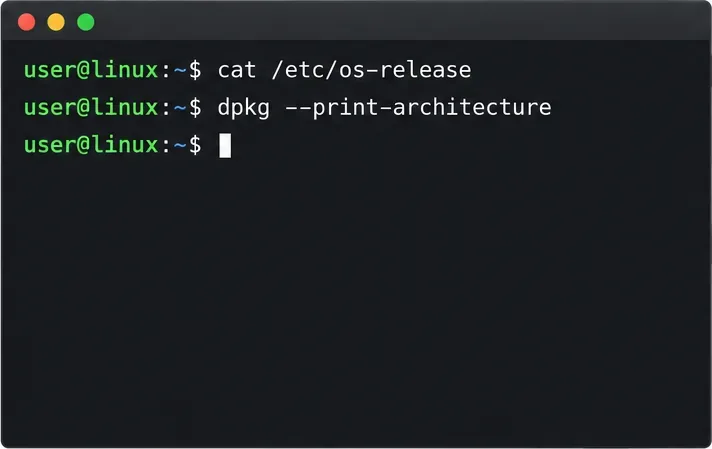
cat /etc/os-release
dpkg --print-architecture
apt-cache policy flatpak snapd
The first command identifies the installed release; the second reports the CPU architecture; the last shows whether APT has package candidates in configured repositories. If the release does not expose an APT-based package setup, or either package has no candidate, stop and check the Gooroom release documentation or administrator instructions instead of adding Debian repositories by guesswork.
Flatpak is a practical first choice when the required app is available there and policy allows a desktop app runtime. Flathub’s Debian setup documents installing flatpak and adding Flathub; these are upstream Debian instructions, not a claim that every Gooroom build certifies them.

sudo apt update
sudo apt install flatpak
Review APT’s proposed changes before accepting them. If it would remove Gooroom packages, change essential components, or pull from an unexpected repository, cancel and ask the administrator.
flatpak remote-add --if-not-exists flathub https://dl.flathub.org/repo/flathub.flatpakrepo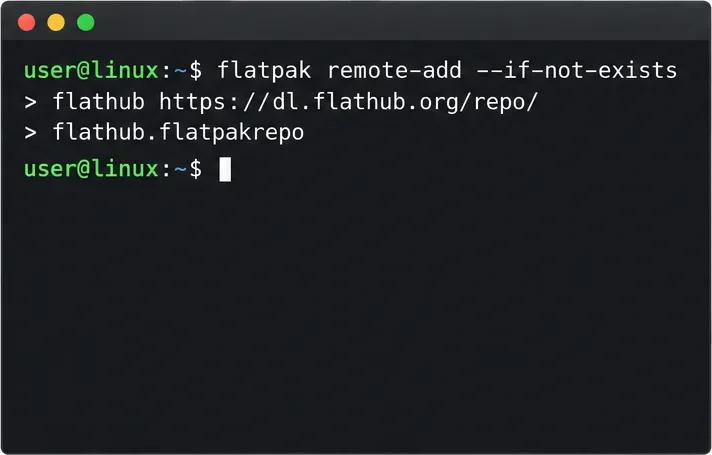
Restart the session or system if the desktop software manager does not discover the source. Find the exact application ID on the approved Flathub listing, then substitute it for APP_ID:
flatpak install flathub APP_IDFlatpak limits some access by default, but app permissions vary. Review file, device, and service permissions instead of treating “sandboxed” as zero host access. See the Flatpak sandbox permissions documentation.
Choose Snap when the needed vendor app is distributed as a Snap and policy permits snapd. Snap adds a system service to manage packages, so it may need separate administrative review on a managed workstation.
Snapcraft’s current Debian instructions install snapd through APT and then require logging out and back in or restarting so paths update. They also document installing the snapd Snap afterward. Follow those steps only if Gooroom’s current package configuration and policy permit that route.
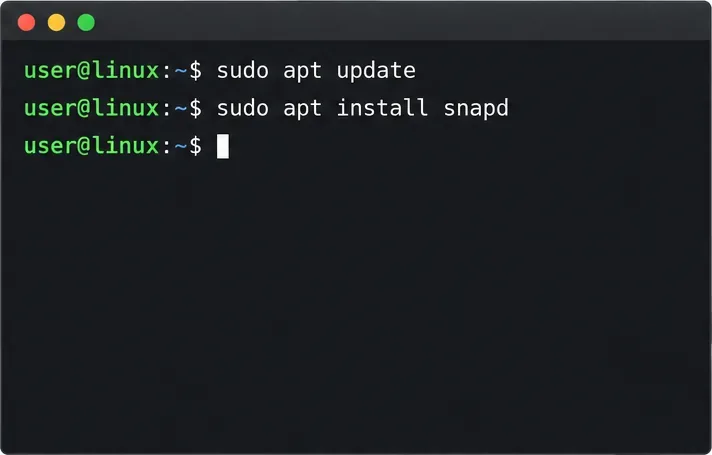
sudo apt update
sudo apt install snapd
Log out and back in or restart. Then follow Snapcraft’s Debian-specific instructions for any follow-up required by that release; do not enable guessed systemd units. If snapd does not start, stop and check compatibility with the administrator. Do not remove package holds or override service restrictions to force it to run.
Install only the needed app using its exact name from the official Snap Store listing:
sudo snap install SNAP_NAMEReplace SNAP_NAME with the package name. Avoid --classic unless the publisher requires classic confinement and an administrator approves its broader access. Snap confinement differs by package, and the format itself does not certify an app against company security requirements.
For the example team, IT might approve Flatpak for the desktop app but decline Snap because adding a background service falls outside policy. There is no need to install both runtimes “just in case.” Prefer an approved source; if neither is allowed, request a packaged alternative through the organization’s software channel.
For Flatpak, verify the remote and app registration, then launch with its application ID:
flatpak remotes --show-details
flatpak list --app
flatpak run APP_ID
For Snap, confirm that the client responds and the app is listed:
snap version
snap list
Launch the app from the desktop menu or use the command documented by its publisher. A listing confirms package registration, not that every feature works under Gooroom’s security policy. Confirm the app opens, test only the permissions it needs, and have IT verify the approved source and update behavior. If a command fails, record the exact error and the Gooroom release shown by /etc/os-release.
Reference procedures: Flathub’s Debian setup, Flatpak’s command reference, and Snapcraft’s Debian installation instructions. Check them again when the OS or package instructions change.
Arrange Pardus XFCE as a familiar bottom taskbar with an app menu, pinned launchers, open-window buttons, and a system tray.
Check your Gooroom release and administrator rules, then follow the official Debian-based setup path for Flatpak or Snap without bypassing system controls.
Learn what Pardus Image Writer can do, how to prepare installation USB safely, and which tools fit custom live images or repeatable fleet deployments.
Install Pardus alongside Windows 11 by shrinking the Windows volume, using unallocated space, and preserving the existing EFI System Partition.
Identify the RTL8821CE, install Pardus-supported Realtek firmware, and verify the driver, Wi-Fi scan, and next troubleshooting step.
Use Pardus’s hardware-aware installer to enable the right NVIDIA driver, reboot safely, and verify the active kernel module.
Install the official Chrome package safely on Gooroom OS, check compatibility, preserve device controls, and verify browser policies before use.
Prepare DNS and time, enroll Pardus with realmd and SSSD, and verify domain membership and user lookup before relying on AD sign-in.
Reduce horizontal tearing in Pardus XFCE by checking your display session, enabling compositor synchronization, and applying Intel’s Xorg TearFree option only when the active driver supports it.
Add an OpenVPN profile to NetworkManager on Pardus, install the right plugin, protect credentials, and verify the VPN is active.