Instructions for taking photos using ChatGPT on computer

The ChatGPT application on your computer allows you to take photos using your device's webcam and add them to the chat box. For example, if you want to find information about a book or a certain image, you can take a photo right away using your computer's webcam. This makes it easy for you to get the information you need. Below are instructions for taking photos using ChatGPT on your computer.

How to take a photo using ChatGPT on your computer

Step 1:

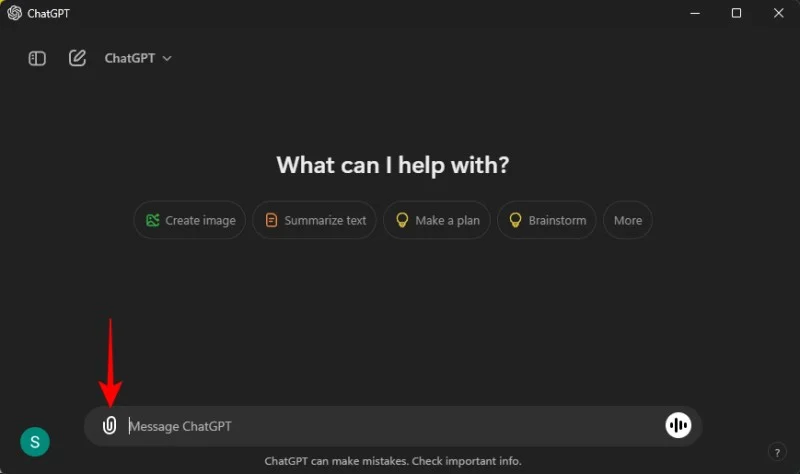
First, users access ChatGPT on Windows. Then you click on the pin icon to upload files to ChatGPT.
Instructions for taking photos using ChatGPT on computer

Step 2:

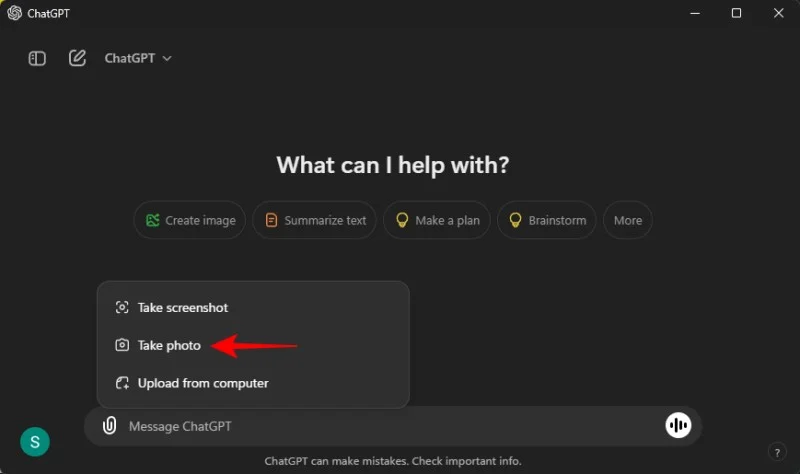
At this time, the user will see the option as shown below, click Take photo to take a photo using ChatGPT on the computer.

Instructions for taking photos using ChatGPT on computer

Step 3:

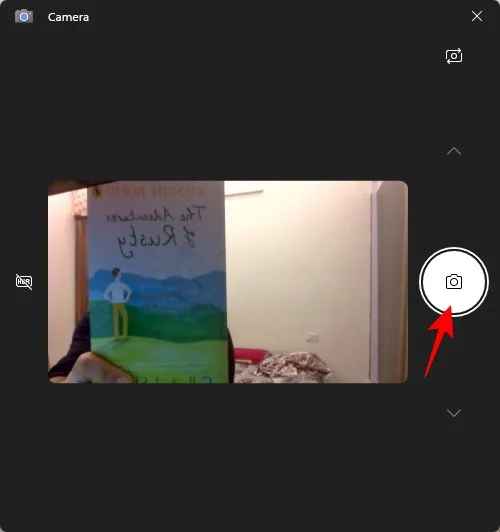
We need to agree to let ChatGPT use the webcam on the computer. Then you just need to point the webcam at the object you want to take a picture of. Click the capture icon to record the image.

Instructions for taking photos using ChatGPT on computer

Step 4:

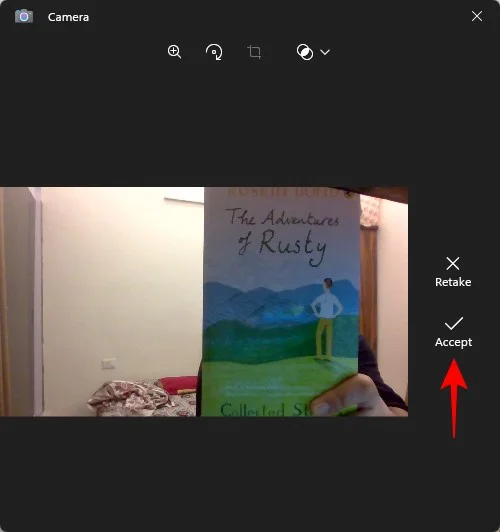
Now click Accept to agree to use this image to upload to ChatGPT.

Instructions for taking photos using ChatGPT on computer

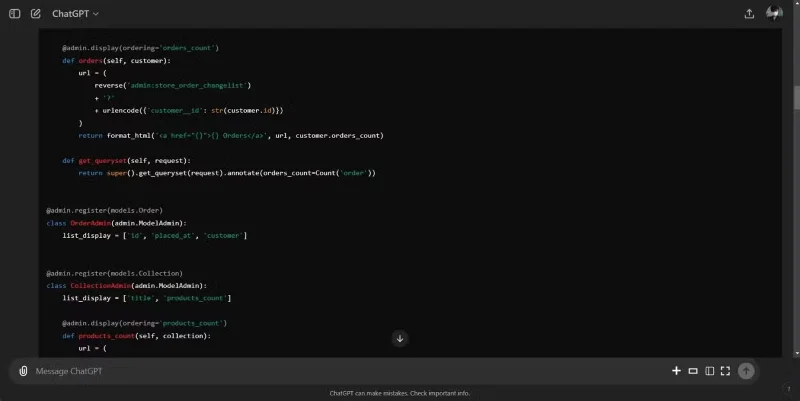
Finally, you enter your request or question in the box below and send it as usual to get a response from ChatGPT.

Instructions for taking photos using ChatGPT on computer

Leave a Comment

Solving Microsoft Edge Core Isolation Not Turning On

Solving Microsoft Edge Core Isolation Not Turning On

Struggling with Microsoft Edge Core Isolation not turning on? Discover step-by-step fixes for Core Isolation issues, including BIOS tweaks, driver updates, and Windows repairs to boost your security instantly.

Troubleshooting Game Bar Party Chat Audio Not Working

Troubleshooting Game Bar Party Chat Audio Not Working

Struggling with Game Bar Party Chat audio not working? Discover step-by-step troubleshooting for Xbox Game Bar voice chat issues. Quick fixes for no sound, mic problems, and more on Windows. Get back to gaming!

How to Fix Microsoft Edge Update Error 0x80073712

How to Fix Microsoft Edge Update Error 0x80073712

Struggling with Microsoft Edge Update Error 0x80073712? Discover step-by-step fixes like SFC scan, DISM repair, and Edge reset to resolve it fast. No tech skills needed!

Solving Microsoft Edge Private Connection Warnings

Solving Microsoft Edge Private Connection Warnings

Tired of Microsoft Edge "Private Connection" warnings blocking your browsing? Get step-by-step solutions to solve Microsoft Edge Private Connection errors fast. Secure, updated fixes for seamless surfing.

How to Fix Microsoft Edge Result_Code_Hung Error

How to Fix Microsoft Edge Result_Code_Hung Error

Struggling with Microsoft Edge "Result_Code_Hung" Error? Discover proven, step-by-step fixes to resolve hangs and crashes instantly. Get smooth browsing back today!

How to Delete Microsoft Edge History, Cache, and Cookies Completely

How to Delete Microsoft Edge History, Cache, and Cookies Completely

Learn how to delete Microsoft Edge history, cache, and cookies completely with this step-by-step guide. Clear your browsing data fast and securely in the latest Edge version for ultimate privacy.

Solving Edge Browser Profile Error on Every Launch

Solving Edge Browser Profile Error on Every Launch

Tired of the frustrating Edge Browser "Profile Error" popping up every launch? Follow our step-by-step guide to solving Edge Browser "Profile Error" permanently with quick, reliable fixes for the latest versions. No tech skills needed!

Solving Microsoft Edge Precision Driver Compatibility

Solving Microsoft Edge Precision Driver Compatibility

Tired of Microsoft Edge Precision Driver compatibility glitches? Get step-by-step solutions to restore smooth performance, fix lag, and optimize your setup. Proven fixes for the latest Edge versions.

How to Customize the Microsoft Edge New Tab Page

How to Customize the Microsoft Edge New Tab Page

Discover step-by-step ways to customize the Microsoft Edge new tab page. Personalize shortcuts, backgrounds, content, and more for a tailored browsing experience. Boost productivity today!

How to Fix Microsoft Edge Youtube Error: Black Screen and Lag

How to Fix Microsoft Edge Youtube Error: Black Screen and Lag

Struggling with Microsoft Edge YouTube error like black screen and lag? Discover step-by-step fixes for smooth playback. Clear cache, toggle hardware acceleration, and more – ultimate guide to resolve black screen and lag issues fast.

How to Completely Uninstall Microsoft Edge from Windows 11 in 2026

How to Completely Uninstall Microsoft Edge from Windows 11 in 2026

Master how to completely uninstall Microsoft Edge from Windows 11 in 2026. Step-by-step, no-trace removal for gamers seeking max performance. Say goodbye to bloatware!

How to Reset Microsoft Edge to Default Settings in 2026

How to Reset Microsoft Edge to Default Settings in 2026

Discover how to reset Microsoft Edge to default settings in 2026 effortlessly. Fix crashes, slowdowns, and pop-ups with proven step-by-step methods for a fresh, blazing-fast browser.

Troubleshooting Microsoft Edge Certificate Not Trusted Warnings

Troubleshooting Microsoft Edge Certificate Not Trusted Warnings

Tired of Microsoft Edge "Certificate Not Trusted" warnings blocking your browsing? Discover proven troubleshooting Microsoft Edge "Certificate Not Trusted" warnings steps to resolve SSL errors securely and regain smooth access. Works on latest Edge versions.

Removing Your Microsoft Edge Profile and Personal Data Safely

Removing Your Microsoft Edge Profile and Personal Data Safely

Discover how to safely remove your Microsoft Edge profile and personal data without risks. Our expert guide ensures a clean slate while protecting your important info – perfect for privacy pros!

How to Change Microsoft Edge Home Page and Startup Settings

How to Change Microsoft Edge Home Page and Startup Settings

Discover simple, step-by-step instructions on how to change Microsoft Edge home page and startup settings. Customize your browser for a faster, personalized experience today!