Bluetooth Adapter Missing on Pardus 23? Start with These Checks

Find out whether Pardus 23 is blocking Bluetooth, missing BlueZ, or failing to detect adapter firmware, then confirm the controller works.
Google DNS is currently a popular service used today to increase Internet access speed . With Google DNS, we will increase security when we browse the Internet, especially the feature of preventing fraud through filtering and the ability to access blocked websites.
For a long time, the term DNS has been familiar to Internet users, it is a name resolution system, a system that allows the establishment of correspondence between IP addresses and domain names. That is, DNS will translate a domain name into an IP address for identification on the network system.
Currently, there are many quality DNS for us to choose from, such as Singapore DNS, VNPT DNS, OpenDNS DNS,... in which Google DNS is commonly used. And Google DNS 8.8.8.8 8.8.4.4 is being used by many people. The following article will guide readers on how to change Google DNS 8.8.8.8 8.8.4.4.
Windows 11 : Refer to How to change DNS Server on Windows 11 for more details.
Instructions to change Google DNS 8.8.8.8 and 8.8.4.4 on Windows 10
Step 1:
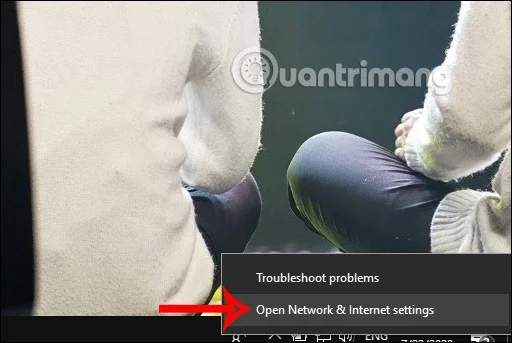
On the computer interface, click on the network connection icon on the Taskbar and select Open Network and Sharing Center .
Step 2:
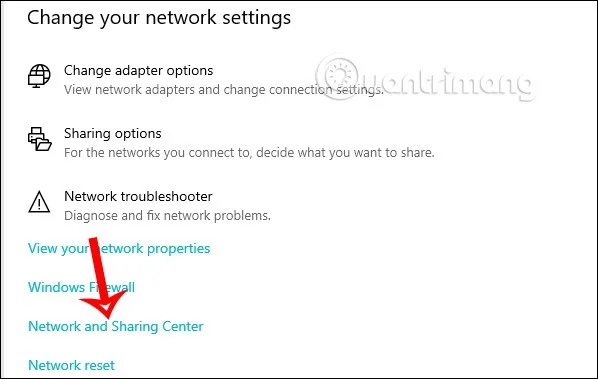
Then display the Network status interface in Windows Settings. Scroll down and click on Network and Sharing Center .
Step 3:
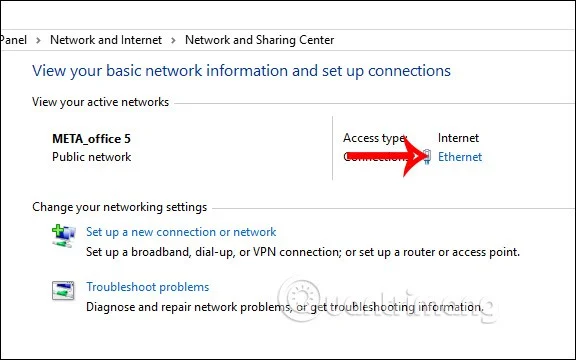
Then we are immediately transferred to the Network and Sharing Center interface. Here you continue to double-click on the network name currently connected on the computer.
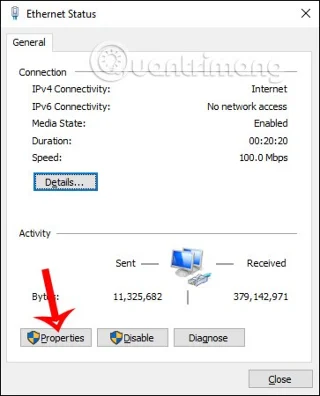
Now the new interface appears, you continue to click on Properties .
Step 4:
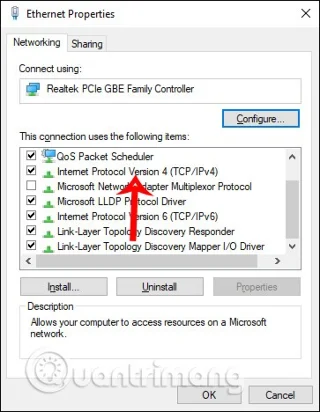
Display the new interface, the user clicks on Internet protocol Version 4(TCP/IPv4) .
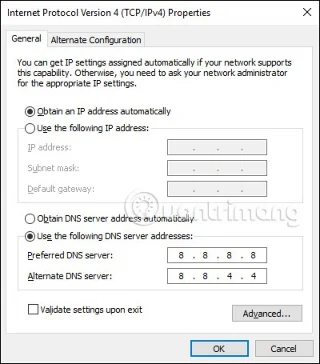
In the Internet protocol Version 4(TCP/IPv4) Properties interface, select Use the following DNS server address , then fill in the corresponding parameters for Google DNS as shown below.
Finally click OK to complete. The network will automatically reload according to the entered Google DNS.
If you are using IPv6 address then select TCP/IPv6 and enter the following 2 values instead of 8.8.8.8 and 8.8.4.4:
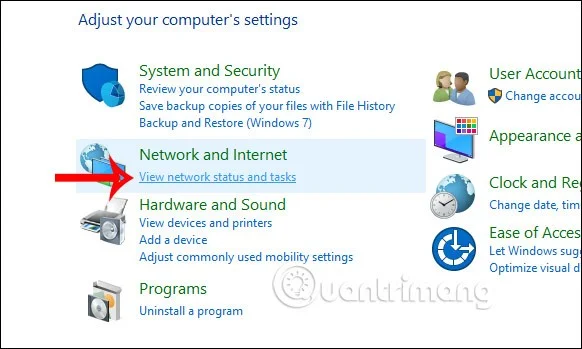
In addition to accessing the network icon on the Taskbar, you can go to Control Panel and click View Network Status and Tasks. Then you also click on the network name and do the same as above.
Instructions to change Google DNS 8.8.8.8 and 8.8.4.4 on Windows 8
Windows 8 users can easily change their DNS server in network settings.
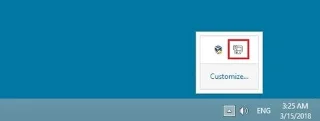
Step 1 : Navigate to Network and Sharing Center . This option can be opened through the Control Panel (Start menu > Control Panel) or through the network connection icon in the taskbar notification panel. Once you have found the icon, right-click on it and select the Open Network and Sharing Center option .
The network connection icon is not always displayed on the Windows taskbar but you can find it by clicking Show hidden symbols .
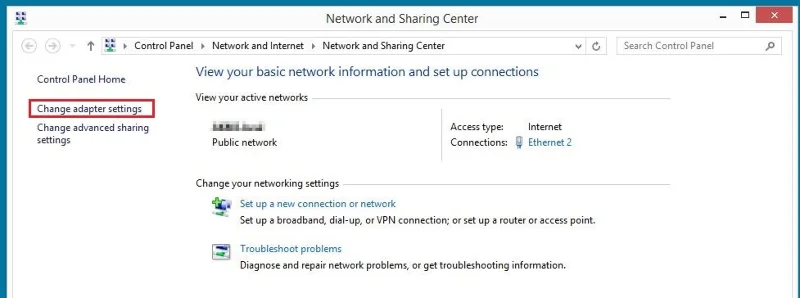
Step 2: Launch the adapter settings by clicking the appropriate button.
Step 3 : Now, right-click on the connection you want to configure and select Properties in the menu that appears.
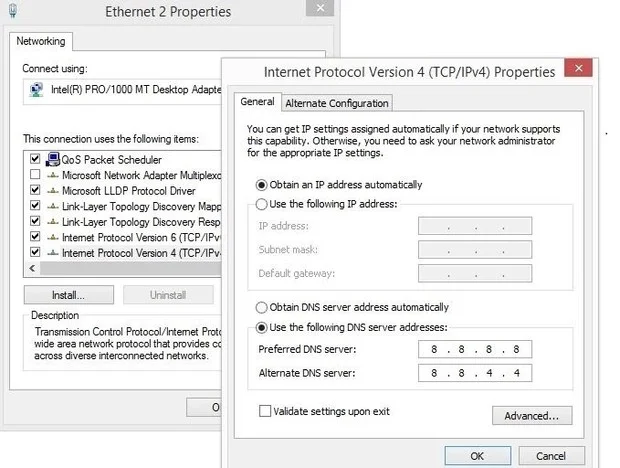
Step 4 : Double-click Internet Protocol Version 4 (TCP/IPv4) to open the Windows 8 DNS server change menu, where you can enter the above addresses for Google's public DNS servers (8.8.8.8 and 8.8.4.4).
This example uses Google addresses to change DNS servers on Windows 8.
Instructions to change Google DNS 8.8.8.8 and 8.8.4.4 on Windows 7
You can change the DNS server on Windows 7 through network connection settings.
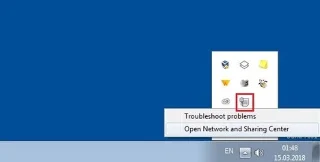
Step 1 : Launch Network and Sharing Center . You can do this either through the Control Panel, where you'll find the corresponding menu item, or by right-clicking on the network connection icon in the notification panel on the taskbar (also known as the system tray) and then clicking Open Network and Sharing Center.
If you can't find an icon for your network connection, you can also open the Network and Sharing Center in Windows 7 via the Control Panel.
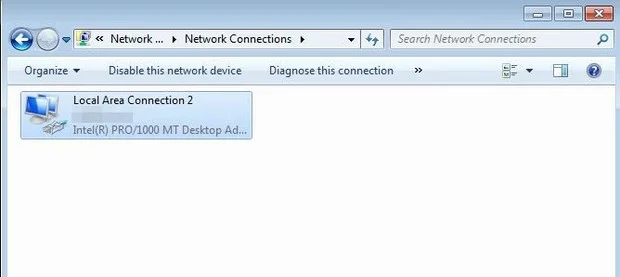
Step 2 : In the next menu, select the Change adapter settings option and then select the connection with the DNS settings you want to change.
Cable and WiFi connections in Windows 7 can be easily distinguished by symbols: Cable connections are represented by a plug, while a signal strength icon is displayed for WiFi connections.
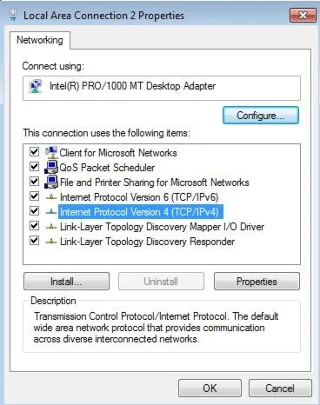
Step 3 : You can open the protocol and service overview for the selected connection by right-clicking, then going to Properties . Find the Internet Protocol Version 4 (TCP/IPv4) entry and double-click to display the menu to change DNS server in Windows 7.
Both IPv4 and IPv6 are enabled by standard on Windows 7. Whether changing DNS settings is worth it depends largely on your router, which should provide the necessary support.
Step 4 : In the final step, enable the Use the following DNS server addresses option and enter both addresses for the public DNS servers:
Preferred DNS server : 8.8.8.8
See also:
Find out whether Pardus 23 is blocking Bluetooth, missing BlueZ, or failing to detect adapter firmware, then confirm the controller works.
Learn how Gooroom separates trusted and untrusted browsing, what users can change, and how an administrator can safely update site policies.
Diagnose rotated, offset, or inconsistent touch input on a Harmonica OS tablet and choose a Linux calibration method that fits its session and driver.
Switch Gooroom’s desktop session to English, verify the locale, and identify when untranslated Korean labels need an app update instead.
Arrange Pardus XFCE as a familiar bottom taskbar with an app menu, pinned launchers, open-window buttons, and a system tray.
Check your Gooroom release and administrator rules, then follow the official Debian-based setup path for Flatpak or Snap without bypassing system controls.
Learn what Pardus Image Writer can do, how to prepare installation USB safely, and which tools fit custom live images or repeatable fleet deployments.
Install Pardus alongside Windows 11 by shrinking the Windows volume, using unallocated space, and preserving the existing EFI System Partition.
Identify the RTL8821CE, install Pardus-supported Realtek firmware, and verify the driver, Wi-Fi scan, and next troubleshooting step.
Use Pardus’s hardware-aware installer to enable the right NVIDIA driver, reboot safely, and verify the active kernel module.








