It can be seen that today, laptops have become one of the most important personal devices for everyone, especially office workers. The yellow laptop screen still often happens to devices that have been used for a long time. This makes users uncomfortable. So what causes the laptop screen to turn yellow? Is there a way to fix this situation quickly and effectively?
1. The laptop screen is yellow due to what causes?
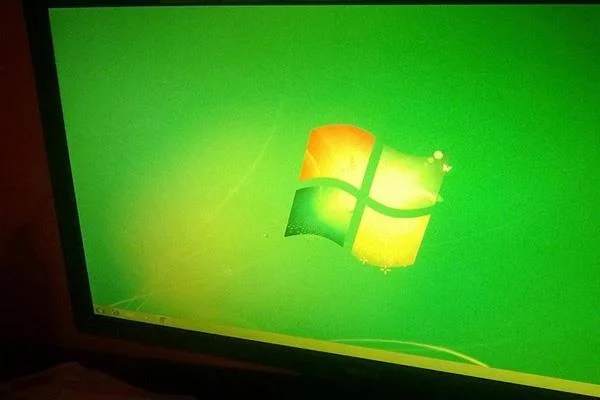
Find out details about the error of the computer screen is yellow
Normally, the computer screen will be white with blue light to help users feel comfortable when using. This light also has the effect of limiting eye fatigue when exposed for a long time. However, some laptop users often reflect on the extremely annoying yellow screen situation.
According to sharing from experienced and knowledgeable people about computers, a yellowed screen can appear due to some of the basic reasons below:
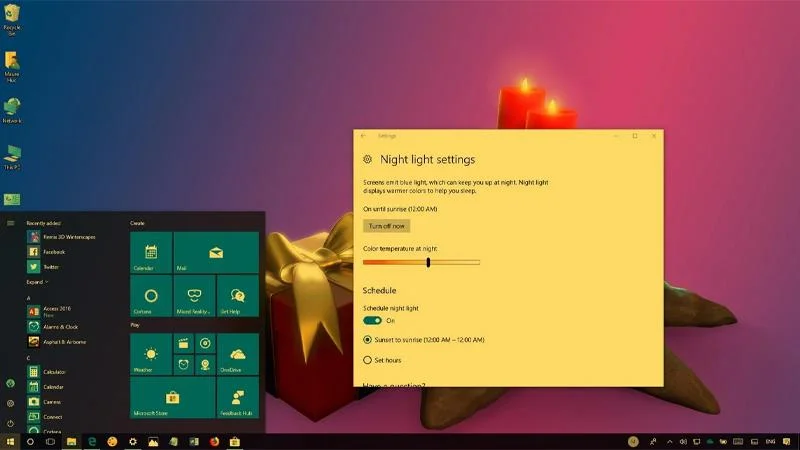
- The computer screen using Windows 10 operating system is yellow because it is in "Night Shift" mode. With this mode, the computer screen will automatically turn yellowish. It is known that this mode is designed to protect eye health
- Another common cause of laptop screen yellowing is a faulty display cable. Specifically, if your device's screen cable is old, broken or faulty, it will affect the signal transmission as well as the quality of the connection to the screen.
- In case the device's graphics card uses an incompatible driver version or an old driver, it will also lead to a screen error, which causes this part to become yellow.
Wrong color adjustment or damage to internal components will also lead to yellowing of the screen.
2. How to fix yellow laptop screen?

The yellowish laptop screen can be caused by many different reasons
Regardless of the cause, in fact, the yellowing of the computer screen also makes the user uncomfortable. To be able to fix this situation, we can apply one of the following methods:
2.1. Equipment cleaning
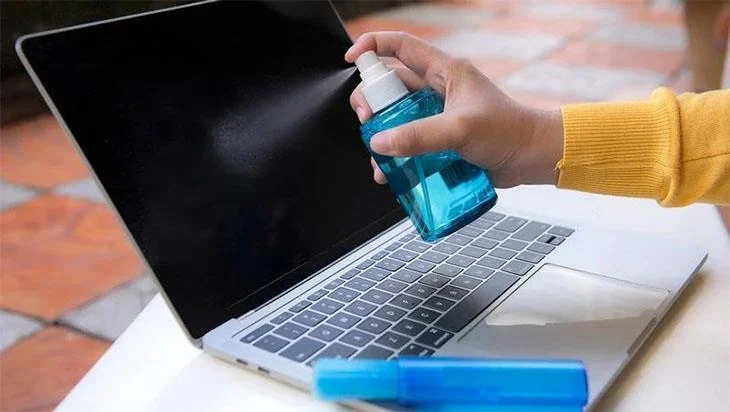
In many cases, not cleaning and sanitizing the computer for a long time can cause the screen to become dusty and not as shiny as it was at first. This also leads to the phenomenon of the screen gradually turning from white to yellow, affecting your experience and use. Therefore, the advice for everyone when encountering a yellow laptop screen is to clean the screen in particular and the device in general so that it can be used at its best.

Cleaning the screen is the simplest solution
2.2. Fix yellow screen with automatic repair tool
In the event that after cleaning, the computer screen still shows an unpleasant yellow light, it is possible that the screen or our device is faulty. At this point, you can use the automatic repair tool provided by Microsoft Corporation to handle it quickly.
The steps to use Microsoft's automatic repair tool to fix the yellow screen error include:
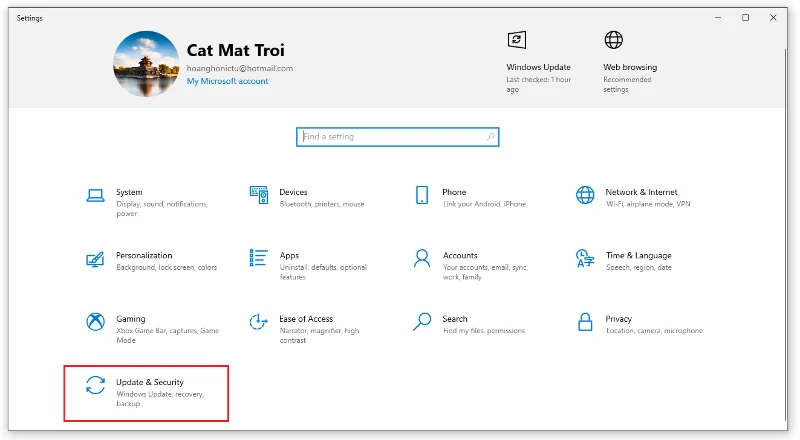
Step 1: On the laptop device, click the Settings item . You can also open the dialog box through the search bar or press the Windows + I key combination .
- After opening the settings dialog, continue to select the Update & Security section .


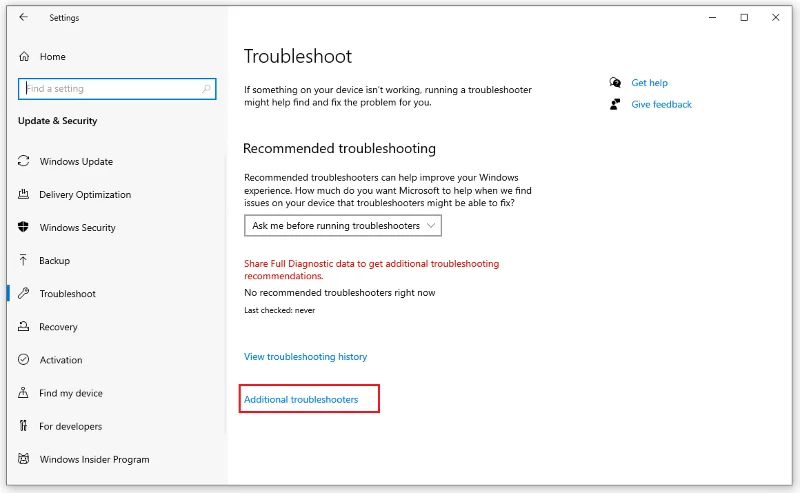
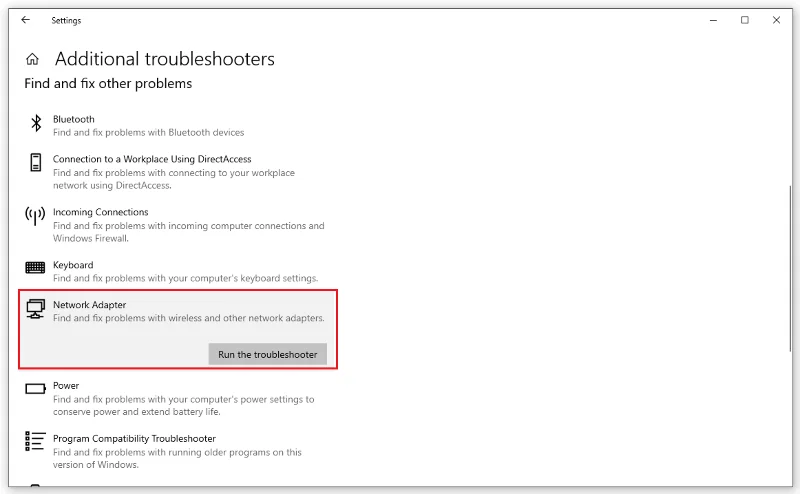
Step 3: Click to select the Troubleshoot command and then select Network Adapter . Continue to select Run the troubleshooter and follow the instructions. The system will automatically scan to check and fix yellow screen errors.

2.3. Turn off Night Light mode
As mentioned above, turning on Night Light mode on computers running Windows 10 operating system is also a cause of your screen being yellow. Therefore, when users encounter this situation, do not forget to check and turn off Night Light mode by selecting the notification item located in the lower right corner of the screen and then clicking and Night Light to turn off quickly.

Turn off Night Shift mode to fix the yellow screen error
2.4. Use Control Panel to adjust device color
Another solution that you can also apply to quickly fix the situation of the laptop screen is yellow to correct the color of the device. Through Windows 10's Control Panel tool, we can completely adjust the screen light to suit our needs with these steps:
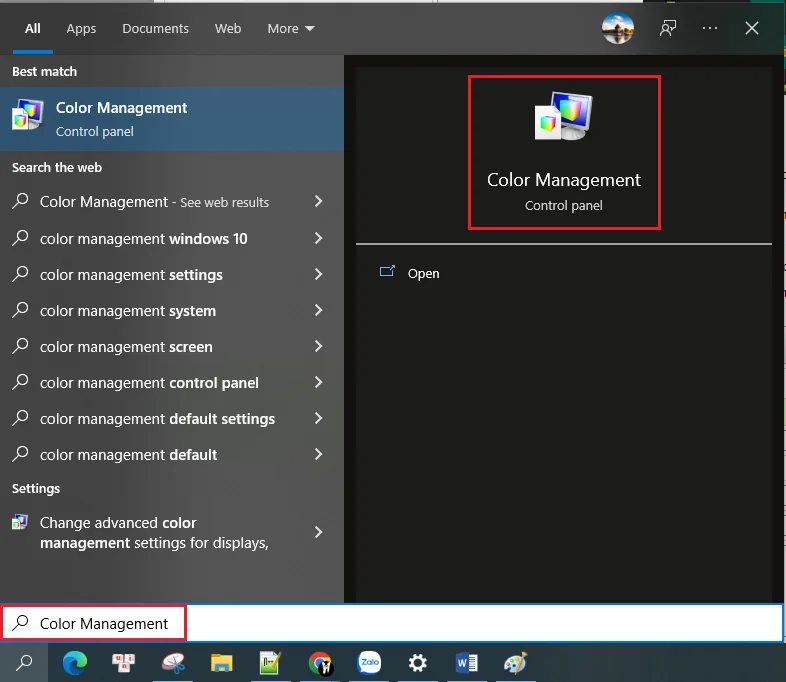
Step 1: On the Taskbar, type “ Color Management ” and then press Enter to search.

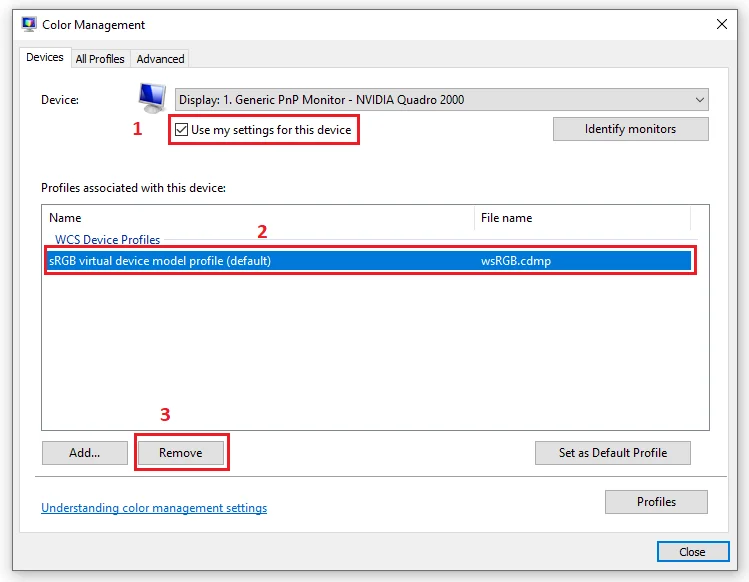
Step 2: When the dialog box opens, continue to click the checkmark in the box " Use my settings for this device ". Then the user selects “ Profile associated with this device ” and clicks on “ Remove ”.

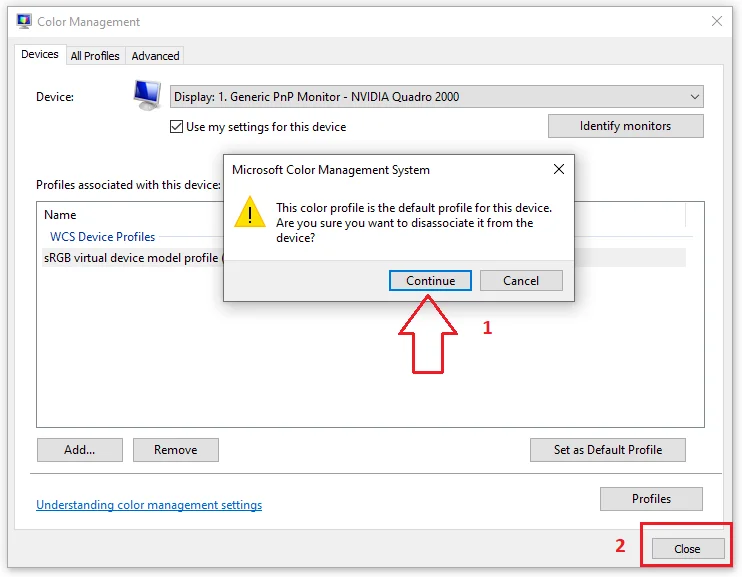
Step 3: At the notification dialog box, select “ Continue ” and then “ Close ” to complete the editing.

It cannot be denied that the yellow laptop screen error still occurs frequently, affecting users. So WebTech360 . Hope the above article can help you find the best solution for you.