The Simplest Way To Turn On And Off Laptop Camera

Camera is something that is extremely familiar and close to people who often use it to take pictures or record video memories. With the strong development of the information technology industry, you can take pictures right away with the laptop camera. However, turning on and off the laptop camera is still a dilemma for many people. In the article below, WebTech360 will guide you how to turn off and turn on the laptop camera in the simplest way.

1. Answer: Where is the laptop camera located?
The Simplest Way To Turn On And Off Laptop Camera

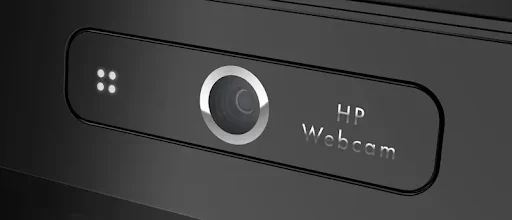
The laptop camera is at the top center of the screen

Laptop camera or Cam is a part that is integrated on every laptop. It allows you to take photos or record videos simply, but still bring relative quality.

Basically, the laptop camera is arranged in the center position and is easiest to see. They are usually placed at the top center of the laptop screen. This position will help you easily take photos and make video calls in the most accurate way. This is also the position to help get your full face when taking photos or video chatting with friends and relatives.

2. Instructions on how to turn off the laptop camera simply

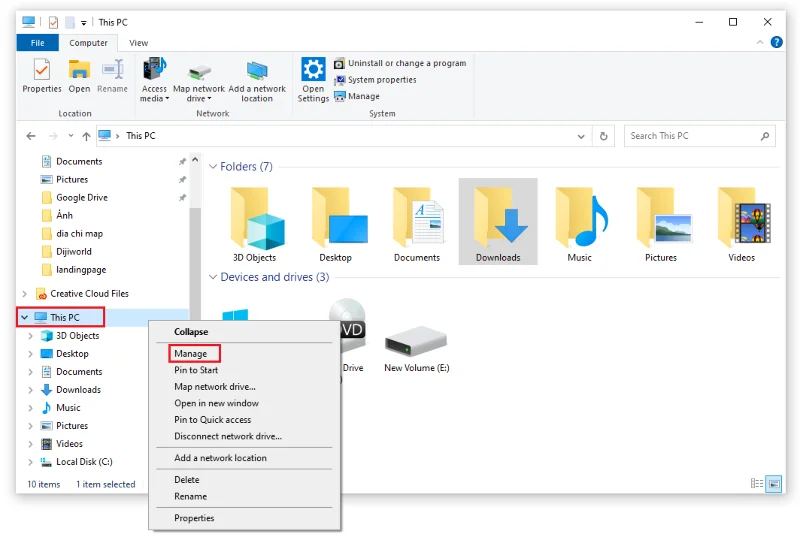
Step 1: To turn off the laptop camera, first right-click the This PC icon  on the laptop screen and select Manage . Here, your computer will display a table with different tasks. Including Task Schedule to check the operation of applications and Device Manager to manage all the tools of the computer including the camera.

The Simplest Way To Turn On And Off Laptop Camera

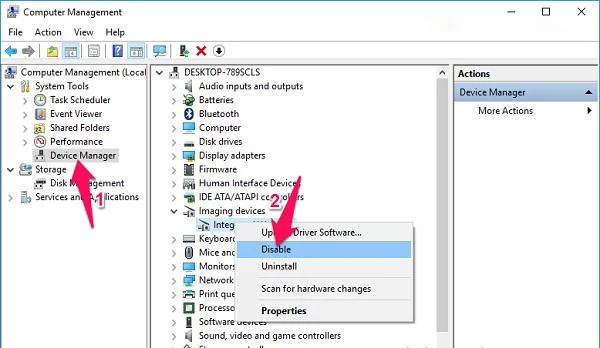
Step 2: Select Device Manager in the left menu bar and then double-click the Imaging devices section in the right window.

- At this point, you will see the webcam driver named Integrated Webcam or another name. Then, right-click on it and select Disable to stop the laptop camera from working.

The Simplest Way To Turn On And Off Laptop Camera

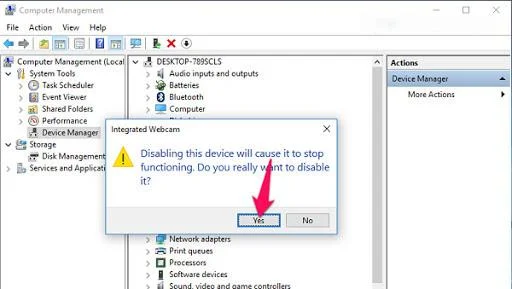
Step 3: When the confirmation window appears, click the Yes button to agree to turn off the laptop camera.

The Simplest Way To Turn On And Off Laptop Camera

With just the above simple steps, you can turn off the laptop camera successfully. This will prevent hackers from entering your laptop camera.

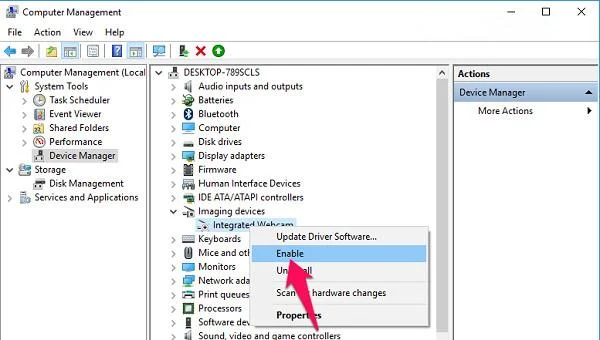
Step 4:  In case if you want to reopen the laptop camera, select Enable again

The Simplest Way To Turn On And Off Laptop Camera

3. Instructions on how to open the laptop camera with Windows

After turning off the laptop camera and want to open it again, please do the following:

3.1. Instructions on how to open laptop camera with Windows 7

With a laptop running on Windows 7 operating system with pre-installed camera opening software, you just need to click on the Start box and then enter " camera " in the search box to display the application and then open it.

Another way to open the laptop camera is to click on the Computer box to see if there is a USB Video Device item. If so, just clicking on it can open the laptop camera.

3.2. Instructions on how to open the laptop camera on Windows 8

The Simplest Way To Turn On And Off Laptop Camera

Instructions on how to open the laptop camera on Windows 8

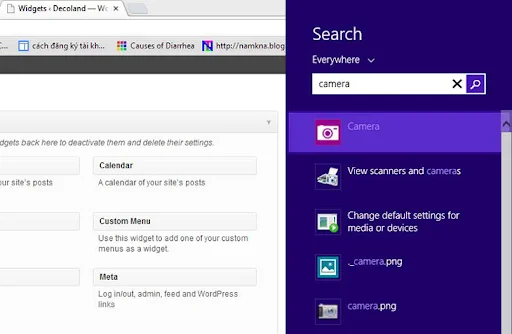
For Windows 8 operating system, the process of turning on and off the laptop camera is not complicated. To open the camera, you just need to follow these simple steps:

First find the Search tool by hovering your mouse over the right side of the laptop screen. Next, please update the keyword "Camera" inside the Search bar. In case the camera item appears, just click on it.

However, if you type in the search bar and still no camera item appears, this means that the computer has not yet installed the camera driver. So people need to check immediately.

3.3. Instructions to open laptop camera on Windows 10 operating system

Similar to the laptops running on the operating system Win 7, Win 8, Win 10 also has many outstanding advances. However, the way to turn on and off the laptop camera on computers running Windows 10 operating system is also very simple. To open the camera, you just need to follow these steps:

First, you need to click on the Start menu bar and then update to the "camera" section. In case the camera appears in the search results box, people just need to click on it to be able to open it easily.

If this is the first time accessing the laptop camera, the computer will ask you for some other specific problems. Such as allowing the use of microphones and webcams, as well as the user's location. Therefore, you need to click allow all of these to open the laptop camera immediately.

Now everyone can comfortably take pictures or record videos through their laptops. If you want to take a photo, select the camera icon on the laptop camera. And in case you want to conduct video recording, please select the camera icon.

Through today's article,  WebTech360 hopes that you have understood the steps to turn on and off the laptop camera easily and quickly. If you are still wondering or have any other problems about the laptop, please contact WebTech360 immediately via the Hotline number below. Or you can also leave a message on our article for free support and advice. 
Leave a Comment

How to run old programs on Windows 11

How to run old programs on Windows 11

Have you ever tried to run an old program on Windows 11 and encountered an error code that you didn't understand? Luckily, Windows has some compatibility settings that can help you solve this problem.

3 Extremely Effective Ways to Fix Dead Laptop Battery

3 Extremely Effective Ways to Fix Dead Laptop Battery

Your computer is always running out of battery and cannot be recharged, the computer has a damaged battery. Join WebTech360 to learn about how to fix a dead laptop battery!

5 Ways To Fix MSVCP140.Dll Is Missing Error On Windows 10, 7 Simple And Fast

5 Ways To Fix MSVCP140.Dll Is Missing Error On Windows 10, 7 Simple And Fast

To know how to handle it at home, read WebTech360's sharing on how to fix MSVCP140.Dll Is Missing on Windows 10.7.

Instructions for Cleaning Computer Mouse Correctly

Instructions for Cleaning Computer Mouse Correctly

To answer the question, does a computer mouse need cleaning? and know how to properly clean? Please refer to the article shared by WebTech360!

Instructions for Fixing Api-Ms-Win-Crt-Runtime-L1-1-0.Dll Error On Windows

Instructions for Fixing Api-Ms-Win-Crt-Runtime-L1-1-0.Dll Error On Windows

When using a computer, you will experience interruptions in opening a program on Windows. Let's help WebTech360 fix api-ms-win-crt-runtime-l1-1-0.dll error on Windows

Top 5 Professional, Free MP3 Cutter Software 2023

Top 5 Professional, Free MP3 Cutter Software 2023

5 professional and free MP3 cutting software in this article will be a powerful support tool for you to edit audio files perfectly.

Top 5 Best Free CD, DVD, Blu-Ray Burning Software 2023

Top 5 Best Free CD, DVD, Blu-Ray Burning Software 2023

With a comprehensive article on free CD, DVD, Blu-ray burning software, the best 2021 will definitely not disappoint you.

Top 5 Best Free Folder Lock Software 2023

Top 5 Best Free Folder Lock Software 2023

If you want the data on your computer to be secure, you can't ignore the top 5 best free folder lock software in this article.

A Guide To Self-Taught Basic Graphic Design From A - Z

A Guide To Self-Taught Basic Graphic Design From A - Z

Many of you want to become a designer but don't know where to start. This article will guide you to learn basic graphic design by yourself.

The Secret To Conquering How To Draw Perfect Lines And Curves In Photoshop

The Secret To Conquering How To Draw Perfect Lines And Curves In Photoshop

Adobe Photoshop software gives us two great tools Line Tool and Pen Tool to draw lines and curves become precise and simple.

5 Ways To Merge Layers In Photoshop In Just One Note

5 Ways To Merge Layers In Photoshop In Just One Note

You are familiar with Photoshop but do not know how to combine layers. Follow along with 5 ways to combine layers in Photoshop below.

Share 5 Super Fast Ways to Copy Layers in Photoshop for Users

Share 5 Super Fast Ways to Copy Layers in Photoshop for Users

Copying layers is a basic function that Photoshop users need to master in order to master the layer tool. The article will guide you to copy layers very quickly in Photoshop.

4 Simple Steps to Create Text Borders in Photoshop

4 Simple Steps to Create Text Borders in Photoshop

How to use border creation through Photoshop software, WebTech360 would like to share with you how to create text borders in Photoshop, very simple.

How To Draw Arrows In Photoshop With 3 Simple Tools

How To Draw Arrows In Photoshop With 3 Simple Tools

With the article on how to draw arrows in Photoshop with these 5 simple tools, you will easily draw arrows as you want.

Create Text Shadows In Photoshop With Two Simple Styles

Create Text Shadows In Photoshop With Two Simple Styles

Text shading in Photoshop will help you create a more wonderful feeling for your text, avoiding the boring phenomenon compared to conventional typefaces.

How to Fix Microsoft Edge Microphone and Camera Permissions

How to Fix Microsoft Edge Microphone and Camera Permissions

Struggling with Microsoft Edge microphone and camera permissions not working? Discover quick, step-by-step fixes to restore access in the latest Edge version. No tech skills needed!

How to Fix Microsoft Edge Audio Interface ASIO Driver

How to Fix Microsoft Edge Audio Interface ASIO Driver

Struggling with Microsoft Edge "Audio Interface" ASIO Driver crashes, no sound, or latency? Discover proven, step-by-step fixes to restore smooth audio playback and eliminate errors fast. Works on latest Windows updates!

Solving Connection Lost in Valorant Console Beta 2026

Solving Connection Lost in Valorant Console Beta 2026

Tired of "Connection Lost" ruining your Valorant Console Beta 2026 matches? Discover proven fixes for PS5 & Xbox, from quick restarts to advanced network tweaks. Stable connection starts here!

How to Speed Up Microsoft Edge Performance on Slow PCs

How to Speed Up Microsoft Edge Performance on Slow PCs

Frustrated with sluggish Microsoft Edge on your slow PC? Unlock lightning-fast browsing with our expert guide on how to speed up Microsoft Edge performance. Simple, effective tips for instant results!

How to Clean Up Microsoft Edge Leftover Files After Removal

How to Clean Up Microsoft Edge Leftover Files After Removal

Struggling with leftover clutter after uninstalling Microsoft Edge? Learn proven steps to clean up Microsoft Edge leftover files, free up disk space, and optimize your PC performance effortlessly. Step-by-step guide for Windows users.

Solving Microsoft Edge Winaero Tweaker Settings Fix

Solving Microsoft Edge Winaero Tweaker Settings Fix

Tired of Microsoft Edge Winaero Tweaker settings fix issues? Get permanent fixes for settings that won't stick, resets, and tweaks failing in the latest Edge versions. Step-by-step guide with screenshots for quick resolution.

How to Fix Microsoft Edge Google Search Lag Error 2026

How to Fix Microsoft Edge Google Search Lag Error 2026

Tired of frustrating delays? Learn how to fix Microsoft Edge "Google Search Lag" Error 2026 with proven, step-by-step guides. Restore smooth Google searches instantly – updated for 2026!

Best Offline Browsing Features in Microsoft Edge 2026

Best Offline Browsing Features in Microsoft Edge 2026

Discover the best offline browsing features in Microsoft Edge 2026 that keep you productive anywhere. From advanced caching to AI summaries, explore how Edge dominates offline web access.

Troubleshooting Microsoft Edge Status_Access_Violation Error

Troubleshooting Microsoft Edge Status_Access_Violation Error

Tired of Microsoft Edge crashing with Status_Access_Violation? Follow our step-by-step troubleshooting guide for quick, reliable fixes to restore smooth browsing. Works on latest Edge versions!

How to Uninstall Microsoft Edge via Command Prompt (CMD)

How to Uninstall Microsoft Edge via Command Prompt (CMD)

Struggling with Microsoft Edge? Discover the easiest way to uninstall Microsoft Edge via Command Prompt (CMD). Step-by-step CMD guide for Windows 11/10, complete removal without reinstalls. Works on latest updates!

How to Update Microsoft Edge to the Latest 2026 Version

How to Update Microsoft Edge to the Latest 2026 Version

Master how to update Microsoft Edge to the latest 2026 version with easy steps for Windows, Mac, Android & iOS. Boost speed, security & features instantly!

How to Fix Microsoft Edge Winaero Tweaker Fix 2026

How to Fix Microsoft Edge Winaero Tweaker Fix 2026

Struggling with Microsoft Edge crashes or errors after Winaero Tweaker tweaks? Get the ultimate guide on How to Fix Microsoft Edge "Winaero Tweaker" Fix 2026. Step-by-step solutions for smooth browsing in the latest updates. Quick, reliable fixes!

How to Fix Microsoft Edge Laptop Battery Threshold Fix

How to Fix Microsoft Edge Laptop Battery Threshold Fix

Discover proven ways to fix the Microsoft Edge Laptop Battery Threshold issue. Extend your battery life with step-by-step instructions, quick tweaks, and advanced tips for optimal performance on Windows laptops. Say goodbye to unexpected drain!

How to Permanently Delete Microsoft Edge WebView2 on Mac

How to Permanently Delete Microsoft Edge WebView2 on Mac

Struggling with unwanted Microsoft Edge WebView2 on Mac? Discover how to permanently delete Microsoft Edge WebView2 on Mac with our foolproof guide. Free up space, boost privacy, and reclaim your Mac effortlessly. Latest methods included!

Troubleshooting Microsoft Edge Integrated Graphics Memory

Troubleshooting Microsoft Edge Integrated Graphics Memory

Struggling with Microsoft Edge hogging integrated graphics memory? Discover step-by-step troubleshooting for Microsoft Edge "Integrated Graphics" Memory issues, boost performance, and reclaim your GPU resources today.