How to Zoom on Chrome
Learn how to zoom on Chrome with keyboard shortcuts, menu options, and touch gestures to improve readability on any webpage in seconds.
Microsoft Edge Workspaces is a collaboration-focused feature available on Windows and macOS. You can create a Workspace and open all the necessary websites you want the other members to browse in real time. Moreover, you can communicate with them by using comments on each tab.

So, instead of remotely sharing your PC for a few browser tabs, you can share a separate browser window with many open tabs. Curious about how to create and manage Microsoft Edge Workspaces? Let’s begin.
What Are Workspaces in Microsoft Edge?
Microsoft introduced Edge Workspaces to help teams collaborate more efficiently. The system seamlessly allows organizations to share tabs, browser history, and filly. When you add a tab to your workspaces, everyone else in the team can access it.
Furthermore, organizers can lock workspaces to ensure no one else adds or closes tabs. The concept is quite brilliant. For example, if you’re working on a project and need to give updates to your team, you can quickly share your Workspace instead of sharing multiple items.
How to Join and Use Workspaces in Microsoft Edge
Other collaborators must also sign in to Microsoft Edge to use a Workspace. They can use the invite link received via email to join the Workspace. Click the Join workspace button to open the Workpace in a new window.
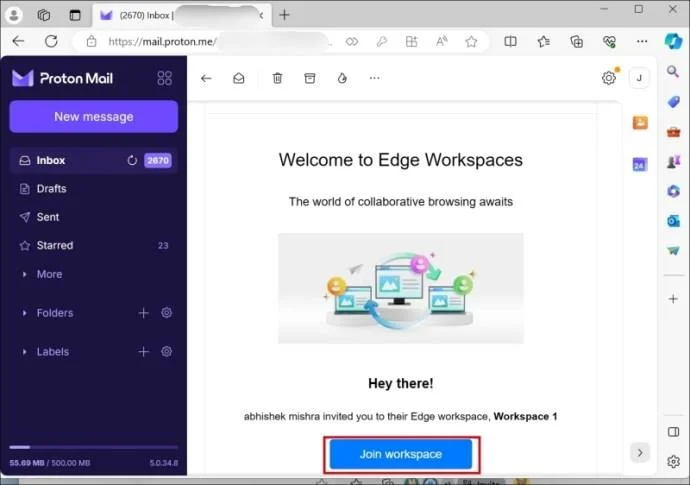
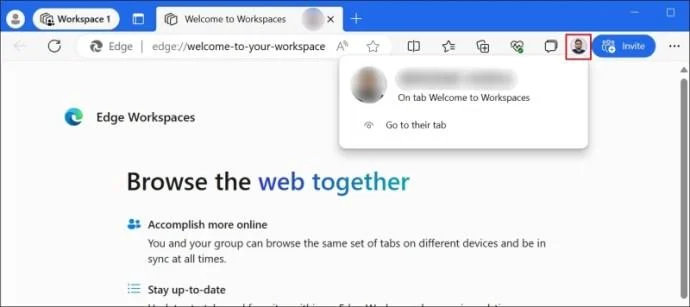
Alternatively, paste the invite link in the URL bar and press Enter to access the Workspace. A display picture of all the collaboratorinof the Workspace will appear next to the Invite button. You can click on it to view more details or switch to the tab they are using.
As a collaborator, you can use most browser features, such as manipulating tabs (pining, grouping, closing), accessing browser history, inviting others, and using the Edge sidebar.
You can join multiple Workspaces at once and use them in real-time. Edge lets you move tabs between multiple open Workspaces and personal browsing sessions. Either drag and drop a tab or use the right-click context menu to shift the tab to another open Workspace or your personal browsing session.
All user changes to a tab (opening, closing, pinning, etc.) are reflected in real time. If you close a tab, all the collaborators on that tab, including you, move to another tab. However, closing the last open tab will close the Workspace session for everyone.
You can lock tabs to prevent other members from accidentally closing them. However, the Workspace owner can unlock any tab and then close it. Collaborators can keep using the Edge workspace even after the Workspace owner or anyone else exits. The Workspace’s browsing history is accessible to each collaborator and remains so until the creator deletes the Workspace.
Remember that if you have disabled autoplay videos from playing in Microsoft Edge, it will also reflect in your Workspace browsing session.
How to Enable Comments in Microsoft Edge Workspaces
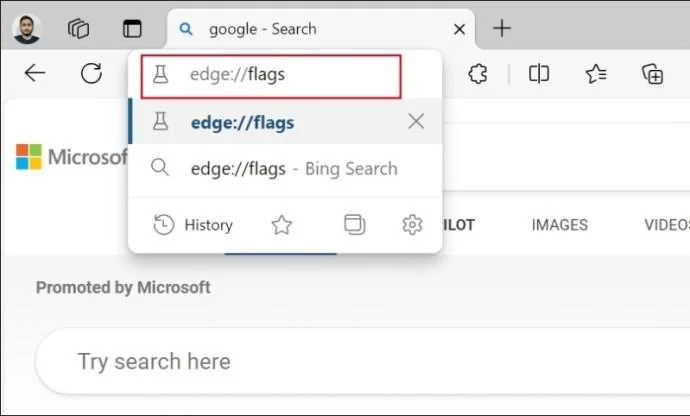
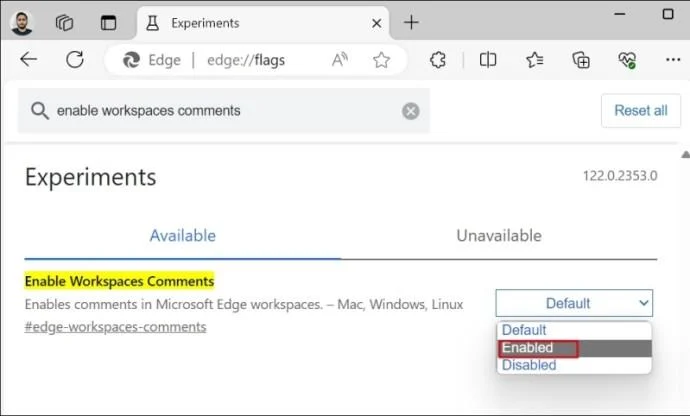
Comments are useful in communicating with other collaborators in a tab. You can guide them on how to handle a task or how to do a step correctly. The comment feature is not publicly available yet, but you can enable it by tweaking a flag in Microsoft Edge.
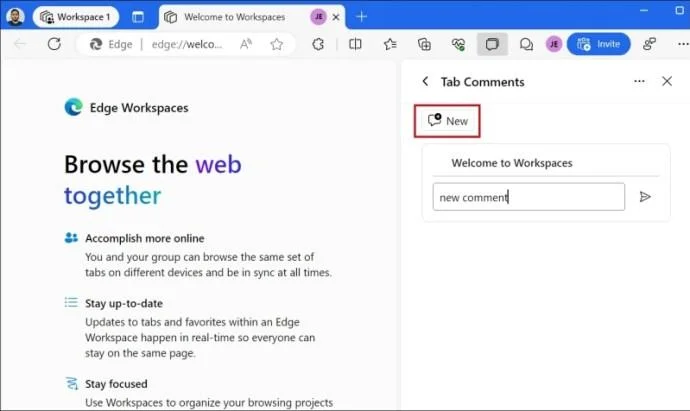
Remember that you must repeat this method on all devices linked to the Workspace to show the comments icon. Here’s how to do so:
When other collaborators switch to that tab, they will see the comment you added. There is no notification pop-up or warning sound when you add a comment.
How to Leave or Delete Workspaces in Microsoft Edge
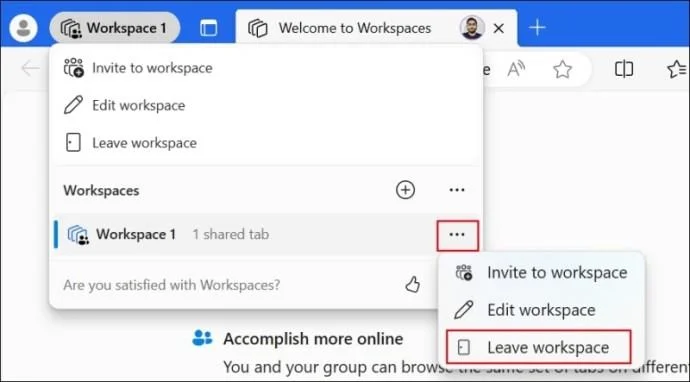
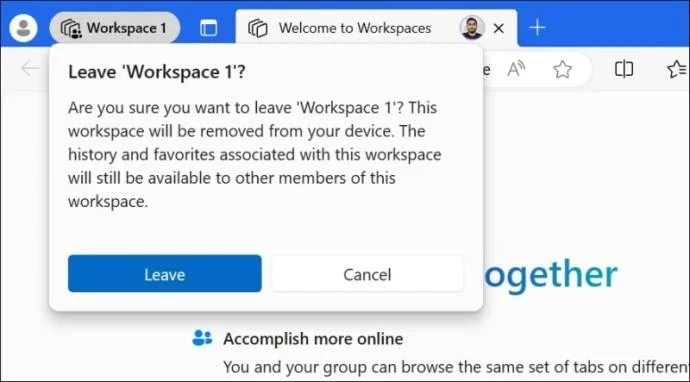
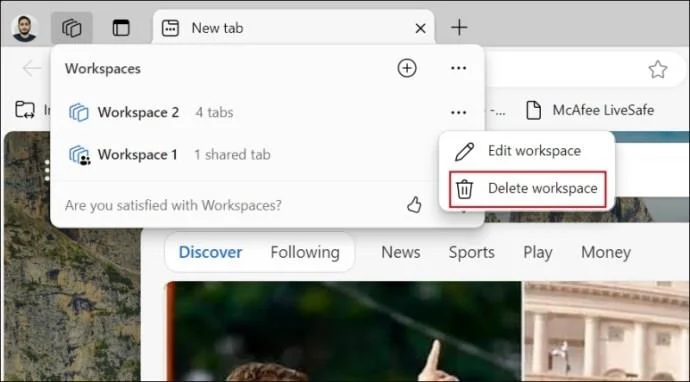
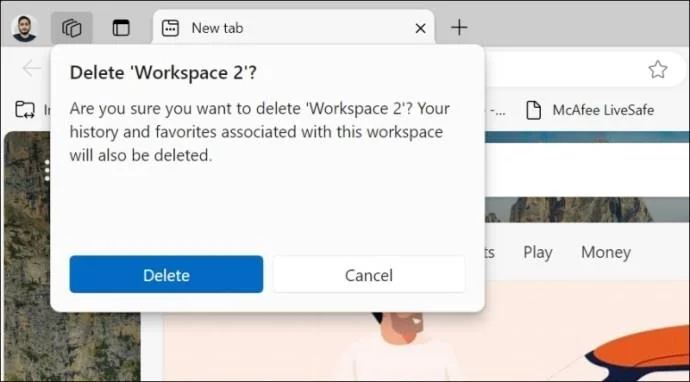
After your work is finished, you can leave the Workspace. But your browsing history and favorites will remain public for other participants. So, it is recommended to delete a Workspace in Edge when you no longer need it.
Only the Workspace creator can delete it. This action is permanent and will wipe out all the browsing history and favorites. Here’s how to do so:
Collaborate Easily With Workspaces
Settings up Workspaces in Microsoft Edge is easy. It makes collaborative browsing with your team members easy, which can come in handy when you are working on a project. Another benefit of this mode is that your personal details, like email account login details, are not shared.
If you are a new Edge user, you might want to learn how to make Google the default search engine in Microsoft Edge.
FAQs
Learn how to zoom on Chrome with keyboard shortcuts, menu options, and touch gestures to improve readability on any webpage in seconds.
Discover how to drive work with clear processes that keep projects moving and teams aligned. This guide covers practical steps to improve output and reduce delays across any workplace.
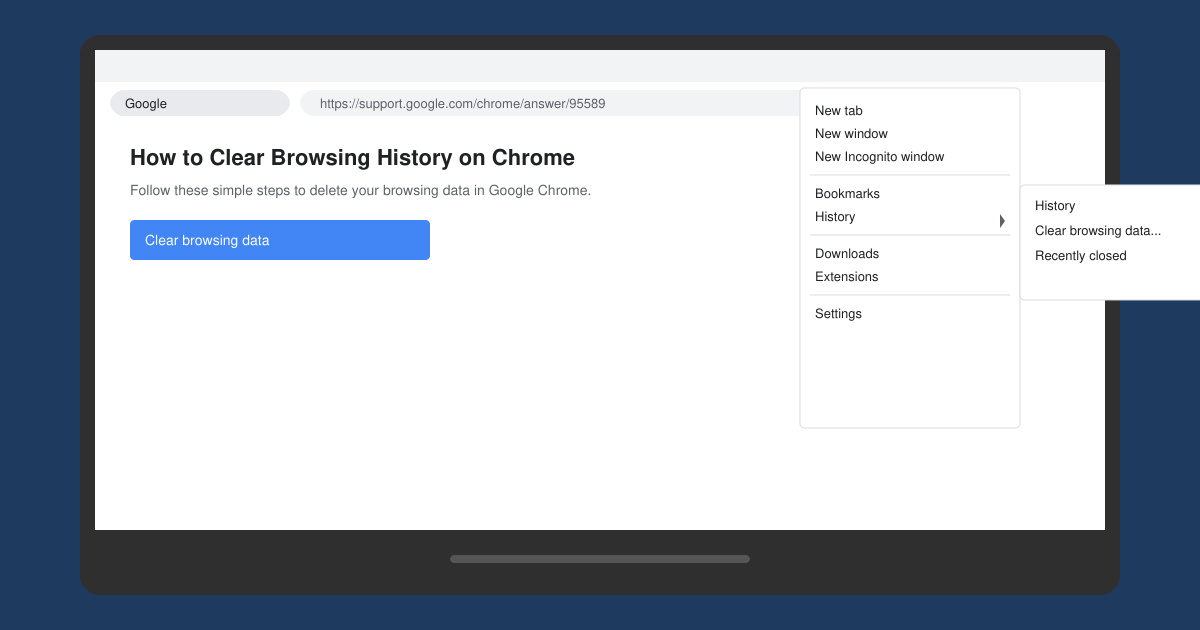
Learn exactly how to clear browsing history on Chrome in under a minute. Follow these precise steps to remove data from your desktop or mobile browser and improve privacy.
Learn how to zoom in on Photoshop with precise methods for detailed photo editing and design work. Follow these steps to master zooming quickly in Adobe Photoshop.
How to Use Discord starts with creating an account and joining servers. This guide shows exactly how to set up voice chats, manage channels, and connect with communities quickly.
Master how to boil broccoli perfectly every time with this step-by-step guide. Learn exact timing and techniques for tender, vibrant, nutrient-rich results.
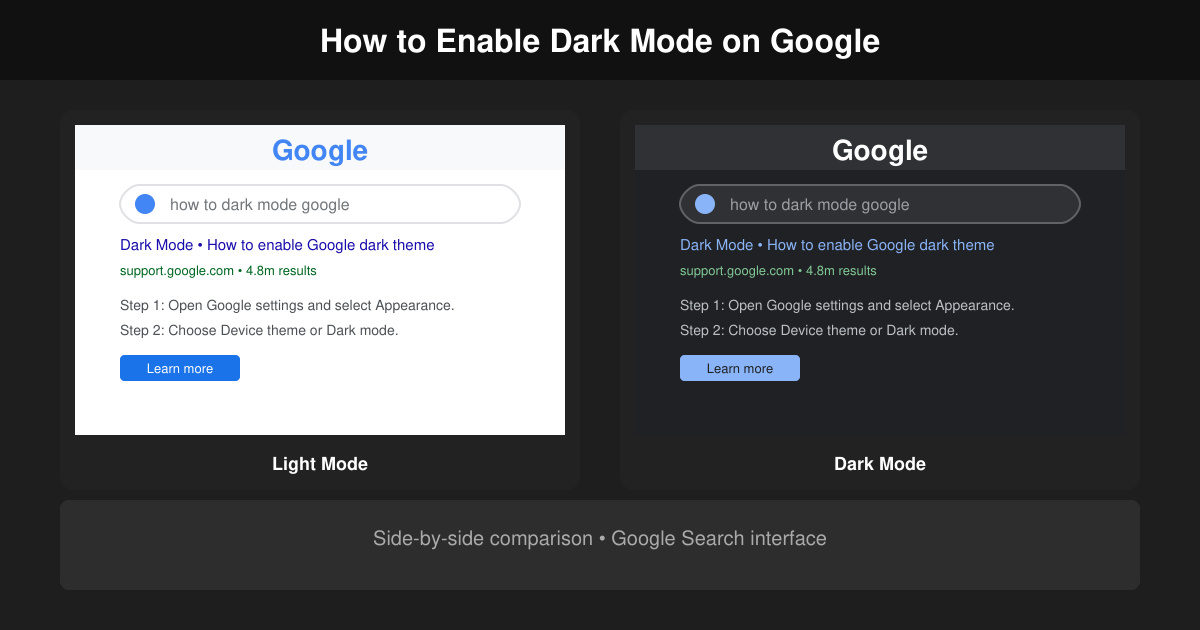
Learn how to dark mode on Google across Search, Chrome and apps to cut eye strain at night. This guide shows the exact settings to enable Google dark theme in under a minute.
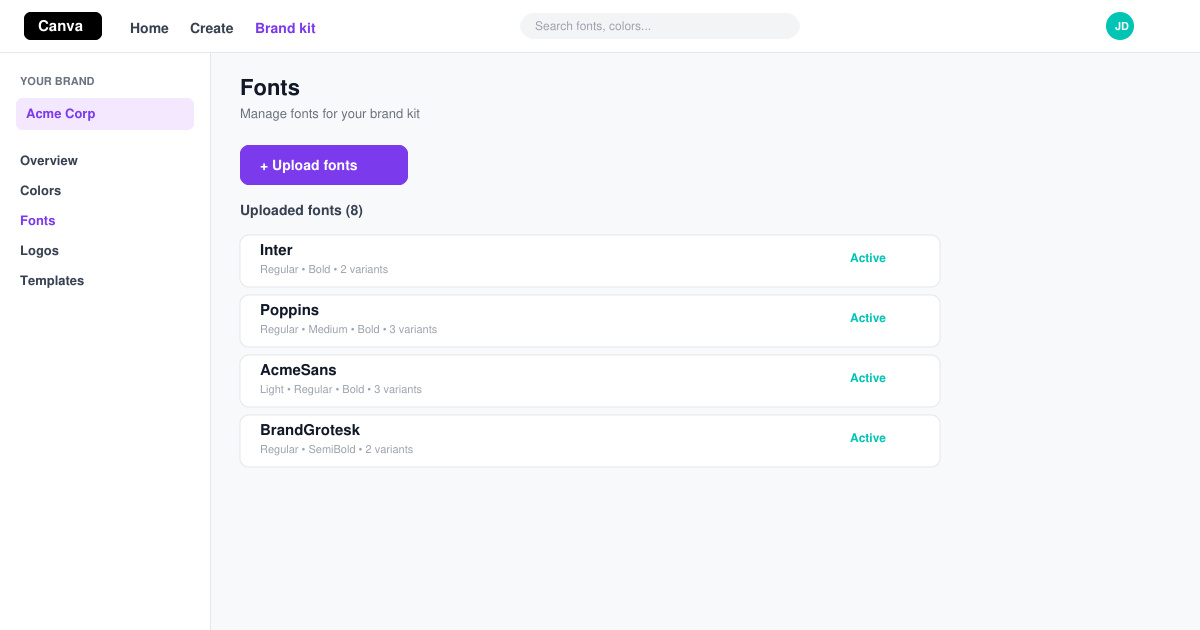
Learn exactly how to add font to Canva with this step-by-step guide. Upload custom fonts through Brand Kit to use them across all your designs in minutes.
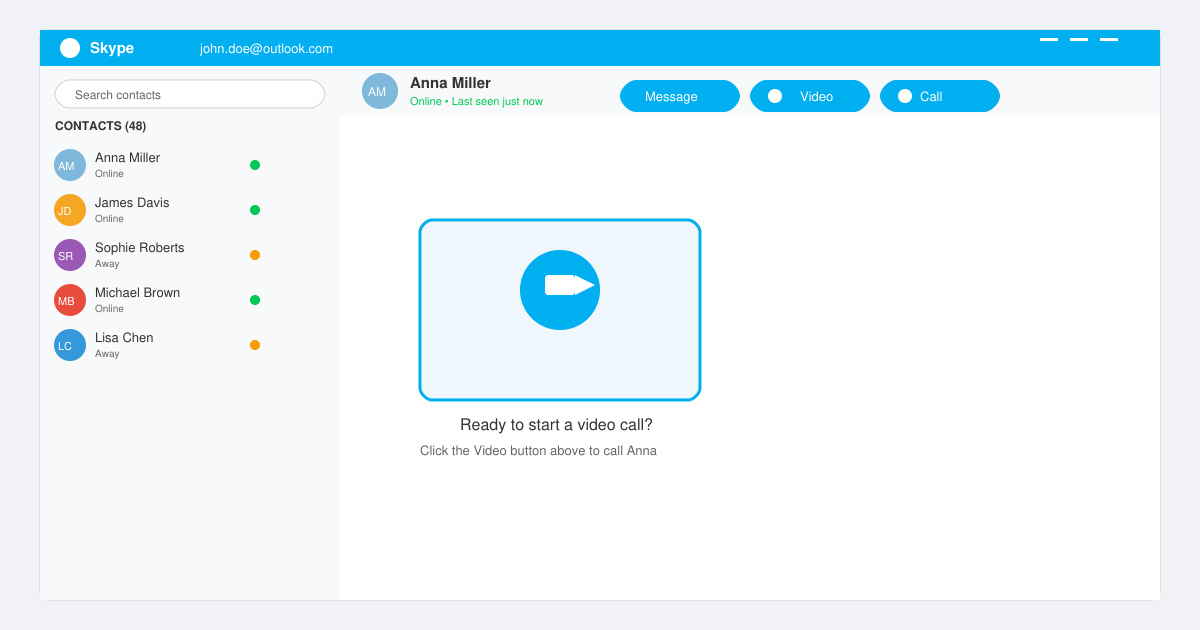
How to Use Skype for free video calls, messaging, and screen sharing. Follow this complete guide to install the app, set up your account, and start communicating in minutes.
Learn how to clear Google history quickly to protect your privacy. This step-by-step guide shows you how to delete search activity from your Google account on any device.