LibreOffice Document Locked by Unknown User: A Safe Fix
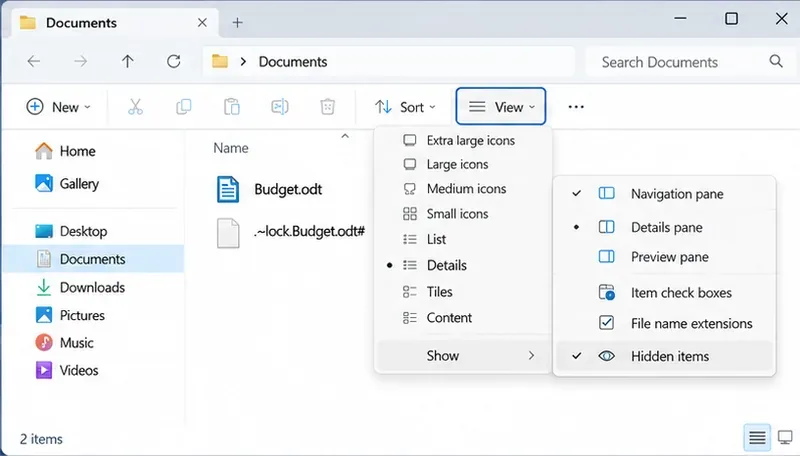
Find the cause of a LibreOffice document lock, safely clear a stale lock file, and confirm that you can edit and save without losing changes.
When Microsoft Outlook is down, your email, calendar, and tasks stop working across desktop, web, and mobile. This guide shows you exactly how to confirm the outage and restore access fast without guessing.
Before changing settings, confirm whether the problem is on your side or a wider Microsoft 365 outage. Visit the official Microsoft 365 status page at status.microsoft.com and look for red or yellow indicators next to Exchange Online and Outlook. You can also open downdetector.com and search for Outlook to see real-time user reports from the last hour.
If the status page shows issues in your region, wait for Microsoft to resolve them. If no outage appears, continue with the troubleshooting steps below.
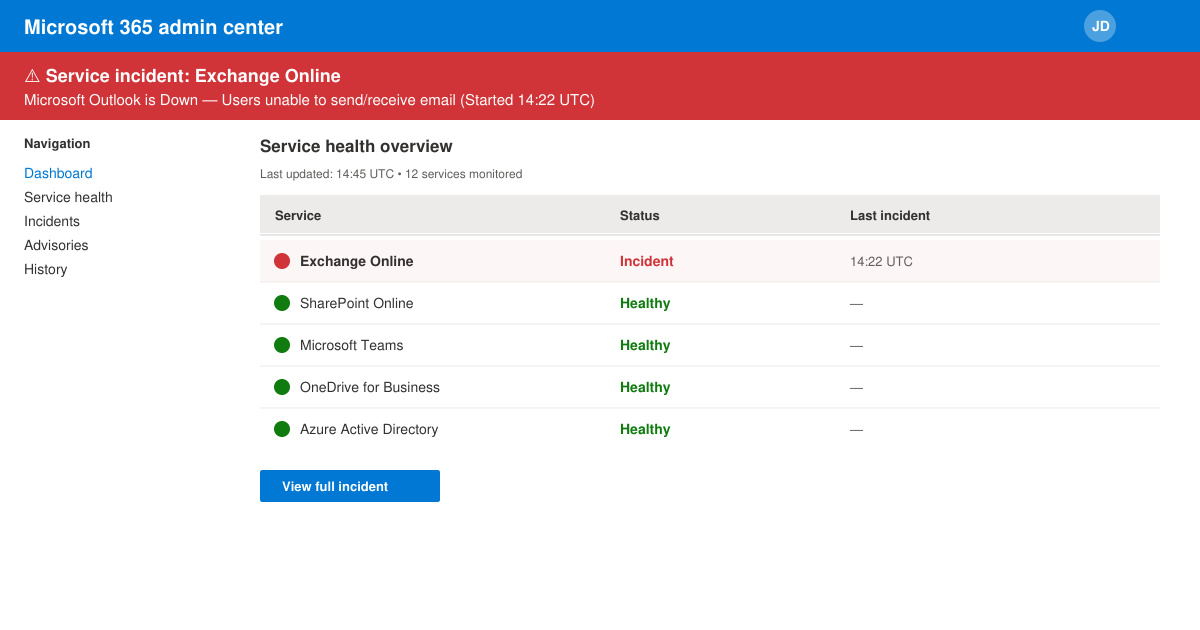
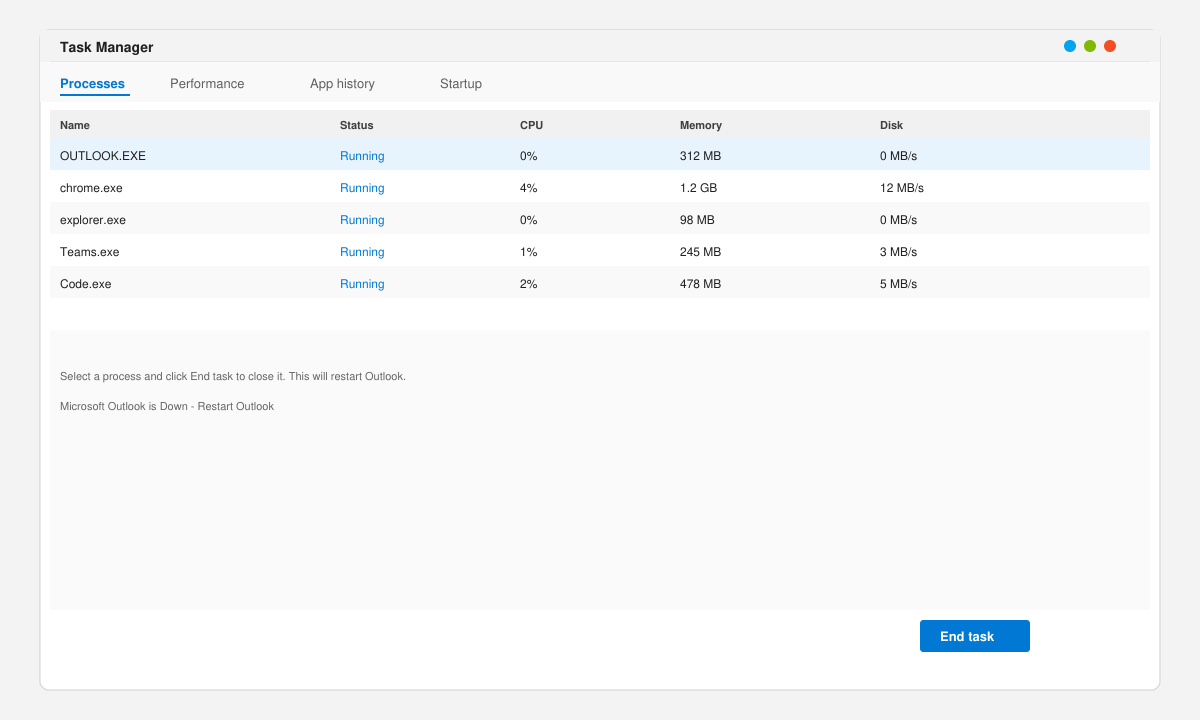
Close Outlook completely using Task Manager on Windows (Ctrl + Shift + Esc, find OUTLOOK.EXE, end task) or Force Quit on Mac. Restart your computer or phone, then reopen Outlook. This clears temporary connection locks that often cause Microsoft Outlook is down symptoms.
Open a browser and load outlook.office.com. If the web version also fails to load, test your connection by visiting another site. Disable any VPN or proxy temporarily, as corporate or third-party VPNs frequently block Microsoft 365 endpoints and make Microsoft Outlook is down appear locally.
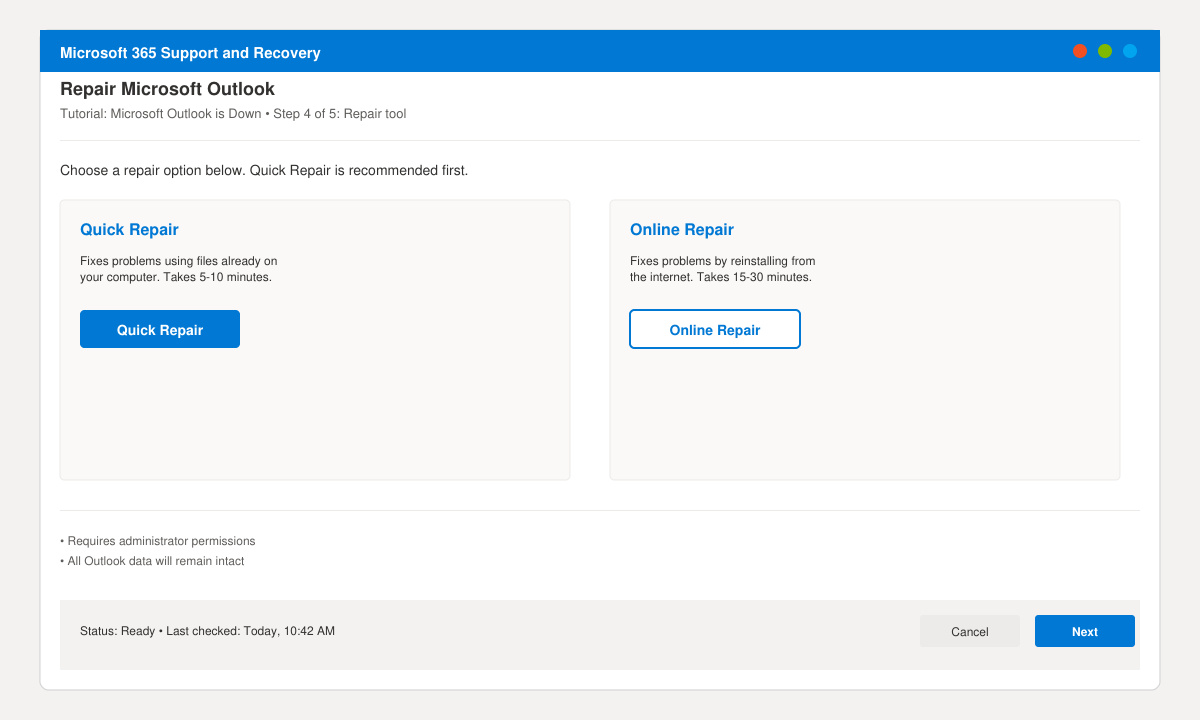
On Windows, go to Control Panel > Programs > Programs and Features, select Microsoft 365 or Outlook, then click Change and choose Quick Repair followed by Online Repair if needed. On Mac, delete the Outlook profile in ~/Library/Group Containers and let the app recreate it on next launch.
In Outlook desktop, go to File > Account Settings > Account Settings, select your account, click Remove, then Add Account and enter your credentials again. This refreshes authentication tokens that expire or corrupt during outages.
While the desktop app stays offline, sign in at outlook.office.com or outlook.live.com using the same Microsoft account. Most users can read, reply, and manage calendars here until the native app reconnects.
Most Microsoft 365 outages resolve within 30 to 90 minutes. Check the status page for the latest estimated time of resolution.
Use the web version at outlook.office.com or switch to the Outlook mobile app if it connects over cellular data instead of Wi-Fi.
Yes. On Windows, delete the contents of %localappdata%\Microsoft\Outlook and restart the app to remove corrupted cache files.
Following the verification and repair steps above resolves most cases when Microsoft Outlook is down. Return to the Microsoft 365 status page regularly for updates.
Find the cause of a LibreOffice document lock, safely clear a stale lock file, and confirm that you can edit and save without losing changes.
Make image-heavy Writer files easier to edit: test a reversible display setting, compress oversized pictures in a copy, and verify the saved layout.
Find out whether a slow launch comes from extensions, profile settings, or the system, then test the safest fix without losing LibreOffice data.
Connect LibreOffice to Nextcloud over WebDAV, save the server copy with Ctrl+S, and understand how AutoRecovery differs from cloud syncing.
Find out whether Pardus 23 is blocking Bluetooth, missing BlueZ, or failing to detect adapter firmware, then confirm the controller works.
Learn how Gooroom separates trusted and untrusted browsing, what users can change, and how an administrator can safely update site policies.
Diagnose rotated, offset, or inconsistent touch input on a Harmonica OS tablet and choose a Linux calibration method that fits its session and driver.
Switch Gooroom’s desktop session to English, verify the locale, and identify when untranslated Korean labels need an app update instead.
Arrange Pardus XFCE as a familiar bottom taskbar with an app menu, pinned launchers, open-window buttons, and a system tray.
Check your Gooroom release and administrator rules, then follow the official Debian-based setup path for Flatpak or Snap without bypassing system controls.