Home
» Technology
»
Salesforce Workbench Errors: Troubleshooting API Tools During Downtime
Salesforce Workbench Errors: Troubleshooting API Tools During Downtime
Verified September 16, 2026. Workbench errors are easy to misread during a Salesforce incident. A failed login may come from an expired session, a wrong environment, a broken Workbench route, or a Salesforce API outage. A request that returns 503 Service Unavailable points in a different direction from a 401 Invalid Session, even though both can appear when a developer is trying to work quickly.
The goal of troubleshooting is not to force one request through. It is to identify which layer is failing, protect data while the system is unstable, and know when the evidence is strong enough to wait, switch tools, or contact the right support channel.
Quick diagnosis: what does the error most likely indicate?
What you see
Most likely layer
Best next move
Workbench page will not load
Workbench site, browser, DNS, or network path
Open Salesforce Trust Status and test the site from a permitted alternate network.
Workbench loads, but login fails with 401
Session, OAuth, username, password, or login flow
Start a fresh authorized login and confirm the selected environment.
API request returns 403
Permissions, connected-app policy, or API limit
Check the user, connected app, and request limits; do not treat it as proof of downtime.
Several API calls return 500, 502, or 503
Salesforce platform, edge routing, maintenance, or overload
Compare the error time with your instance and product status on Trust.
Only one query or object fails
Request syntax, object access, record sharing, or data issue
Reduce the request to a harmless, known-good read and inspect the response body.
This table is a starting point, not a diagnosis. The same HTTP code can have different causes depending on the endpoint, authentication method, and organization policy.
First, understand Workbench’s support boundary
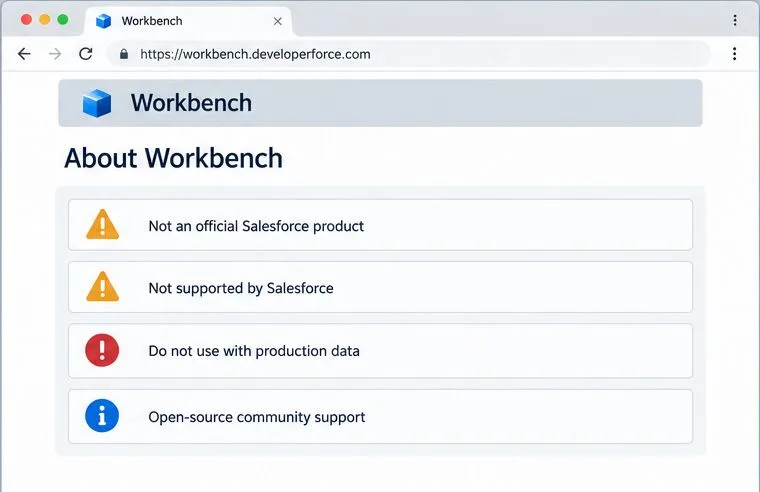
Workbench is a browser-based suite for interacting with Salesforce organizations through several APIs, including REST, SOAP, Bulk, Streaming, Metadata, and Apex-related tools. However, the Workbench site states that it is not an official Salesforce product and that Salesforce support is not available for Workbench itself. Its About page also warns users not to use the application with production data.
That warning changes how you should respond during downtime. Salesforce Support can investigate a Salesforce service, instance, or API problem, but it may not troubleshoot every Workbench interface behavior. Conversely, an issue reported only by Workbench may belong to Workbench or to the browser path rather than the Salesforce platform.
Keep the troubleshooting read-only whenever possible. Do not paste passwords, OAuth secrets, session IDs, access tokens, customer records, or unredacted request headers into screenshots, chat messages, or public issue reports.
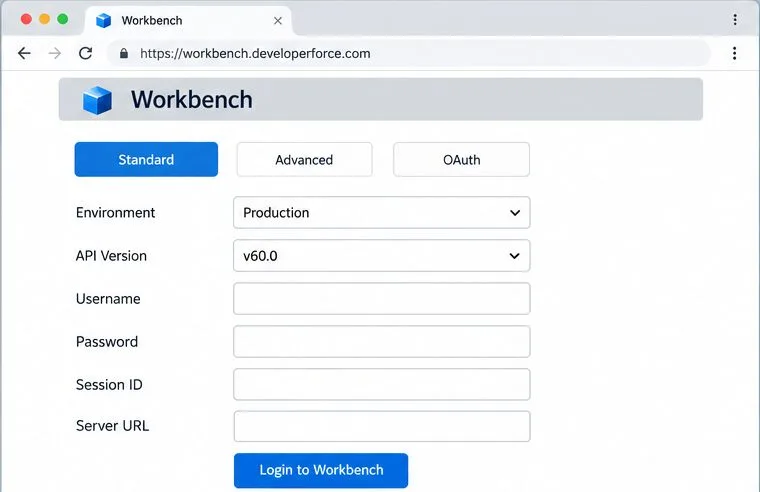
Start by identifying the Workbench login path and selected environment. The interface shown is an illustrative mockup, not a live login screen or a request to enter credentials into an article image.
Step 1: Check Salesforce Trust Status before changing Workbench settings
Open Salesforce Trust Status in a separate tab. Salesforce’s help documentation directs customers to this page for product outages and service degradation, and the Trust site can show information for products as well as specific instances.
Check two views:
The broad product view: look for an incident, service degradation, disruption, or maintenance event affecting the Salesforce service you use.
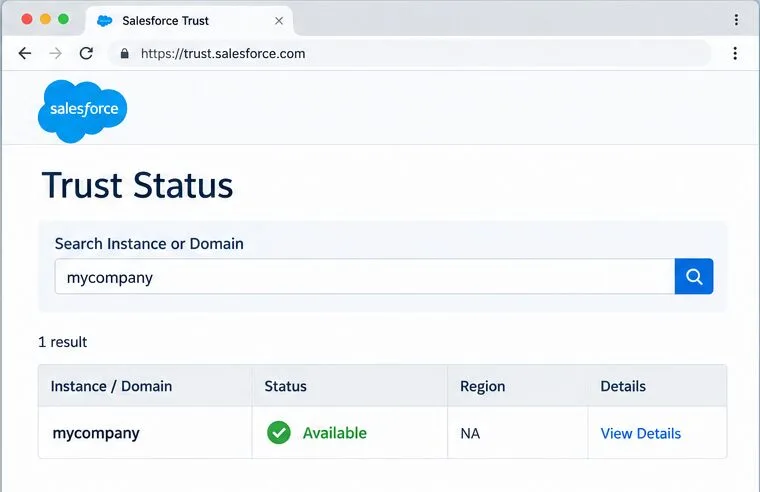
Your instance view: search for your instance or My Domain and open the matching result.
An instance marked Available is not a guarantee that every API operation will work. It means the instance and its services are available according to Salesforce’s status definition. Performance Degradation suggests access may work with latency or partial functionality; Service Disruption means the instance is unavailable; Maintenance indicates a maintenance event that may or may not affect access.
Step 1 — Compare the broad Trust Status information with the affected org’s instance. The screen shown is an illustrative guide to the documented lookup workflow, not evidence of a live incident.
Step 2: Confirm the environment and org before retrying
Workbench can connect to different Salesforce environments. Before concluding that an API is down, confirm whether the failing request targets production, a sandbox, or another authorized environment. A test that succeeds in one environment does not clear the environment that is actually failing.
Use the My Domain or instance identifier for the affected org. Salesforce documents that the My Domain prefix can be used in Trust Status, while an administrator can find the instance in Setup under Company Information. Write down the instance, environment, API version, approximate failure time, and endpoint. This small record prevents a common mistake: comparing a production error with a healthy sandbox status.
If the Workbench login page itself shows an unsupported login method or loops back to the login screen, treat that as a separate authentication or Workbench issue until Trust Status and a direct Salesforce login indicate otherwise. Do not repeatedly submit credentials during a suspected outage; excessive retries can create lockouts or add noise to the investigation.
Step 3: Classify the API response instead of guessing
Salesforce’s REST API documentation explains that the response header contains an HTTP status code and that the body usually contains a message and, when relevant, the field or object associated with the error. Preserve both pieces of evidence.
Code
Salesforce’s documented clue
How to interpret it during downtime
400
The request could not be understood, often because the JSON or XML body is invalid.
Usually fix the request before treating it as an outage.
401
The session ID or OAuth token is expired or invalid.
Re-authenticate through an approved flow; a 401 alone is not evidence of a platform outage.
403
The request was refused, often because of permissions or an API limit.
Check access and limits before escalating to an availability incident.
500
An error occurred within the Lightning Platform.
Retry only after recording the response; compare repeated failures with Trust Status.
502
Salesforce Edge could not communicate successfully with the instance.
A routing or platform-side problem is possible, especially across multiple requests.
503
The server is unavailable; maintenance or overload may be involved.
Check for an incident or maintenance event and avoid destructive retries.
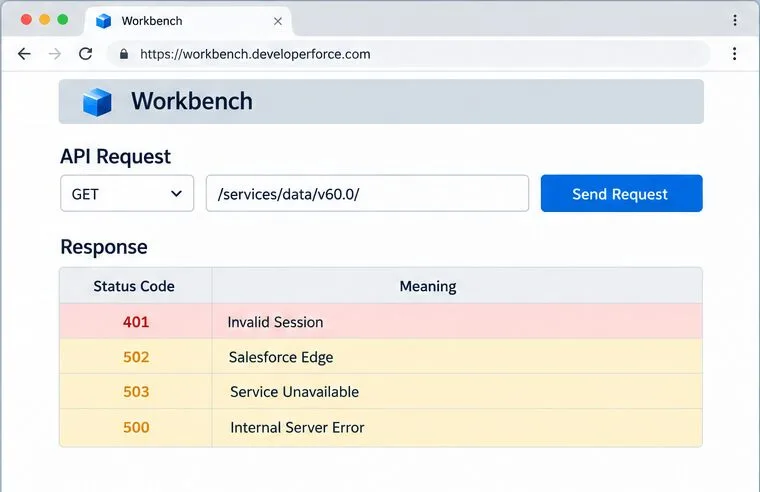
Step 3 — Record the HTTP code and response meaning before changing credentials or requests. The example contains no token, customer data, or real incident identifier.
Step 4: Run a safe comparison test
Once you know the status and environment, use the smallest permitted read-only test. A good comparison has three properties: it targets the affected org, it does not modify data, and it is simple enough that a request-format mistake is unlikely.
Repeat the same harmless request once after recording the first response.
If the request returns 401, begin a fresh authorized authentication flow rather than reusing an old session.
If it returns 400, 403, or 404, inspect the endpoint, API version, object name, permissions, and request body.
If it returns 500, 502, or 503 repeatedly, compare the time and instance with Trust Status.
If the browser UI works but Workbench fails, test the same authorized API path with an approved internal client or integration diagnostic.
Do not use a write, delete, bulk update, metadata deployment, or migration request as a health check. During an incident, a write can create partial results, duplicate work, or a false impression that recovery has occurred.
When should you change your troubleshooting approach?
Change approach when Trust Status shows an incident
Stop redesigning the query unless you have independent evidence that the request is malformed. Save the incident number, affected service, instance, start time, and latest update. Follow Salesforce’s recovery messages and protect queued work from duplicate retries.
Change approach when Trust Status is Available but Workbench alone fails
Focus on Workbench, browser, network, authentication, or local policy. Try a private browser window, a supported alternate browser, and a permitted network comparison. The Workbench site directs Workbench-specific support to its open-source community resources, while Salesforce Help remains the route for Salesforce product and account support.
Change approach when the error is consistently 401 or 403
Move to identity and authorization analysis. Confirm the user, connected app policy, OAuth scope, session age, API access, profile or permission set, and organization limits. Repeatedly refreshing the browser will not repair a missing permission or an invalid token.
Change approach when one endpoint fails but simple reads work
Investigate the endpoint, object, field, record sharing, API version, request body, and response body. A narrow failure is not enough to label Salesforce down globally. Reduce the request until you can identify whether the problem is syntax, access, data, or a dependent service.
Step 4 — Respect Workbench’s support and safety limits. Use approved Salesforce support for platform incidents and open-source community resources for Workbench-specific behavior.
Whether Salesforce UI, another user, or another approved client also fails
Trust Status incident number or a note that no matching event was visible
Remove credentials, session IDs, access tokens, customer names, record IDs, and sensitive payloads before sending logs. If the problem is only Workbench, use the support route identified on the Workbench Help page; Salesforce does not provide product support for Workbench itself.
How to verify recovery
A green status indicator is encouraging, but it is not the finish line. Verify recovery in layers:
Confirm the incident page shows a resolution or the instance returns to Available.
Log in through the approved Salesforce or Workbench flow without reusing a stale session.
Run the same harmless read-only request that failed earlier.
Compare the HTTP code, response time, and response body with the recorded failure.
Check integrations, queued jobs, and downstream notifications for delayed or duplicated work.
The result you want is not simply “the page opened.” You want the original authorized operation to succeed, with the expected response and no unreviewed side effects.
Self-check checklist
Scope: Did you check both the product-level Trust page and the affected instance?
Environment: Did you confirm production versus sandbox and the correct My Domain or instance?
Evidence: Did you save the exact HTTP code, error code, time, and redacted response?
Safety: Did you avoid write, delete, bulk, deployment, and migration requests during the incident?
Decision: Did you distinguish Workbench-only behavior from Salesforce API failure?
Recovery: Did you retest the original operation and inspect delayed downstream work?
Bottom line
For Salesforce Workbench errors during downtime, begin with Trust Status and the affected instance, then classify the HTTP response before changing credentials or rewriting requests. A repeated 500, 502, or 503 across simple read-only tests and a matching Trust incident supports a Salesforce-side explanation. A 401, 403, 400, or Workbench-only failure usually calls for authentication, permissions, request, browser, or Workbench troubleshooting instead. Because Workbench is not a Salesforce-supported product, keep production data out of it, document the boundary clearly, and use the latest official status and support guidance when the evidence changes.