Build a Supported SLES 15 HA Cluster with Fencing First
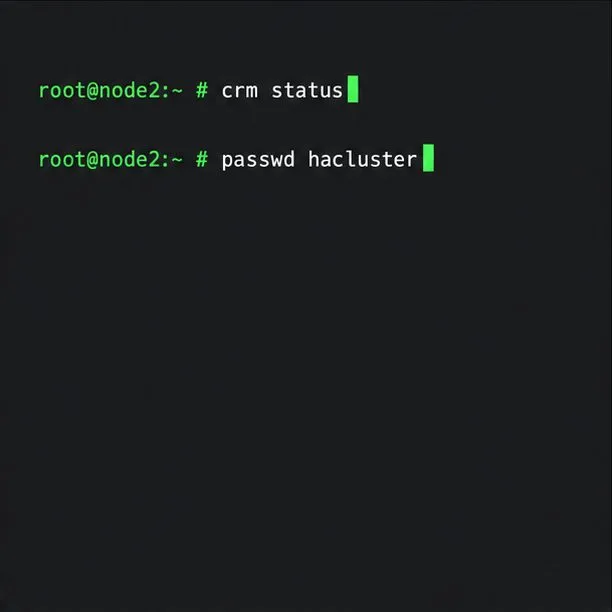
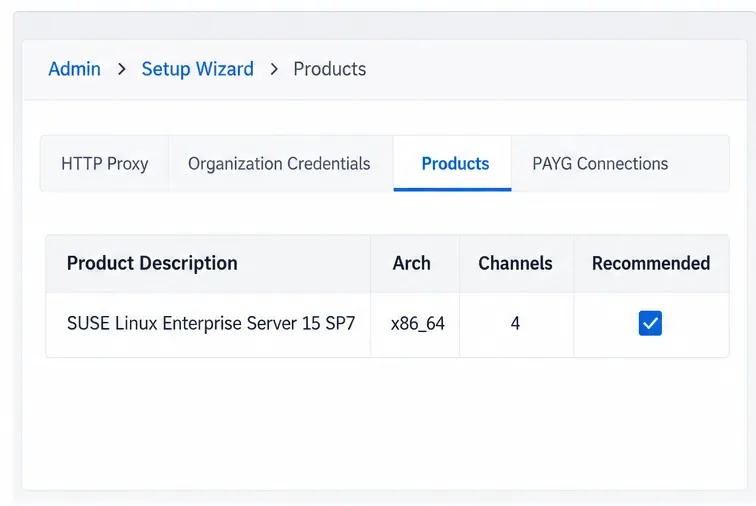
Register SLE HA, bootstrap SLES 15 nodes, then add fencing, quorum, and tested service resources before relying on failover.
WordPad has been around for a long time, since Windows 95, which means it’s over 25 years old. If you are an old-school user, you may still want to use it for editing documents in Windows. Although the venerable WordPad app is a bit hidden in Windows, there are many ways to find and open it. Without further ado, here’s how to open WordPad in Windows 10 and Windows 7:
Contents
NOTE: This guide covers Windows 10 and Windows 7. If you don’t know the Windows version you have, read this tutorial: What version of Windows do I have installed? (5 methods).
1. How to open WordPad in Windows 10 or Windows 7 using search
The fastest way to launch any app in Windows 10 is to use search. To open WordPad, first, click on the search box from your taskbar. Then, type wordpad and click or tap on the appropriate search result from the list.

WordPad Windows 10: Open using search
To open WordPad in Windows 7, click the Start button and type “wordpad” in Start Menu’s search box. Then, click on the WordPad search result.

Open WordPad using search in Windows 7
2. How to open WordPad from the Start Menu
If you’re a Windows 10 user, you can also use your mouse or touchscreen to open WordPad. To do that, click or tap on the Start button from the bottom-left corner of the screen. Then, scroll down the list of programs until you reach the letter W. Open the Windows Accessories folder and click or tap on the WordPad shortcut.

Open WordPad in Windows 10 from the Start Menu
If you are using Windows 7, open the Start Menu, navigate to All programs, and enter Accessories. There, you should find a shortcut to WordPad.

Open WordPad in Windows 7 from the Start Menu
3. How to open WordPad in Windows 10 using Cortana
If Cortana is enabled on your Windows 10 system, you can also write the steps to open WordPad in her app window or ask her to open WordPad using your voice. Activate Cortana by saying “Cortana” or by clicking/tapping on her button from the right of the taskbar search field.
Then, in Cortana’s popup window, either write “open wordpad” or push the microphone button and say “open wordpad.” After she understands what you want, she immediately opens WordPad on your Windows 10 PC.

How to open WordPad in Windows 10 using Cortana
4. How to open WordPad from the Run window
A quick alternative method to start WordPad in Windows 10, as well as Windows 7, is based on using the Run window. Press Windows + R on your keyboard to open Run, type wordpad or write in the Open field, and then click or tap OK.

Opening WordPad from the Run box
This is a fast method, isn’t it?
5. How to open WordPad using a shortcut that you can place anywhere you want
If a shortcut is your preferred way to start any app, you can create one for WordPad. If you’re using Windows 10, an easy way is to drag and drop the WordPad shortcut from the Start Menu onto your desktop or in any other folder you prefer.

WordPad shortcut on the Windows 10 desktop
Alternatively, both in Windows 10 and Windows 7, you can create a WordPad shortcut manually. Just make sure that, in the Create Shortcut window, you type write as the shortcut’s destination.

Create a shortcut for WordPad
NOTE: If you need help creating shortcuts, you can learn how to create shortcuts for apps, files, folders, and web pages in Windows 10. Although this tutorial was written for Windows 10, the first sections also apply to Windows 7.
6. How to open WordPad by pinning it to your Start Menu or taskbar
If you use WordPad frequently, the convenient places where you can pin it for quick access are the taskbar and the Start Menu, regardless of whether your PC runs on Windows 10 or Windows 7.
In Windows 10, find WordPad in the Start Menu. Then, right-click (or press and hold) on its shortcut. In the contextual menu, click or tap on “Pin to Start” or navigate to More and select “Pin to taskbar,” depending on which option you prefer.

Pin WordPad to Start or to the taskbar in Windows 10
In Windows 7, open the Start Menu, find WordPad’s shortcut, and right-click on it. On the contextual menu, select “Pin to Start Menu” or “Pin to Taskbar,” depending on what you want.

Pin to Taskbar and Pin to Start Menu for WordPad in Windows 7
From now on, you can open WordPad using the shortcut you’ve pinned.
7. How to open WordPad from Command Prompt or PowerShell
You can use Command Prompt or PowerShell just as well. In any of these apps, type write in the command line and press Enter on your keyboard.

How to open WordPad from cmd
8. How to open WordPad using Task Manager
You can open WordPad using the Task Manager. Launch Task Manager (Ctrl + Shift + Esc) and, in the File, click or tap “Run new task” in Windows 10 or “New Task (Run…)” in Windows 7. This opens a new window called “Create new task.” In it, type wordpad or write in the Open field and press Enter or OK.

How to open WordPad from Task Manager
NOTE: In Windows 10, when you open Task Manager, you might get its compact view. In that case, first press More details on the bottom-left corner of the window.
9. Start WordPad using its executable file in File Explorer or Windows Explorer
Another method to open WordPad in Windows 10 is to use File Explorer. Similarly, in Windows 7, you can use Windows Explorer. Start File Explorer or Windows Explorer and head to the “C:”
drive on your computer. Then, navigate to “Program Files\Windows NT\Accessories” and look for the executable file called wordpad.exe.

The wordpad.exe file is found in Program Files - Windows NT - Accessories
Double-click (or double-tap) on wordpad.exe, and WordPad starts.
Which method works best for you?
Now you know many ways to start the WordPad desktop app in Windows. Next, you can begin using WordPad to edit existing documents, create new ones, print documents, and so on. If you have any questions, let us know in the comments section below.
Register SLE HA, bootstrap SLES 15 nodes, then add fencing, quorum, and tested service resources before relying on failover.
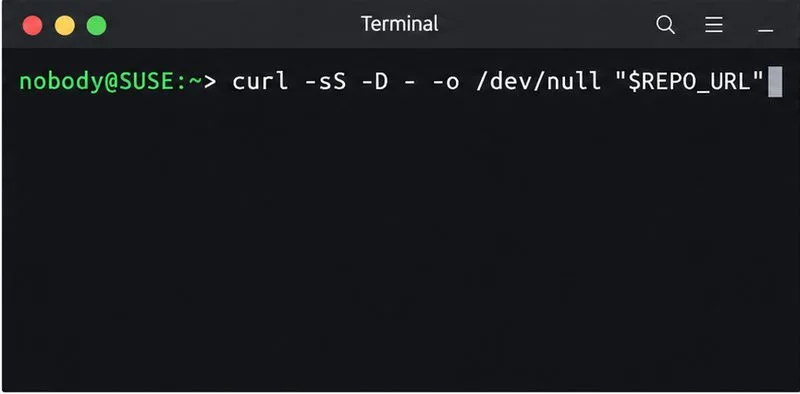
Trace a Zypper refresh error to SUSE, RMT, or a third-party endpoint, then apply the right server-side or cache fix without disabling essential updates.
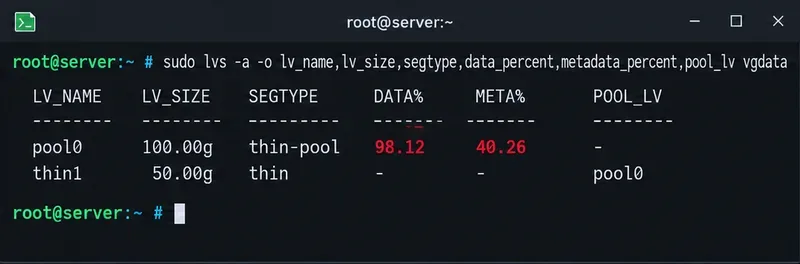
Resolve SUSE LVM thin-pool space errors by checking data and metadata usage, expanding the pool safely, and preventing repeat outages.
Identify whether Btrfs is intentionally read-only, short on space, or protecting data after errors, then choose a recovery path that fits the cause.
Prepare mirrored channels, create an activation key, and bootstrap an SLES 15 client without direct internet access while preserving the connection needed for Manager check-ins.
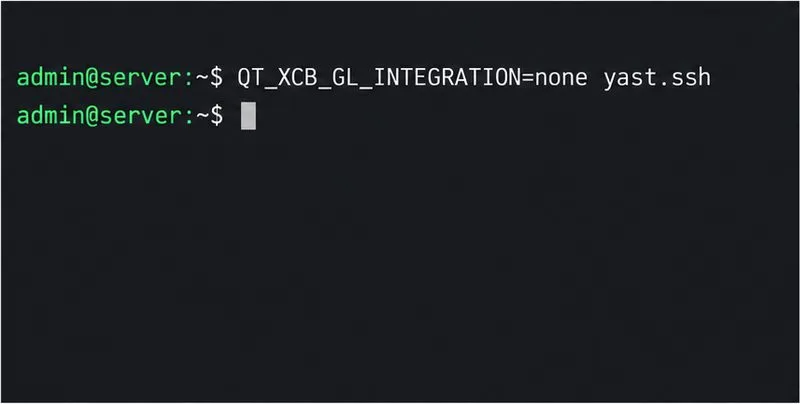
Fix YaST’s XIO launch error over SSH, verify X11 forwarding and xauth, and switch to the ncurses interface when a remote window is unnecessary.
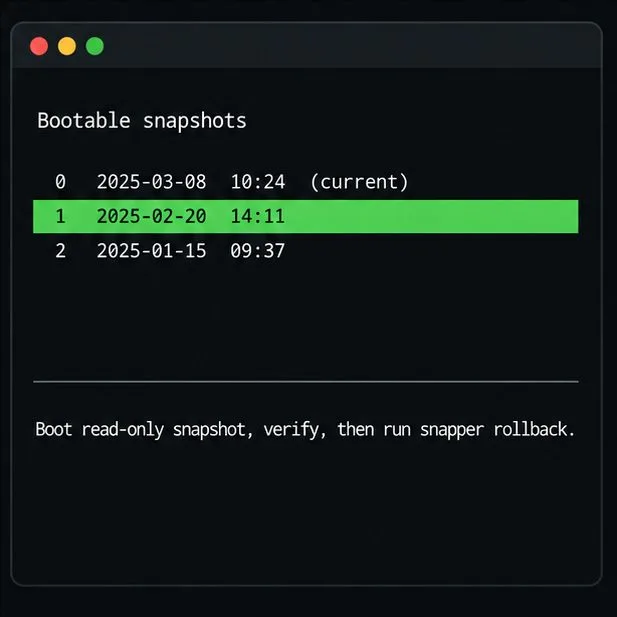
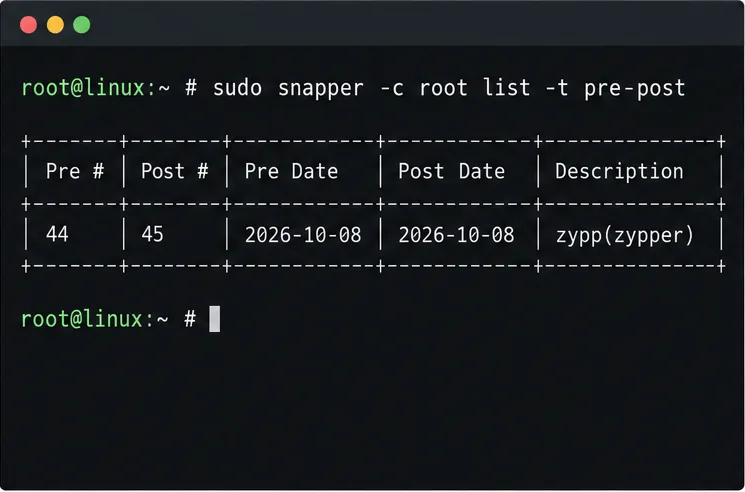
Find the pre-update Btrfs snapshot, test it read-only, and make recovery permanent with Snapper while understanding which data stays outside the root rollback.
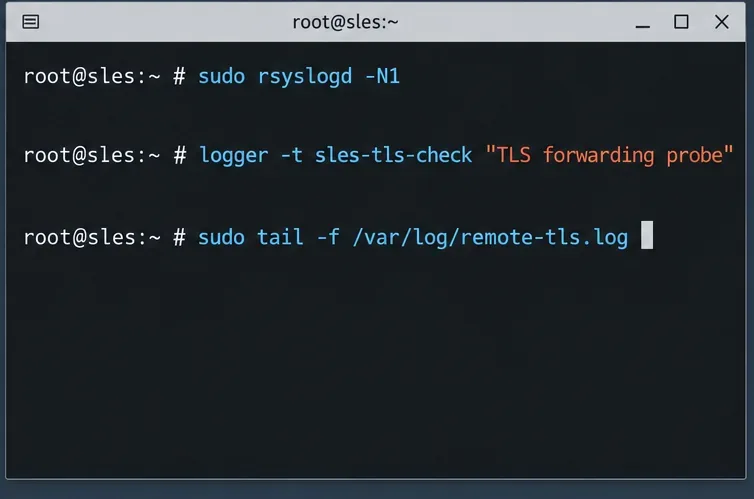
Send SLES system logs to a remote rsyslog collector over authenticated TLS, with certificate checks, outage buffering, and delivery tests.
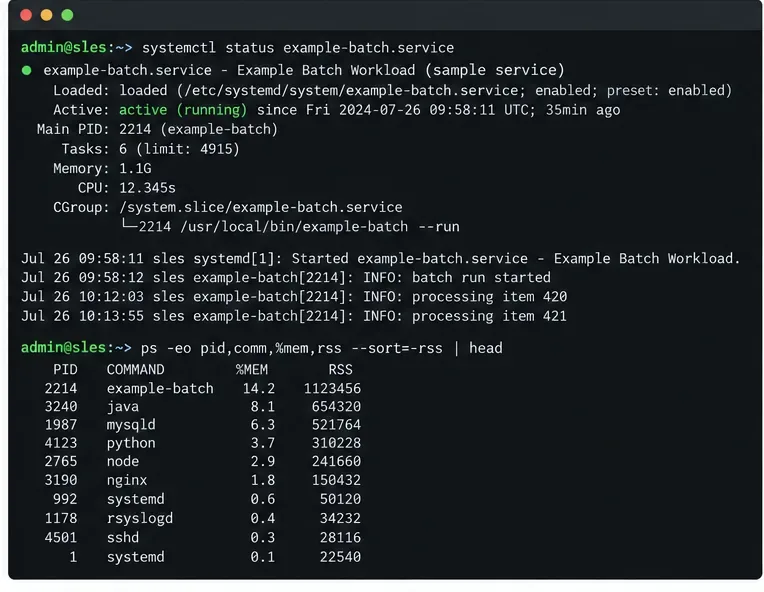
Use RAM, swap, kernel, and Zypper logs to identify real memory pressure, protect package state, and choose a safer SLES upgrade retry.
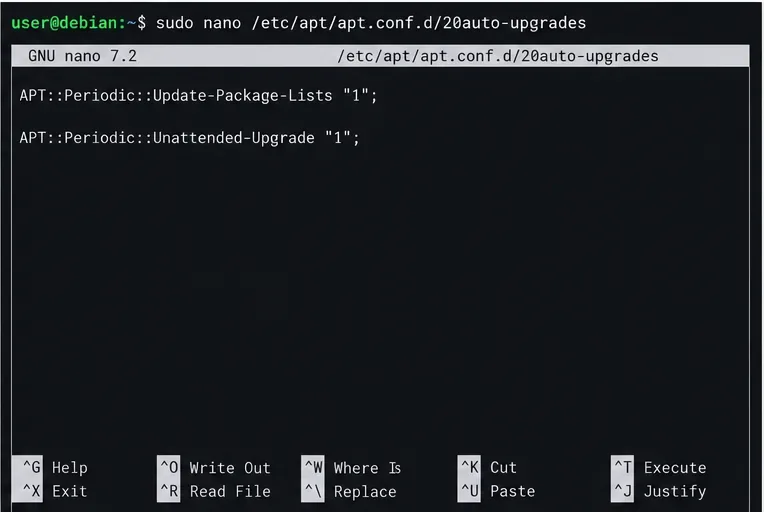
Enable Debian’s unattended security updates over SSH, keep the default package sources, and verify scheduled runs through systemd and APT logs.