Deploy Shared Pardus Wallpapers and Policies with Lider Ahenk

Distribute a custom wallpaper to Pardus clients, configure Xfce or GNOME desktops, and apply Lider Ahenk user policies with safe pilot checks.
If your Windows 10 PC meets the hardware requirements, you can Upgrade to Windows 11 Free by using Microsoft's built-in tools and keeping your existing license. The process takes roughly one to two hours and preserves your files and apps when done correctly. This article shows the precise sequence of actions needed.
Windows 11 brings a redesigned Start menu, improved Snap layouts, better security defaults, and ongoing feature updates that Windows 10 will no longer receive after 2025. Upgrading keeps your current product key active so no purchase is required. Before beginning, confirm your device meets the minimum specifications listed on Microsoft's site.
Run the PC Health Check app first to verify TPM 2.0, Secure Boot, and compatible CPU. If any requirement fails, the upgrade path is blocked until the hardware issue is resolved.
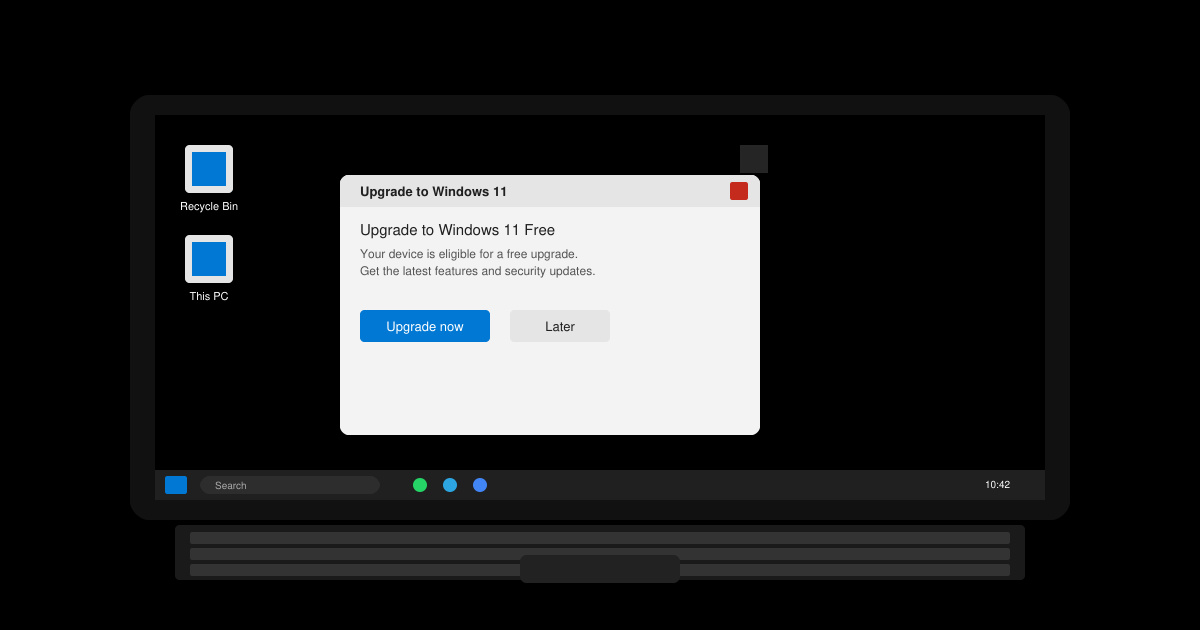
Open any browser on your Windows 10 PC and go to the official Microsoft Windows 11 download page. Click the blue “Download Windows 11 Installation Assistant” button and save the executable file to your Downloads folder. Double-click the file to launch it.
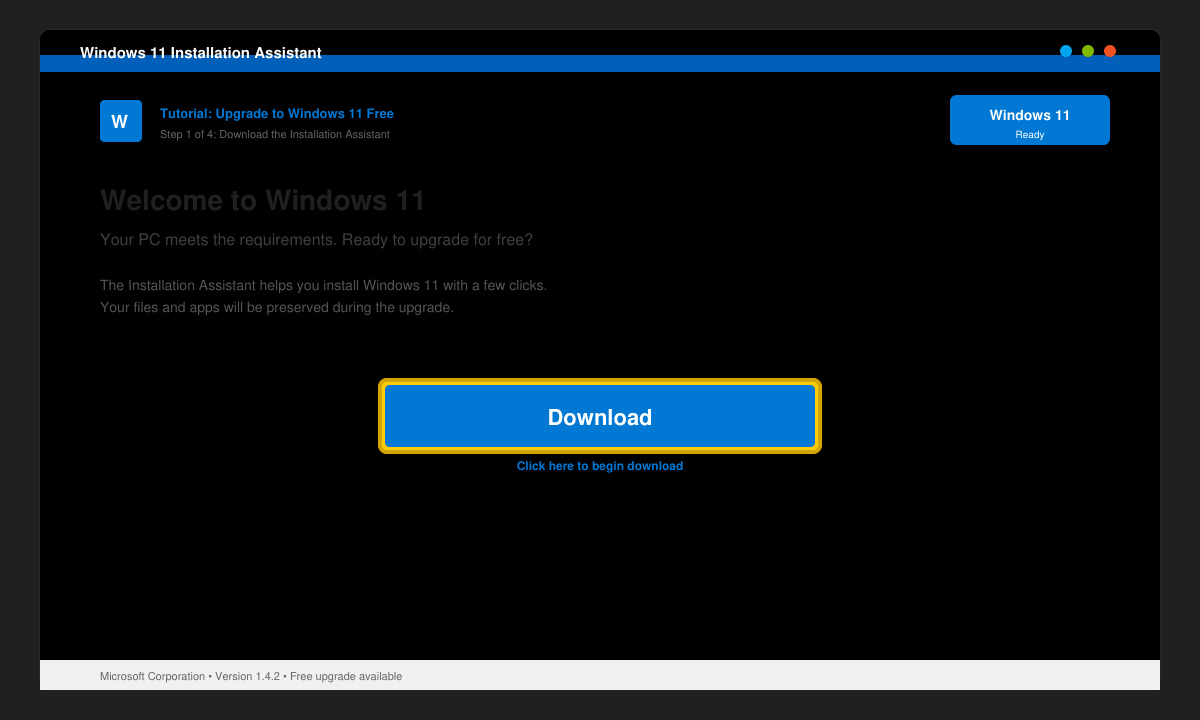
The assistant first verifies your hardware. Click Accept and Install when prompted. The tool downloads the necessary files in the background, which can take 20–40 minutes depending on your internet speed.
When the download finishes, select “Keep personal files and apps” on the next screen. This option performs an in-place upgrade rather than a clean install. Click Next, then Install to begin the actual upgrade process.
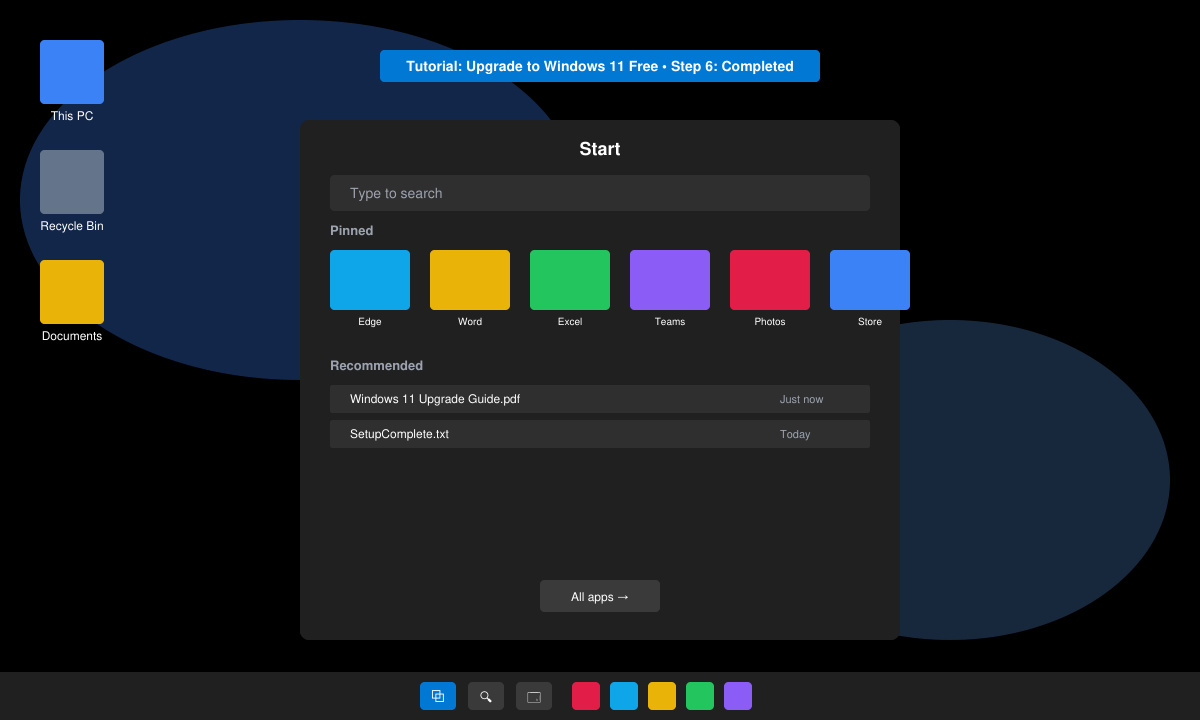
Your computer will reboot several times during the installation. Do not turn it off or unplug it. The process usually completes in 30–60 minutes. Once finished, you will see the new Windows 11 login screen.
Microsoft blocks the upgrade on devices that lack TPM 2.0 or a supported CPU. Workarounds exist through registry edits, but they are unsupported and may prevent future updates.
No, choosing the “Keep personal files and apps” option during the Installation Assistant process preserves everything. A clean install option is available if you prefer to start fresh.
The free upgrade offer from Windows 10 has no announced end date, but Microsoft may change this policy at any time. Performing the upgrade now ensures you keep the free license.
Following the steps above lets you Upgrade to Windows 11 Free while retaining your files and activation. Run the Installation Assistant on a backed-up machine and allow the full restart cycle to complete without interruption.
Distribute a custom wallpaper to Pardus clients, configure Xfce or GNOME desktops, and apply Lider Ahenk user policies with safe pilot checks.
Fix a 1024 × 768 ceiling by checking SPICE, virtual video, the guest channel, and spice-vdagent—with safe checks when Pardus lacks a package candidate.
Set up the Lider server, configure its installer safely, register Ahenk endpoints, and verify a pilot before expanding central management.
Download the official Pardus 23 desktop ISO, write it safely with Rufus, and boot a Windows PC into a temporary Live session.
Find out why Pardus 23 cannot detect your sound card, then use targeted ALSA, firmware, and PipeWire or PulseAudio checks to restore playback.
Save HamoniKR preferences to external storage, include hidden home folders, and choose a safe restore mode when moving to a fresh installation.
Install and configure xrdp on Pardus, choose the right Xfce session, restrict network access, and verify that remote login works.
Diagnose Pardus 23 APT connection failures, confirm the official yirmiuc sources, and restore apt update without bypassing package signature checks.
Configure printers on Harmonica OS using CUPS, compare driverless IPP with legacy drivers, and verify USB or network printing with a test page.
Use a recovery shell to set a new Harmonica OS root password, with checks for encrypted disks, read-only filesystems, and accounts that use sudo.