Suddenly on a beautiful day, your laptop screen is intermittently jerking, flashing continuously or the signal is flickering. This will seriously affect the user's eyes if they have to work in front of the computer for a long time. So what are the causes and effective solutions when the laptop screen is jerked ? In the article below, WebTech360 will help you find the answers to these questions.
1. The main reasons why the laptop screen is constantly jerking
There are many main reasons why laptop screen flickers continuously
Some of the top reasons why the laptop screen is constantly jerking can be mentioned as follows:
1.1. The application is not compatible with the laptop screen
Each person's laptop is installed with many different applications and programs. In many cases, the graphics settings of some applications may not be compatible with the laptop, resulting in the laptop screen jerking or flickering continuously.
To find out if an incompatible application is the reason why your laptop screen is stuttering, follow these steps:
Step 1. Click CTRL + ALT + DEL and select Task Manager .
Step 2: In the new window that is displayed, see if the laptop screen is flickering or jerking. If everything on the laptop screen is flickering or jerking except for the Task Manager window, there is definitely an incompatible application on the computer.
Step 3. If the Task Manager window is also flickering or jerking, it's likely that your computer is having some other problem.
1.2. Driver of laptop video card is old

Driver of laptop video card is old
If the driver of the video card and laptop display is too old, it is also one of the reasons why the screen is flickering or jerking continuously. To check if the updates on the system have been fully installed, follow these steps:
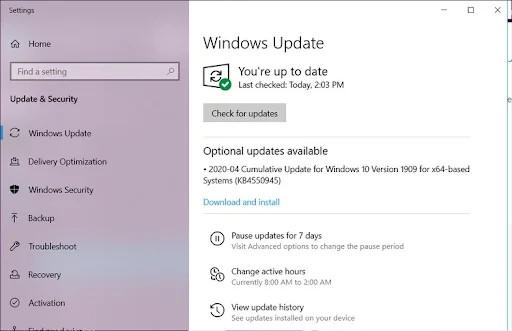
Step 1: Access the Start window -> Settings -> Updates & Security -> Windows Update .
Step 2: If the laptop has scanned for recent updates, people can see a list of pending installations and the name of the program, extension or driver that needs to be updated immediately.
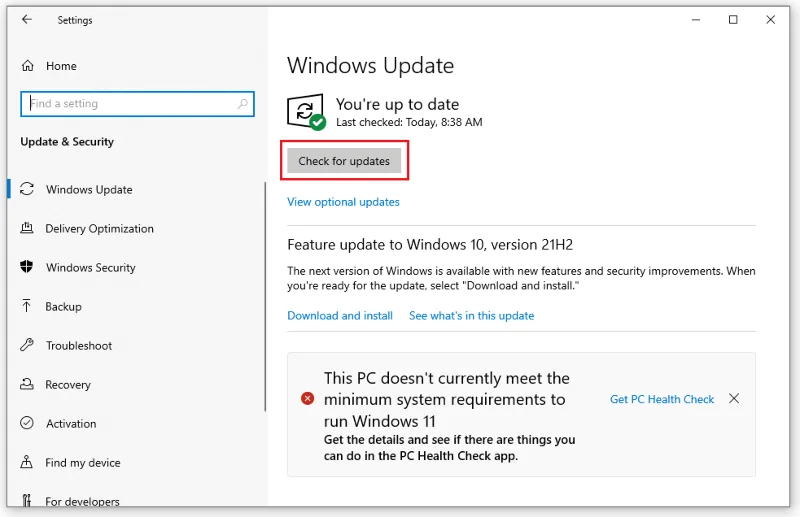
Step 3: If the automatic scan has not been completed, you can click Check for updates to scan the operating system and hardware. From there you can find the necessary updates.
Step 4: Click the Download and install now button and let the laptop do the rest.
1.3. Laptop cable is loose or damaged
Laptops are designed in the form of a folding lid, and frequent and improper opening and closing can cause the cable connecting the body to the screen to become loose. Or even broken over time. This is also one of the main reasons why the laptop screen flickers or jerks continuously.
To check if the problem is caused by the wires, lower and raise your laptop screen several times. From there, everyone will know if the screen flickering or flickering is related to motion or not.
If only certain folded corners of the laptop screen flicker or jitter, and others do not, the cause of this phenomenon is a faulty internal wiring. Furthermore, a loose or damaged inverter, display or backlight cable can also be the cause of this error.
1.4. The refresh rate of the monitor is incorrect
Just like the error of the laptop screen with interference, it is possible that the laptop screen is jerked, flickered, vibrated due to the incorrect scanning frequency of the screen. First check if the monitor's refresh rate is correct. As usual, the refresh rate of the screen is in the range of 50, 60, 70, 75Hz depending on the type of screen.
2. How to effectively fix the situation where the laptop screen is constantly jerking
Here are some ways to fix the phenomenon of laptop screen jerking or flickering continuously, you should refer to:
2.1. Update laptop screen driver card
To properly update your laptop's display driver, you need to start your computer in Safe Mode. After that, people can uninstall the current driver and video card and check for the latest updates. The process of updating the laptop screen driver consists of three parts as follows:
Boot the laptop into Safe Mode
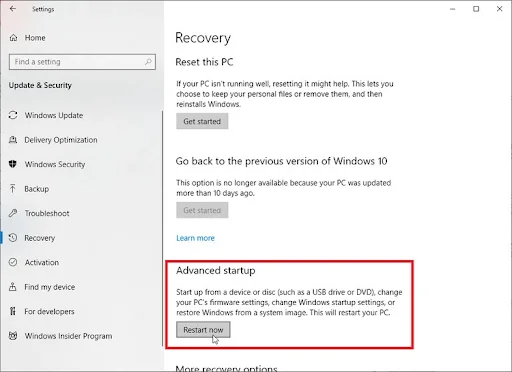
Step 1: Go to Start -> Settings -> Updates & Security -> Recovery in the left pane.

Step 2: Under the Advanced startup box in the right pane, click the Restart now button to fix the blue Troubleshoot problem.
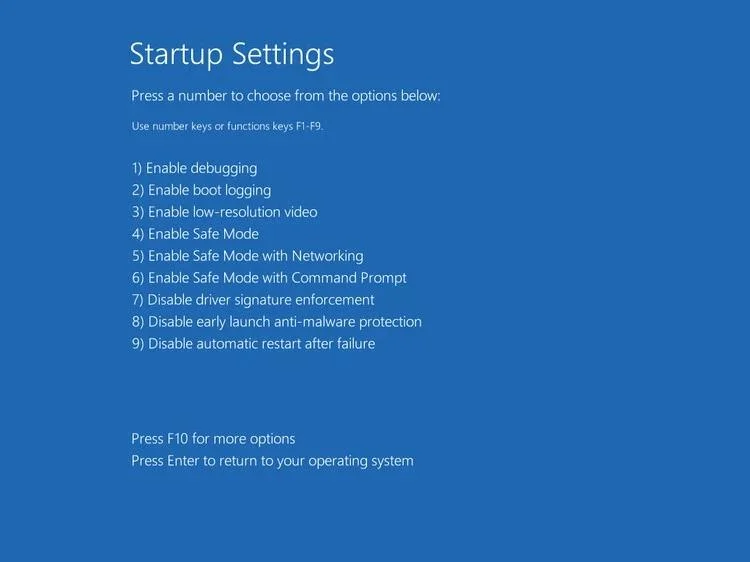
Step 3: Select the box Advanced options -> Startup Settings -> Restart .

Step 4: After the laptop restarts, press button 4 to select option 4 or press F4 to turn on Safe Mode.
Uninstall the current stuttering laptop screen driver
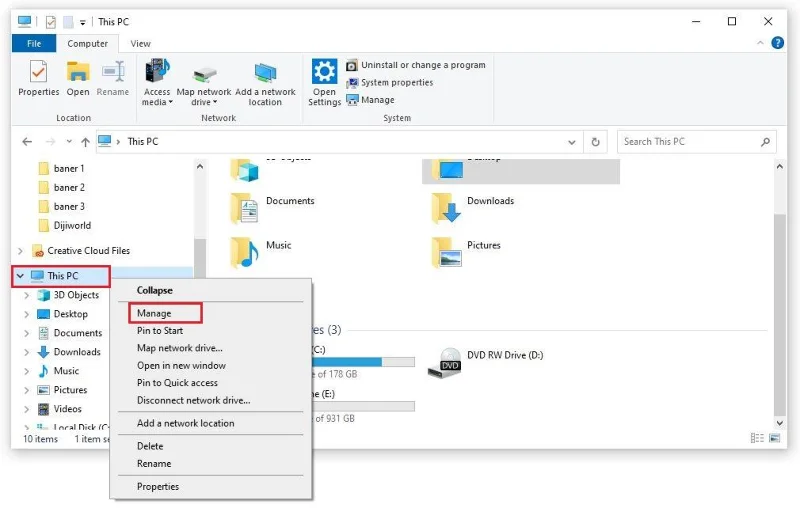
Step 1: Right-click This PC and select Manage .

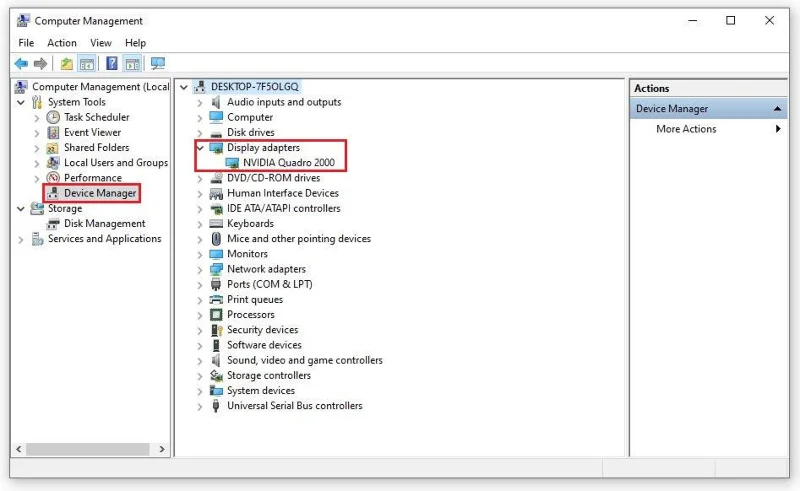
Step 2: When the Device Manager window displays, open the Display adapters section to display the names of the display devices available on the laptop.

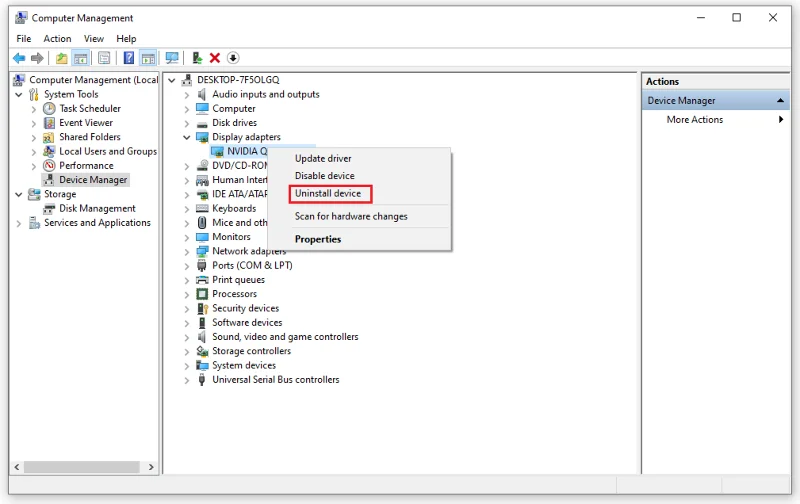
Step 3: Right-click on the displayed device name -> Uninstall device .

Step 4: Click the option Delete the driver software for this device in the dialog box that is showing -> Uninstall .
Step 5: Restart the laptop.
Reinstall laptop display driver
Step 1: Access the Start bar -> Settings -> Updates & Security .
Step 2: Under the Windows Update box in the right pane, click the Check for updates button to download and install updates for the system, including the latest laptop screen driver.

2.2. Download the latest laptop screen driver from the manufacturer
Download the latest laptop screen driver from the manufacturer
By default, Windows 10 has the ability to automatically update the necessary fixes, patches and drivers for laptops. However, some important laptop display drivers are sometimes still missing.
If the laptop screen is jerking or flashing continuously, the driver may be old and if you are not sure about the manufacturer, you can check by the following:
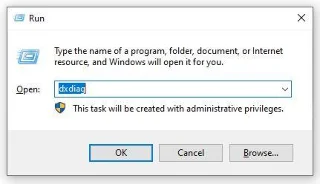
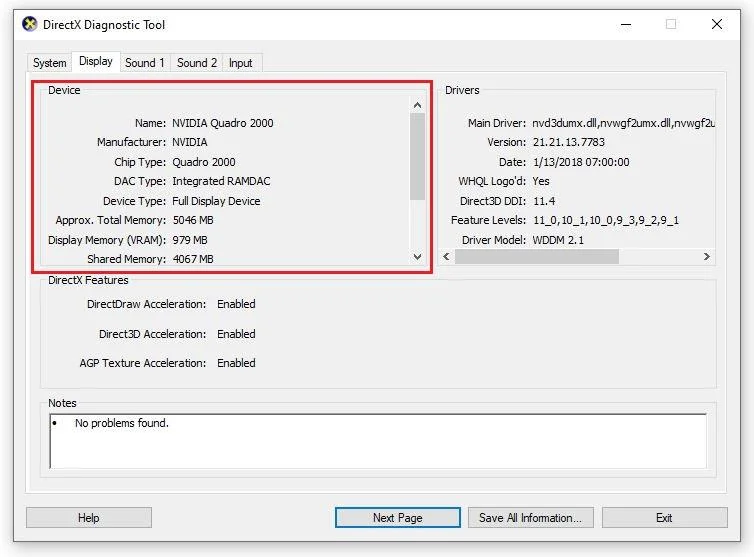
Step 1: Right-click on the Start bar -> Run and then enter the word dxdiag in the empty box -> OK .

Step 2: Select the Display tab in the DirectX Diagnostic Tool window ,.

Step 3: You will see the name, device type, manufacturer and all other related display information here.
With device name and manufacturer information, you'll know exactly where to find, download, and update display drivers directly. Most laptops will be supported by driver manufacturers like Intel, NVIDIA and AMD. Manufacturers will have a dedicated page for updates and downloads that are compatible with each model of the machine.
2.5. Disable Desktop Window Manager
Desktop Window Manager is a manager of all visual effects on the desktop and features that support high-resolution laptop screens. However, Desktop Window Manager is still likely responsible for the cause of the computer screen flickering or flickering. How to turn off the Desktop Window Manager manager as follows:
Step 1: Right-click on the Start bar -> Run. Then, you enter the phrase services.msc into the empty box -> OK.
Step 2: In the new Services window that appears, right-click the Desktop Window Manager Session Manager -> Stop box.
Step 3: Continue to right-click on Desktop Window Manager Session Manager -> Properties.
Step 4: Select the General tab in the new dialog box, then change the option in the Start-up type frame to Disabled -> OK.
Through the above article, WebTech360 hopes that you already know the cause and how to effectively fix it when the laptop screen is jerking or flashing continuously. If you have tried the above methods and the screen flickering or stuttering error still persists, please bring your laptop to a professional repair shop. If you know any other ways to improve the above errors, please share with WebTech360 through the comments at the bottom of this article.