Creating signature borders, or writing text is something that many designers often use to design to help stand out for their products, so how to use creating borders through Adobe Photoshop WebTech360 software please introduce show you how to create text borders in photoshop , very basic to help you gradually become more professional.
Create Text Borders In Photoshop What To Do?
With today's development needs, designing text-related products such as billboards, posters, ... outstanding and eye-catching is what designers aim for. You can easily design a billboard with a few simple steps, but how to get attention and make your billboard stand out from the countless other billboards on the street is quite difficult. hard. This requires an eye for aesthetics and design ability that accentuates your focus.
When manipulating parts with text, creating a text border in Photoshop with a color that highlights the main text color will make the text stand out much more than if you left it with a regular font.
If you insert text into an image in Photoshop when adding text borders, it will also increase the artistry and help people pay more attention to the content of the text. If you've used both bold and still find the text to be quite small compared to the layout, creating a border for the text helps to enlarge the text area to create balance without having to increase the size of the font.
With Photoshop tools, creating text borders will be extremely easy and simple. You just need to choose for yourself a beautiful background, think of an impressive slogan or brand name, then put the text into the available background.
After aligning the color and position of the text to make the layout most suitable, use the built-in tools in Photoshop to create and adjust the text. With just a little aesthetic talent, you can create a product with extremely prominent and beautiful text. You can apply this method to create billboards or posters with a promotional slogan or simply emphasize the caption in a commemorative photo.

Instructions for creating text borders in Photoshop
Summary of 04 Simple Steps to Create Text Borders in Photoshop
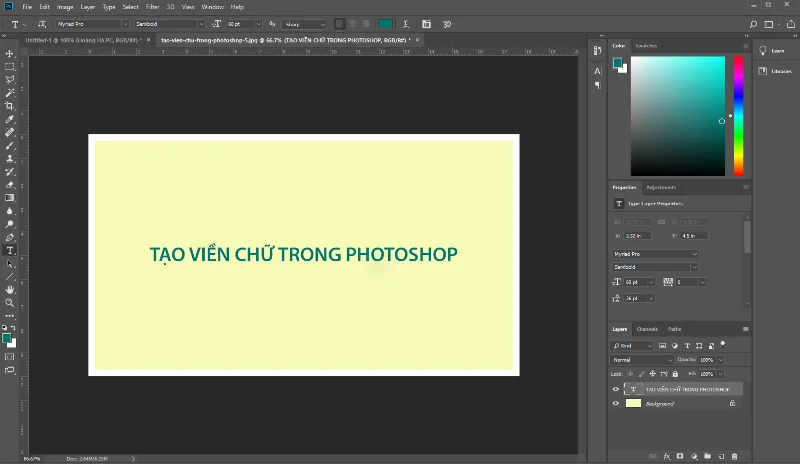
First to create a text border in Photoshop, start Adobe Photoshop, then create a new working file or choose to open an existing image for the background. Use the tool to initialize the text you need to border. You can customize the size, font, font style and color in accordance with the characteristics and environment the product will be used in. Here we will choose an existing image and align the text to match the overall background.
So we have 2 layers: One layer is used as the background and one text layer is above the background layer before starting the text bordering process.
Step 1: Initialize the working file and create a text layer

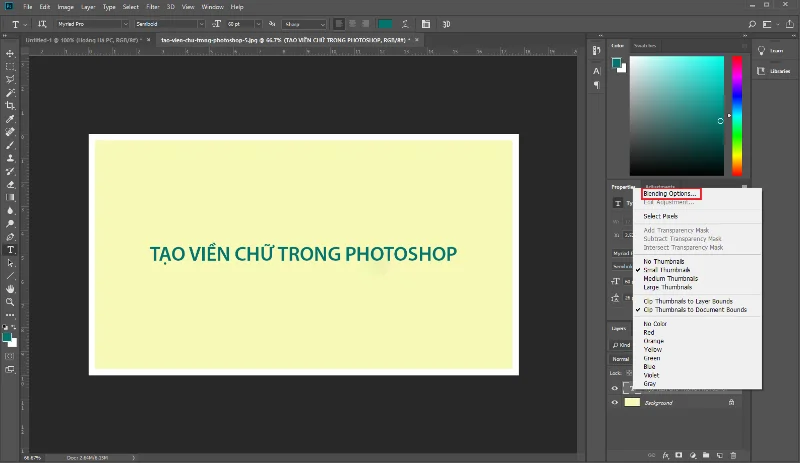
Step 2: Select Blending Options for the text layer
Looking at the layers panel on the bottom right, you will see 2 layers. Right click on the text layer above the background layer and choose ' Blending Options '.

Step 3: Align the parameters in the Stroke
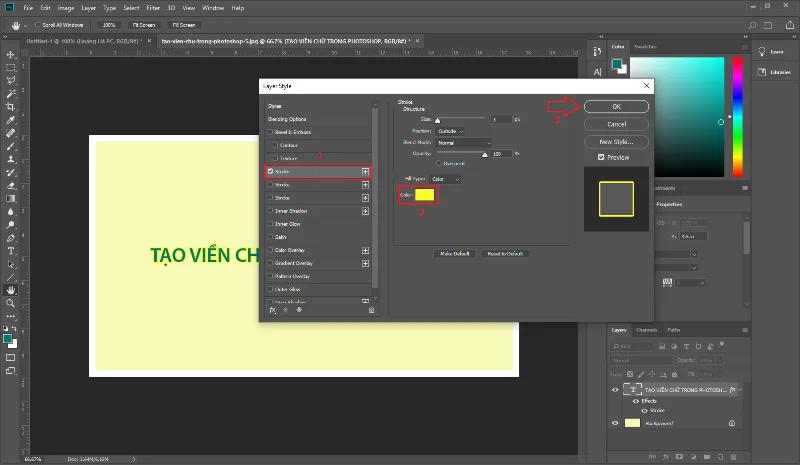
Next, Photoshop will show us a layer style table with a lot of options to adjust and design layers in Photoshop. To start creating text borders in Photoshop, select the "Stroke" section located at the 4th position in the "styles" version.
In the " Stroke " section, there are a few parameters you need to pay attention to in the process of creating text borders in Photoshop as follows:
Size: this is the size of the text border that you will create in units of pixels.
Position: Will give you 3 choices and you can only choose 1 of those 3 options: option Outside (the text border is on the outside) is the most commonly used option type, option Inside (The text border is on the inside) ), and finally the Center option (the text border is in the middle).
Bend Mode: This is the style of the text border. You can choose the border styles that match the product. If you have no selection in the Bend Mode section, the border style will default to "Normal".
Opacity: This is a parameter that adjusts the opacity of the text border. If you find that the border is too bold and doesn't fit with the overall look, you have the option to make the border less visible.
Color: This is the part to choose the color for the text border. You can choose your favorite colors by selecting colors in the palette or using the color code to fill in. If you do not know the color code you need, you can go online to search for the keyword "color code lookup" for more details!

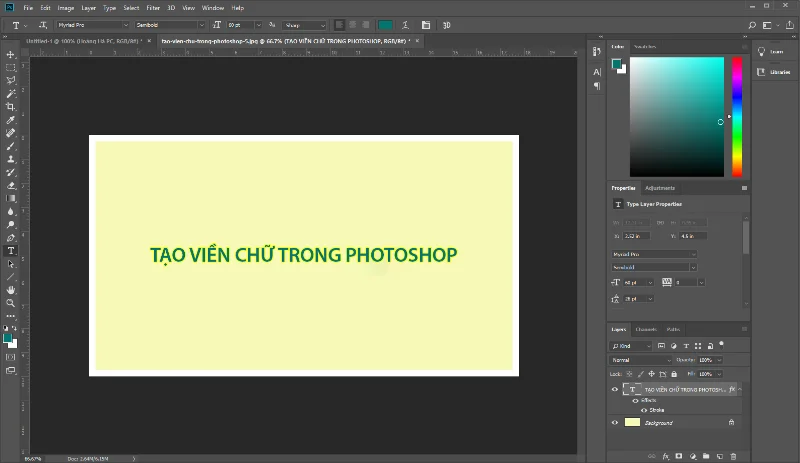
Step 4: Finish the product
Once all is done, just click on the “OK” button to finish the text bordering process and enjoy the result.

Configure the computer to run smoothly all versions of Photoshop CC
Below is the minimum computer configuration to use as any version of Photoshop CC. To work professionally, you have to upgrade the configuration below to more.
| Operating system |
Windows 7 with Service Pack 1, Windows 8.1, or Windows 10 (64-bit) |
| CPU |
Intel Core i3 Quad core (core i3 – 4 cores or more) |
| RAM |
8 GB |
| Graphics card |
2GB VRAM |
| Free hard drive space |
4Gb |
| Minimum screen resolution |
1280 x 800 |
| Support system |
OpenGL 2.0 |
With these 4 basic steps, you can create a very simple text border, of course there are many other ways to do it that also bring results as well as create a very beautiful border, but it will take more steps to do it. presently. If you want to know more about photoshop tutorials or machine configurations related to photoshop, follow WebTech360 !