Share 5 Super Fast Ways to Copy Layers in Photoshop for Users

Copying layers will make your manipulations when using Photoshop easier, understanding how to copy basic layers will help you master this tool. The following article will show you how to quickly copy layers in Photoshop .

Top 5 Super Fast Ways to Copy Layers In Photoshop Can't Be Ignored

During the photoshop process, sometimes you have to duplicate layers into two or more copies to manipulate without affecting the original layers. Duplicating multiple layers is both convenient to work with, and breaks down work and determines completion levels so that you can more easily distribute work.

For those who are new to Photoshop, cloning and manipulating sub-layers is considered a form of data backup. Duplicate the layers before moving on to a new step. If there is a mistake, you just need to delete the extra layer and go back to duplicate the original layer then continue doing it without starting from 0.

To help you perform layer copy operations quickly and effectively, please see the detailed content on how to copy layers in Photoshop right here.
Share 5 Super Fast Ways to Copy Layers in Photoshop for Users

Super Fast Copy Layer In Photoshop Can't Be Missed

Copy layer on same Photoshop file

This is the most common way to copy layers, all operations to add, edit, and adjust images on an image file need to use copied layers to manipulate.

Duplicating layers on the same photoshop file is also quite diverse and has many different methods, here we will learn the two most commonly used layer cloning methods .

Duplicate layers in Photoshop with keyboard shortcuts

The simplest and most commonly used way to copy a layer is to select the layer to be duplicated, then use the Ctrl + J key combination . For more than one layer, you just need to select all the layers to duplicate then use Ctrl + J to complete the process. Very simple and easy to remember right!

Sometimes you only need to duplicate a small part of the object in the layer to manipulate without duplicating the entire layer.

Just select the object you need to duplicate in the layers panel > Create a zone for the object to be separated using whatever tool you find most appropriate in the Selection Tool group (V) > Then hold the key ALT simultaneously drag and move the object to another position.

How to copy layer using Duplicate Layer option

Method 1: Drag and drop the layer to be duplicated into the New Layer icon at the bottom of the Layers panel.

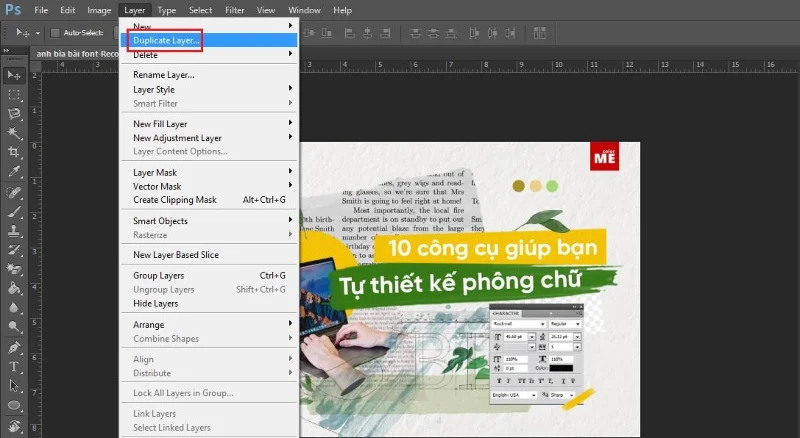
Go to menu Layer > Duplicate Layer Or Layer > New > Layer and Copy (Ctrl+J) .

Press and hold Alt + Drag the layer 's shape area to another location.

Right click on the layer to be duplicated, select Duplicate Layer .

Method 2: Select the layer to duplicate in the layer panel > Select Duplicate Layer .

Share 5 Super Fast Ways to Copy Layers in Photoshop for Users

Share 5 Super Fast Ways to Copy Layers in Photoshop for Users

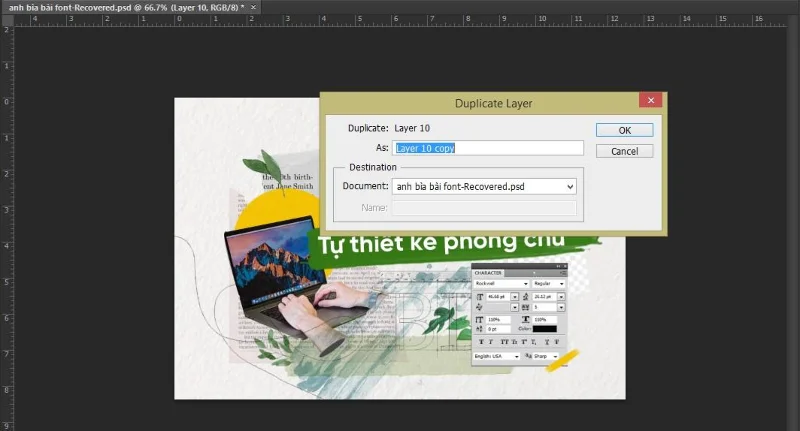
Note: With the Duplicate Layer feature, you can copy layers from one file to another in Photoshop. Or through another image by selecting a new file in the Document section.

Copy the layer to a new working file

If you find it difficult to stack too many layers in a file, or you want to separate a part of your subject into a new file. Follow the simple way of copying the layer below.

Step 1: Select the layer that you want to create a new file.

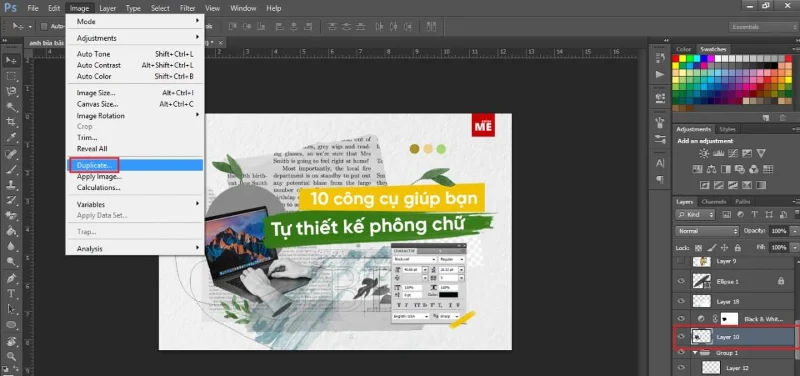
Step 2: On the menu bar of the main page in Photoshop, select Image > Duplicate Layer to open the Duplicate dialog box .

Share 5 Super Fast Ways to Copy Layers in Photoshop for Users

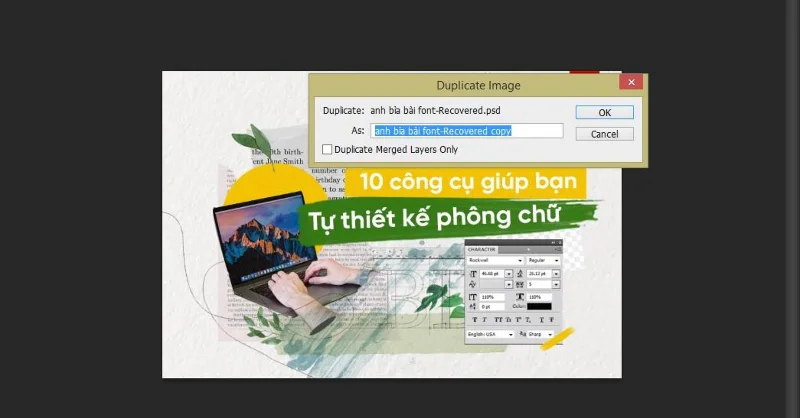
The Duplicate dialog box appears:

Share 5 Super Fast Ways to Copy Layers in Photoshop for Users

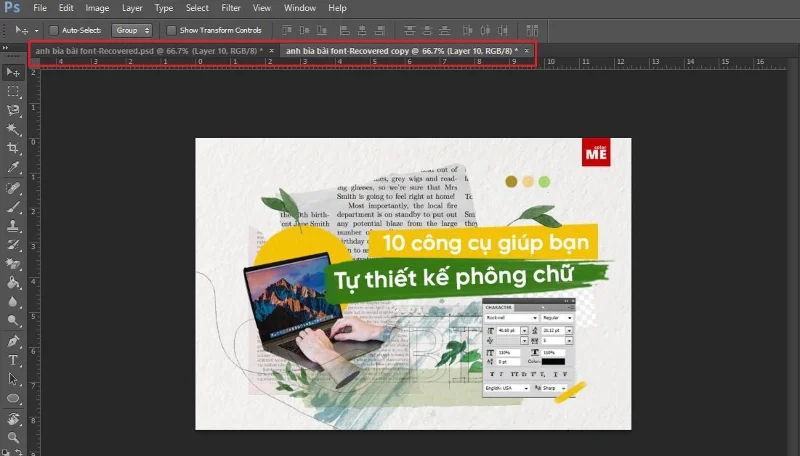
Step 3: In the Duplicate dialog box , name the layer to be split in the As section . If you leave the default, the layer will automatically duplicate a new PSD file .

Share 5 Super Fast Ways to Copy Layers in Photoshop for Users

Thus, we have learned 3 simple steps to copy layers to a new working file. Similarly, you can also copy to another PSD if needed.

Copy layer from one PSD file to another PSD file

You work with many related projects, the problem of copying layers between PSD files is inevitable. Let's take a look at 2 ways to copy layers from one PSD file to another PSD file!

Method 1: Similar to copy layer to a new working file.

Select the layer that you want to create a new file .

On the menu bar of the main page in Photoshop, select Image > Duplicate Layer to open the Duplicate dialog box .

In the Duplicate dialog box , name the layer to be split in the As section . Then in the Document section we select the PSD file that the new layer needs to be copied to.

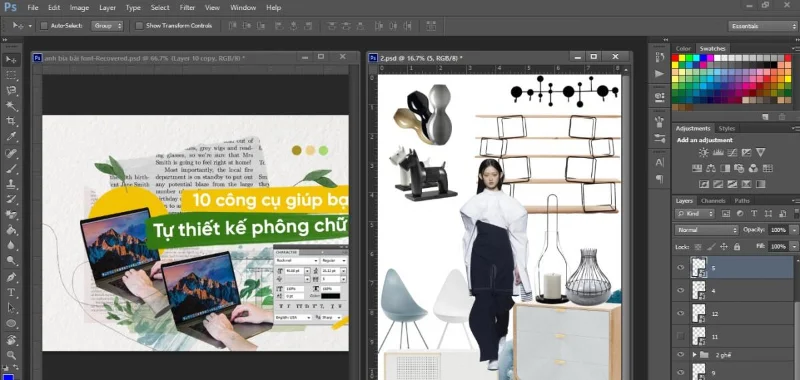
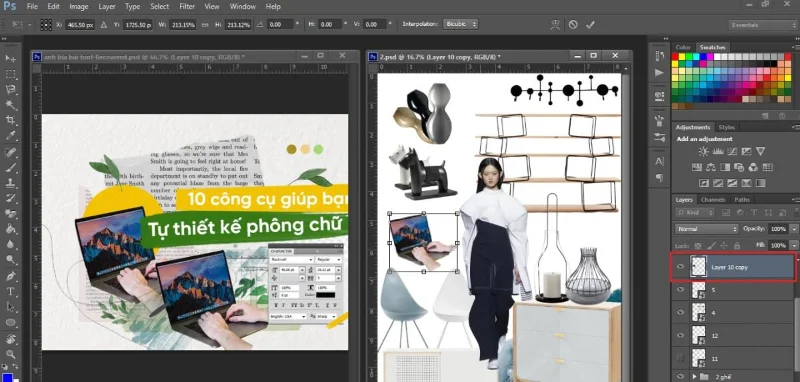
Method 2: To duplicate the layer from one PSD file to another PSD in this way. First you have to open both PSD files at the same time and follow the steps.

You should move 2 PSD windows to 2 different sides to be able to work on both PSD files at the same time . You can do as shown in the description.

Share 5 Super Fast Ways to Copy Layers in Photoshop for Users

Click on the layer you want to copy and move it to the PSD file you want to move.

Share 5 Super Fast Ways to Copy Layers in Photoshop for Users

After it has been converted to the new PSD file, the layer will appear as shown in the image. You can now manipulate and edit layers on the new PSD file.

In addition, you can refer to the configuration below, a minimum configuration that allows you to perform smooth photoshop.

Configuration for Designer: HHPC GAMING - INTEL CORE i3 10100 | 16G RAM | GTX 1050Ti 

➤ MAINBOARD: GIGABYTE H410M-H
➤ CPU: INTEL CORE i3 10100 up to 4.3G | 4 CORE | 8 THREAD
➤ DISPLAY: JONSBO CR-1000 RGB
➤ RAM: COLORFUL BATTLE AX 16GB BUS 3000 DDR4 (1x16GB)
➤ VGA: NVIDIA GTX 1050Ti 4GB GDDR5
➤ SSD: GIGABYTE SSD 240G SATA III ➤ HDD :
CUSTOMER CUSTOMIZE 
SOURCE: COOLERMASTER PC700 700W
➤ CASE: JETEK KAMADO ( NO FANS )

So  WebTech360  has gone through a few tutorials on how to quickly copy layers in Photoshop so you can quickly copy any layer. Good luck!
Leave a Comment

How to run old programs on Windows 11

How to run old programs on Windows 11

Have you ever tried to run an old program on Windows 11 and encountered an error code that you didn't understand? Luckily, Windows has some compatibility settings that can help you solve this problem.

3 Extremely Effective Ways to Fix Dead Laptop Battery

3 Extremely Effective Ways to Fix Dead Laptop Battery

Your computer is always running out of battery and cannot be recharged, the computer has a damaged battery. Join WebTech360 to learn about how to fix a dead laptop battery!

5 Ways To Fix MSVCP140.Dll Is Missing Error On Windows 10, 7 Simple And Fast

5 Ways To Fix MSVCP140.Dll Is Missing Error On Windows 10, 7 Simple And Fast

To know how to handle it at home, read WebTech360's sharing on how to fix MSVCP140.Dll Is Missing on Windows 10.7.

Instructions for Cleaning Computer Mouse Correctly

Instructions for Cleaning Computer Mouse Correctly

To answer the question, does a computer mouse need cleaning? and know how to properly clean? Please refer to the article shared by WebTech360!

Instructions for Fixing Api-Ms-Win-Crt-Runtime-L1-1-0.Dll Error On Windows

Instructions for Fixing Api-Ms-Win-Crt-Runtime-L1-1-0.Dll Error On Windows

When using a computer, you will experience interruptions in opening a program on Windows. Let's help WebTech360 fix api-ms-win-crt-runtime-l1-1-0.dll error on Windows

Top 5 Professional, Free MP3 Cutter Software 2023

Top 5 Professional, Free MP3 Cutter Software 2023

5 professional and free MP3 cutting software in this article will be a powerful support tool for you to edit audio files perfectly.

Top 5 Best Free CD, DVD, Blu-Ray Burning Software 2023

Top 5 Best Free CD, DVD, Blu-Ray Burning Software 2023

With a comprehensive article on free CD, DVD, Blu-ray burning software, the best 2021 will definitely not disappoint you.

Top 5 Best Free Folder Lock Software 2023

Top 5 Best Free Folder Lock Software 2023

If you want the data on your computer to be secure, you can't ignore the top 5 best free folder lock software in this article.

A Guide To Self-Taught Basic Graphic Design From A - Z

A Guide To Self-Taught Basic Graphic Design From A - Z

Many of you want to become a designer but don't know where to start. This article will guide you to learn basic graphic design by yourself.

The Secret To Conquering How To Draw Perfect Lines And Curves In Photoshop

The Secret To Conquering How To Draw Perfect Lines And Curves In Photoshop

Adobe Photoshop software gives us two great tools Line Tool and Pen Tool to draw lines and curves become precise and simple.

5 Ways To Merge Layers In Photoshop In Just One Note

5 Ways To Merge Layers In Photoshop In Just One Note

You are familiar with Photoshop but do not know how to combine layers. Follow along with 5 ways to combine layers in Photoshop below.

4 Simple Steps to Create Text Borders in Photoshop

4 Simple Steps to Create Text Borders in Photoshop

How to use border creation through Photoshop software, WebTech360 would like to share with you how to create text borders in Photoshop, very simple.

How To Draw Arrows In Photoshop With 3 Simple Tools

How To Draw Arrows In Photoshop With 3 Simple Tools

With the article on how to draw arrows in Photoshop with these 5 simple tools, you will easily draw arrows as you want.

Create Text Shadows In Photoshop With Two Simple Styles

Create Text Shadows In Photoshop With Two Simple Styles

Text shading in Photoshop will help you create a more wonderful feeling for your text, avoiding the boring phenomenon compared to conventional typefaces.

How to Fix Microsoft Edge Youtube Error: Black Screen and Lag

How to Fix Microsoft Edge Youtube Error: Black Screen and Lag

Struggling with Microsoft Edge YouTube error like black screen and lag? Discover step-by-step fixes for smooth playback. Clear cache, toggle hardware acceleration, and more – ultimate guide to resolve black screen and lag issues fast.

How to Completely Uninstall Microsoft Edge from Windows 11 in 2026

How to Completely Uninstall Microsoft Edge from Windows 11 in 2026

Master how to completely uninstall Microsoft Edge from Windows 11 in 2026. Step-by-step, no-trace removal for gamers seeking max performance. Say goodbye to bloatware!

How to Reset Microsoft Edge to Default Settings in 2026

How to Reset Microsoft Edge to Default Settings in 2026

Discover how to reset Microsoft Edge to default settings in 2026 effortlessly. Fix crashes, slowdowns, and pop-ups with proven step-by-step methods for a fresh, blazing-fast browser.

Troubleshooting Microsoft Edge Certificate Not Trusted Warnings

Troubleshooting Microsoft Edge Certificate Not Trusted Warnings

Tired of Microsoft Edge "Certificate Not Trusted" warnings blocking your browsing? Discover proven troubleshooting Microsoft Edge "Certificate Not Trusted" warnings steps to resolve SSL errors securely and regain smooth access. Works on latest Edge versions.

Removing Your Microsoft Edge Profile and Personal Data Safely

Removing Your Microsoft Edge Profile and Personal Data Safely

Discover how to safely remove your Microsoft Edge profile and personal data without risks. Our expert guide ensures a clean slate while protecting your important info – perfect for privacy pros!

How to Change Microsoft Edge Home Page and Startup Settings

How to Change Microsoft Edge Home Page and Startup Settings

Discover simple, step-by-step instructions on how to change Microsoft Edge home page and startup settings. Customize your browser for a faster, personalized experience today!

Troubleshooting Microsoft Edge Update Errors on Windows 11

Troubleshooting Microsoft Edge Update Errors on Windows 11

Tired of Microsoft Edge update errors crashing your Windows 11 browsing? This ultimate guide delivers proven, step-by-step fixes for common issues like 0x80070005, stuck updates, and more. Update Edge effortlessly today!

How to Fix This Site is Not Secure Error in Edge Browser

How to Fix This Site is Not Secure Error in Edge Browser

Struggling with "This Site is Not Secure" error in Edge? Discover step-by-step fixes to restore secure browsing instantly. Clear cache, update certs, and more—no tech skills needed!

How to Fix Microsoft Edge 404 Not Found Browser Error

How to Fix Microsoft Edge 404 Not Found Browser Error

Tired of the frustrating Microsoft Edge "404 Not Found" error? Discover quick, proven fixes to resolve 404 errors in Edge browser. Step-by-step guide with latest tips for smooth browsing.

How to Fix Microsoft Edge Out of Memory Error During Streaming

How to Fix Microsoft Edge Out of Memory Error During Streaming

Tired of Microsoft Edge "Out of Memory" error crashing your streaming sessions? Get step-by-step fixes to resolve it fast, boost performance, and stream smoothly without interruptions. Updated with the latest tips.

Troubleshooting Microsoft Edge Cortana and Copilot AI

Troubleshooting Microsoft Edge Cortana and Copilot AI

Struggling with Troubleshooting Microsoft Edge "Cortana and Copilot" AI? Get proven fixes for crashes, unresponsiveness, and errors in the latest Edge versions. Restore your AI assistant effortlessly!

Solving Edge Browser Clock Behind Error on Windows 11

Solving Edge Browser Clock Behind Error on Windows 11

Struggling with the Edge Browser "Clock Behind" error on Windows 11? Discover proven, step-by-step fixes to sync your clock, clear caches, and restore smooth browsing. Quick solutions that work!

Troubleshooting Microsoft Edge Video Stuttering and Frame Drops

Troubleshooting Microsoft Edge Video Stuttering and Frame Drops

Tired of Microsoft Edge video stuttering and frame drops ruining your streaming? Discover proven troubleshooting steps to restore smooth playback in this comprehensive guide. Fix it fast!

How to Fix Microsoft Edge BitLocker Recovery Loop Error

How to Fix Microsoft Edge BitLocker Recovery Loop Error

Struggling with the Microsoft Edge BitLocker recovery loop error? Discover simple, step-by-step fixes to escape the endless loop and regain access to your PC without data loss. Updated with the latest solutions.

How to Fix Microsoft Edge Core Isolation Settings Error

How to Fix Microsoft Edge Core Isolation Settings Error

Struggling with the Microsoft Edge "Core Isolation" Settings Error? Discover proven step-by-step solutions to resolve it fast, restore smooth browsing, and boost your PC security. Works on latest Windows versions.