To be able to draw straight lines and curves to create shapes for photo editing, you will need a little skill to be able to do it most accurately, helping to get used to more difficult lines. Let's learn in this article how to draw lines and curves in Photoshop !
How to Draw Perfect Lines and Curves in Photoshop
Although it looks quite simple and easy, the basic strokes are the basis for creating complex flat , solid, 2D, and 3D shapes , so being precise in these lines is extremely important. Understanding the mood of users Adobe Photoshop has integrated the Line Tool , Pen Tool to make straight lines and curved lines easier and simpler. Let's see how to draw basic lines with these two tools.
Simplest Line Drawing Tutorial For Beginners
There are many ways to create straight lines in Adobe Photoshop, we will learn the simplest and most common way is to use the Line Tool.
Step 1: Create a new layer in Adobe Photoshop
After starting Adobe Photoshop, create a new layer to start practicing the basic drawing process with the Line Tool.
Press Ctrl + Shift + N or go to Layer > New > Layer menu to create an empty layer!
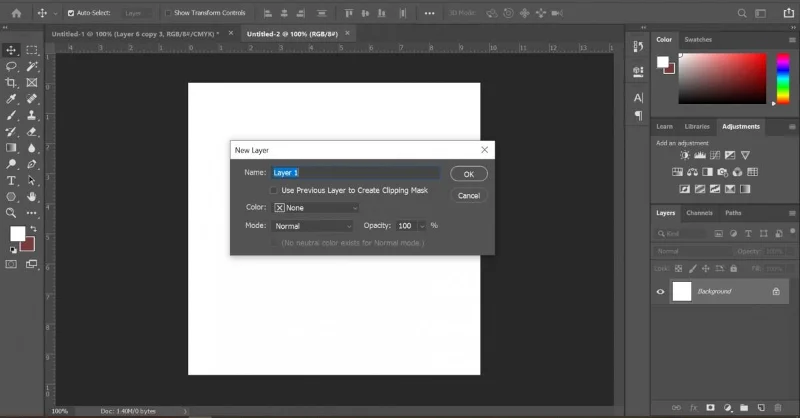
Notice the small panel in the lower right corner will see a new layer created with the name Background.
Step 2: Select the Line Tool
In the selection bar on the left, find the tool group containing the Line Tool with a straight line avatar and click to select it.
Step 3: Set properties when drawing
In the upper horizontal selection bar, we can set properties for the Line Tool such as: border color , size , format . For beginners, you do not need to be too concerned with these parameters, after getting used to it, try changing the parameters to learn more about this tool.
Step 4: Start drawing lines with the Line Tool
In the middle layer of the screen select the starting point, press and hold the left mouse button to drag to the end position, align the length and release the left mouse button to create a straight line. So the step of drawing the line is done.
Step 5: Move the line after drawing
After you have obtained the line with the Line Tool , if you are not satisfied with its current position. Pick the Move Tool , it's usually first in the menu on the left. Then move the line to the desired position and then release the mouse, the drawing has been successfully moved.
So with five basic steps, we have understood the working mechanism of the Line Tool in Adobe Photoshop.
Tutorial How To Draw Perfect Curves In Photoshop
There are many ways to create curves in Adobe Photoshop, we will learn the simplest and most common way is to use the Pen Tool.
Step 1: Create a new layer in Adobe Photoshop
After starting Adobe Photoshop, create a new layer to start the process of drawing basic strokes.
Press Ctrl + Shift + N or go to Layer > New > Layer menu to create an empty layer!
Notice the small version in the lower right corner will see a new layer created with the name Background.
Step 2: Select the Pen Tool and the Path drawing style
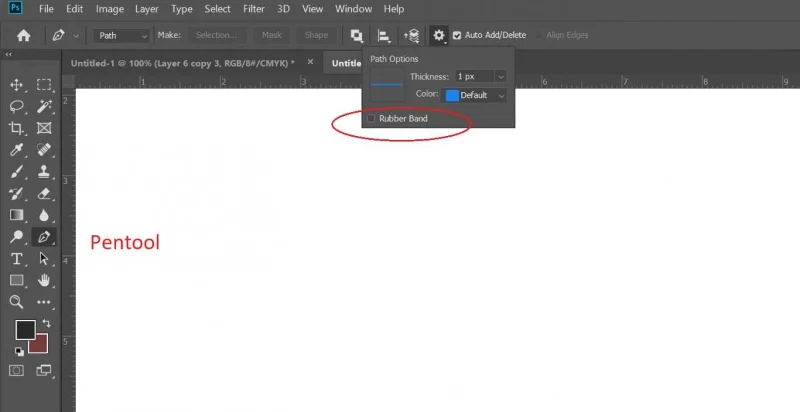
In the left toolbar find the tool called Pen Tool and click to select, next in the upper selection bar, in the left ComboBox select the drawing style as Path .
Note: If you are using new versions of Adobe Photoshop, you can enable the Rubber Band feature in the gear icon. With the Rubber Band feature , once enabled, you can preview the line as you draw it. This is pretty great for those just starting out using Adobe Photoshop.

Step 3: Start drawing lines with the Pen Tool
Similar to the drawing in the tutorial on how to draw a perfect line with the Line Tool. Start with the middle layer of the screen, select the starting point, press and hold the left mouse button, drag to the end position and release the left mouse button. So the step of drawing the line is done.
Step 4: Create curves with drag and drop
After creating a straight line, continue to select the Add Anchor Point Tool in the same group as the Pen Tool to create a curve.
On a straight line drawn with the Pen Tool, select the position where you need to create a curve, use Ctrl and drag to create a curvature for the line. With a straight line, you can create as many curved points as you want to form a suitable curve.
Step 5: Edit after drawing the curve
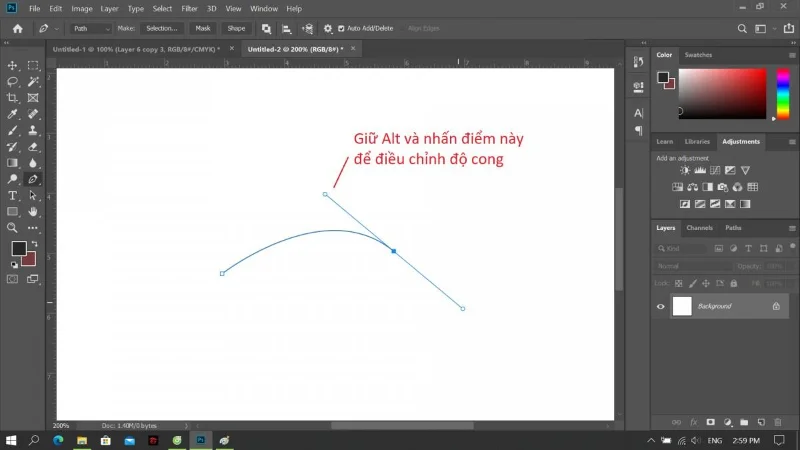
If you feel that the curve just drawn is not perfect, go to the Add Anchor Point Tool , drag to find the appropriate position of the line with 2 round dots. Use the combination of holding Alt and dragging to align the most suitable curvature.

Step 6: Color the curve after drawing
To color the curve after drawing, select the Brush Tool in the selection bar on the left. In the new window, set the Brush properties to your liking.
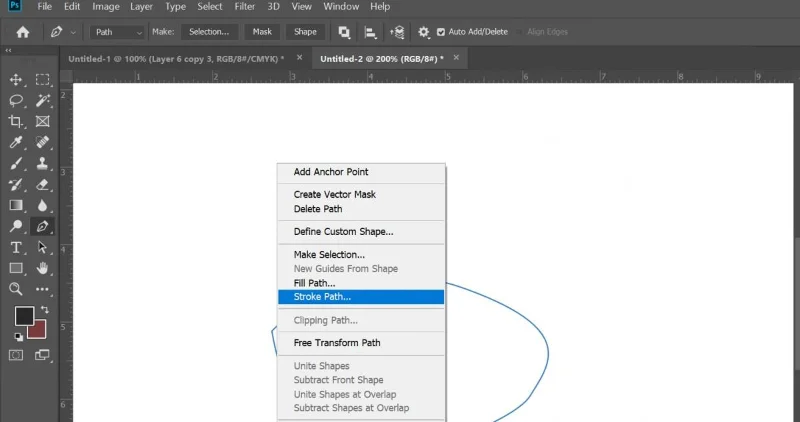
Pick the Pen Tool again , bring the mouse to the outline, right click and choose Stroke Path .
In the Stroke Path dialog box, to color the curve select the Brush for the Tool and click OK .

With these six simple steps, you can draw, shape, edit curvature and color your newly created drawing with the Pen Tool, right?
Professional PC configuration for Photoshop
In addition, you can refer to the following minimum configuration for Photoshop to help create Photoshop tools. If you have higher needs, more requirements, contact WebTech360 for advice.
🔵 Configuration for Designer: HHPC GAMING - INTEL CORE i3 10100 | 16G RAM | GTX 1050Ti
➤ MAINBOARD: GIGABYTE H410M-H
➤ CPU: INTEL CORE i3 10100 up to 4.3G | 4 CORE | 8 THREAD
➤ DISPLAY: JONSBO CR-1000 RGB
➤ RAM: COLORFUL BATTLE AX 16GB BUS 3000 DDR4 (1x16GB)
➤ VGA: NVIDIA GTX 1050Ti 4GB GDDR5
➤ SSD: GIGABYTE SSD 240G SATA III ➤ HDD
:
CUSTOMER CUSTOMIZE
SOURCE: COOLERMASTER PC700 700W
➤ CASE: JETEK KAMADO ( NO FANS )
So just follow the simple steps above, we already know how to draw perfect lines and curves in Photoshop. To know more great functions of this tool, we need to regularly use and learn it or follow the next articles on WebTech360 's website .