LibreOffice Document Locked by Unknown User: A Safe Fix
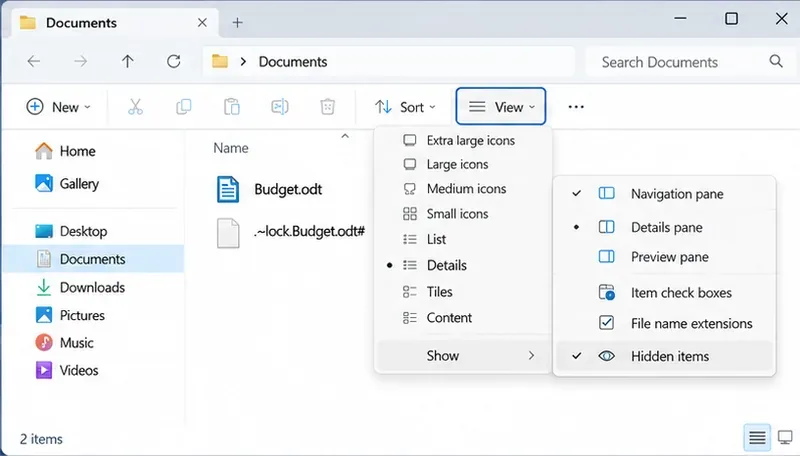
Find the cause of a LibreOffice document lock, safely clear a stale lock file, and confirm that you can edit and save without losing changes.
If you need a straightforward way to watch DVDs on Windows 10, VLC DVD Player for Windows 10 is one of the most reliable free options available. It handles most commercial and homemade discs without requiring additional codec packs or paid software. This guide walks through the precise installation and playback steps so you can start watching DVDs right away.
Windows 10 removed native DVD playback support from the operating system, leaving many users searching for alternatives. VLC DVD Player for Windows 10 fills that gap because it includes built-in libraries for CSS decryption and DVD navigation. No registry edits or third-party filters are necessary when you follow the standard installation path.
Before starting, confirm your Windows 10 PC has a working optical drive and that the DVD is clean and undamaged. Administrator rights are required for the initial installation, but daily playback does not need elevated privileges.
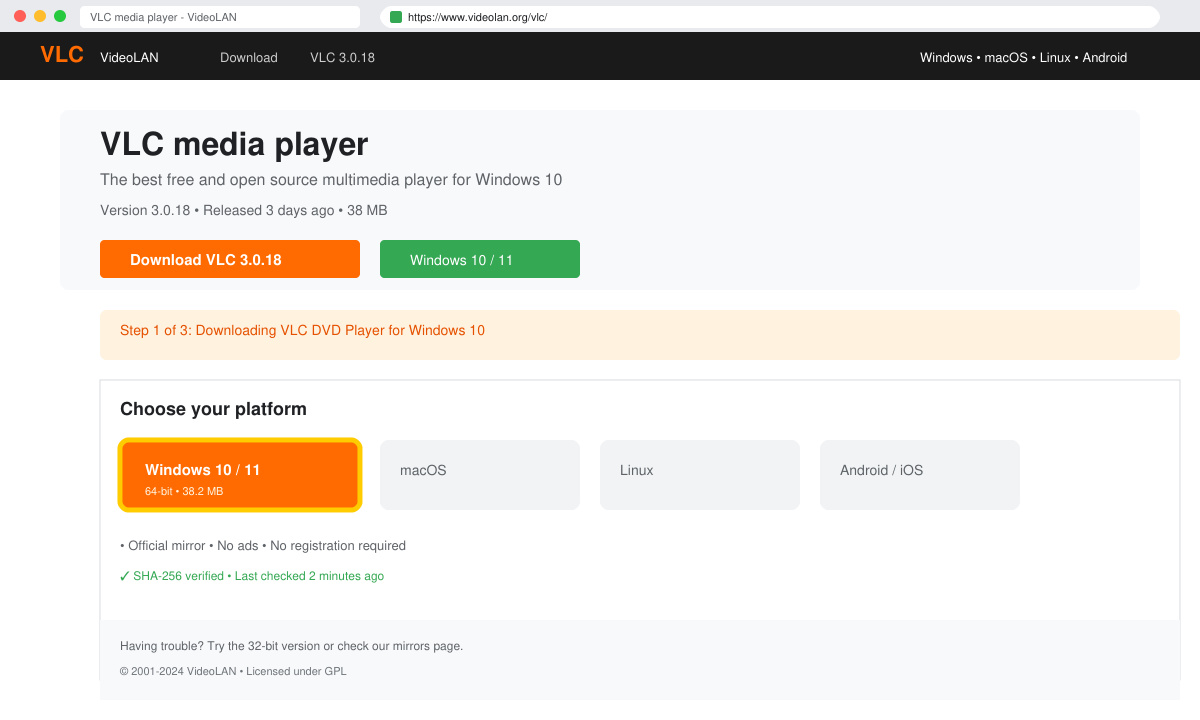
Open a browser and go directly to videolan.org/vlc. Click the large Download VLC button for the Windows version. The site automatically detects 64-bit Windows 10 and offers the correct installer.
Double-click the downloaded .exe file. Accept the User Account Control prompt, then click Next through the wizard without changing the default destination folder or component selections. The full installation finishes in under two minutes on most systems.
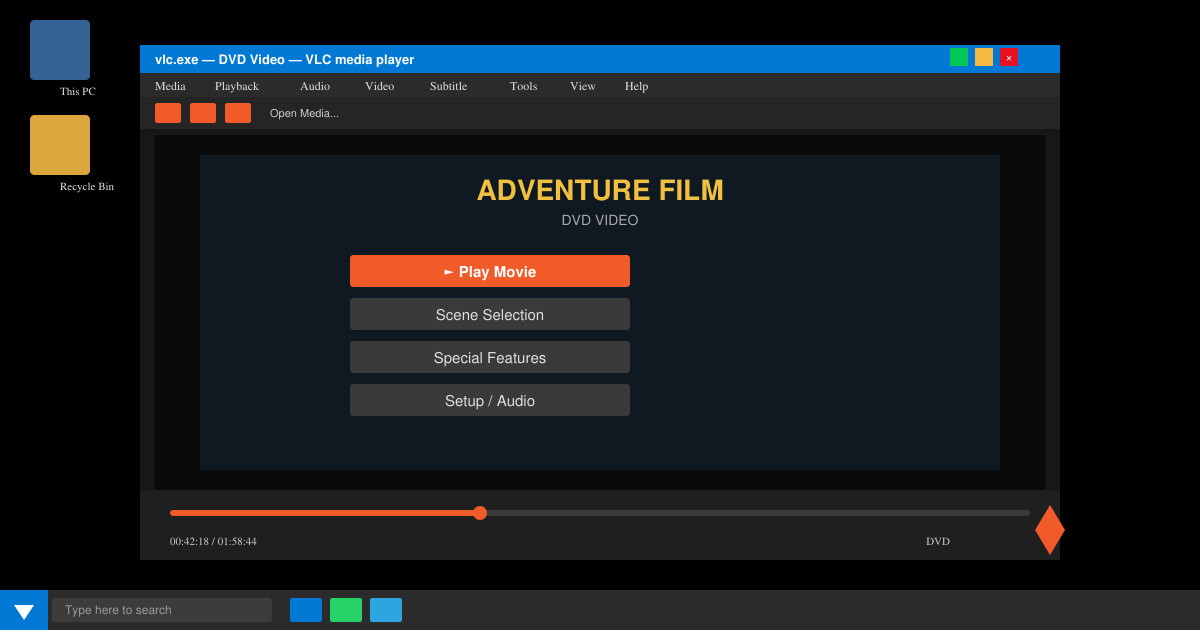
Open VLC from the Start menu. Insert the DVD into your optical drive. VLC usually detects the disc automatically and displays the DVD menu within a few seconds.
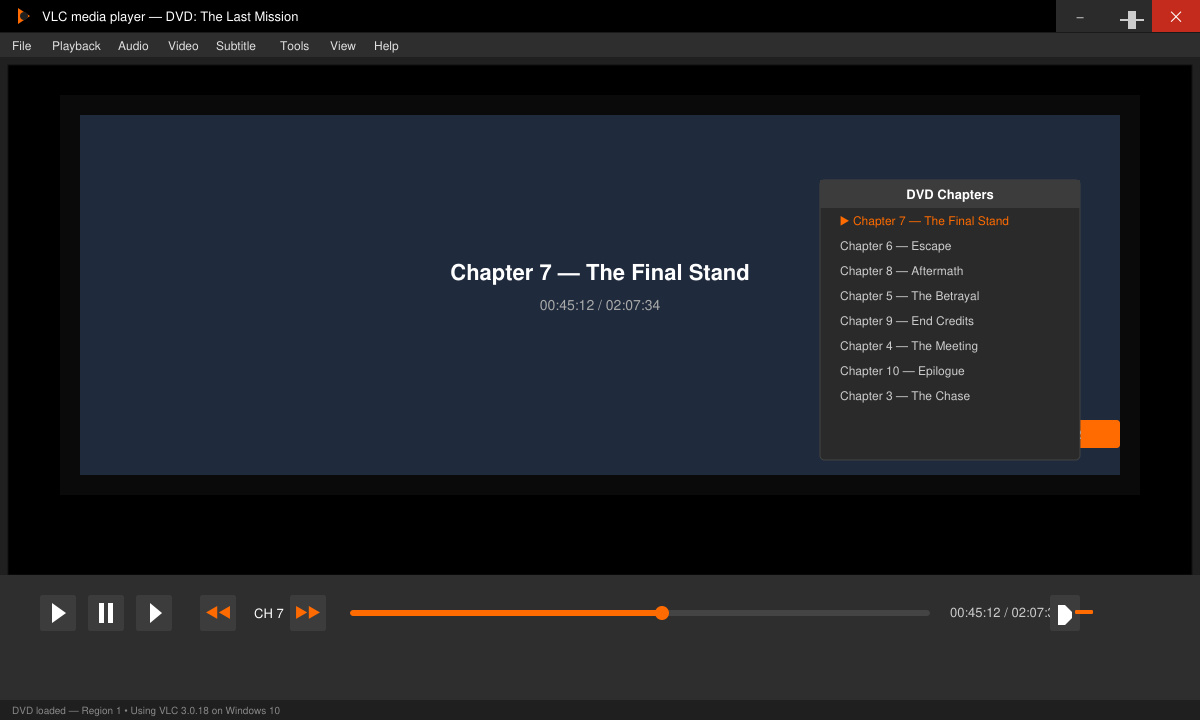
Use your mouse or keyboard arrows to navigate the on-screen DVD menu inside VLC. Press Play or select the title you want. If the menu does not appear, go to Media > Open Disc, choose DVD, and click Play.
No. The standard VLC installer already contains every library needed for standard DVD-Video discs.
Standard VLC supports DVDs only. Blu-ray playback requires additional AACS and BD+ libraries that are not included for legal reasons.
Yes. Download the portable package from the same Videolan site and extract it to a USB drive if you prefer not to install anything on the host computer.
Following the steps above lets you use VLC DVD Player for Windows 10 reliably without extra purchases or complicated configuration.
Find the cause of a LibreOffice document lock, safely clear a stale lock file, and confirm that you can edit and save without losing changes.
Make image-heavy Writer files easier to edit: test a reversible display setting, compress oversized pictures in a copy, and verify the saved layout.
Find out whether a slow launch comes from extensions, profile settings, or the system, then test the safest fix without losing LibreOffice data.
Connect LibreOffice to Nextcloud over WebDAV, save the server copy with Ctrl+S, and understand how AutoRecovery differs from cloud syncing.
Find out whether Pardus 23 is blocking Bluetooth, missing BlueZ, or failing to detect adapter firmware, then confirm the controller works.
Learn how Gooroom separates trusted and untrusted browsing, what users can change, and how an administrator can safely update site policies.
Diagnose rotated, offset, or inconsistent touch input on a Harmonica OS tablet and choose a Linux calibration method that fits its session and driver.
Switch Gooroom’s desktop session to English, verify the locale, and identify when untranslated Korean labels need an app update instead.
Arrange Pardus XFCE as a familiar bottom taskbar with an app menu, pinned launchers, open-window buttons, and a system tray.
Check your Gooroom release and administrator rules, then follow the official Debian-based setup path for Flatpak or Snap without bypassing system controls.