ONLYOFFICE vs LibreOffice: What Performance Tests Show
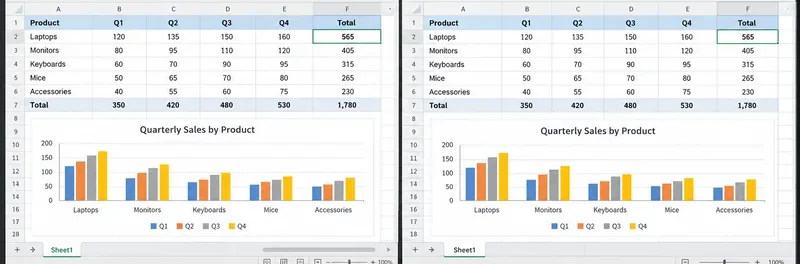
See what recent release data can—and cannot—prove, then compare both office suites on the same files and computer.
VLC Media Player has been the default choice for many Mac users because it avoids the codec packs required by other players. It supports subtitles, streaming protocols, and hardware acceleration on Apple Silicon and Intel Macs alike. Before starting the download, confirm your macOS version meets the minimum requirement listed on the official page, which is currently macOS 10.11 or later.
Always download directly from the developer to avoid modified installers that bundle adware. The official site provides a verified DMG file signed by VideoLAN.
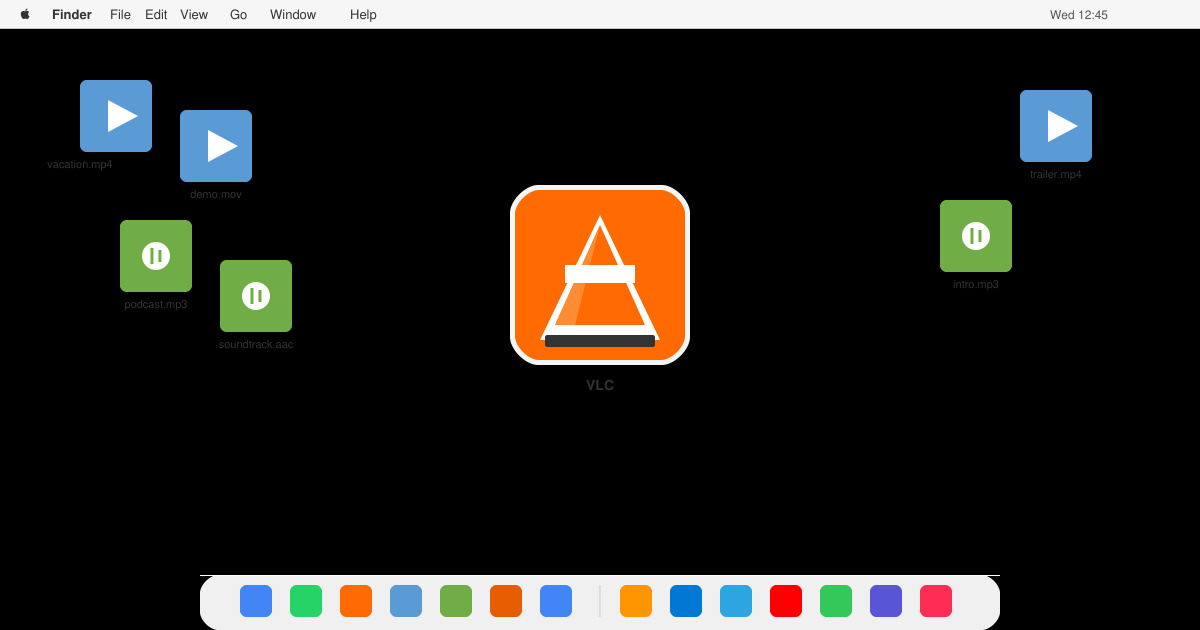
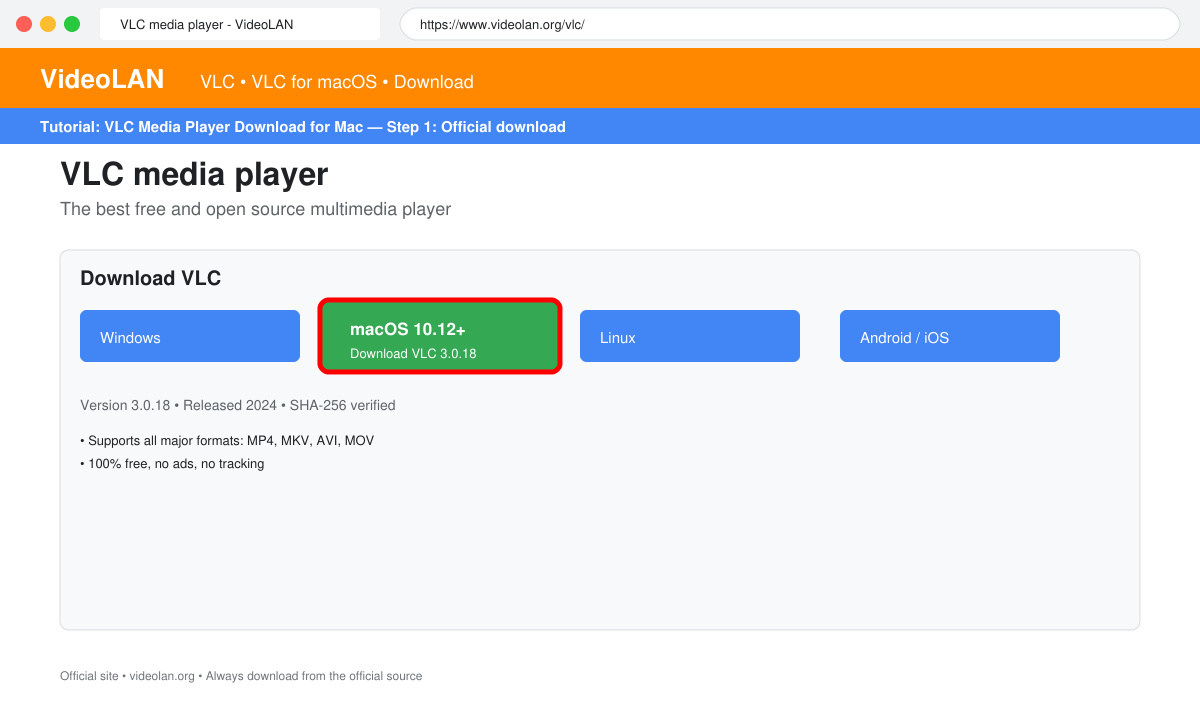
Open Safari or your preferred browser and go directly to videolan.org/vlc. Click the prominent download button labeled for macOS. The site detects your operating system automatically and offers the correct DMG file.
Once the download completes, locate the file in your Downloads folder. Right-click the DMG and select Get Info to confirm the file size matches the value shown on the website, usually around 80-90 MB for the current version.
Double-click the DMG. A new Finder window appears showing the VLC icon and an Applications folder alias. Drag the VLC icon into the Applications folder. This copies the application to the correct location for macOS.
Open VLC from Launchpad or the Applications folder. On first launch, macOS may prompt for permission to access your Downloads or other folders. Approve these requests so VLC can open media files stored anywhere on your drive.
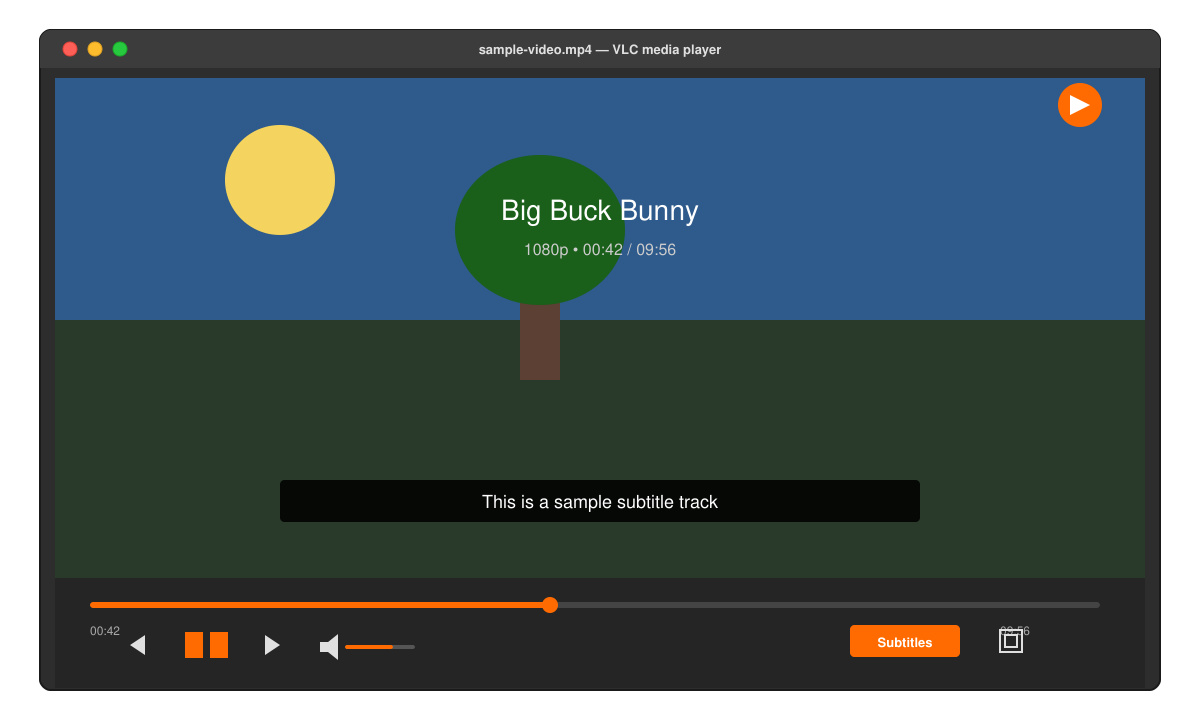
Go to the VLC menu and select Check for Updates. Install any available update immediately to receive security fixes and format support improvements.
If the app fails to open due to a Gatekeeper warning, right-click the VLC icon in Applications and choose Open. This one-time override allows the signed application to run. Users on macOS Ventura or Sonoma sometimes need to visit System Settings > Privacy & Security to approve the app after the initial warning.
Another frequent problem is missing file associations. After installation, right-click a video file, choose Get Info, and set VLC as the default application under Open With. Click Change All to apply the setting system-wide.
Yes. VLC Media Player is open-source software released under the GNU General Public License with no paid tiers or subscriptions.
Yes. macOS allows multiple media players to coexist. You can choose VLC as the default for specific formats while keeping another player for different needs.
The current universal binary runs natively on both Apple Silicon and Intel-based Macs without requiring Rosetta translation.
Following these steps ensures a clean VLC Media Player Download for Mac that plays virtually any media file immediately after installation.
See what recent release data can—and cannot—prove, then compare both office suites on the same files and computer.
Compare exact matches, left-side lookups, missing-value handling, and version support so you can choose a reliable Calc formula.
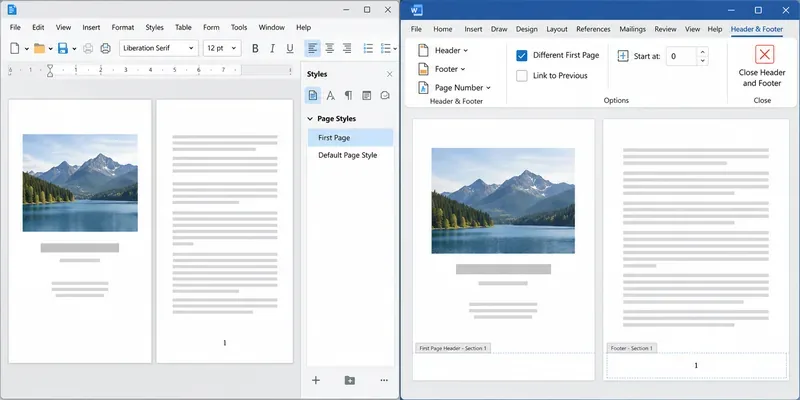
Learn how Writer page styles and Word section links affect cover pages, Roman numerals, and numbering restarts when you move a document.
You've just nailed a great product demo. The energy was right, you handled objections like a pro and you could see the lightbulb moment on your prospect's face. The Zoom call is over, you click “End Recording,” and you feel great.
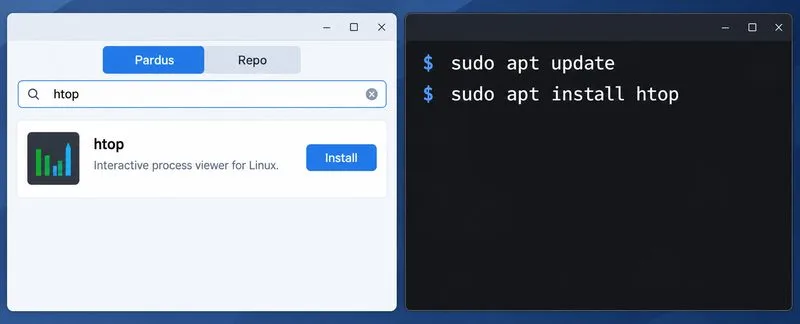
Compare Pardus Software Center with APT commands to find, install, remove, and update packages using the method that fits your task.
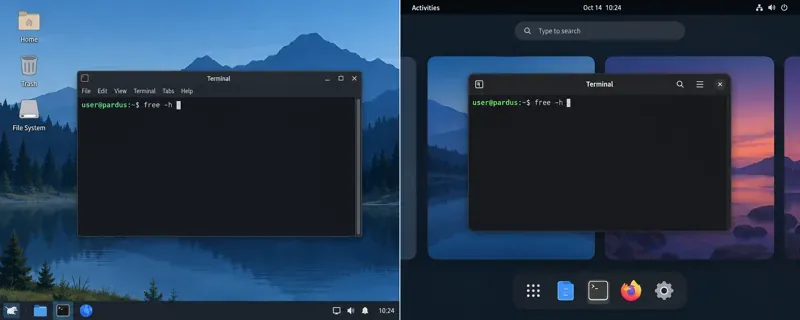
See what Pardus’s published RAM requirements mean, then compare XFCE and GNOME on the same PC with repeatable MemAvailable readings.
See where HamoniKR 8.0 fits in a business desktop plan, what its Korean-focused features support, and what to verify before a wider rollout.
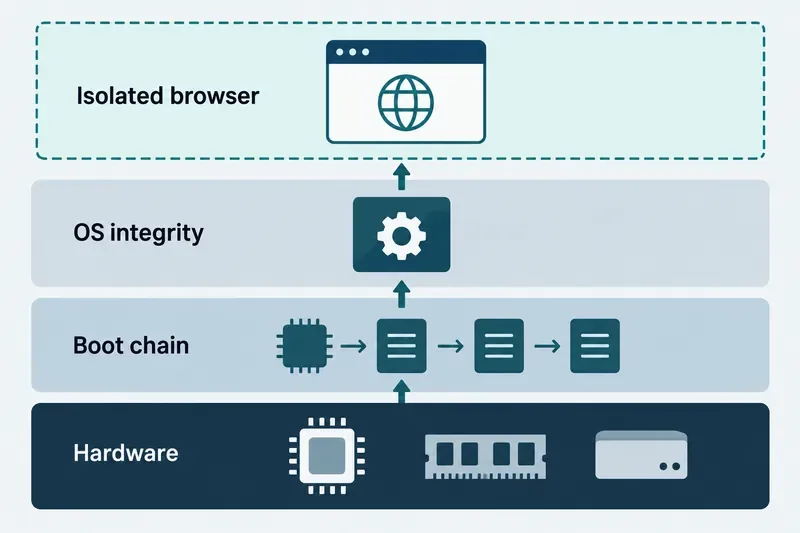
Understand how Gooroom’s boot verification and runtime protections fit together, what “sandbox” means, and which settings you should verify on your device.
Compare HamoniKR 8.0 LTS and Lite requirements, then test Wi-Fi, graphics, and laptop controls from a live USB before installing.
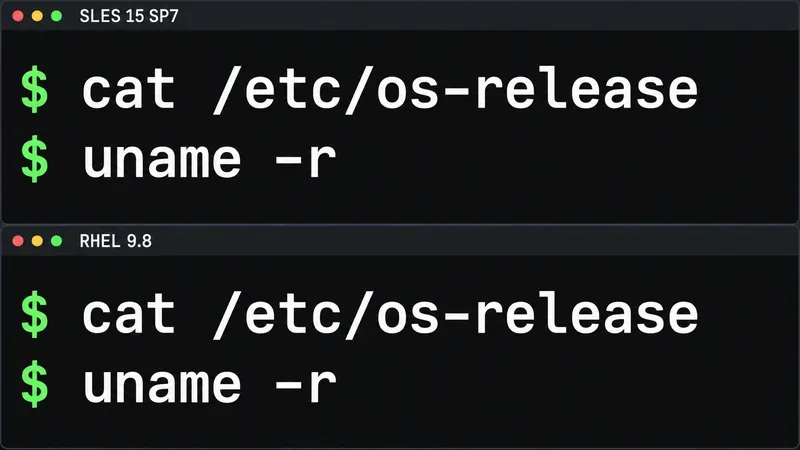
Compare the current SLES and RHEL baselines, understand why kernel numbers do not predict speed, and build a fair test around your real server workload.