Configure HTTPS for ONLYOFFICE Docs in Docker

Choose where TLS should terminate, mount a trusted certificate and private key safely, and verify HTTPS access to a Dockerized ONLYOFFICE Docs server.
Did you ever need to export the entire directory tree from a particular folder? Did you need to get a text or Excel document that lists all the files and folders inside a specific folder from your computer into a hierarchical structure? We had this need when we were trying to create a document that was supposed to be a summary of all the Word documents and Excel spreadsheets we had stored inside a folder. It was at that time that we asked ourselves a couple of questions. Can you automatically export a folder's structure to Excel? Is there a DOS tree command that outputs to a file? Can you print a directory tree into an Excel sheet or as a text file? If you want to find out how to export a folder tree, read on:
Contents
NOTE: We have two methods that you can use to export a folder's tree. The first one is based on using the Command Prompt and generates the directory tree as a text file. The second relies on an executable file that we created with PowerShell and outputs the folder tree as an Excel file and as a CSV file.
1. Export a folder's structure to a text file, using the "Tree" command in Command Prompt
The first thing is to open File Explorer and navigate to the folder for which you want to export the directory tree. In our case, that would be "D:Games."

Using File Explorer to get to the folder
Type cmd in File Explorer's address bar and press Enter to open the Command Prompt directly at the folder you are interested in.

Opening Command Prompt at the location of the folder
A Command Prompt instance is opened, pointing to your folder. In our case, the Command Prompt was opened using the "D:Games" folder. To export the folder's structure, run this command: tree /a /f > output.doc.

Running the tree command to get the folder structure
TIP: If you don't want the directory tree to include files (in other words, make the tree include only folders), skip the /f parameter from the command (tree /a > output.doc).
Output.doc is the document file in which the entire directory tree is going to be saved. You can use any name for it, and you can specify any file type, as long as it has a text file type. We prefer using Microsoft Word .doc files, but you could use any other text file. For instance, you can choose to output the directory tree to a simple .txt file that's editable with Notepad. Depending on how many folders and files are stored inside your folder, running this command can take a moment or two.

The tree command can take a while if the folder on which it's run has many items
Now you can close the Command Prompt, as you don't need it anymore. Go back to File Explorer and navigate to the folder for which you wanted to export the directory tree. Inside, you should find the new text file with the name you specified in the tree command. In our case, this file is called output.doc.

The output text file with the directory tree
Open the output file and the entire directory tree is listed inside. It looks good, doesn't it?

The folder tree inside a document file
NOTE: If you want to export the directory tree of a folder that contains system files or folders, you must launch Command Prompt with administrative rights and then navigate to your folder from the Command Prompt itself.
2. Export a folder's structure to an Excel or CSV file, using our FolderTree tool (based on PowerShell)
Another easy way to export the structure of a folder in Windows 10 is to use a tool that we created for you, called FolderTree. Download it using this link or the one at the end of this section. Save it somewhere on your Windows 10 PC. Then, move or copy it to the folder for which you want to get the tree structure. In that folder, double-click or double-tap on the FolderTree executable.

Place FolderTree in the folder for which you want the directory tree
When you launch FolderTree for the first time, the SmartScreen filter warns you that it is an unrecognized app. That's because there are not that many people downloading and using it. Take our word that it's safe and does not harm your PC. It is nothing more than a PowerShell script inside an executable file and a simple user interface. To be able to use this tool, click or tap on "More info" and then choose to "Run anyway."

Choosing to run FolderTree in the SmartScreen dialog
When FolderTree opens, you should see a small window like the one below. To get the directory tree of the current folder, push the "Get folder tree to Excel" button.

Get Folder Tree to Excel
The tool then outputs two files: FolderTree.xlsx and FolderTree.csv. Both contain the tree list of folders and files inside your current directory.

FolderTree outputs the directory tree in Excel and inside a CSV file
Furthermore, both files should have two columns: Directory and Name. Directory tells you the folder, and Name tells you the files in that folder.

The directory tree exported in Excel
Now you can go ahead and edit the Excel or CSV file with your folder tree as you want. If you encounter any issues with our tool, let us know in the comments section below.
Download: FolderTree
Why did you want to know how to export the directory tree of a folder?
Exporting the entire directory tree structure to a text file is quickly done in Windows. All you need is the Command Prompt and the right command. Exporting a directory tree to Excel is also easy if you use our FolderTree tool. Before closing this article, tell us why you wanted to create a file folder tree? Was it because you wanted to make a list of your music files? Was it for a work-related task? Comment below and let's discuss.
Choose where TLS should terminate, mount a trusted certificate and private key safely, and verify HTTPS access to a Dockerized ONLYOFFICE Docs server.
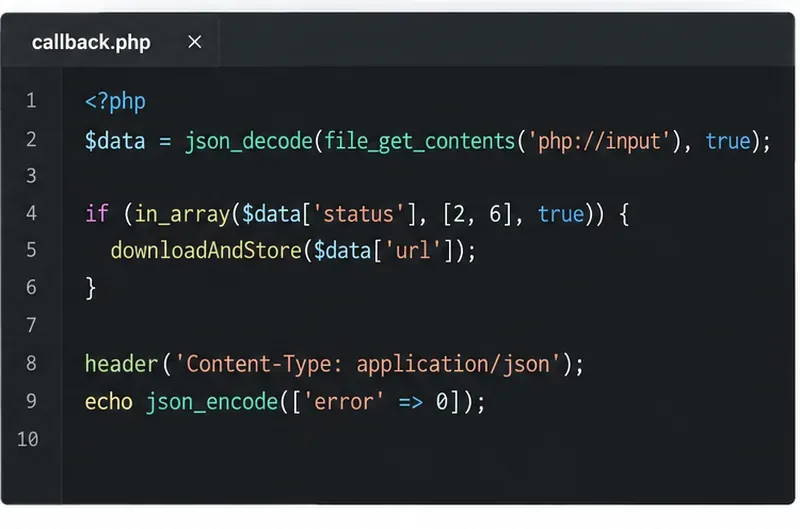
Embed the ONLYOFFICE editor in your PHP app, sign its configuration with JWT, and save edited files through a secure callback.
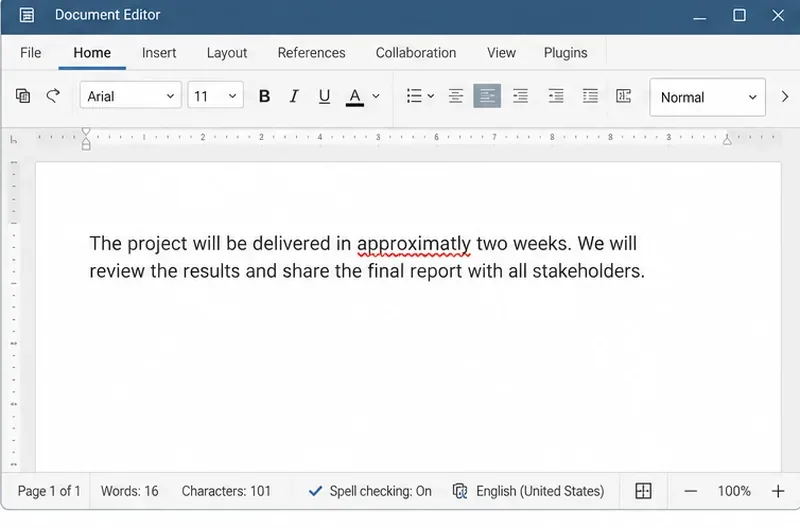
Set the proofing language for the whole document or selected text, confirm spell checking is active, and identify when a server dictionary is missing.
Enable persistent Track Changes for everyone in one ONLYOFFICE document, verify edits are recorded, and understand the limits of this setting.
Find whether Nginx, Docker networking, or an internal ONLYOFFICE service is returning 502, then verify the corrected upstream and health check.
Diagnose failed ONLYOFFICE saves by checking the Nextcloud callback route, proxy redirects, and storage logs, then verify the edited file persists.
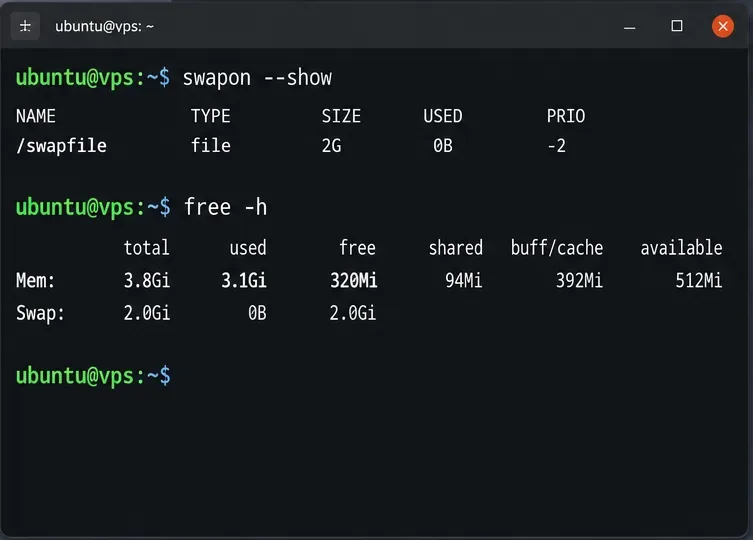
Find the cause of ONLYOFFICE memory crashes, check Docker limits, size VPS RAM correctly, add swap safely, and verify that documents open and save.
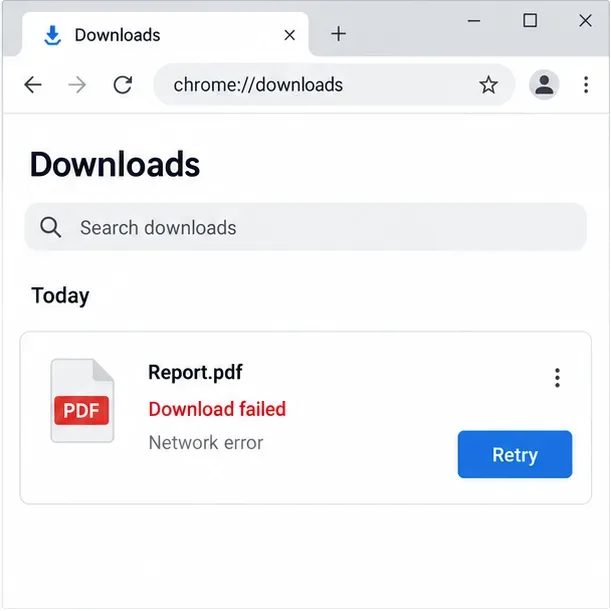
Separate browser download problems from server-side conversion errors and use the right log or access check to get your PDF export working.
Match the JWT secret used by ONLYOFFICE Docs and Nextcloud, apply it safely for Docker or Linux installs, and verify the connection without weakening authentication.
Install ONLYOFFICE Workspace Community on Ubuntu 24.04 with the official Docker script, check server requirements, skip Mail if needed, and verify the portal safely.