How to create an ebook with Microsoft Word

Do you want to create an ebook using Microsoft Word ? So please refer to how to design and format an ebook in a few steps on Word below.

How to create an ebook with Microsoft Word

Instructions for creating ebooks using Microsoft Word

Step 1: Prepare

First, you should determine the main content of the ebook and how to layout it to make designing the rest easier. Some basic factors you need to prepare before creating an ebook:

  • Topic of the ebook.
  • Attractive title.
  • The length is appropriate to the topic.
  • Layout the ebook, e.g. sections, main/subheadings, if possible, add a few sentences to each section so the reader gets the gist of what the ebook is about. You can also write a draft first in a simple Word document before diving into the design.

Step 2: Create a cover page

Once you have the perfect book title, all you need to do is create an impressive cover. Below are the steps to create an ebook cover page in Word:
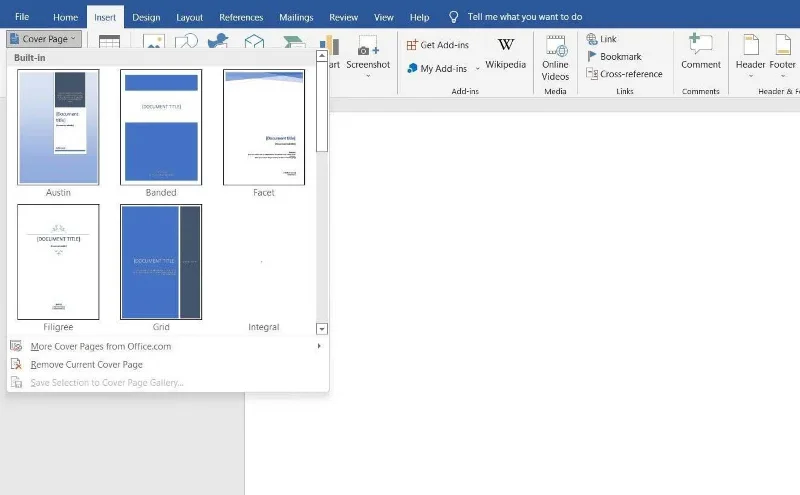
  1. Go to the Insert menu .
  2. Click the Cover Page button below on the left.
  3. Choose a cover page that matches the ebook.

How to create an ebook with Microsoft Word

Step 3: Add copyright page

To copyright your ebook, you need to add this page to your layout as follows:
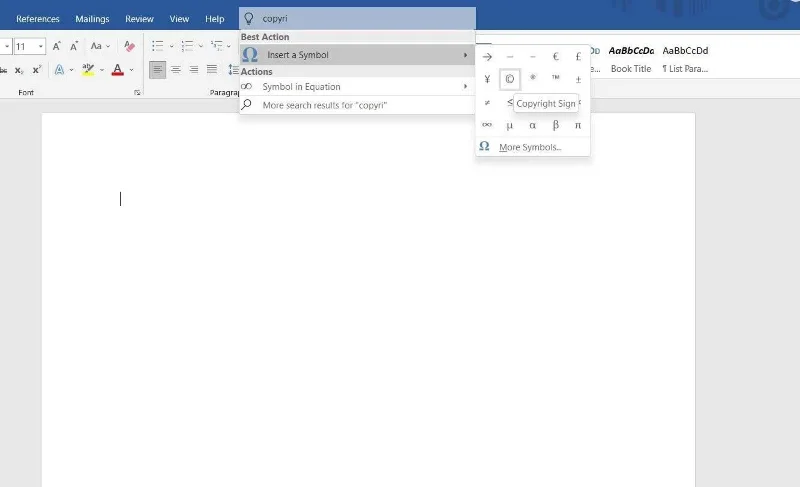
  1. Go to the Insert menu .
  2. Click Symbols on the right.
  3. Search for the copyright symbol and enter content into the page.
  4. Finally, write copyright, authorship, and copyright notices.

How to create an ebook with Microsoft Word

Step 4: Insert table of contents

The table of contents helps readers know how many sections are in the ebook. Microsoft Word provides you with 2 different table styles:

  • Automatic table : Show all titles, from 1 to 3 in order. These versions have two separate titles: Contents and Table of Content. You can choose either one. They have the same function. Because it is automatically generated, you can enter as many headings (up to H3 level) as you want and just update the table. Word will automatically fill in the content.
  • Manual Table : If there are more than 3 levels of subheadings in the ebook, for example, H4, H5, H6... you can choose this table style. As the name suggests, you can manually enter detailed information inside.

To insert a table of contents in an ebook, follow these steps:
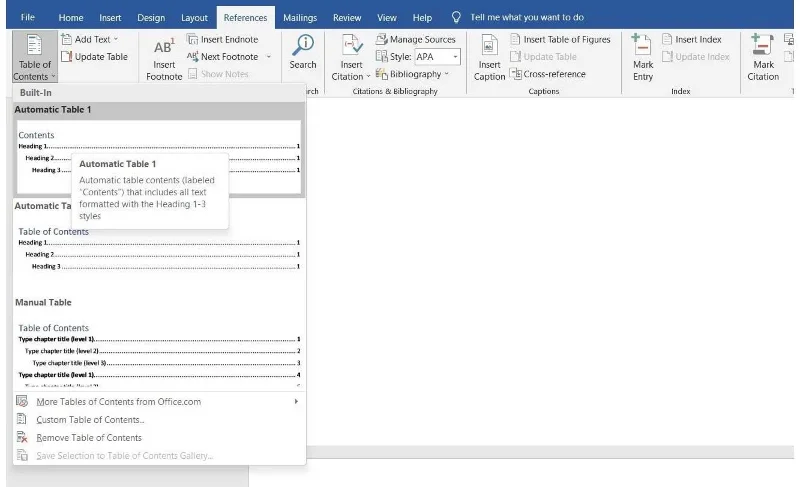
  1. Go to the References menu .
  2. Click the Table of Content button located on the left side.
  3. Select the Automatic or Manual panel from the drop-down menu.

How to create an ebook with Microsoft Word

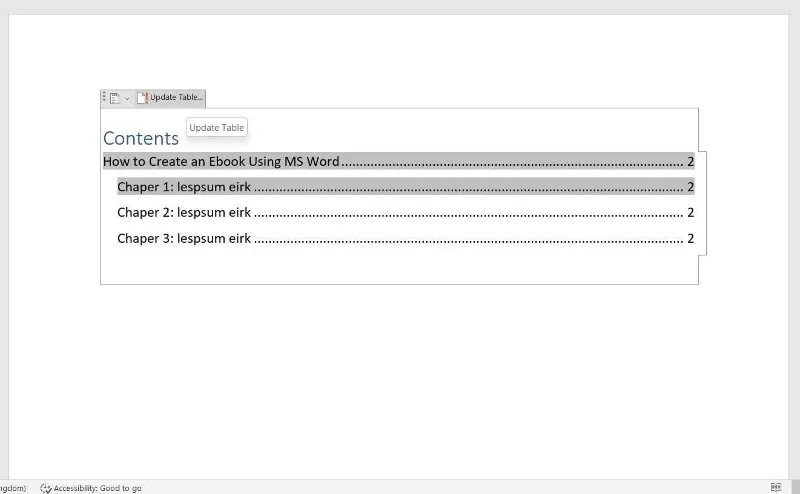
To update the table of contents, follow these simple steps:

  1. Go to References .
  2. Click the Update Table button next to Table of Content .

You can also update the content for this table:
How to create an ebook with Microsoft Word

  1. Go to the Table of Content page in the ebook.
  2. Select this table.
  3. Click the Update Table button > select Update Entire Table .

Step 5: Add Header and Footer

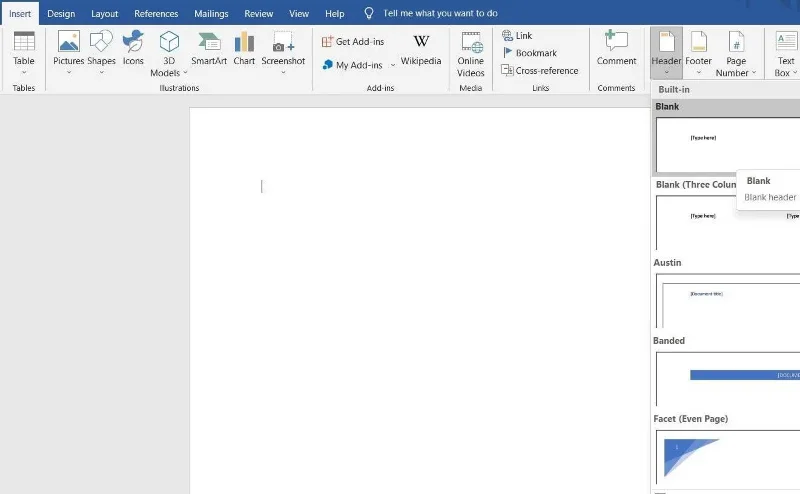
Depending on the purpose of the ebook, you can add your company name or web URL, page number... to the header and footer. Most ebooks write the title in the Header. To insert it into an ebook:
How to create an ebook with Microsoft Word

  1. Go to the Insert menu .
  2. Click Header .
  3. Choose the right title from the many available options.

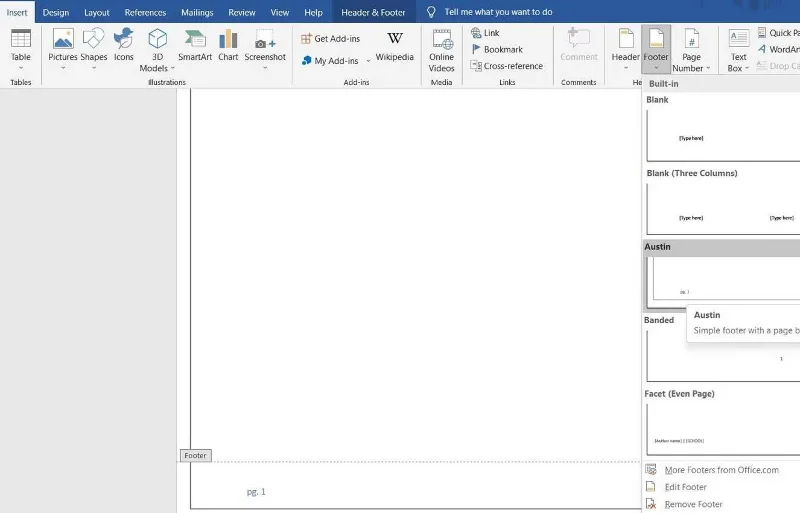
Similarly, you can display any information in the footer, suitable for ebooks. To insert footer:
How to create an ebook with Microsoft Word

  1. Go to the Insert menu .
  2. Click Footer .
  3. Choose the footer style you want. To automatically add page numbers, select Austin or Branded.

Step 6: Create a draft

You have completed most of the necessary formatting for the ebook. Now you can start writing the manuscript. If you've created it in another document, just copy & paste the text.

To make sure the table of contents includes every main heading, select them from the Headings selection:

  1. Go to the Home menu.
  2. Select the necessary heading (Heading 1/2/3).

In addition, Microsoft Word also allows you to insert images or charts in the document. To add a photo, follow these steps:
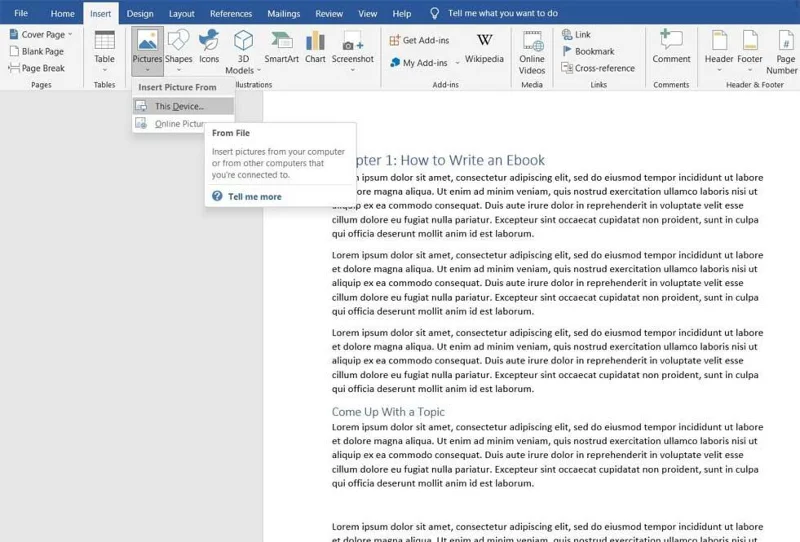
  1. Go to the Insert menu .
  2. Click Pictures .
  3. Select This Device if the image is available offline, or select Online Pictures to directly insert the image from the web.

How to create an ebook with Microsoft Word

If you write an ebook about true stories that need to explain many different concepts, you can choose to insert:
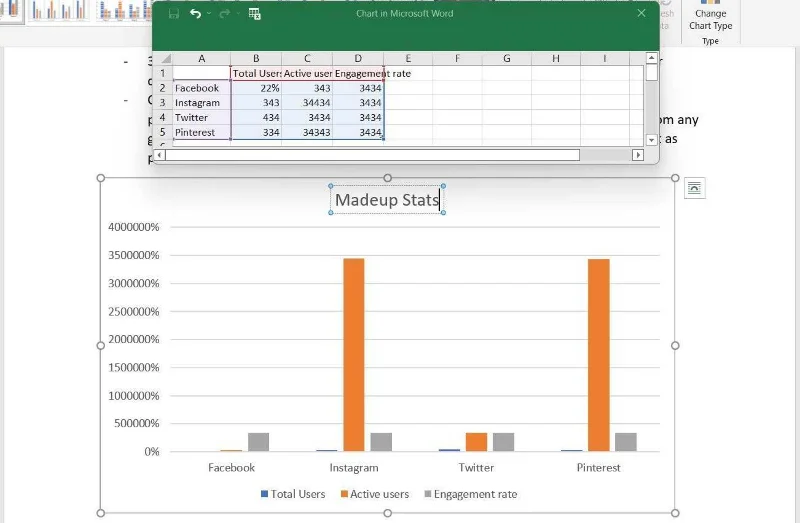
  • Multiple shapes - Word has a list of multiple shapes to choose from.
  • Icons - Search for specific icons according to your needs, for example, arrows, body parts, graphic icons...
  • 3D Model - Like photos, you can directly insert them from online options or upload them to your device.
  • Charts - If you need a chart to explain a concept or show changes in values, you can insert a column, line, pie, bar, histogram or any other graph/chart type from Chart and customize Turn it according to need.

How to create an ebook with Microsoft Word

Because this is an ebook, you can insert links into the text if you want to lead readers to any website or landing page. To insert links:

  1. Select the text you want to link to a web page.
  2. Right click and select Link .
  3. Paste the URL of the link and press Enter .

Step 7: Add author page

Ending your ebook with an author page is a great marketing tactic. You can add a biography, a short, concise summary of the author's highlights on this page and add social network/web links, email addresses, and even promote products here if available.

Step 8: Complete and export the ebook

This is the final step. Make the necessary editing and proofreading to get the ebook as accurate as you want, then export it to PDF to share with readers.

How to convert Microsoft Word ebook to PDF as follows:
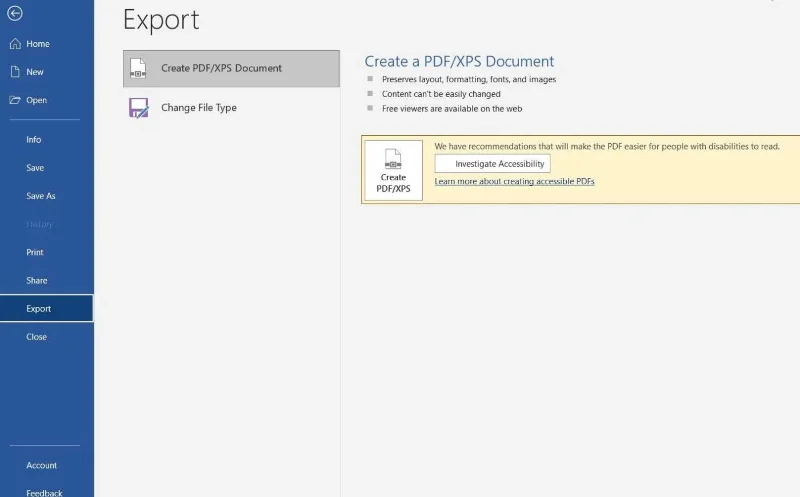
  1. Go to Files from the main menu.
  2. Click Export .
  3. Click Create a PDF/XPS Document .

How to create an ebook with Microsoft Word

If you intend to write a story or short novel, Microsoft Word can be the perfect choice to start. As you can see, creating an ebook with Word is not too difficult, right? Hope the article is useful to you.

Leave a Comment

How Do You Know When Your Business Is Ready For Its First Office?

How Do You Know When Your Business Is Ready For Its First Office?

For many entrepreneurs, moving into a first office feels like a major milestone. It can signal growth, stability, and a new level of professionalism. However, it is also a decision that should be made carefully.

How AI Checkers Work: Behind the Detection Process

How AI Checkers Work: Behind the Detection Process

As AI writing tools become more advanced, many people want a reliable way to identify machine-written text. This is where an AI checker comes into the picture.

How to Fix Microsoft Edge Cant Read and Write to Data Directory

How to Fix Microsoft Edge Cant Read and Write to Data Directory

Frustrated by Microsoft Edge "Can't Read and Write to Data Directory" error? Get step-by-step fixes, from quick resets to advanced troubleshooting, to restore your browser fast. Works on latest versions!

How to Fix Microsoft Edge Windows Update Catalog Error

How to Fix Microsoft Edge Windows Update Catalog Error

Tired of the frustrating Microsoft Edge "Windows Update Catalog" Error blocking your updates? Discover proven, step-by-step fixes that work on the latest Windows versions. Get back online in minutes!

How to Fix Microsoft Edge OBS Studio Black Screen

How to Fix Microsoft Edge OBS Studio Black Screen

Struggling with Microsoft Edge black screen in OBS Studio? Discover step-by-step fixes for hardware acceleration issues, capture settings, and more. Get your stream crystal clear today!

How to Link Your Microsoft Edge Account to Your Phone

How to Link Your Microsoft Edge Account to Your Phone

Master how to link your Microsoft Edge account to your phone for seamless syncing of tabs, passwords, and bookmarks. Step-by-step guide for Android and iOS with troubleshooting tips.

How to Fix Microsoft Edge System Sounds Missing Fix

How to Fix Microsoft Edge System Sounds Missing Fix

Struggling with Microsoft Edge "System Sounds" missing? Our ultimate guide provides step-by-step fixes to restore notifications, alerts, and browser sounds quickly and easily. Works flawlessly on the latest versions.

How to Fix Microsoft Edge DNS Probe Finished No Internet

How to Fix Microsoft Edge DNS Probe Finished No Internet

Struggling with Microsoft Edge "DNS Probe Finished No Internet" error? Discover step-by-step fixes to restore your browsing instantly. Flush DNS, change servers, and more – no tech skills needed!

Troubleshooting Microsoft Edge Profile is Already in Use

Troubleshooting Microsoft Edge Profile is Already in Use

Tired of the frustrating Microsoft Edge "Profile is Already in Use" error blocking your browsing? Follow our proven, step-by-step troubleshooting fixes to resolve it quickly and regain smooth performance. Works on latest versions!

Troubleshooting Microsoft Edge Stream Deck App Not Opening

Troubleshooting Microsoft Edge Stream Deck App Not Opening

Facing Microsoft Edge "Stream Deck" app not opening? Discover proven troubleshooting steps, quick fixes, and expert tips to resolve crashes, freezes, and launch issues fast. Get back to streaming seamlessly.