Listening to music and entertainment on laptops is the need of many users today. However, there are some of you who only need to listen to music and want to save laptop battery, so close the screen. But after folding the screen, the laptop will automatically turn off the music. So is it okay to fold the laptop and still run it? How many ways to fold a laptop and still run on Win 7 and Win 10 operating systems? In the article below, WebTech360 will help you specifically answer these questions.
1. Answers to questions: Is it okay to fold the laptop but it's still running?
Folding the laptop but the machine is still running is a question of many people
When you are using a laptop and suddenly close the device, surely the programs running in the computer will stop. Moreover, the laptop's hard drive is still active, so it will directly affect the chipset and Ram memory inside the machine. This will make your laptop more susceptible to shortening its lifespan.
Besides, when the laptop is folded and the computer is still running, it will automatically go to sleep mode. In this case, even though the computer screen is temporarily off, the main board, HDD and Ram memory are still supplied with power. As a result, the laptop can still save information and restart when the user requests it.
However, if the laptop is shaken or bumped during the move, these components will be damaged. Therefore, you should turn off your computer completely when carrying your laptop on the go. In addition, you should only fold the laptop screen in case you do not have to move the machine.
2. How to fold a laptop without turning it off, still listening to music on Win 10
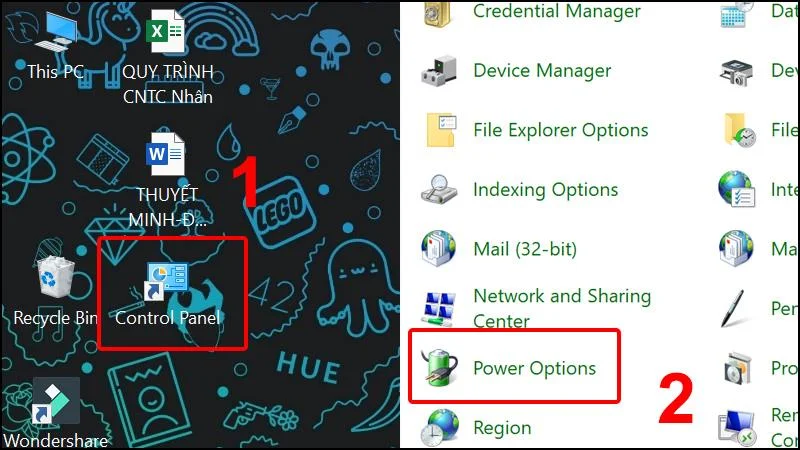
Step 1 : Go to Control Panel > Select Power Options .

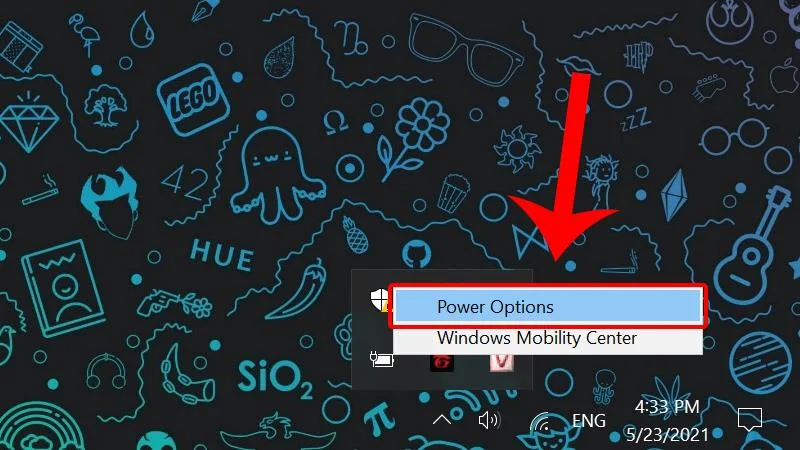
In addition, another way to access Power Options is to right-click on the battery icon in the Taskbar > Select Power Options .

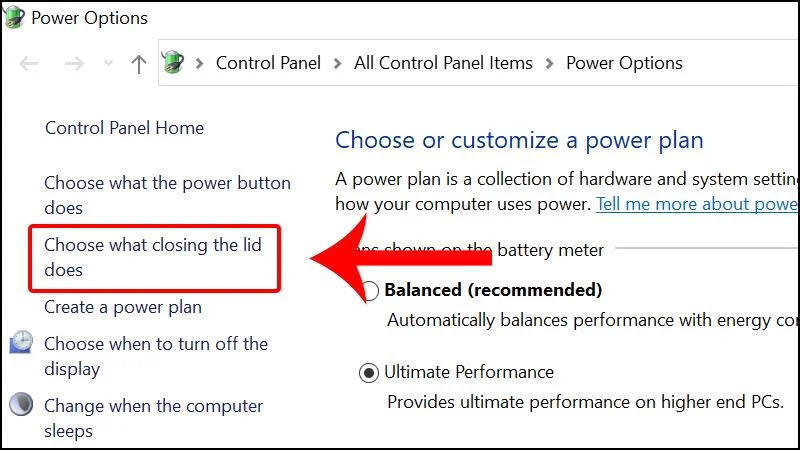
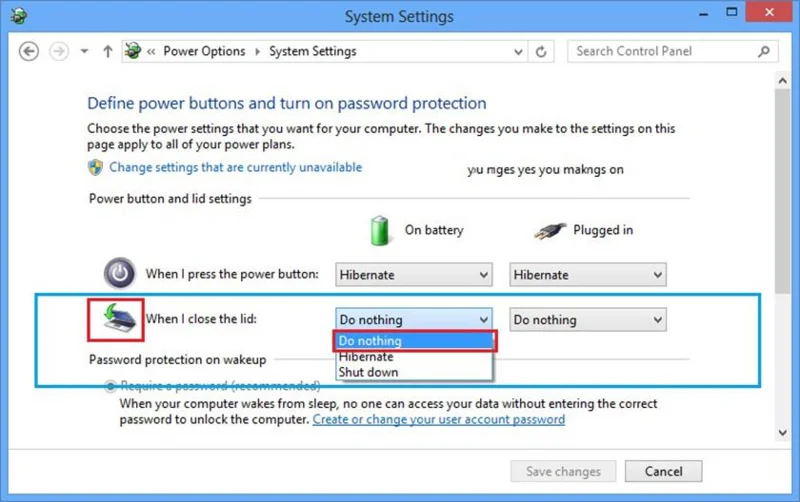
Step 2 : Click on the Choose what closing the lid does tab .

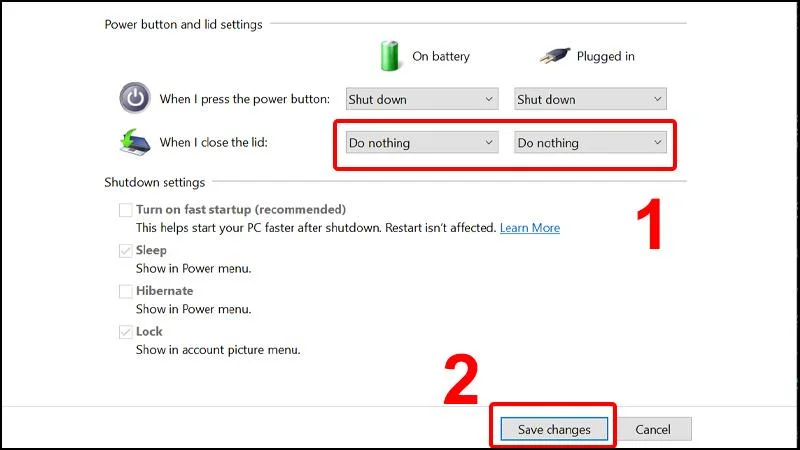
Step 3 : In the When I close the lid section , select Do nothing in both On battery and Plugged in modes > Click Save changes to save.

3. How to fold a laptop and still run it on Win 7

How to fold a laptop while the computer is still running on Win 7
Laptops running on Windows 7 operating system by default will automatically switch to Hibernate mode when the screen is closed. In addition, most programs will stop running when this activity occurs. However, the computer will resume and load the activities that took place before when it is reopened.
Currently, there are many people who want to fold their laptops to go out, save electricity, rest, sleep and still listen to music, or continue to run software such as downloading data. At this point, everyone can do the fastest way to fold the laptop screen and still run on Win 7 as follows:
Step 1: Right-click on the battery display icon on the Taskbar and select Power Options .
Step 2: Click Choose what closing the lid does and then choose one of the following three cases:
- Do nothing: when folding the laptop, the machine still works normally and runs the same programs.
- Hibernate: The laptop switches to Hibernate sleep mode and the computer is in a sleeping, static state.
- Shut down: Turn off the laptop completely and turn off the program.
Note: As everyone must select both On battery and Plugged in as Do nothing, the new laptop will not turn off. After that, save the changes and restart the screen so that they store the information again.
WebTech360 hopes that the information on how to fold a laptop and still run on it will be useful to you. If you want to know more information, please leave a comment below this article. WebTech360 staff . We will help you answer all these questions as soon as possible. Don't forget to visit our website for more interesting articles.