Instructions on how to split the screen on Windows 10 simply and conveniently

Multitasking or keeping track of things will help you save time and be more effective in meeting deadlines, so Windows 10 also developed the Multitasking feature - split screen for you to easily  . perform multiple operations. So what does this feature have? What is the simplest and most convenient way to split the screen on a Windows 10 laptop ? This article will help you learn more about this issue.
Instructions on how to split the screen on Windows 10 simply and conveniently

Split screen on Windows 10 is of great interest to many people

The role of split screen on Windows 10

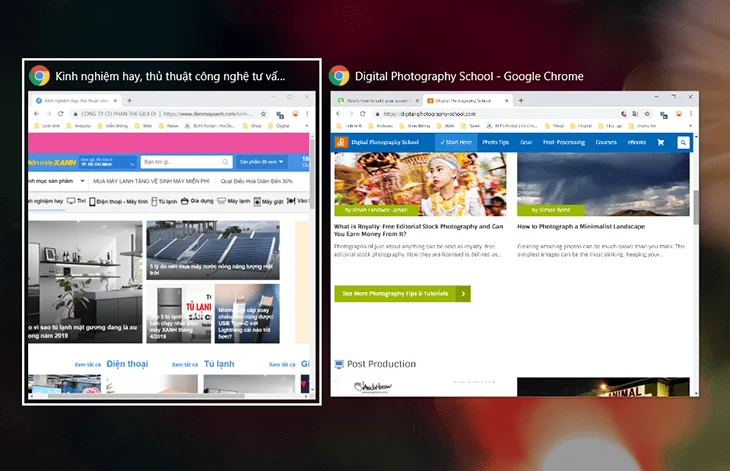
Why do more and more people want to learn how to split screen on Windows 10 so that it can be done when needed? Why are manufacturers increasingly building simple tools to help you split screen on windows 10? The reason is that split screen gives users the following utilities:

- Split screen helps users to handle multiple tasks at the same time to save time and effort.

- The screen is divided into many different windows to help handle user tasks faster and more efficiently.

- Split screen helps users work efficiently and flexibly in all situations.       
Instructions on how to split the screen on Windows 10 simply and conveniently

Split screen helps users handle tasks quickly and efficiently  

Enable split screen mode on Windows 10 

The split screen feature has been developed by manufacturers since Windows 7 . However, in Windows 7 users can only split the screen into 2 parts and in Windows 10 users can split the screen into 3, 4 or even more depending on the work characteristics. Before proceeding to split the screen on the laptop, users need to turn on the Multitasking feature.

Step 1: Open the start menu and select " Settings"

Step 2: In the "Settings" section select " System"

Step 3: Select Multitasking to display the window. In this window you will see 4 Snap related settings displayed. You can choose to enable or disable the settings depending on your usage needs.

Some simple ways to split the screen on Windows 10

After turning on the Multitasking feature is turned on, there are many ways to split the screen on the computer that users can use, including the following basics:

Method 1: Split the screen by using the mouse

Using the mouse to split the screen is the simplest and most time-saving method you can apply. Users just need to use the mouse to minimize the screen and then drag the screen to the left or right edge. When the screen shows the border divided into 2 halves. 

When you release the mouse, the screen will display windows and choose to add another application window. You just need to open the window to select the item you want to use and you have successfully split the screen.

Method 2: Split screen using keyboard shortcuts

In addition to using the mouse, how to split the screen on Windows 10 with keyboard shortcuts is also very quick and effective. To apply this method, you first need to identify the window you want to split and click on that window.

The second step you need to do is press the Windows key + right arrow combination to move the window to fill the screen on the right. If you want to make the window fill the left side of the screen you will use the Windows  key + left arrow key combination .

Method 3: Split screen on Windows 10 using Taskbar

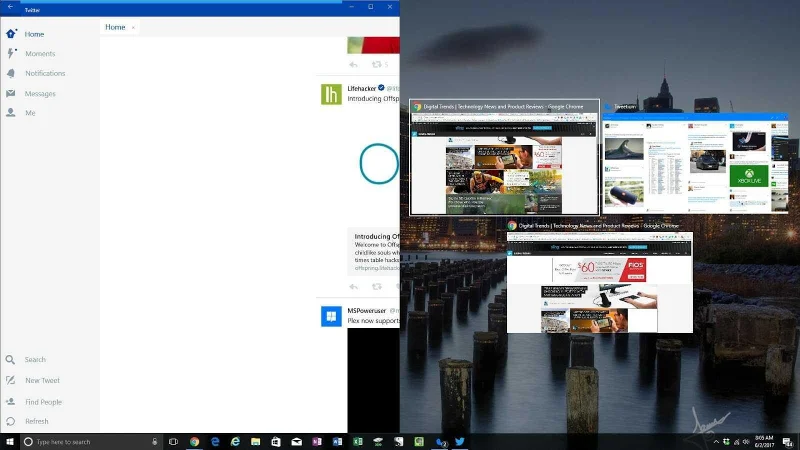
Besides using keyboard shortcuts or using the mouse, you can split the screen on Windows 10 using the Taskbar . This way you can divide the screen according to the number of applications currently on the screen. The basic steps to perform this split screen are as follows:

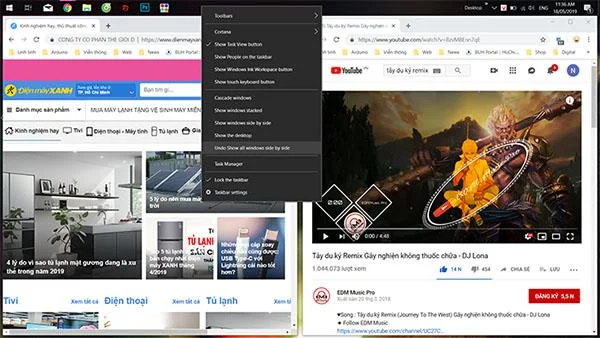
Step 1: Users click on the Taskbar and then select show Windows side by side.

Step 2: After selecting the tool on the screen, it will automatically be divided into 2 parts as required 

Step 3: To return to the original screen, click Taskbar and then turn off the Undo Show all windows side by side feature, the screen will not automatically split.
Instructions on how to split the screen on Windows 10 simply and conveniently

Split screen on Windows 10 using Taskbar

Method 4: How to split the screen into multiple windows with the Corner Snap tool

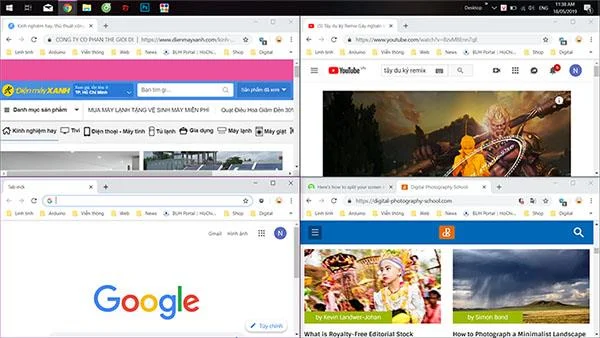
If you want to split the screen into a number of windows larger than 2 you can choose the Corner Snap tool . This split is done very simply, the same effect as with dividing the screen into 2 halves. The splitter just needs to drag the window to the 4 corners of the screen and divide the window into 4 parts to perform tasks. The player's computer will align itself to divide the screen into 4 equal parts.
Instructions on how to split the screen on Windows 10 simply and conveniently

Split screen into different windows

Above are simple and convenient ways to split the screen on Windows 10 laptops for your reference. Each split not only helps you flexibly use multiple windows on the screen, but also improves work efficiency. WebTech360 hopes that with the above sharing, users can split screen on windows 10 flexibly to help achieve the best results.

Leave a Comment

How to run old programs on Windows 11

How to run old programs on Windows 11

Have you ever tried to run an old program on Windows 11 and encountered an error code that you didn't understand? Luckily, Windows has some compatibility settings that can help you solve this problem.

3 Extremely Effective Ways to Fix Dead Laptop Battery

3 Extremely Effective Ways to Fix Dead Laptop Battery

Your computer is always running out of battery and cannot be recharged, the computer has a damaged battery. Join WebTech360 to learn about how to fix a dead laptop battery!

5 Ways To Fix MSVCP140.Dll Is Missing Error On Windows 10, 7 Simple And Fast

5 Ways To Fix MSVCP140.Dll Is Missing Error On Windows 10, 7 Simple And Fast

To know how to handle it at home, read WebTech360's sharing on how to fix MSVCP140.Dll Is Missing on Windows 10.7.

Instructions for Cleaning Computer Mouse Correctly

Instructions for Cleaning Computer Mouse Correctly

To answer the question, does a computer mouse need cleaning? and know how to properly clean? Please refer to the article shared by WebTech360!

Instructions for Fixing Api-Ms-Win-Crt-Runtime-L1-1-0.Dll Error On Windows

Instructions for Fixing Api-Ms-Win-Crt-Runtime-L1-1-0.Dll Error On Windows

When using a computer, you will experience interruptions in opening a program on Windows. Let's help WebTech360 fix api-ms-win-crt-runtime-l1-1-0.dll error on Windows

Top 5 Professional, Free MP3 Cutter Software 2023

Top 5 Professional, Free MP3 Cutter Software 2023

5 professional and free MP3 cutting software in this article will be a powerful support tool for you to edit audio files perfectly.

Top 5 Best Free CD, DVD, Blu-Ray Burning Software 2023

Top 5 Best Free CD, DVD, Blu-Ray Burning Software 2023

With a comprehensive article on free CD, DVD, Blu-ray burning software, the best 2021 will definitely not disappoint you.

Top 5 Best Free Folder Lock Software 2023

Top 5 Best Free Folder Lock Software 2023

If you want the data on your computer to be secure, you can't ignore the top 5 best free folder lock software in this article.

A Guide To Self-Taught Basic Graphic Design From A - Z

A Guide To Self-Taught Basic Graphic Design From A - Z

Many of you want to become a designer but don't know where to start. This article will guide you to learn basic graphic design by yourself.

The Secret To Conquering How To Draw Perfect Lines And Curves In Photoshop

The Secret To Conquering How To Draw Perfect Lines And Curves In Photoshop

Adobe Photoshop software gives us two great tools Line Tool and Pen Tool to draw lines and curves become precise and simple.

5 Ways To Merge Layers In Photoshop In Just One Note

5 Ways To Merge Layers In Photoshop In Just One Note

You are familiar with Photoshop but do not know how to combine layers. Follow along with 5 ways to combine layers in Photoshop below.

Share 5 Super Fast Ways to Copy Layers in Photoshop for Users

Share 5 Super Fast Ways to Copy Layers in Photoshop for Users

Copying layers is a basic function that Photoshop users need to master in order to master the layer tool. The article will guide you to copy layers very quickly in Photoshop.

4 Simple Steps to Create Text Borders in Photoshop

4 Simple Steps to Create Text Borders in Photoshop

How to use border creation through Photoshop software, WebTech360 would like to share with you how to create text borders in Photoshop, very simple.

How To Draw Arrows In Photoshop With 3 Simple Tools

How To Draw Arrows In Photoshop With 3 Simple Tools

With the article on how to draw arrows in Photoshop with these 5 simple tools, you will easily draw arrows as you want.

Create Text Shadows In Photoshop With Two Simple Styles

Create Text Shadows In Photoshop With Two Simple Styles

Text shading in Photoshop will help you create a more wonderful feeling for your text, avoiding the boring phenomenon compared to conventional typefaces.

Why is Microsoft Edge Better than Chrome in 2026?

Why is Microsoft Edge Better than Chrome in 2026?

Unlock why Microsoft Edge surpasses Chrome in 2026 with blazing speed, unbeatable battery life, AI power, and ironclad privacy. Discover game-changing features that make Edge the smartest switch for power users.

How to Fix PDF Preview Handler Errors in Microsoft Edge

How to Fix PDF Preview Handler Errors in Microsoft Edge

Struggling with PDF Preview Handler Errors in Microsoft Edge? Discover step-by-step fixes to restore seamless PDF previews in File Explorer. Quick troubleshooting, registry tweaks, and prevention tips for the latest Edge versions. Get it fixed now!

How to Manage Microsoft Edge Multiple Profiles and Sync

How to Manage Microsoft Edge Multiple Profiles and Sync

Discover how to effortlessly manage Microsoft Edge multiple profiles and sync across devices. Create, switch, sync favorites, passwords, and more for personalized browsing without hassle.

Solving Microsoft Edge Hsts Attack Warning Fix (2026)

Solving Microsoft Edge Hsts Attack Warning Fix (2026)

Struggling with Microsoft Edge HSTS Attack Warning? Get the ultimate 2026 fixes with step-by-step guides to resolve this frustrating security alert fast. Clear cache, reset settings, and stay secure!

Solving Microsoft Edge Core Isolation Not Turning On

Solving Microsoft Edge Core Isolation Not Turning On

Struggling with Microsoft Edge Core Isolation not turning on? Discover step-by-step fixes for Core Isolation issues, including BIOS tweaks, driver updates, and Windows repairs to boost your security instantly.

Troubleshooting Game Bar Party Chat Audio Not Working

Troubleshooting Game Bar Party Chat Audio Not Working

Struggling with Game Bar Party Chat audio not working? Discover step-by-step troubleshooting for Xbox Game Bar voice chat issues. Quick fixes for no sound, mic problems, and more on Windows. Get back to gaming!

How to Fix Microsoft Edge Update Error 0x80073712

How to Fix Microsoft Edge Update Error 0x80073712

Struggling with Microsoft Edge Update Error 0x80073712? Discover step-by-step fixes like SFC scan, DISM repair, and Edge reset to resolve it fast. No tech skills needed!

Solving Microsoft Edge Private Connection Warnings

Solving Microsoft Edge Private Connection Warnings

Tired of Microsoft Edge "Private Connection" warnings blocking your browsing? Get step-by-step solutions to solve Microsoft Edge Private Connection errors fast. Secure, updated fixes for seamless surfing.

How to Fix Microsoft Edge Result_Code_Hung Error

How to Fix Microsoft Edge Result_Code_Hung Error

Struggling with Microsoft Edge "Result_Code_Hung" Error? Discover proven, step-by-step fixes to resolve hangs and crashes instantly. Get smooth browsing back today!

How to Delete Microsoft Edge History, Cache, and Cookies Completely

How to Delete Microsoft Edge History, Cache, and Cookies Completely

Learn how to delete Microsoft Edge history, cache, and cookies completely with this step-by-step guide. Clear your browsing data fast and securely in the latest Edge version for ultimate privacy.

Solving Edge Browser Profile Error on Every Launch

Solving Edge Browser Profile Error on Every Launch

Tired of the frustrating Edge Browser "Profile Error" popping up every launch? Follow our step-by-step guide to solving Edge Browser "Profile Error" permanently with quick, reliable fixes for the latest versions. No tech skills needed!

Solving Microsoft Edge Precision Driver Compatibility

Solving Microsoft Edge Precision Driver Compatibility

Tired of Microsoft Edge Precision Driver compatibility glitches? Get step-by-step solutions to restore smooth performance, fix lag, and optimize your setup. Proven fixes for the latest Edge versions.

How to Customize the Microsoft Edge New Tab Page

How to Customize the Microsoft Edge New Tab Page

Discover step-by-step ways to customize the Microsoft Edge new tab page. Personalize shortcuts, backgrounds, content, and more for a tailored browsing experience. Boost productivity today!

How to Fix Microsoft Edge Youtube Error: Black Screen and Lag

How to Fix Microsoft Edge Youtube Error: Black Screen and Lag

Struggling with Microsoft Edge YouTube error like black screen and lag? Discover step-by-step fixes for smooth playback. Clear cache, toggle hardware acceleration, and more – ultimate guide to resolve black screen and lag issues fast.

How to Completely Uninstall Microsoft Edge from Windows 11 in 2026

How to Completely Uninstall Microsoft Edge from Windows 11 in 2026

Master how to completely uninstall Microsoft Edge from Windows 11 in 2026. Step-by-step, no-trace removal for gamers seeking max performance. Say goodbye to bloatware!