Get LibreOffice to Recognize Your Java Runtime

Install a compatible Java runtime, enable it in LibreOffice, and troubleshoot an empty JRE list without changing unrelated settings.
The Adobe Acrobat Pro DC Free Trial gives you complete access to advanced PDF creation, editing, and signing features without any cost for the first seven days. This trial is the fastest way to test whether the full desktop and mobile versions meet your workflow needs before committing to a subscription. The guide below walks through the precise process from start to finish.
Adobe offers a standard seven-day trial of Acrobat Pro DC that includes every tool found in the paid version: full editing, OCR, form creation, batch processing, and cloud storage integration. You must use an Adobe ID to start the trial, and the software automatically reverts to a limited reader mode once the trial ends unless you convert to a paid plan. No credit card is required at sign-up, though Adobe may ask for one at the end of the trial to prevent interruption.
Make sure your computer meets the minimum system requirements before beginning: Windows 10 or later or macOS 10.15 or later, plus at least 4 GB of RAM and 2.5 GB of available hard-disk space.
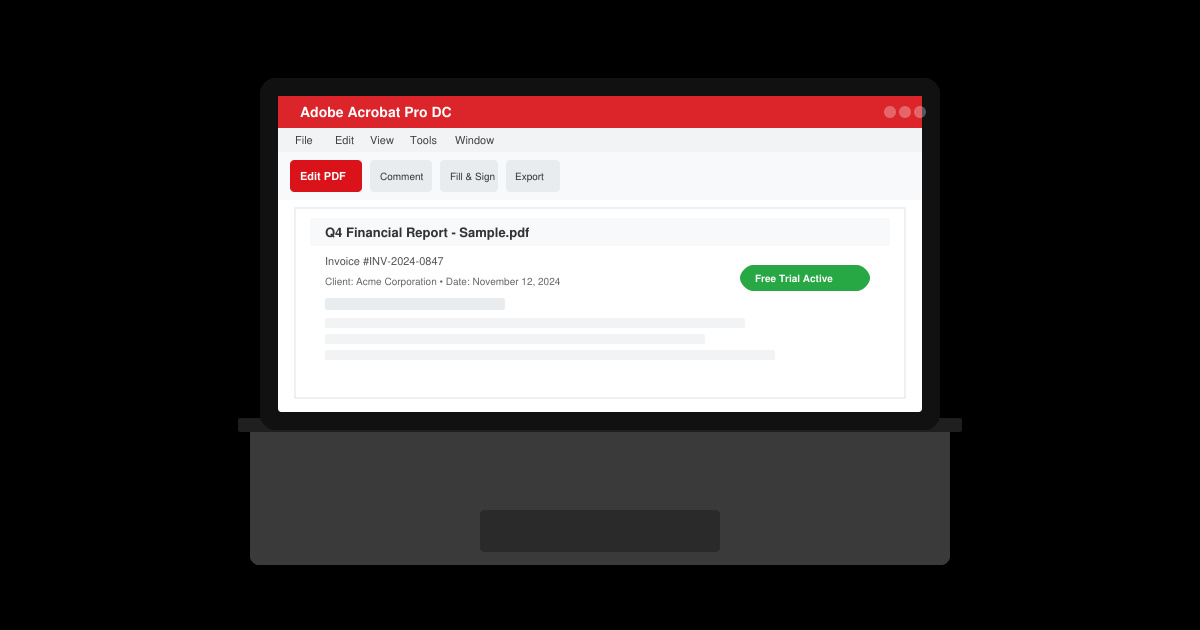
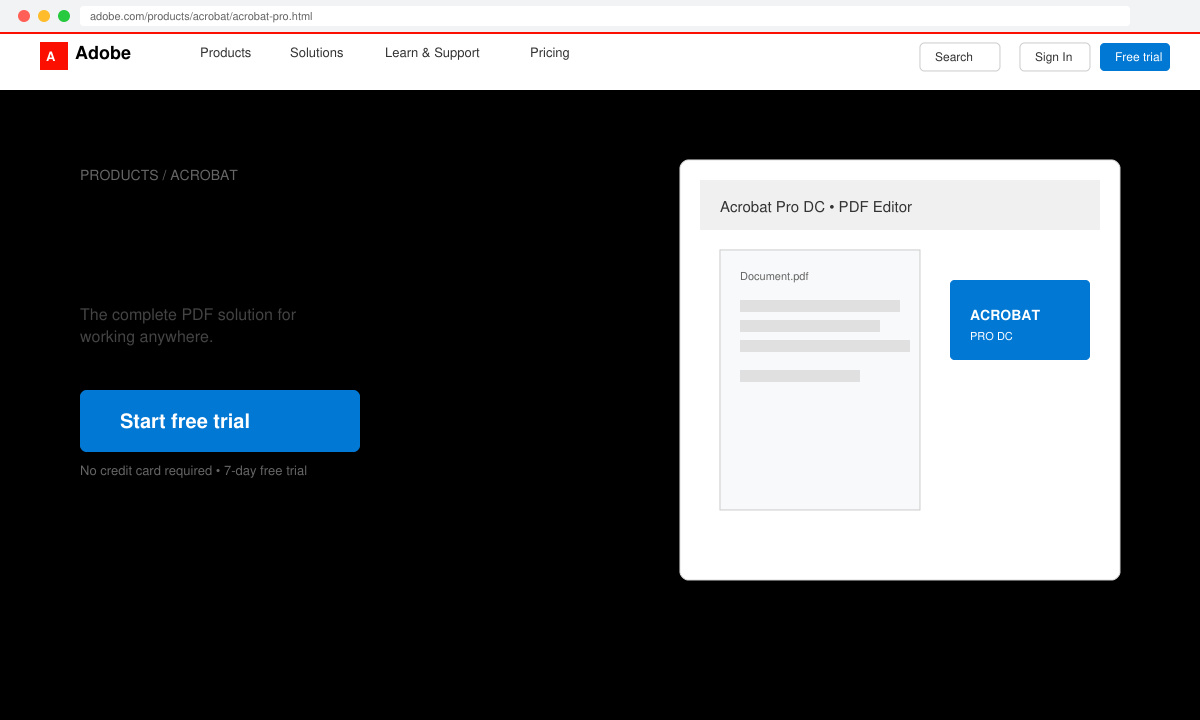
Open your browser and navigate directly to the official Adobe Acrobat Pro DC landing page. Look for the prominent “Free Trial” button on the main product banner and click it to begin the process.
Enter your existing Adobe ID and password, or click the “Create an account” link if you do not already have one. Provide a valid email address and complete the short registration form. Adobe will send a verification email—click the link inside to confirm your account.
On the subscription screen, choose the Acrobat Pro DC plan and confirm the seven-day free trial is selected. Review the listed features to ensure they match what you need, then click the final confirmation button to start the download.
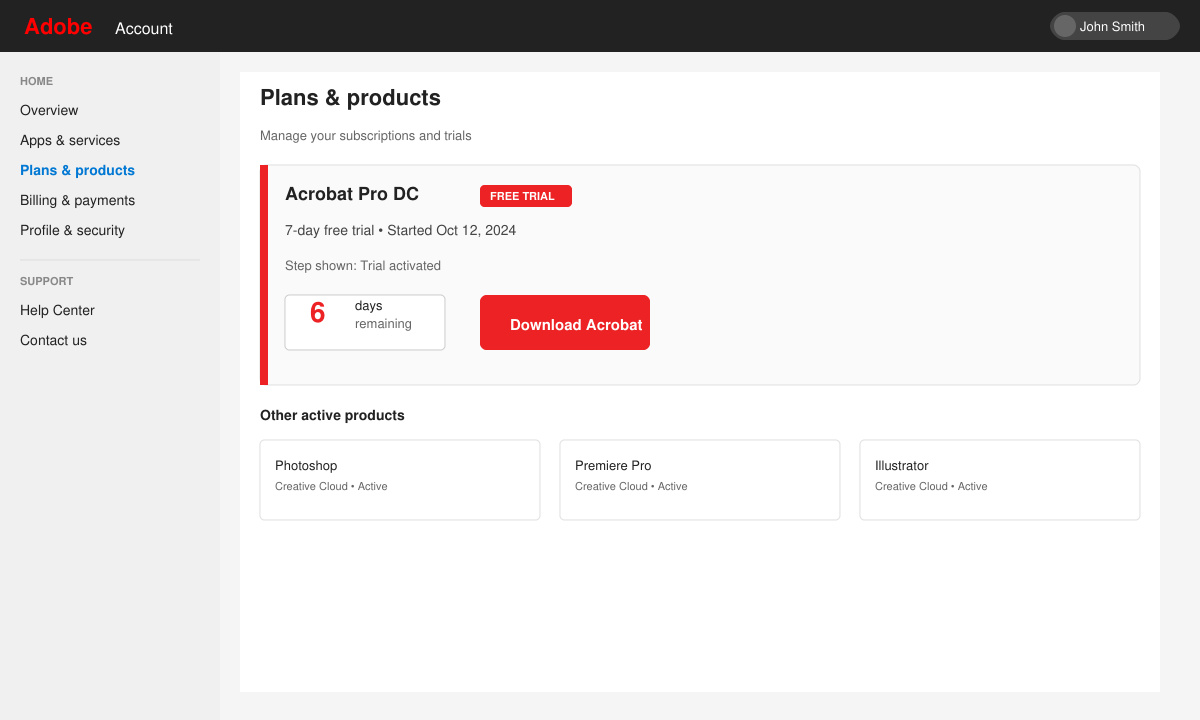
Click the download button that appears after confirmation. Run the installer file and follow the on-screen prompts to complete installation. Launch Acrobat Pro DC and sign in with the same Adobe ID used during registration to activate the trial immediately.
If the download does not start, disable any active VPN or firewall temporarily and try again. Users on corporate networks sometimes need to contact their IT department to whitelist Adobe domains. Should the trial not activate after installation, quit the application completely, restart your computer, and sign in again from within the Help menu. If you receive an error about an existing subscription, log out of all Adobe apps and clear the Creative Cloud cache through the Creative Cloud desktop app settings.
Keep the trial period in mind—mark the end date in your calendar so you can export any work or cancel before automatic conversion if you decide not to continue.
No. Adobe limits every user to one seven-day trial per product. Once it expires you must purchase a subscription to continue using Pro features.
Yes. The Adobe Acrobat Pro DC Free Trial activates the full desktop version plus the mobile apps on iOS and Android with the same account.
Your existing PDF files remain fully accessible. You simply lose the ability to edit or create new PDFs with Pro tools until you subscribe.
Following the steps above lets you activate the Adobe Acrobat Pro DC Free Trial in just a few minutes and begin testing every professional feature immediately.
Install a compatible Java runtime, enable it in LibreOffice, and troubleshoot an empty JRE list without changing unrelated settings.
Build a small LibreOffice container, convert office documents without a GUI, and verify PDF output while limiting host-file access.
Reduce oversized LibreOffice presentation files by compressing embedded photos, choosing sensible image settings, and checking slide quality before sharing.
Match LibreOffice’s page dimensions to your printer, check printable margins, and correct scaling before printing a custom-size document.
Replace repeated cell access with bulk range reads and writes, then benchmark the result and protect formulas in large Calc workbooks.
Split a long manuscript into chapters, assemble them in Writer, and keep styles, contents, and export checks consistent.
Use Base’s direct PostgreSQL option to enter your server details, sign in, save an ODB connection file, and troubleshoot common access errors.
Install a font in your Linux user font folder, restart LibreOffice Flatpak, and confirm it appears in Writer without weakening the app sandbox.
Protect your work and isolate network-drive save crashes in LibreOffice on macOS Sonoma with a local-first workflow, permission checks, and targeted tests.
Preserve leading zeros in Calc by setting ID columns to Text during CSV import, checking the preview, and verifying the saved data.








