Enable ONLYOFFICE Desktop Plugin Development and Debugging
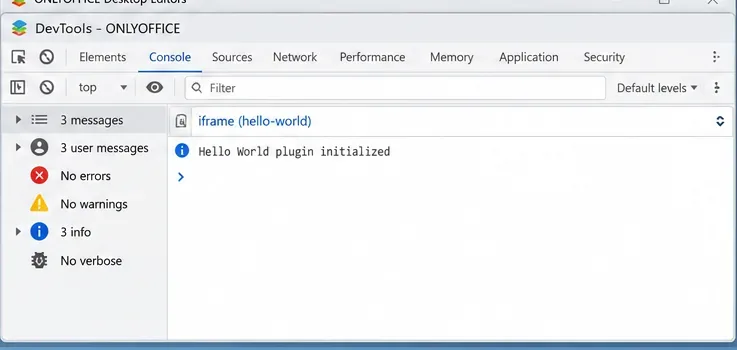
Build and test a custom ONLYOFFICE Desktop Editors plugin, install its .plugin archive, and activate developer tools for debugging.
Shadows are a common problem when taking photos. How to delete them the easiest way? Join us to find out how to remove the shady shadow image effect offline!
If you take a lot of photos under natural light, you will know the cause of this problem. When it is cloudy, shady, your photo may look boring. When the sun rises, the sun shines brightly, ugly shadows appear all over your photo.
Fortunately, this problem is not difficult to overcome. You can remove shadows in Adobe Photoshop or through simpler editing applications. Join us to find out how to remove shadows from photos!
Shadows are a common problem when you are photographing under high light contrast conditions, especially on bright sunny days. Because it is difficult to recover details from overexposed areas, you should capture the brightest parts, such as the sky.
Adobe Photoshop CC Adobe Photoshop CC for Mac
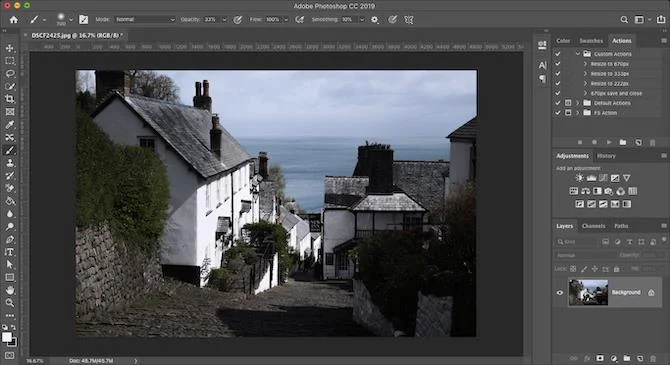
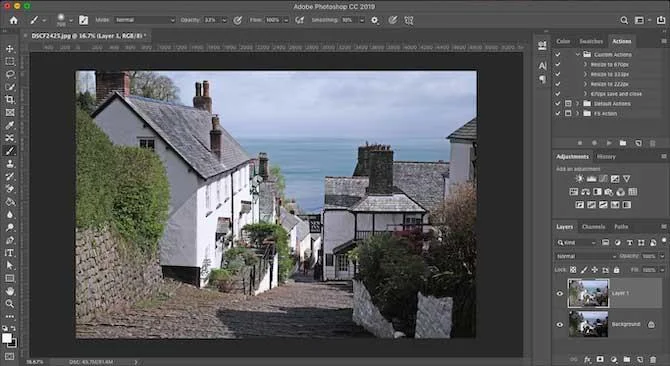
This action usually causes images to have dark shadows in the foreground, but fixing them is easy through Photoshop.
First, press Ctrl+ Jon Windows or Cmd+ Jon a Mac to make a copy of the image in a new layer, allowing you to remove changes as needed, simply by deleting this layer.
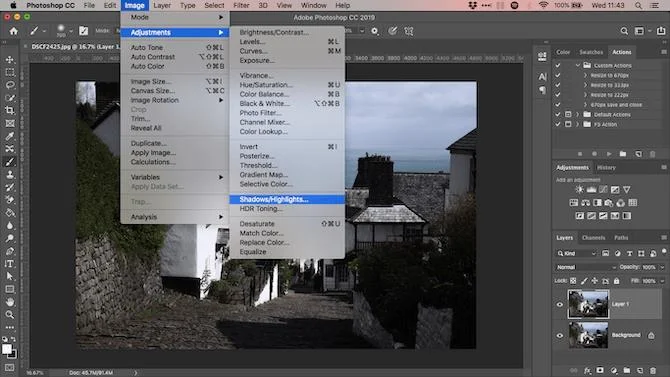
Go to Image> Adjustment> Shadows / Highlights . You can see the default settings help to get this job done right away. If not, click Show More Options to refine them.
First of all, in the Shadows , adjust the Amount slider . Move it to the right to brighten the shadow, to the left to make them darker.
Move the Tone slider to the left to reduce the range of shadow areas you can adjust and vice versa, to the right to increase the level. For example, setting Tone to 10 will only see the darkest area of the image being changed. If set to 90, some of the average shadow areas are lighter.
When satisfied, click OK to save the changes.
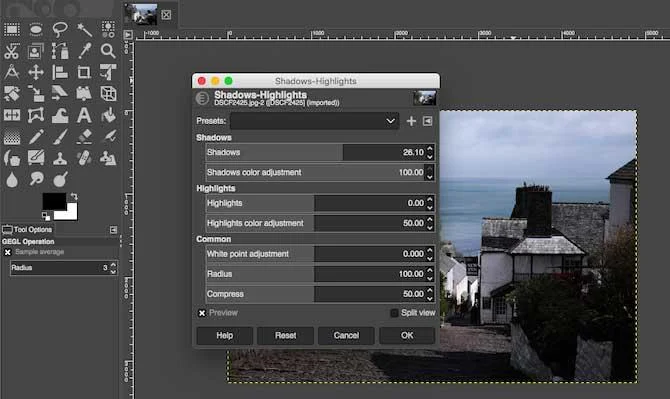
You do not need expensive software to remove shadows in high-contrast images because you can do this with GIMP - a free photo editing application. Just go to Colors> Shadows-Highlights and drag the Shadows slider to the left or right to make the changes you want.
GIMP GIMP Portable GIMP for Mac GIMP for Linux
Google Photos usually automatically corrects the contrast in photos. If not, you can do this manually: Go to Edit> Basic adjustments> Light , then use the Shadows slider .
In Apple Photos, you can make the same adjustments using Edit> Light> Options> Shadows .
In fact, most basic photo editing applications can overcome this simple photography error. Basically, wherever you see the Shadows slider supports image beautification, it works the same way as described above.
Shading on a person's face or at the wall behind an object is often harder to fix. This problem occurs when you are shooting in high light conditions such as bright sunlight or turning on the flash.
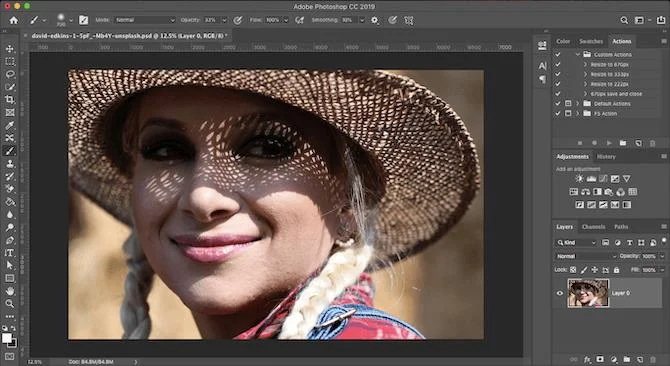
It is difficult to completely eliminate such shadows but you can reduce them to a less noticeable level on the image. The article will use the Mask tool in Photoshop to select some shadow areas.
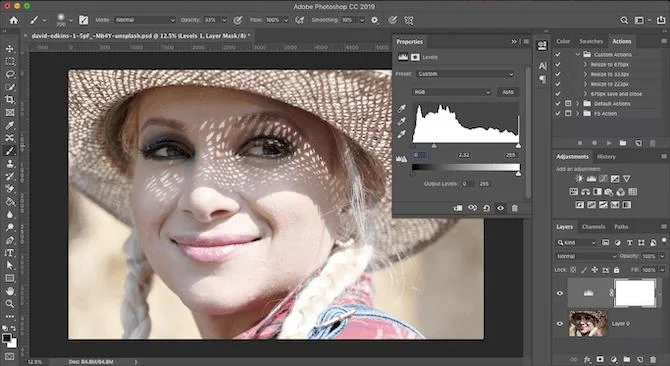
Upload your photo to Photoshop. In the Adjustments panel , click Levels . This will create a new editing layer on your image.
Click on the middle tab, under the Levels graph, and drag it to the left until the shadow reaches the level of brightness you're looking for. Don't worry if the other parts of the image are too bright because it's only temporary.
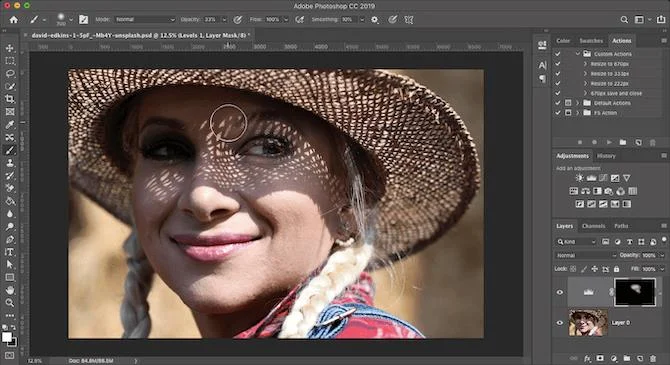
Now, with the Levels layer selected, click the Mask button . Reverse the mask by pressing Ctrl+ Ion Windows, Cmd+ Ion Mac. The image will return to the original dark level.
Pick the Brush tool , choose white. In the Options bar at the top, set the Hardness of the Brush to a lower number, about 5 to 10%. Alternatively, set the Opacity to about 30 to 50%. Don't be afraid to experiment with different brush sizes when you create your work.
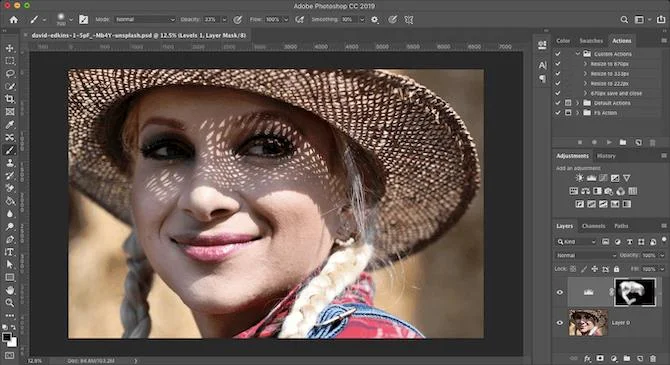
Now start moving the brush over the shadow area in the image. Where you place the brush, the shadow area will be brighter. The remaining regions remain the same.
This example sets the opacity to quite low so the effect will be more magical. Move the brush several times over the same area to create an effect.
If you accidentally lighten the area you want to darken, change the brush to white and paint over the area again.
Instead of trying to fix unwanted shadows in the image, you should avoid this problem in the first place. The art of exposure is one of the most important photography factors. Doing this is not easy because you do not always have control over the photography light. However, you can try a few tips below:
If the photo is still dark, not as you like, try 5 ways to adjust low light photos simply in Photoshop . This guide contains all the information you need.
Above are the most simple and effective ways to remove shadows on photos. Hope the article is helpful to you.
Build and test a custom ONLYOFFICE Desktop Editors plugin, install its .plugin archive, and activate developer tools for debugging.
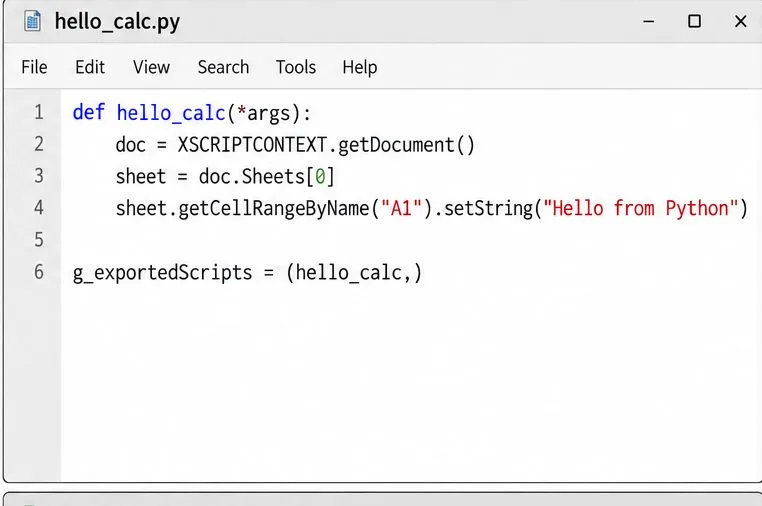
Make a Python function available in Calc, run it against the open spreadsheet, and troubleshoot missing macros or imports without mixing up LibreOffice and system Python.
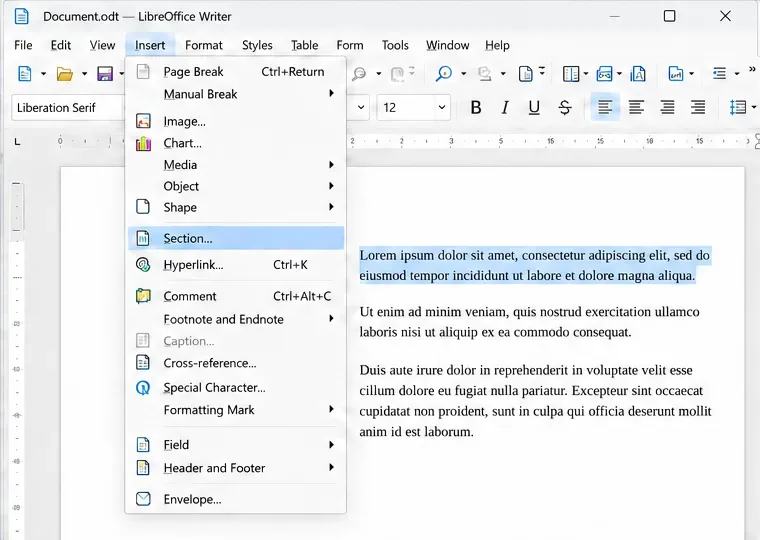
Lock a specific passage against routine edits while keeping the rest of a Writer document usable, and learn when file encryption is the better choice.
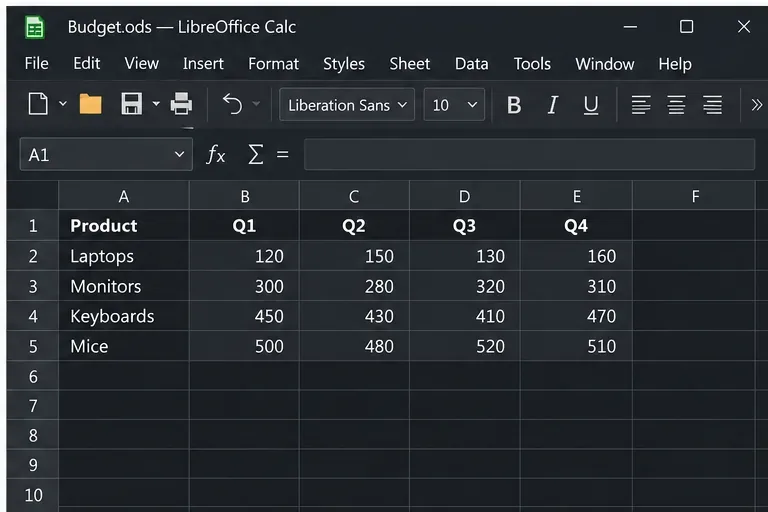
Fix hard-to-see spreadsheet text by checking the theme, cell font color, fills, and conditional formatting in Calc.
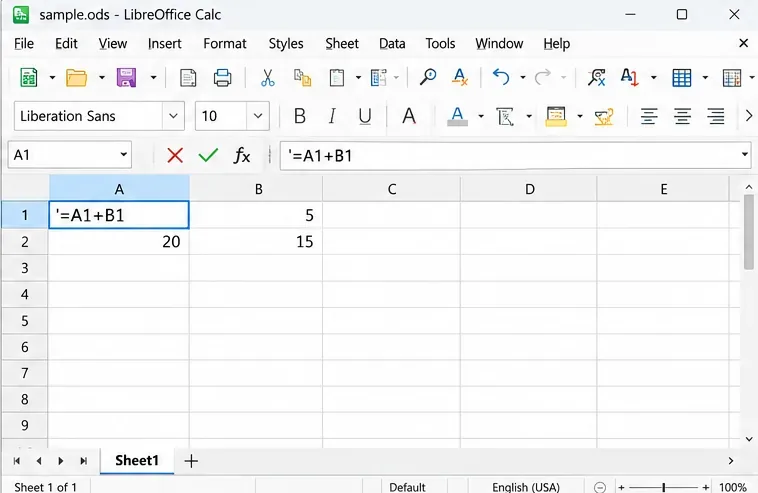
Learn why Calc shows formula text instead of calculated values and fix display mode, Text-formatted cells, apostrophes, or stale results.
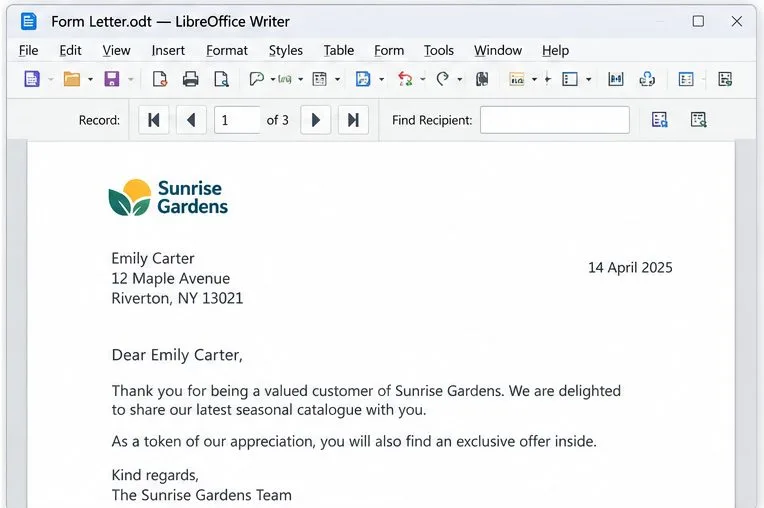
Build a reusable Writer mail merge with Calc recipient data and a shared embedded image, then preview and save the personalized letters.
Turn off LibreOffice’s optional update statistics and crash-report prompts, then check what the settings cover and how to verify them.
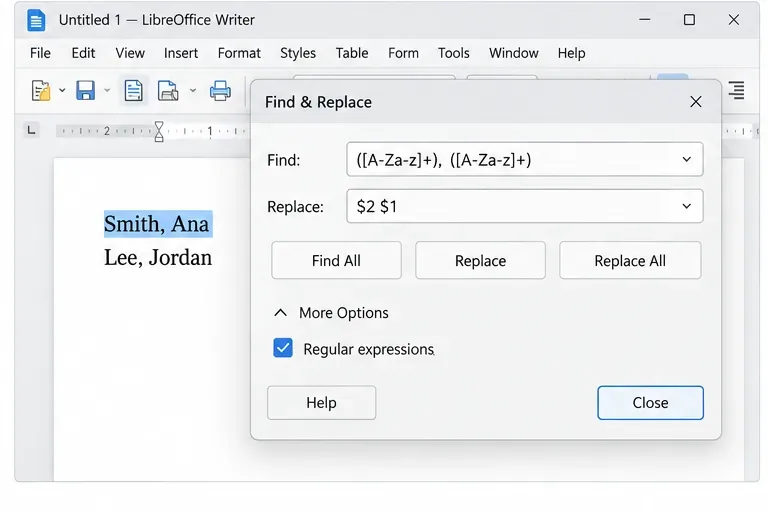
Clean spacing, find structured text, and rearrange names with Writer regex patterns you can preview before replacing.
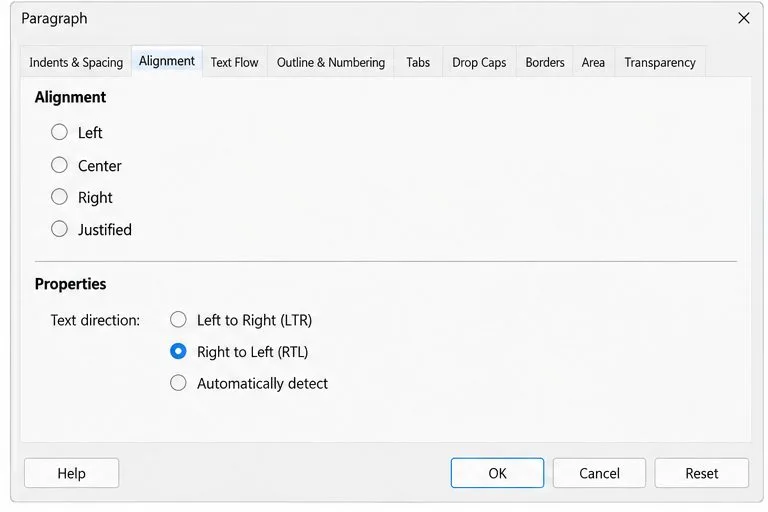
Enable Writer’s bidirectional controls, set RTL paragraph flow, and check mixed Arabic or Hebrew text without disrupting English words and numbers.
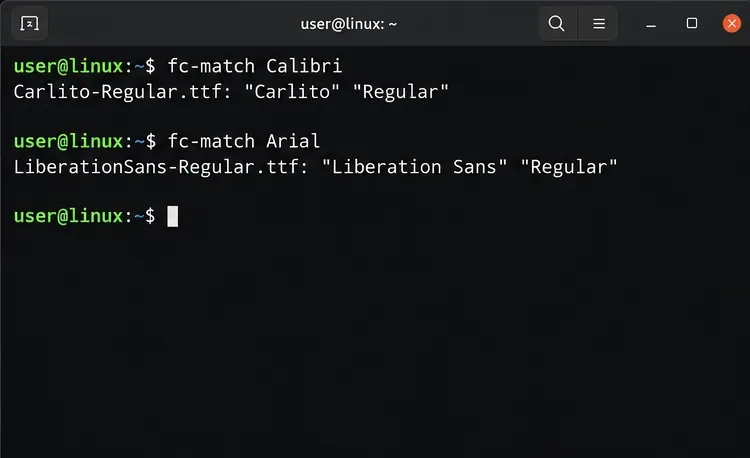
Install metric-compatible Linux fonts or map LibreOffice fallbacks, while keeping Microsoft font licensing and layout differences in view.