Home
» How to
»
How to share a computer screen on Viber
How to share a computer screen on Viber
Video How to share a computer screen on Viber
Now with the latest version of Viber you can easily share your computer screen during a video call. Screen sharing of Viber on a PC is similar to sharing a screen on Teamview but does not include shared computer control. However, sharing a computer screen when video calling on Viber has also brought a lot of utilities for users. Through this feature, you can easily instruct your friends, relatives or partners about specific jobs, direct instructions on your computer.
Share screen feature computer is not new but with this feature Viber has met the great needs of users. With Viber on PC, you can only share the screen online while you are making a video call to the people we call you. You can follow the article below to know how to share the screen to guide software usage or any setting on the computer.
Instructions on how to share screens with Viber on PC
Step 1:
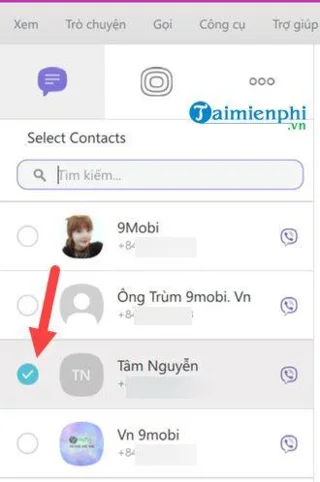
At the main interface of the Viber application for computers, select the person you want to chat.
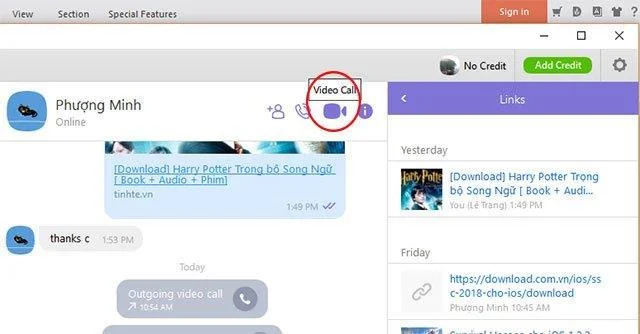
In the chat window click on the icon of Video Call (top right corner) to start making calls.
Step 2:
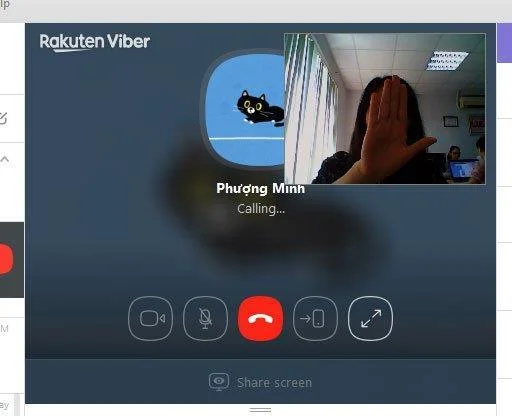
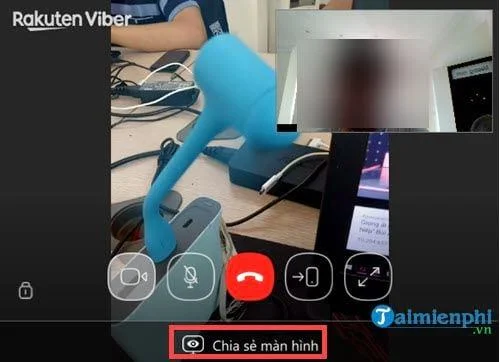
After your friend has received that video call, the video call screen will allow you to share your screen with that friend at the Share Screen button.
When you click the Share Screen button immediately your screen will appear on the computer of the person you are talking to.
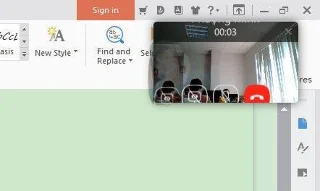
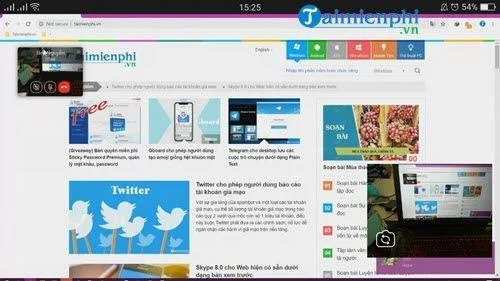
On your screen will also notice the screen is being shared through a small window in the upper corner of the screen.
To finish sharing the computer screen, click on the red end call button.
Above we have shown you how to share the screen on the Viber PC application. Hope this feature will be really useful for everyone.
Update new 2021:
Video calling on Viber computer has allowed sharing screen calls between 2 people.
As well as calling video calls on Facebook, or video calls on Zalo, Viber users can also call video right on the computer or on the phone. And in the latest computer version of Viber, you can share the screen between two people when calling a video call.
Accordingly, the Share Screen feature on Viber when making video calls will allow you to send the computer screen to the recipient of the call. And the caller will also receive the computer screen from you.
Although the screen sharing feature when calling video is not new, very similar to TeamViewer tool or screen sharing software. But for Viber users, especially on computers will be very helpful. The following article will show you how to share video call screens on Viber.
How to share a video call screen on Viber PC
Step 1:
After upgrading Viber computer to the latest version, click on the name of the person you want to call. At the chat interface, click on the Video Call icon in the top right corner of the screen.
Step 2:
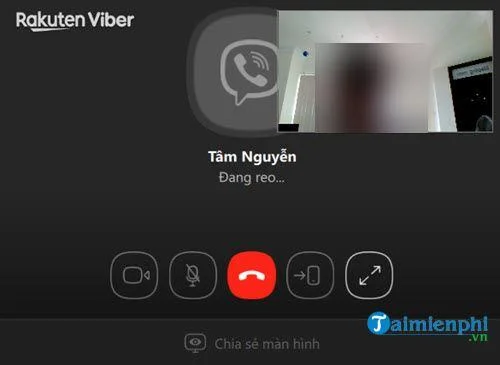
The video call will be done soon after. We will see the webcam screen at our computer. Below will have the Share Screen option.
When the person picks up the call, click the Share Screen button to share your computer screen. At the same time we will see the screen with a large size and a small screen in the upper right corner.
You can hide Viber and only display thumbnails.
Step 3:
When sharing a computer screen on Viber, the other party will see your computer screen. We can press the icons on the screen to customize the call like zooming in on the screen, turning on the microphone, .
The operations performed on your computer will be transferred to the computer Viber. If your partner also clicks Share Screen, you will also get their computer screen.
Step 4:
In case you don't want to share the screen anymore, click Stop Sharing . Or you can end the call to stop the call.
You can see the screen sharing feature on Viber when calling video is quite similar to TeamViewer. In the case of remote instructions you can use this feature to support your friends.
INSTRUCTIONS FOR SHARING VIDEO CALL SCREEN ON VIBER
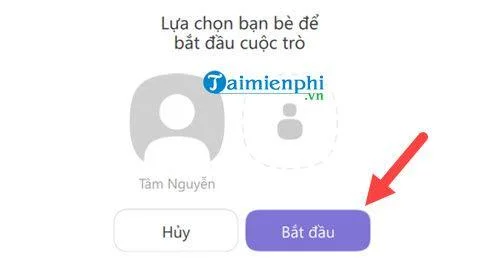
Step 1: To use the screen sharing feature of video calling on Viber, you must use it on Viber PC version, select an object to conduct a video call.
Then click start to conduct a video chat with them.
Step 2: The next step is to click on the video call section on the chat interface with the object you have selected.
Step 3: Wait for the other party to respond to your call .
Step 4: When the subject has agreed to video chat with you, notice below that there is a screen sharing feature . Click on it to activate the video call screen sharing feature on Viber.
Step 5: Right now on the phone screen of the object you share, all your desktop information will appear, any operation will always be updated on the object's screen interface. share.
With the screen sharing feature of video calls on Viber, users can share for both computers and mobile phones, as long as the user uses the screen sharing feature to call video on Viber on the computer.