Ways to speed up file copying on Windows 10

Video Ways to speed up file copying on Windows 10

Data copying is one of the most commonly used tasks on PC. Here are ways you can copy files faster on Windows 10.

Because copying data is so simple, not many people really care about it. However, when it comes to copying large files, this process is usually more time-consuming. You can then use the following methods to speed up file copying on Windows 10.

1. Use keyboard shortcuts

Using keyboard shortcuts is always a great way to work more efficiently, and File Explorer is no exception. To copy & move regular files, you can use some of the common key combinations below:

  • Ctrl+ X  cut file, move file to clipboard so you can paste it into another location. When the paste is finished, this file will disappear from the original location.
  • Ctrl+ C to Copy. The copy job is like cutting, except that the original file remains after you have a copy of it in the new location.
  • Ctrl+V is a shortcut to paste data. Use this key combination to move the cut file or create a second copy at a new location.

Besides, you can use Ctrl+ Shift+ Nto quickly create new folders and save files copied onto it. Alt+ / allows you to "jump" to the previous or next directory. Use Alt+ Upto level up a directory system.

2. Shortcuts on computer mouse

Ways to speed up file copying on Windows 10

If you prefer to use a mouse, you can apply some of the following tips:

Hold down Ctrland click on the files you want to select at any location. To select multiple files in a row, click on the first row, then, hold Shiftwhile clicking on the last row. This allows you to select a large number of files to copy or cut.

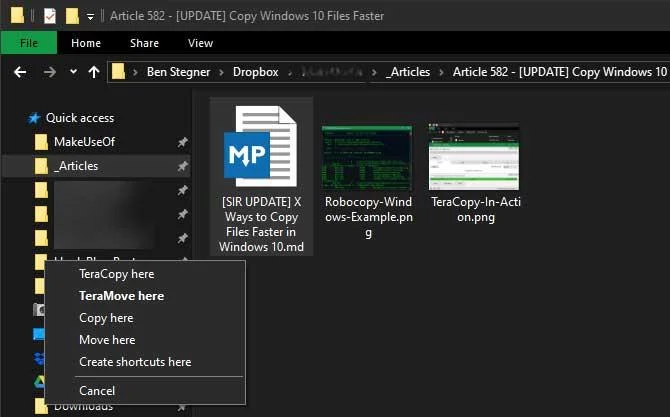
Normally, clicking and dragging files with the left mouse button will move them to a new location (similar to cutting and pasting). However, if you click, then drag them with the right mouse button, you will see a small menu. It allows you to choose to copy or move files. This is a very handy solution when you do not want to use keyboard shortcuts.

3. Use Windows 10

Ways to speed up file copying on Windows 10

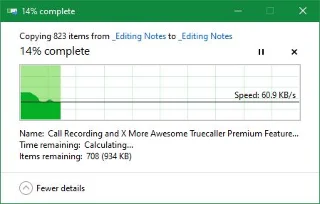
Windows 8 & 10 has a much better copying interface than Windows 7 and earlier versions. It runs faster, even showing speed graphs over time.

If you copy a lot of files at a time, it combines everything together so there aren't too many floating windows around. You can also pause and resume each process, prioritize an activity, or pause the data transfer for a long time while using your computer for other work.

Best of all, the copy dialog in Windows 10 will not stop completely if a conflict occurs. It keeps running, at the same time, allowing users to respond later. This feature is much better than having to exit the current activity for a while, just to return to the session and find the activity you want to pause for 10 seconds.

4. TeraCopy

Ways to speed up file copying on Windows 10

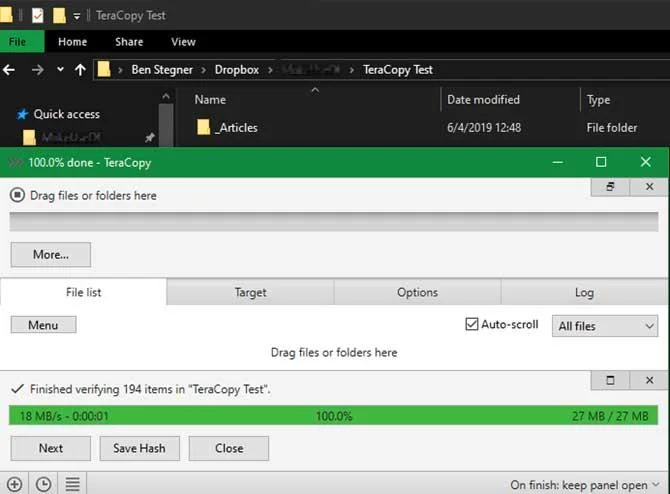
The above three solutions are the simplest way to speed up data copying on Windows 10. If you want to be faster, you need to install a dedicated copying application, the most prominent of which is TeraCopy.

This application offers more options than the built-in keyboard shortcuts. It uses special algorithms to speed up the copying process. This application can check file copies to ensure they are 100% homogeneous. If you're often confused when dragging & dropping a file, you can turn on the confirmation dialog to make sure you really want to do it.

TeraCopy also has some other outstanding advantages that make it more useful. If you like, you can integrate the application with File Explorer to default to perform all copy / paste operations with TeraCopy. It also retains the original date & time on the copied file.

Of course, the software also ignores error files, allowing users to evaluate them after "freezing" the entire process. Overall, this is a great tool for those who have to copy files regularly.

5. Robocopy

Ways to speed up file copying on Windows 10

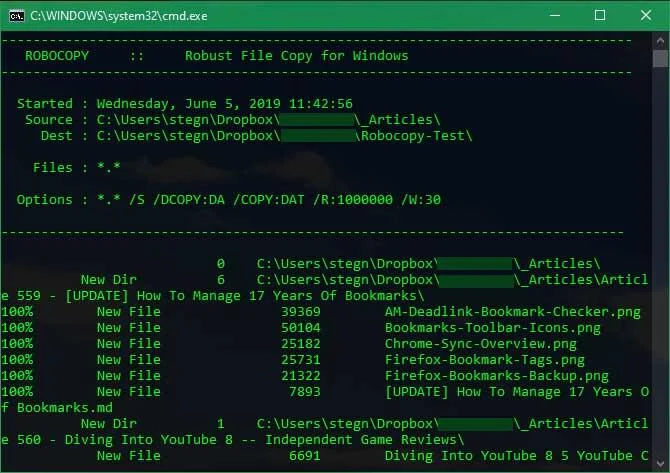
If you don't mind digging into the Command Prompt, you can try a utility tool called Robocopy (short for Robust File Copy). It provides more "power" for advanced users who need to run complex file copying operations.

Robocopy runs replication tasks faster. Those who need a quick copy over the net will find this tool really useful. To use Robocopy, open a Command Prompt or PowerShell window. Type robocopy and get a parameter based on what you want to do.

If you often have to run the same copy operation, you should create a batch file so you can double click to run it. You can even set the script to run through the Task Scheduler without any further action.

6. Upgrade drive to accelerate file copying

Hardware plays an important role in data processing speed. Computer users often know that older hard drives (HDDs) will run slower than SSDs. Copying files on the HDD usually takes longer. Therefore, if you do not already have an SSD, consider upgrading the drive to speed up file copying.

Here are some ways to copy files more efficiently on Windows. If there is any other effective solution, do not hesitate to share with Download.com.vn .
Leave a Comment

How to Use Microsoft Edge Read Aloud Feature for PDFs

How to Use Microsoft Edge Read Aloud Feature for PDFs

Master the Microsoft Edge Read Aloud feature for PDFs with this step-by-step guide. Enjoy customizable voices, speeds, and multitasking bliss for seamless reading. Perfect for students, professionals, and accessibility needs.

How to Fix Microsoft Edge Acrylic Effect Not Showing

How to Fix Microsoft Edge Acrylic Effect Not Showing

Discover how to fix Microsoft Edge Acrylic Effect not showing. Step-by-step guide with hardware acceleration tweaks, flags, and updates for that stunning blur effect back in seconds. Works on latest Edge versions!

Troubleshooting Edge Browser Security Plugin Errors

Troubleshooting Edge Browser Security Plugin Errors

Struggling with Edge browser security plugin errors? Discover proven fixes for common issues like crashes, blocks, and conflicts. Step-by-step troubleshooting to restore smooth browsing instantly.

Complete List of Microsoft Edge Keyboard Shortcuts

Complete List of Microsoft Edge Keyboard Shortcuts

Unlock peak productivity with the complete list of Microsoft Edge keyboard shortcuts. From tabs and navigation to developer tools, master every essential hotkey for faster browsing in the latest Edge version. Boost your workflow today!

Solving Microsoft Edge Internal Mic Static Sound Fix

Solving Microsoft Edge Internal Mic Static Sound Fix

Tired of annoying static buzz from your internal mic in Microsoft Edge? Follow our proven step-by-step guide to fix Microsoft Edge internal mic static noise permanently. Quick fixes, advanced tweaks, and prevention tips for crystal-clear calls and recordings.

How to Fix Microsoft Edge Capture Card No Signal 60FPS

How to Fix Microsoft Edge Capture Card No Signal 60FPS

Struggling with Microsoft Edge Capture Card No Signal at 60FPS? Discover step-by-step fixes to restore smooth 60FPS video capture, from quick tweaks to advanced troubleshooting. Get your setup working flawlessly today!

How to Manage Microsoft Edge Extensions and Permissions

How to Manage Microsoft Edge Extensions and Permissions

Unlock the full potential of your browser with this expert guide on how to manage Microsoft Edge extensions and permissions. Step-by-step tips for security, speed, and control—start optimizing today!

Troubleshooting Microsoft Edge Msi Error 1722 Win 11

Troubleshooting Microsoft Edge Msi Error 1722 Win 11

Stuck with MSI Error 1722 when installing or updating Microsoft Edge on Windows 11? Follow our expert troubleshooting guide with simple, effective fixes to get Edge running smoothly again. No tech skills required!

How to Change Your Microsoft Edge Profile and Personal Data

How to Change Your Microsoft Edge Profile and Personal Data

Discover step-by-step guide on how to change your Microsoft Edge profile and personal data. Switch profiles effortlessly, manage sync settings, and protect your privacy with the latest Edge features for ultimate control.

Troubleshooting Microsoft Edge HSTS Error and Security Attacks

Troubleshooting Microsoft Edge HSTS Error and Security Attacks

Stuck with Microsoft Edge HSTS Error? Get step-by-step troubleshooting fixes, uncover security attack risks, and secure your browsing. Proven solutions for the latest Edge updates – no tech skills needed!

How to Fix Microsoft Edge Unable to Connect to Proxy Server

How to Fix Microsoft Edge Unable to Connect to Proxy Server

Struggling with Microsoft Edge "Unable to Connect to Proxy Server" error? Discover proven, step-by-step fixes to get back online fast. No tech skills needed – resolve it in minutes!

How to Fix Microsoft Edge Login Screen Background Blur

How to Fix Microsoft Edge Login Screen Background Blur

Tired of the blurry Microsoft Edge login screen background? Get step-by-step fixes to restore sharp, clear visuals on your Windows PC. Proven methods for the latest Edge versions.

How to Fix Microsoft Edge Update Stuck at 0% or 100%

How to Fix Microsoft Edge Update Stuck at 0% or 100%

Frustrated with Microsoft Edge update stuck at 0% or 100%? Discover simple, effective fixes to resolve the issue fast and update smoothly without losing data. Step-by-step guide for Windows users.

How to Fix Microsoft Edge Clock Ahead Error

How to Fix Microsoft Edge Clock Ahead Error

Tired of the frustrating Microsoft Edge "Clock Ahead" Error blocking your sync? Discover step-by-step fixes, from clock sync to Edge reset, for instant relief and smooth browsing. Updated with latest solutions!

How to Install Microsoft Edge on Linux (Ubuntu & Fedora)

How to Install Microsoft Edge on Linux (Ubuntu & Fedora)

Discover how to install Microsoft Edge on Linux effortlessly! Step-by-step guide for Ubuntu & Fedora users. Get Chromium power, speed, and security on your distro now. Official methods, troubleshooting tips included.