Keep Debian 12 Security Updates Running on a Headless Server
Enable Debian’s unattended security updates over SSH, keep the default package sources, and verify scheduled runs through systemd and APT logs.
Did you ever wonder how to play a song backwards? Do you want to know how to reverse a song just to see what it would sound like? Perhaps you’re trying to play audio backwards to reveal messages hidden away in plain sight? Or maybe it’s time to check for yourself whether Paul from The Beatles is really dead? Whatever the reason, this tutorial illustrates how to reverse audio in Audacity on any computer or device with Windows:
Contents
NOTE: This guide is created in Windows 11, but the steps are the same in Windows 10.
Download and install Audacity on your Windows PC or device
The first thing you need to do in order to play audio backwards is to get a program called Audacity. You can find it as a free download here.

You can use Audacity to reverse audio
Audacity is a free program designed to help you work with audio files and perform sound editing. It’s an open-source tool, so it’s completely free for anyone to use. There are no hidden costs, no advertisements, and no limitations whatsoever.
Download the latest version of Audacity compatible with your Windows device, and then install it. The installation part is very simple, so just click or tap Yes in the UAC window and follow the instructions in the setup wizard.
Install Audacity to reverse audio
Open the song you want to reverse in Audacity
After installing Audacity on your computer, launch it to see a welcome message. Close the “Welcome to Audacity!” window. If you don’t want to close the welcome message each time you open Audacity, first, check the option “Don’t show this again at startup.”
Get rid of the welcome window in Audacity
Open the File menu in the top-left corner, and then click or tap on Open.
TIP: Alternatively, you can also use the keyboard shortcut Ctrl + O.

Press Open from Audacity's File menu
Browse through your Windows computer or device to locate the song you want to reverse. When you find it, select it and click or tap on Open.

Open the Audio you want to play backwards
Audacity immediately loads the selected song, as seen below.
TIP: You can also drag and drop a song onto Audacity’s window in order to load it.

To reverse a song, you first have to load it into Audacity
How to reverse audio in Audacity
Now that your audio is loaded in Audacity, open the Select menu from the top-left corner, and then click or tap on All to select the entire song. Note that you can achieve the same result by pressing Ctrl + A on your keyboard.

To reverse an mp3, select it first
Once the whole track is selected, open the Effect menu from the top of the window and look for the Reverse option. Click or tap on it.

How to reverse a song in Audacity
When Audacity finishes reversing the song, you can listen to a preview. Use the playback controls from the top left part of the window to click or tap on Play.

How to play a song backwards in Audacity
If you like the result, go to the next step of this tutorial to save your reversed song.
Save the reversed song
If you want to play the song you reversed with another media player without using Audacity, you should save the new audio file. Open the File menu again, go to Export, and then click or tap on the Export Audio option.

Choose to Export Audio
Audacity opens the Export Audio window that lets you select where to save the song on your computer, its name, format, and encoding. Choose the location and name as you see fit, but pay a bit more attention to the file type and encoding you want to use. The safest bet you can make is to go with the defaults: WAV (Microsoft) as type and “Signed 16 bit PCM” encoding. The result works on any Windows computer, no matter the version of the operating system, but, as a downside, you get a pretty large file. However, to use another file format, you might find that you must also install the appropriate audio codecs on your system. When you’re done, click or tap on the Save button.

How to save a reversed song
Before saving the result, Audacity lets you edit its metadata. Make any changes you want, and then click or tap on OK.

Finish saving the song you reversed
Audacity saves your song in its new reversed form at the location you specified.
What song did you reverse and why?
You can now use your favorite media player to play the resulting audio. If you want to listen to (more) messages hidden in popular songs, you can check out this List of backmasked messages. Before you close this guide, we’re curious what audio you wanted to play backwards and why. Let us know in the comments.
Enable Debian’s unattended security updates over SSH, keep the default package sources, and verify scheduled runs through systemd and APT logs.
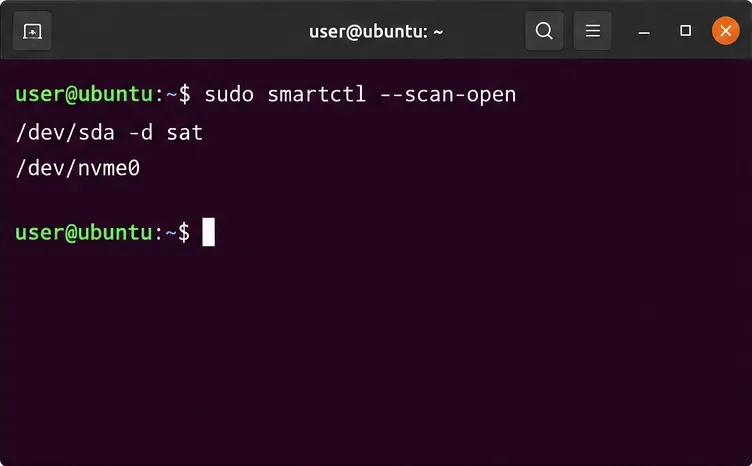
Compare mail delivery options, configure smartd on Ubuntu, and verify that disk-health warnings reach your inbox.
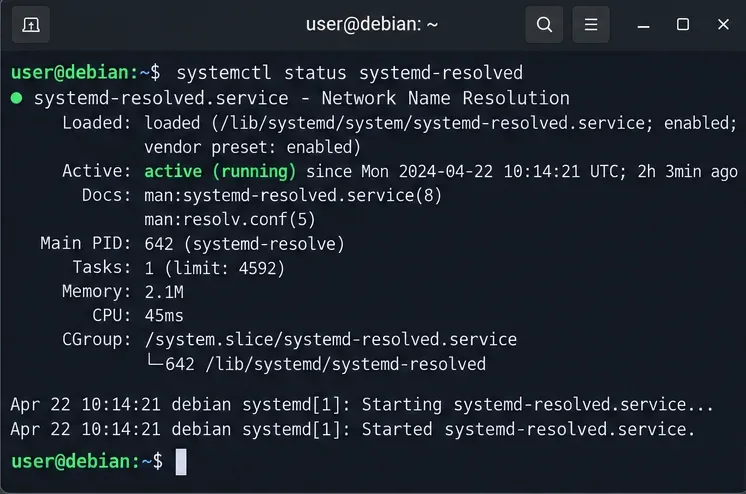
Restore DNS lookups on Debian 12 by checking systemd-resolved, repairing resolv.conf when needed, and verifying upstream DNS and application resolution.
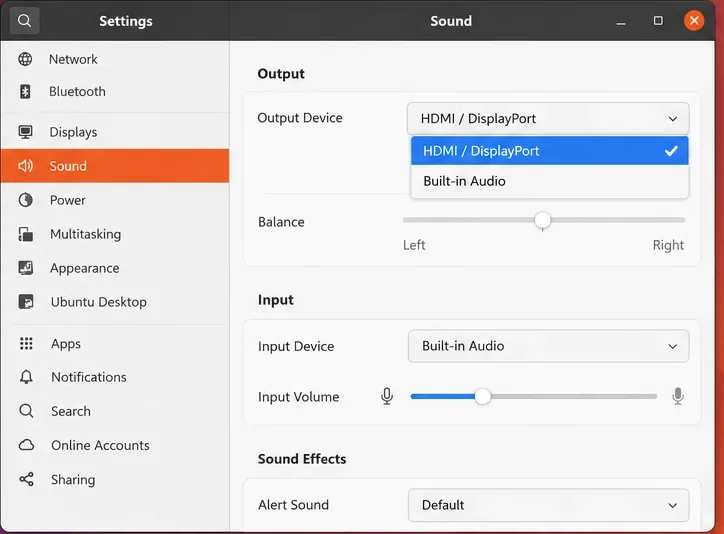
Get Ubuntu to detect your monitor or TV as an audio output, select it in Sound settings, and check the connection or PipeWire device list if HDMI is missing.
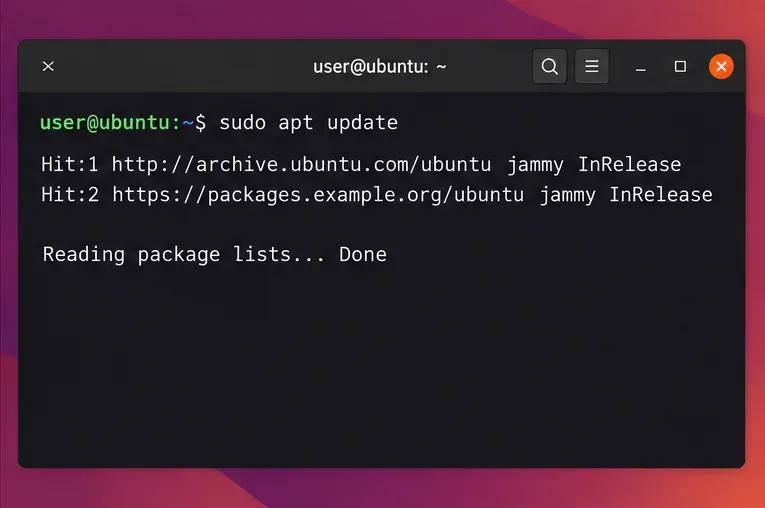
Resolve Ubuntu APT signature warnings safely by identifying the failing source, refreshing its verified key, and checking the result without disabling security.
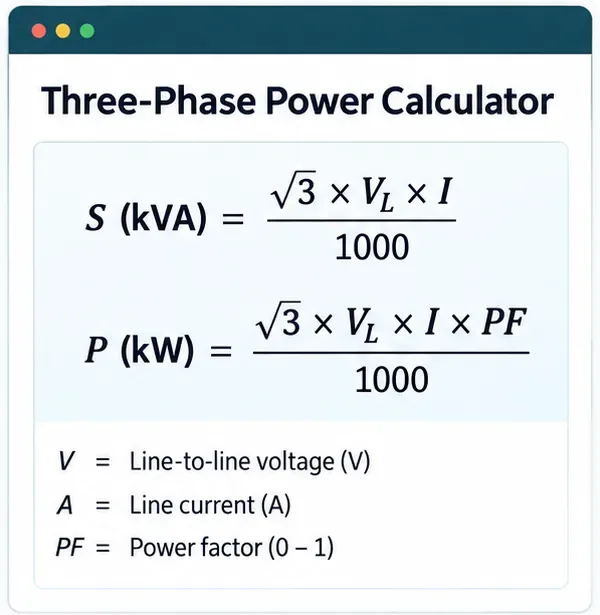
Learn the balanced three-phase formulas and convert line voltage, current, kW, kVA, and power factor step by step, with a worked example and limits to check.
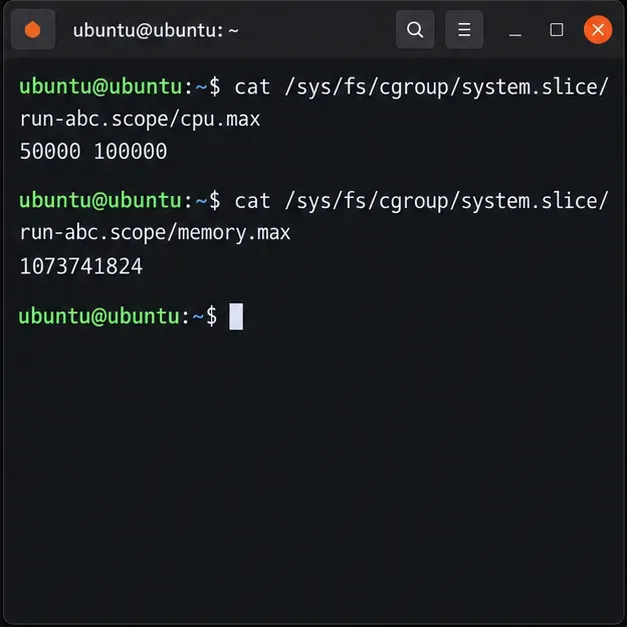
Run a workload inside a systemd scope with CPUQuota and MemoryMax, then verify the limits through cgroup v2.
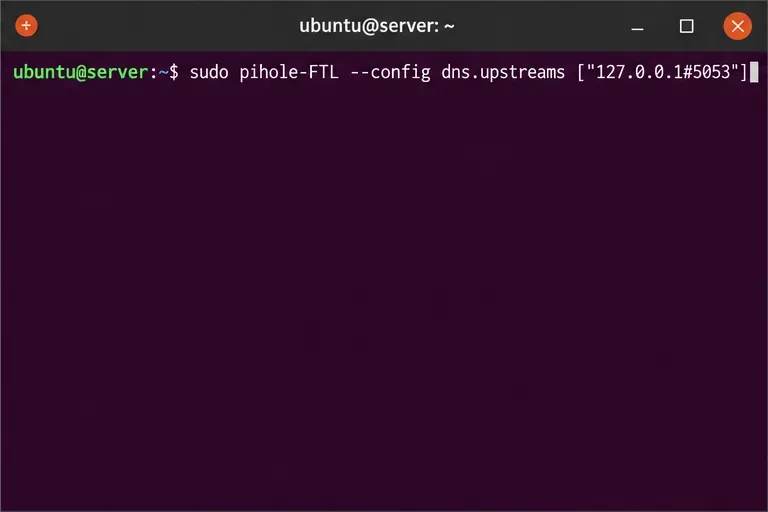
Set up dnscrypt-proxy as Pi-hole’s local DoH bridge on Ubuntu 24.04, with a localhost-only listener, resolver selection, and checks before switching DNS.
Check Ubuntu’s touchpad settings, confirm Wayland, and test GNOME’s built-in swipes before troubleshooting apps or hardware.
Create and verify a two-disk Debian 12 RAID 1 data array, format it safely, and configure it to assemble and mount after reboot.