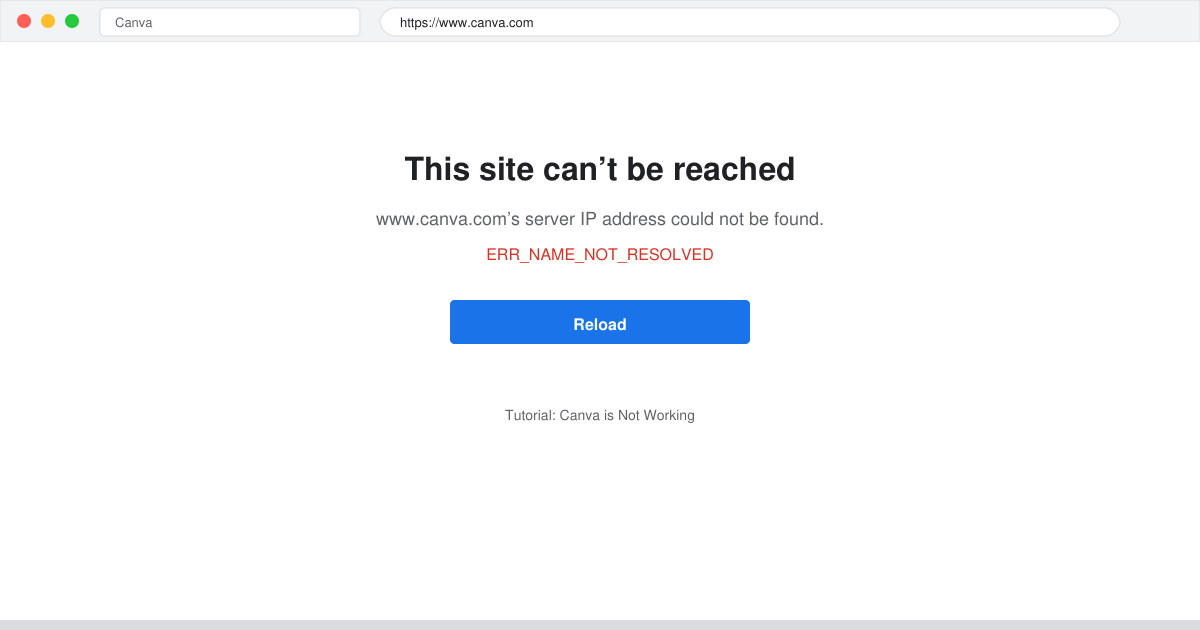
If Canva is not working, it often stems from browser conflicts, network problems, or temporary service hiccups that block access to templates and editing tools. This article outlines precise steps to diagnose and resolve the issue so you can resume designing without delays. Follow the troubleshooting sequence below to identify the exact cause on your setup.
Why Canva is Not Working
Users commonly encounter Canva is not working when their browser cache holds outdated data, extensions interfere with scripts, or the device lacks the latest updates. Network restrictions at schools or workplaces can also prevent the site from loading its cloud-based assets. Before diving into fixes, confirm whether the problem occurs on one device only or across multiple browsers and networks.
How to Fix Canva is Not Working
-
Verify your internet connection and Canva status
Open a new tab and load a fast site such as google.com. If that works, visit the official Canva status page at status.canva.com to check for reported outages. Note the current time and any listed incidents before proceeding.
-
Clear browser cache and cookies
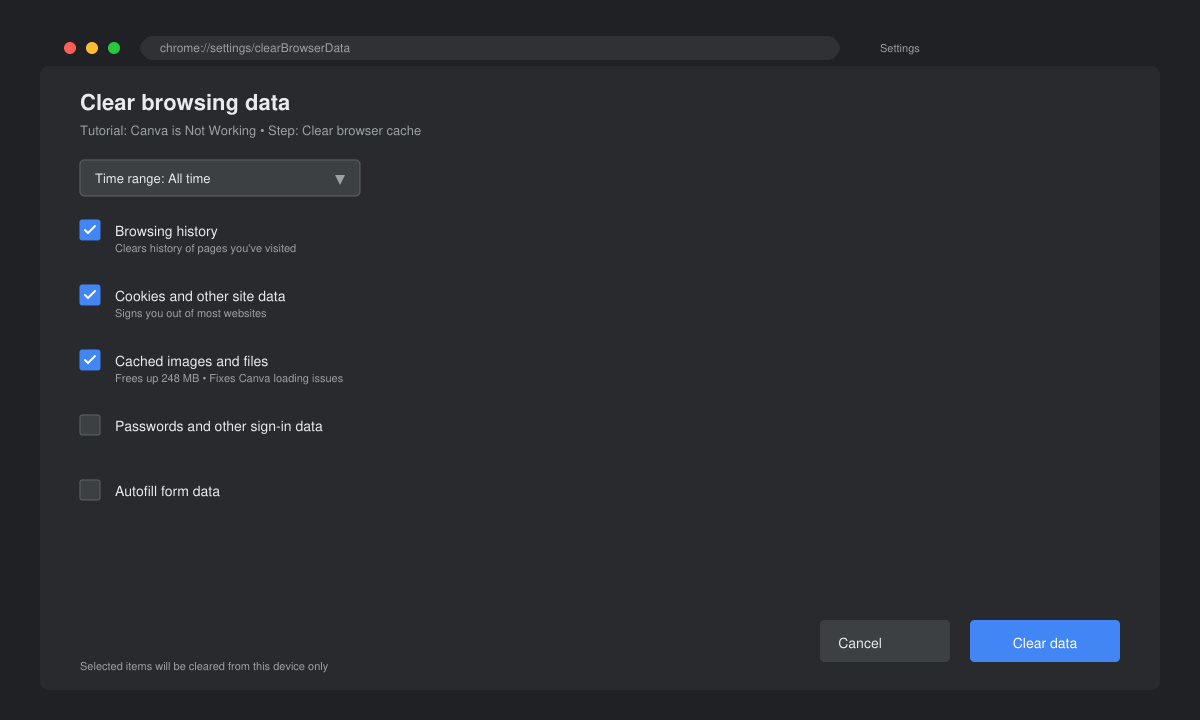
In Chrome, click the three-dot menu, select Settings, then Privacy and security followed by Clear browsing data. Choose Cookies and other site data plus Cached images and files, set the time range to All time, and click Clear data. Restart the browser and attempt to load Canva again.
-
Disable browser extensions one by one
Return to the three-dot menu and choose Extensions. Turn off each extension starting with ad blockers and VPN tools. Refresh the Canva tab after disabling each one to test whether the page loads correctly.
-
Switch to an incognito window or different browser
Press Ctrl+Shift+N to open an incognito window in Chrome or the equivalent shortcut in your browser. If Canva loads here, the issue lies with your regular profile extensions or settings. As a further test, download Firefox or Edge and repeat the login process.
-
Update your browser and operating system
Check for updates via the browser Help menu or system settings. Install any available patches, restart your device, and test Canva once more. Outdated software frequently blocks newer web features that Canva relies on.
Additional Tips for Persistent Canva Problems
If the steps above do not restore access, try the Canva mobile app on the same network to isolate whether the issue is browser-specific. For corporate or school networks, request temporary firewall exceptions for canva.com and its CDN domains. Always log out and back in after each major change to refresh session tokens.
Frequently Asked Questions
Does Canva is Not Working affect all users at once?
No. Most outages are localized to regions, browsers, or accounts. Checking the status page quickly reveals whether the problem is widespread or limited to your setup.
Can I recover designs if Canva keeps crashing?
Yes. Canva automatically saves projects to the cloud every few seconds. Once access returns, open the same design from the homepage and the latest version should appear.
Should I contact Canva support immediately?
Only after completing the browser and network checks. Support requests receive faster responses when you include your browser version, device type, and any error messages displayed.
Conclusion
Applying these targeted fixes resolves Canva is not working in the majority of cases within a few minutes. Keep your browser updated and clear the cache regularly to maintain smooth performance.