Deploy ONLYOFFICE Docs Enterprise with Its Official Compose File
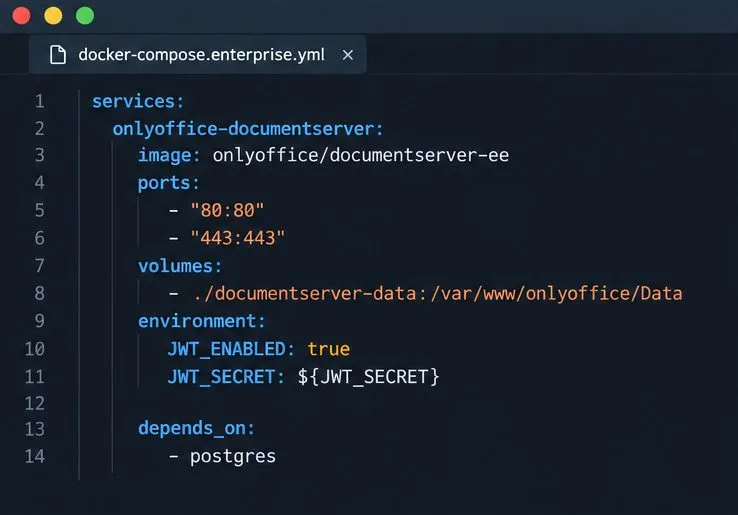
Start the Enterprise Docker Compose stack, persist its license and data, configure JWT safely, and confirm the editors are ready to integrate.
Macrorify helps you create tasks that automatically click and detect images. In this article, let's learn with Download.vn how to create all types of automatic clicks and swipes on Macrorify .
Automatically click in Macrorify
You have two ways to generate clicks on Microrify, including:
Method 1: Use the icon  on the toolbar or the bar below.
Method 2: Use the click() function in the code
Generate long clicks, double clicks, delayed, random clicks
Touch the click point to open this menu. Most of the parameters are very easy to understand.
Increase the Hold parameter to create a long click.
Increase the Repeat parameter to create double clicks, triple clicks in a row...
Use Randomize to randomize the click position for each iteration. The coordinates of a click are randomly generated within a circle with the initial coordinates in the center and the number entered as the radius (x +- a, y +- a).
Equivalent code
click(Point(1200, 540), CParam.hold(100).repeat(3).delay(0).waitNext(100).random(0))Auto swipe in Macrorify
Swiping is the act of moving a finger from one point to another. You can swipe with multiple fingers. Most touchscreens support 10-finger swipes, and so does Macrorify.
Method 1: Use the icon  in the toolbar or the bar below
Method 2: Use the swipe() function in the code
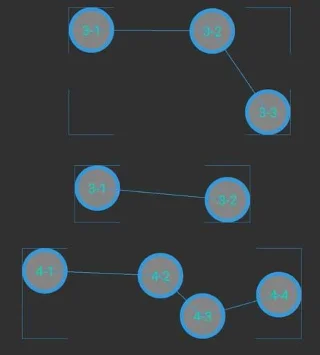
Each point on the screen (3-1, 3-2…) is called Swipe Point. Multiple points connect together (3-1 -> 3-2 -> 3-3) to form a Swipe Path or a Finger.
Swipe point
Touch the point to open the popup.
Use Hold to change the time a point is held.
Change Speed to control the speed of movement from one point to another.
You have 6 presets to choose from: Very Slow - Very Slow, Slow - Slow, Normal - Normal, Fast - Fast, Very Fast - Very Fast, Flick - Light Tap.
Popular swipe gestures:
Equivalent code
var path = [SwipePoint(Point(220, 710), 0, 20), SwipePoint(Point(454, 712), 0, 10)]
swipe(path, SParam.repeat(3).delay(0).waitNext(100).random(0))
Hopefully the above instructions help you use Macrorify more easily.
Start the Enterprise Docker Compose stack, persist its license and data, configure JWT safely, and confirm the editors are ready to integrate.
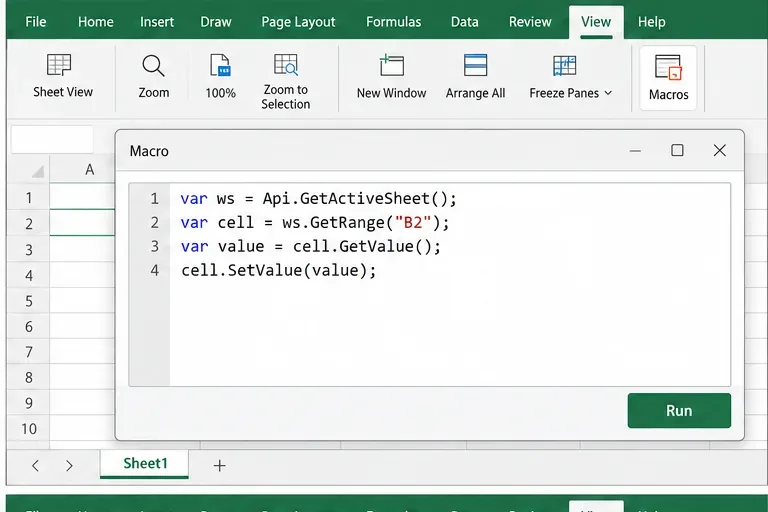
Use an ONLYOFFICE JavaScript macro to remove nonprinting characters and trim extra spaces from a defined spreadsheet range, with a safe review workflow.
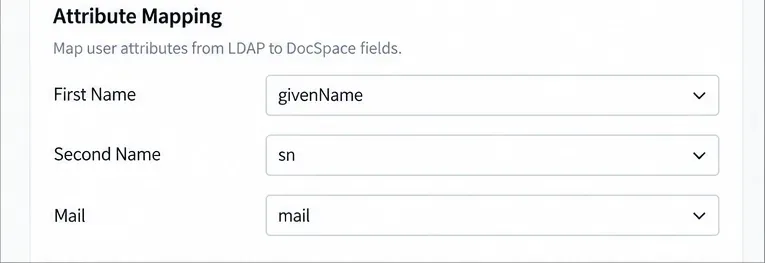
Connect ONLYOFFICE DocSpace to Active Directory or OpenLDAP, import users and groups safely, map account fields, and schedule reliable synchronization.
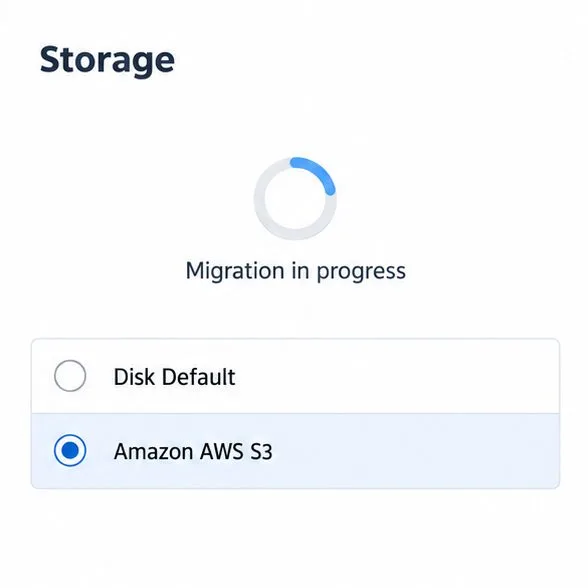
Move portal data from Disk Default to a supported cloud storage provider, or relocate Docker data safely by changing its host volume mapping.
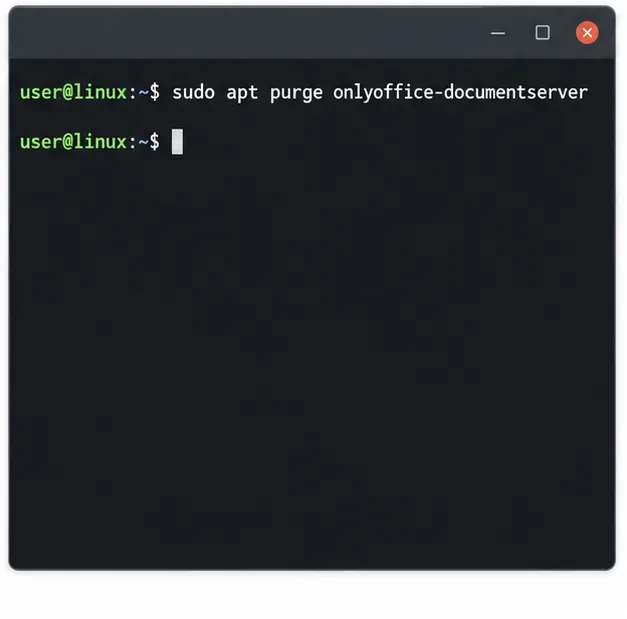
Identify whether Document Server uses a Linux package or Docker, remove only its components, and check remaining data without deleting shared services by mistake.
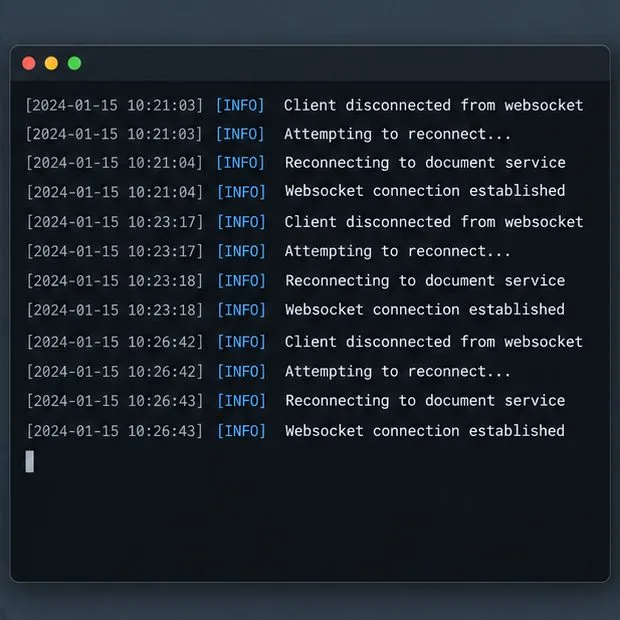
Trace slow collaborative editing to Docker resource pressure, proxy connections, or document load, then choose the fix that matches your measurements.
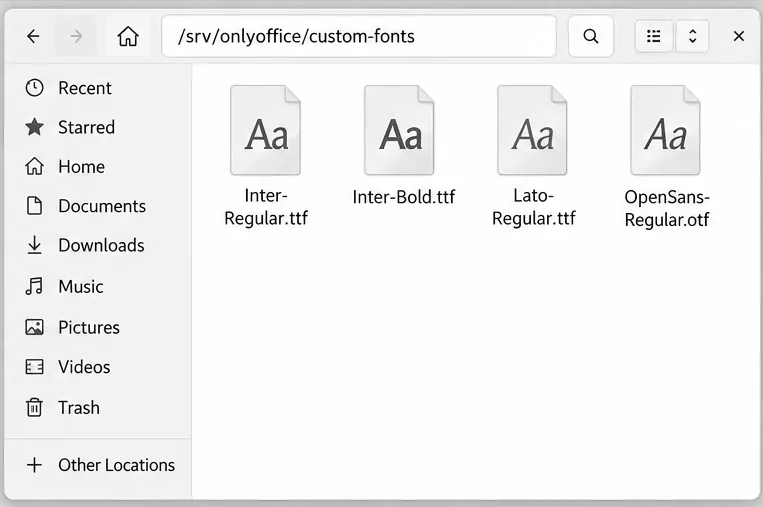
Install custom fonts in ONLYOFFICE Document Server, compare persistent Docker mounts with direct copies, rebuild the font list, and verify the result.
Choose where TLS should terminate, mount a trusted certificate and private key safely, and verify HTTPS access to a Dockerized ONLYOFFICE Docs server.
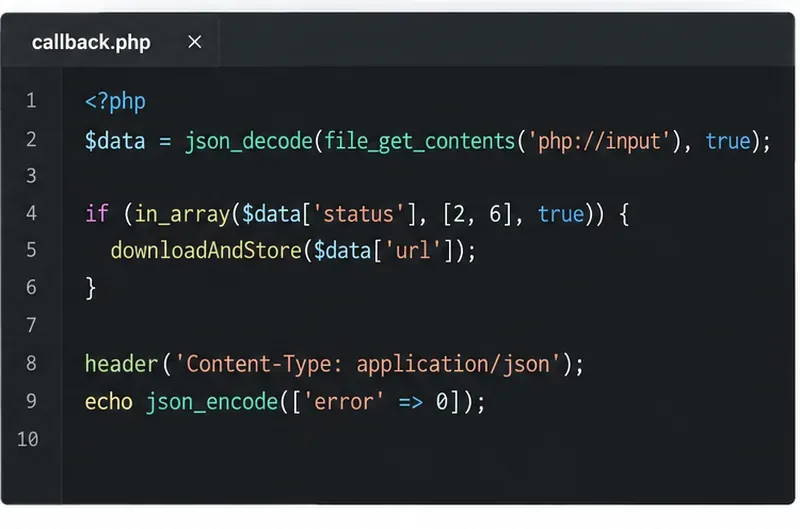
Embed the ONLYOFFICE editor in your PHP app, sign its configuration with JWT, and save edited files through a secure callback.
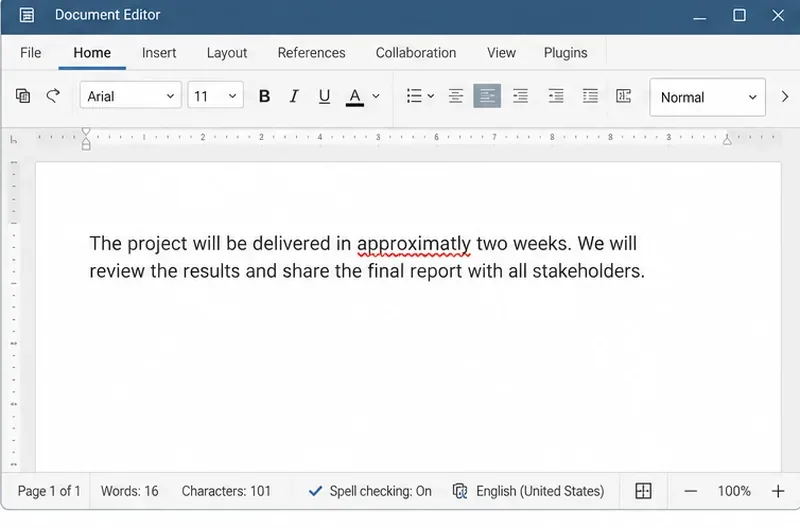
Set the proofing language for the whole document or selected text, confirm spell checking is active, and identify when a server dictionary is missing.