How to Add Font to Canva
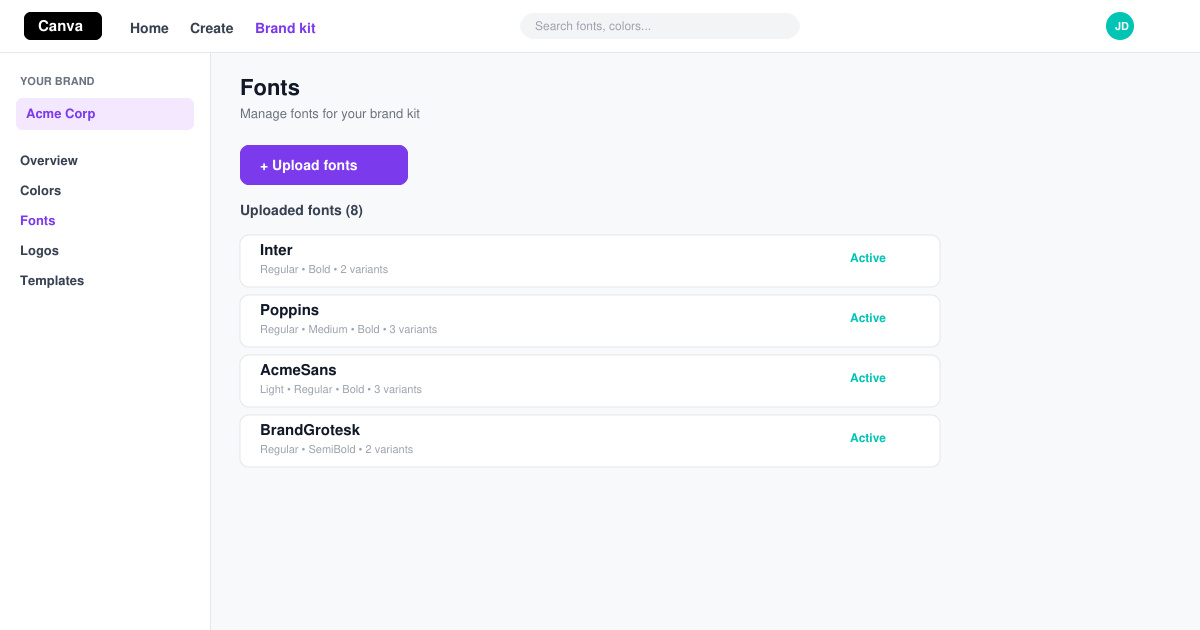
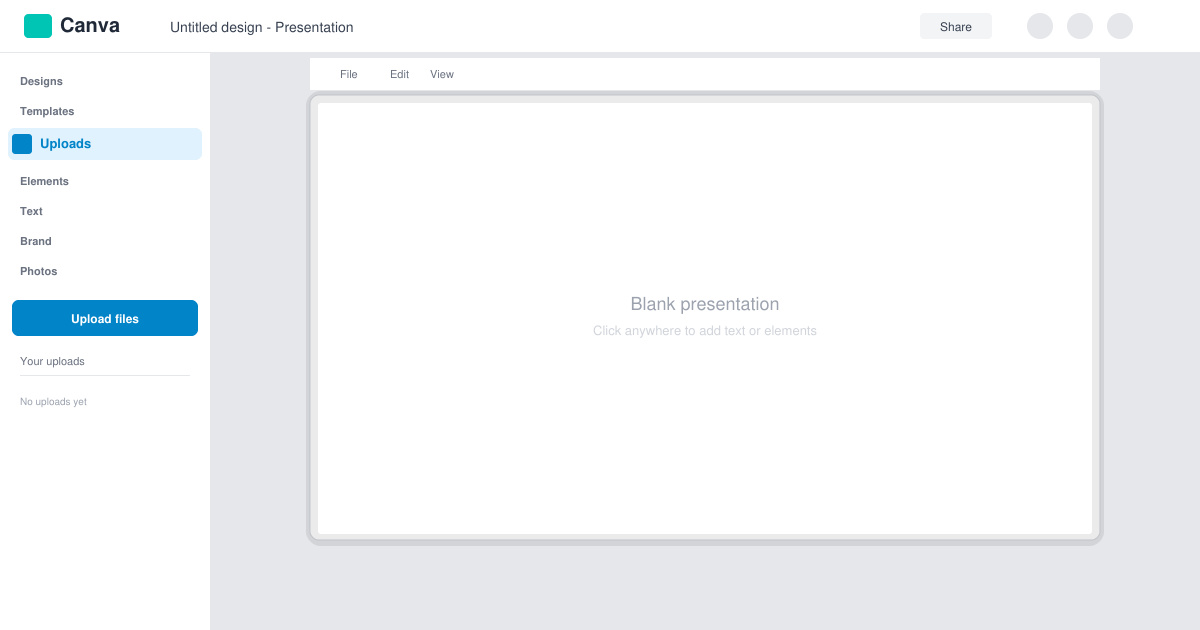
Learn exactly how to add font to Canva with this step-by-step guide. Upload custom fonts through Brand Kit to use them across all your designs in minutes.
With Slido , you can easily add polls and questions to PowerPoint slides . Here's how to use Slido to create polls and questions in PowerPoint .

Creating Q&A and voting in PowerPoint is not difficult
What is Slido?
Slido allows you to create polls, questions and interactive elements for your presentations. All you need to do is go to Slido.com and enter the code of your choice.
You do not need to install or download files. Participating in voting is as simple as opening a web browser on your phone, tablet or other device.
You can start your presentation by asking the audience a multiple choice question. It will attract their attention, helping them focus on the presentation from the beginning. To use Slido for this purpose:
1. Go to Slido.com.
2. Create a poll or question on Slido by creating a new event.

3. Add an event that also includes code you can share with your audience.
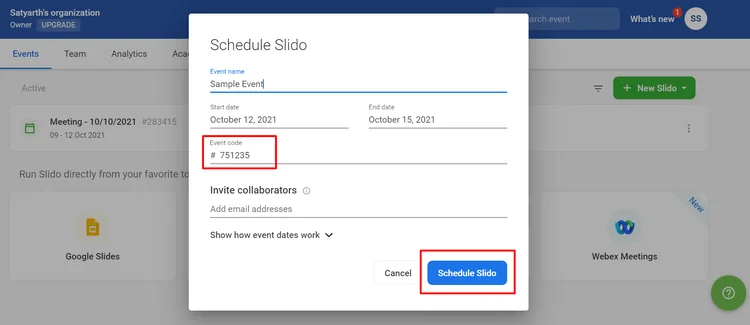
4. After filling in the details, just press Schedule Slido . You'll be guided to the next steps automatically after creating an event.
5. To view voting results, press the Play button .
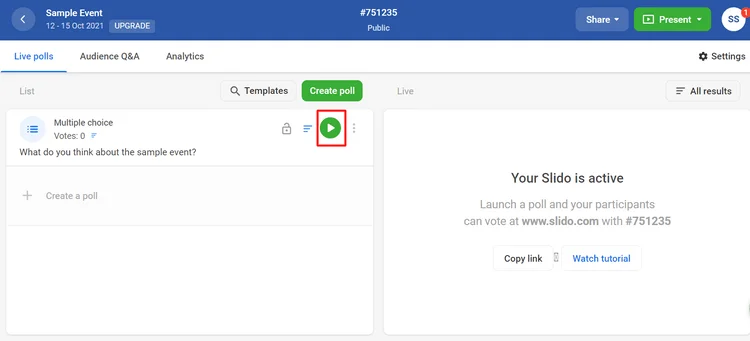
6. While in Present Mode , the content you share with your audience will be on a blue screen. On the left, you can add a personal touch. Text on the page tells people how they can participate in the vote, and there's even a QR code for people to scan right on their phone.

Slido also automatically updates data in real time. Therefore, you will see the votes change over time through the percentage bars.
How to integrate Slido into PowerPoint
From the presentation, you can access all of Slido's tools and features using its PowerPoint extension.
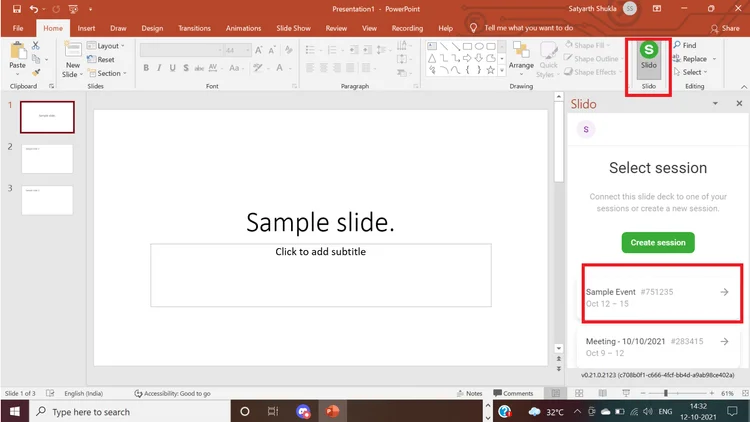
You can download your prepared presentation and add polls, questions, and even Q&A on Slido and PowerPoint. This means, you don't need to switch between the presentation and the browser tab. To integrate Slido into PowerPoint:
1. Download the Slido PowerPoint extension at: https://www.sli.do/powerpoint-polling.
2. After installing the extension, click the Slide button in PowerPoint.
3. Log in to your Slido account.
4. All events will appear in the sidebar. You can also create new ones.
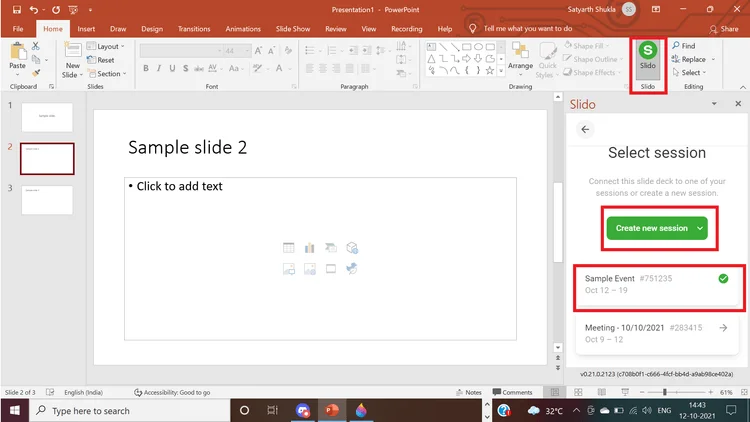
5. Select an existing poll or create a new one.
6. Click on the poll to add it.

7. Voting is added immediately after the selected slide.
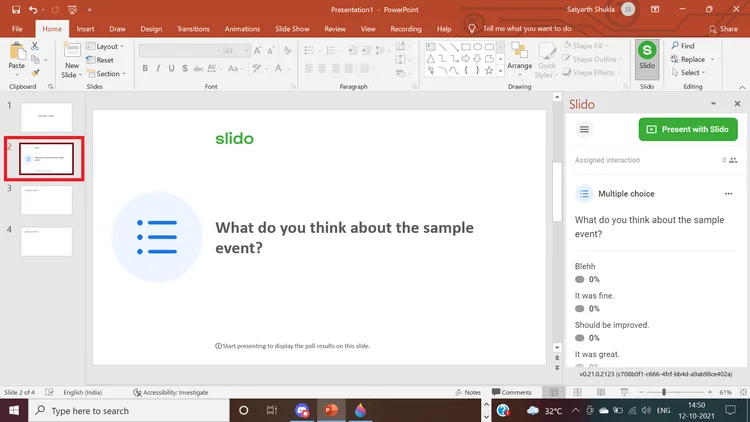
As soon as it moves to the next slide, it will open voting to everyone. You don't have to set up another screen if you make a presentation via webinar. You don't need to hide other tabs or windows. You can ask this question directly. Everyone will participate and respond.

You can choose when results appear and how they appear. For example, select show results immediately . As soon as you click Add To Presentation , you will see a question on the left.
In the presentation window, you can move forward to this question immediately after displaying the selected slide. The slide opens automatically for the viewer to see it. Anyone who participates in the poll can submit an answer.
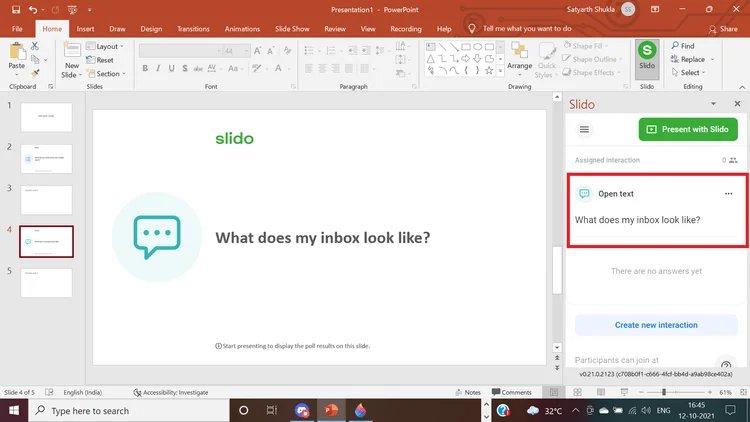
Add Q&A to PowerPoint slides using Slido
You can include a Q&A slide between slides so you can answer questions before moving on to the next topic. Just select Audience Q&A from the interactive sidebar.
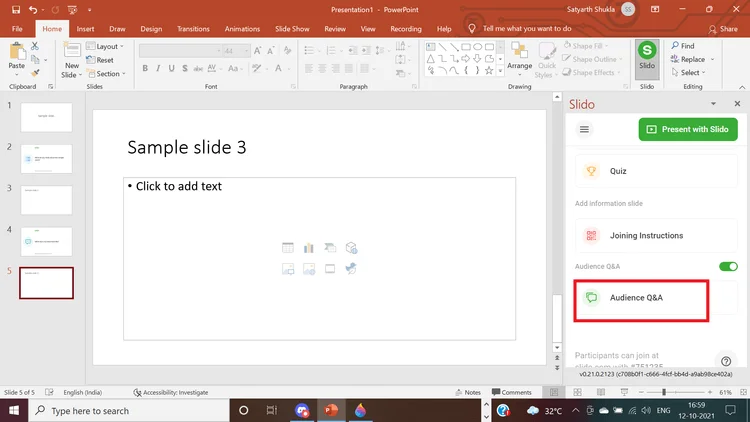
Above is how to add votes and questions and answers to PowerPoint slides using Slido . Hope the article is useful to you.
Learn exactly how to add font to Canva with this step-by-step guide. Upload custom fonts through Brand Kit to use them across all your designs in minutes.
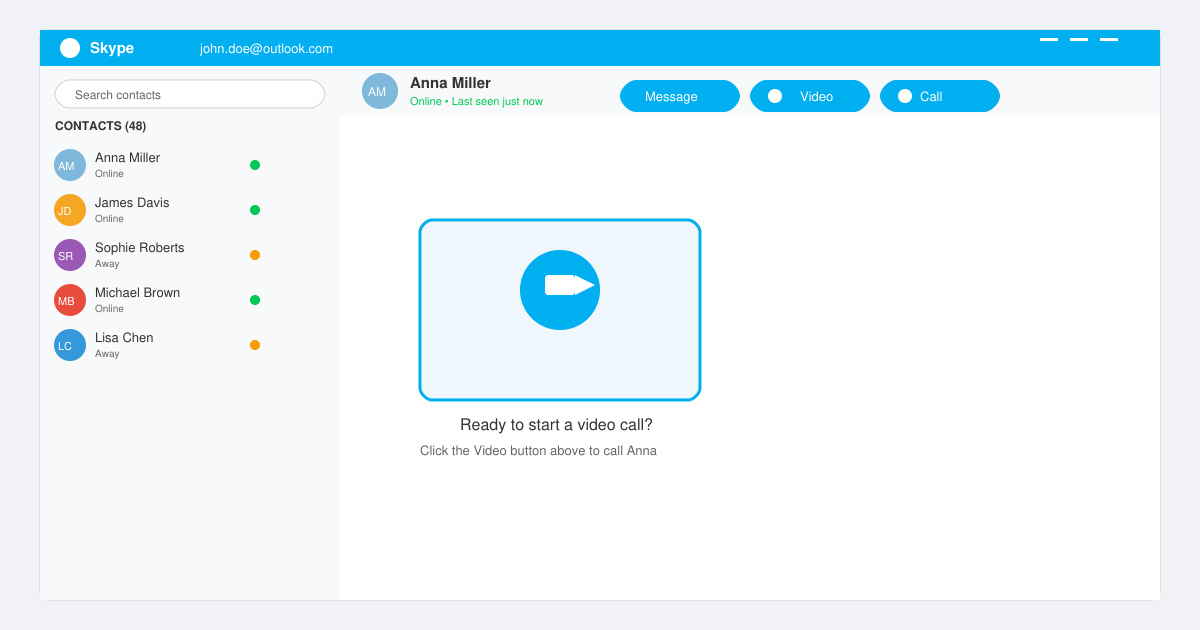
How to Use Skype for free video calls, messaging, and screen sharing. Follow this complete guide to install the app, set up your account, and start communicating in minutes.
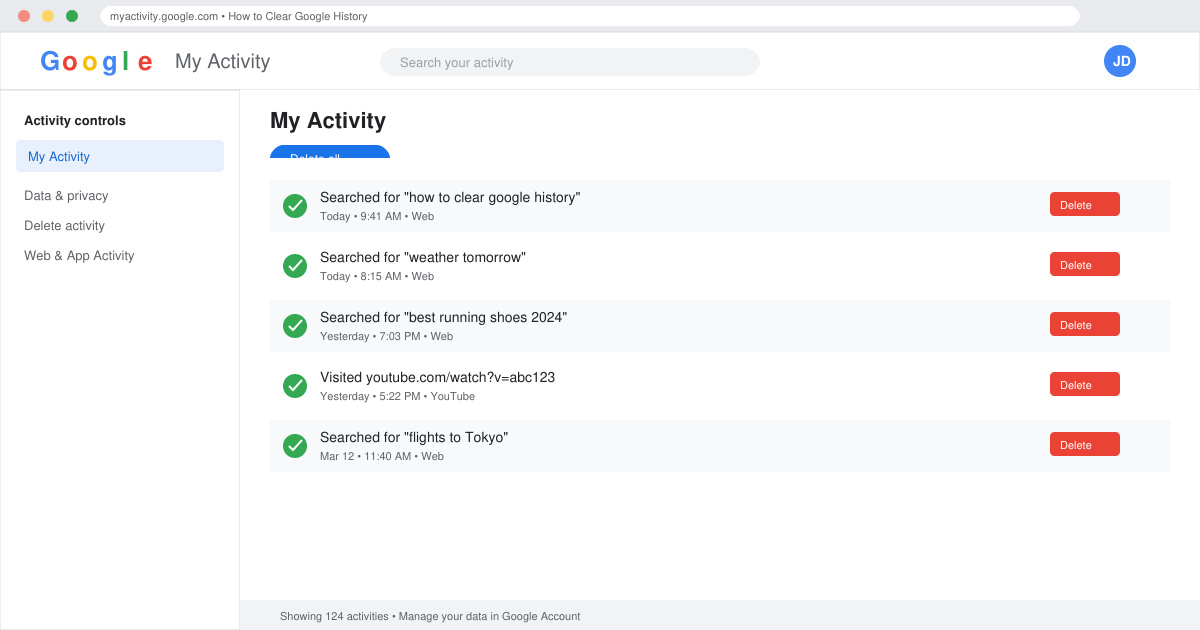
Learn how to clear Google history quickly to protect your privacy. This step-by-step guide shows you how to delete search activity from your Google account on any device.
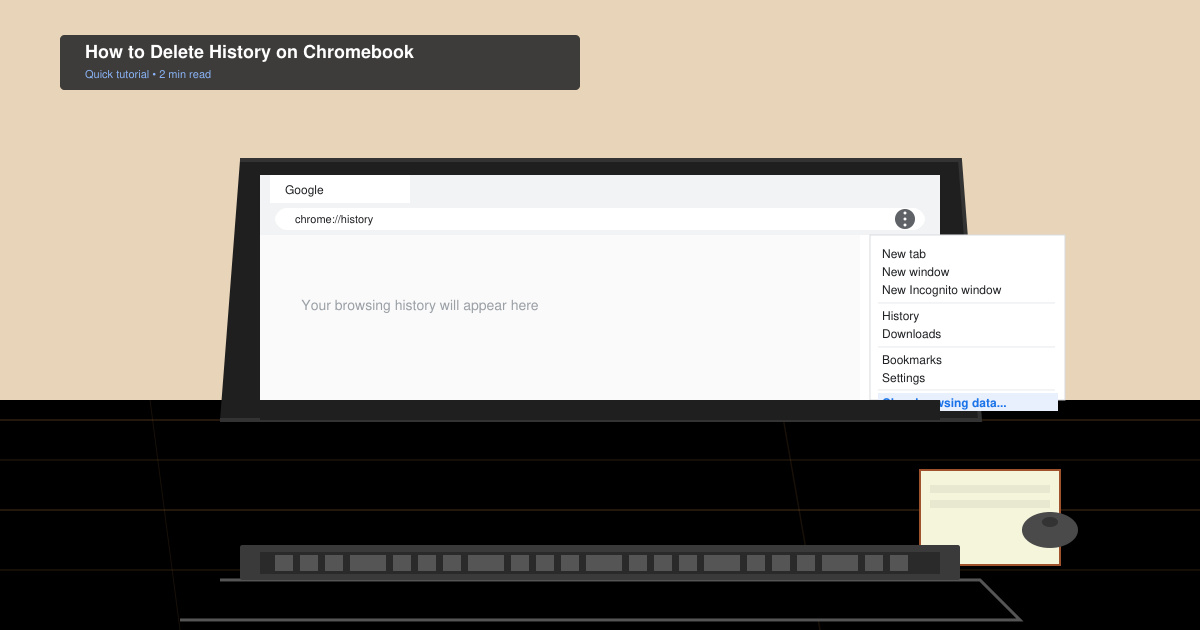
Learn exactly how to delete history on Chromebook to protect your privacy. Follow these precise steps to clear browsing data, cookies, and cached files on your device.
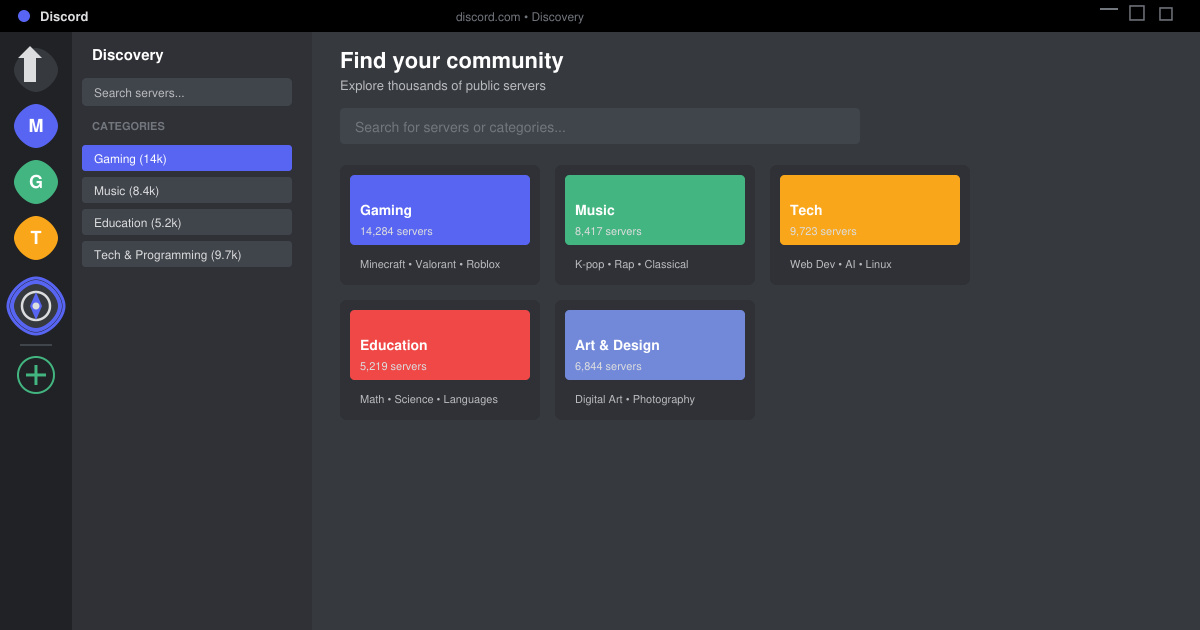
Learn how to find a server on Discord with this clear walkthrough of the built-in Discovery tool and other reliable methods. Join active communities fast.
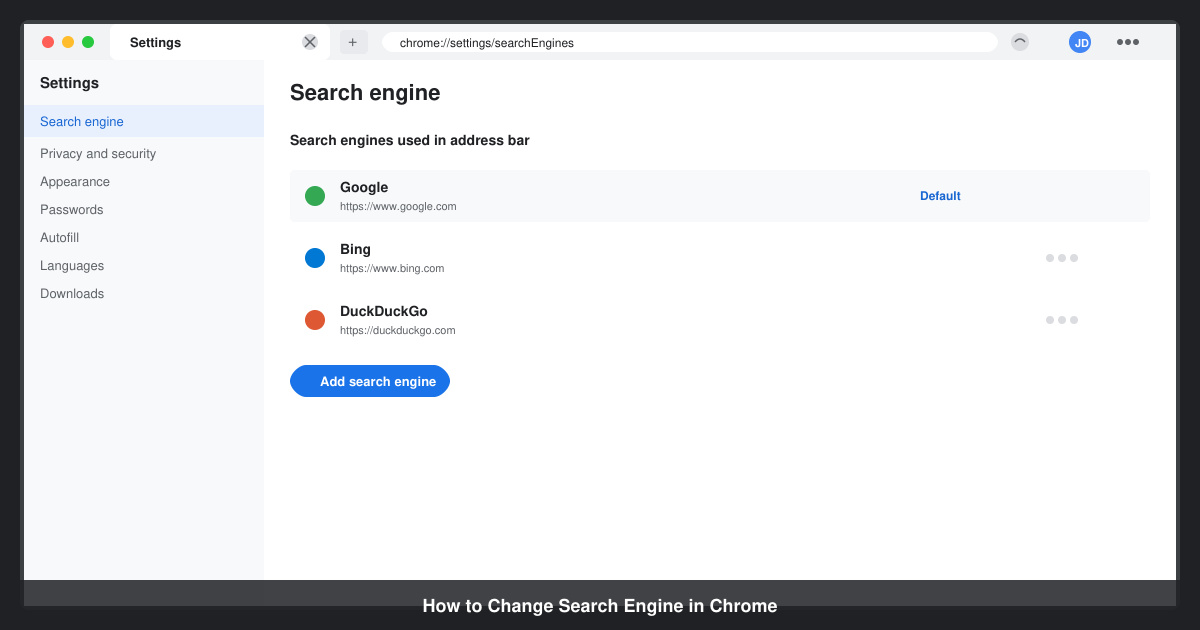
How to Change Search Engine in Chrome takes just a few clicks in Settings. Switch your default provider to Google, Bing, DuckDuckGo or another option and improve search results instantly.
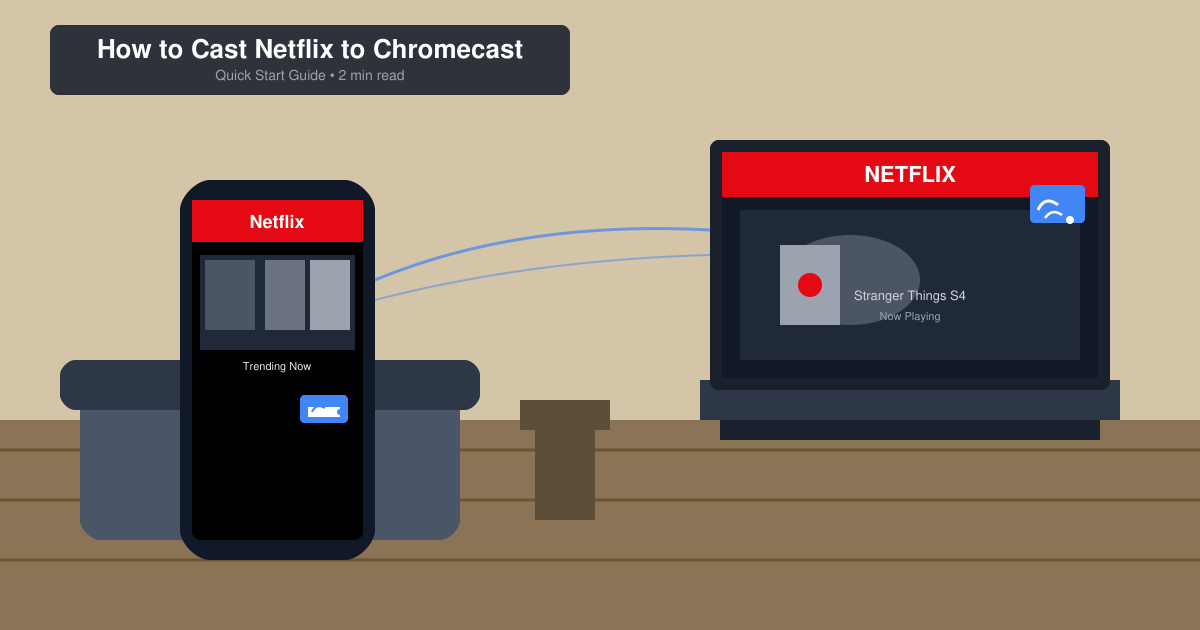
Learn exactly how to cast Netflix to Chromecast from your phone or computer. Follow these steps to stream movies and shows to your TV in minutes.
Learn exactly how to set Google as your homepage on Chrome in under a minute. Follow the precise steps in Chrome Settings to make google.com load when you click the home button.
Learn how to add pictures to Canva in just a few clicks. This guide shows the fastest ways to upload your own photos or use Canva's library for any design project.
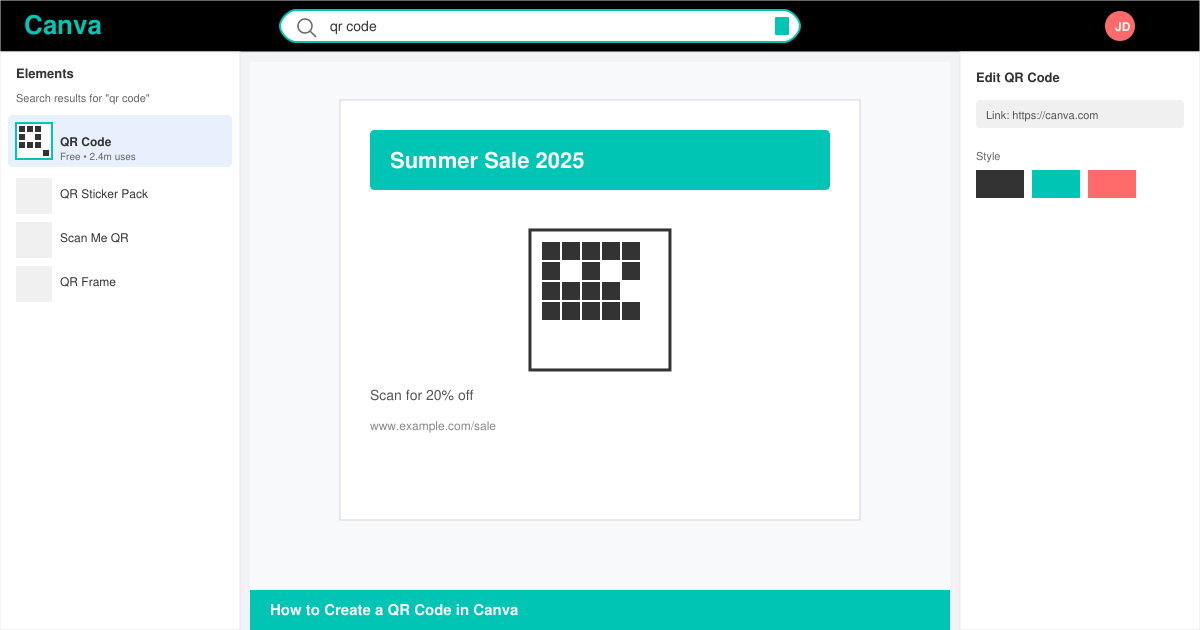
How to create a QR code in Canva is simple with the built-in generator. Follow these exact steps to add a working, customizable QR code to any design in under two minutes.