Discord’s screen-sharing feature lets you quickly stream your gameplay, tutorials, or other content. While the feature is straightforward to use, it can sometimes present challenges, such as the dreaded black screen glitch. If you are facing a similar black screen issue while streaming on Discord, here are some tips for fixing it.
Are You Streaming Copyright Content Through Discord?
A common reason why you may encounter a black screen while streaming on Discord is if you’re attempting to share copyrighted content from platforms such as Netflix, Disney Plus, Prime Video, and others. This is due to most streaming platforms utilizing DRM (Digital Rights Management) technology to safeguard their copyrighted content. DRM ensures that content is only accessible through authorized means and prevents unauthorized distribution.

Due to copyright laws, you cannot stream copyrighted content through Discord. So, while it might seem convenient to share your Prime Video or Netflix screen through Discord, doing so violates the platform’s terms of service and can land you in legal trouble.
Respecting copyright laws and sticking to authorized methods to watch content with friends is important. There are other ways through which you can stream such content on Discord, make sure to follow them.
How to Fix Discord Black Screen Issue While Streaming
1. Run the Discord App as an Administrator
A lack of relevant permissions or temporary issues with the Discord app can cause its screen-sharing feature to malfunction on Windows. In most cases, you can fix such issues by closing Discord entirely and opening it with administrative rights. Hence, it’s the first thing you should try.
- Press Ctrl + Shift + Esc on your keyboard to open the Task Manager.
- In the Processes tab, select Discord and click the End task option at the top.
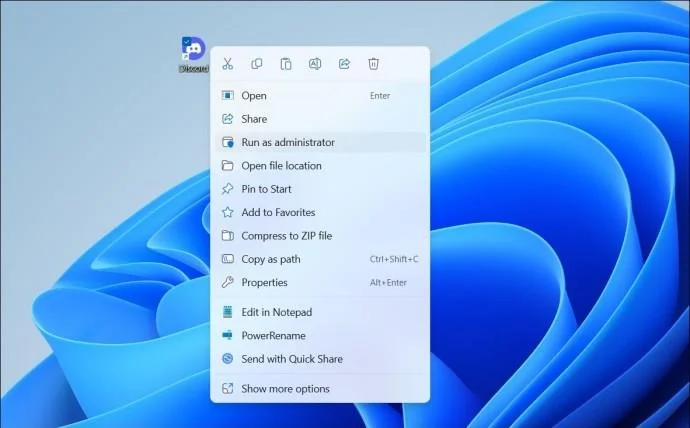
- Right-click on the Discord app shortcut and select Run as administrator.

Try sharing your screen again and see if it works as expected.
2. Switch to Windowed Mode
Another reason why Discord may display a black screen while sharing your screen is if the app or program you’re trying to share is in full-screen mode. To avoid this, switch the application you want to share to windowed mode before starting the screen share and see if that solves the problem.
3. Turn Off Hardware Acceleration
The Discord app uses hardware acceleration to run smoothly and use your GPU for graphics-intensive tasks. However, this feature can sometimes interfere with the screen-sharing feature, resulting in a black screen while streaming. Hence, you might want to disable it.
- Open the Discord app and click the settings icon at the bottom left corner.
- Use the left pane to switch to the Voice & Video tab.
- Turn off the toggles next to OpenH264 Video Codec provided by Cisco Systems and Hardware Acceleration.
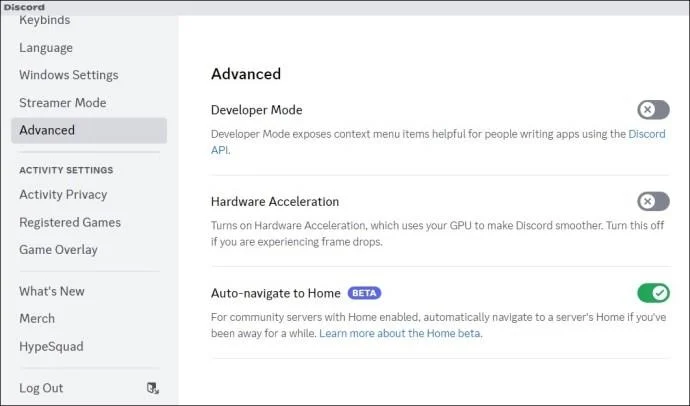
- Switch to the Advanced tab and turn off the Hardware Acceleration option on your right.
- Click Okay to confirm and restart the Discord app.

If you’re using Discord on a web browser or attempting to stream content from platforms like Netflix, YouTube, Prime Video, or others, disable hardware acceleration in your browser, too.
4. Don’t Use Discord’s Advanced Technology to Capture Screen
By default, Discord utilizes its latest technology to capture your screen during a screen share. However, this feature can occasionally malfunction, resulting in a black screen while sharing the screen. You can try temporarily disabling it to see if that resolves the problem.
- Open the Discord app and click the gear icon at the bottom.
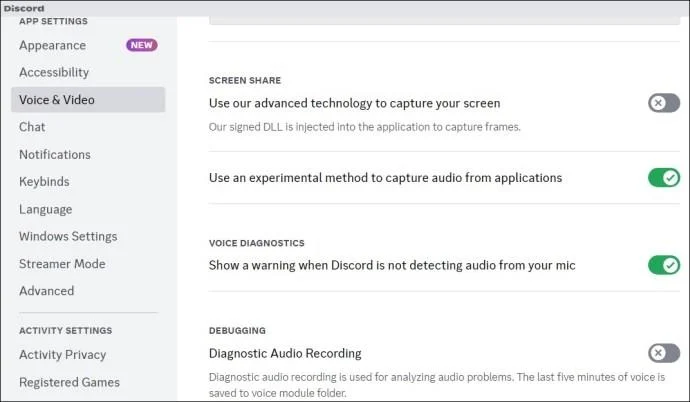
- Switch to the Voice & Video tab.
- Please turn off the toggle next to Use our advanced technology to capture your screen.

Restart the Discord app after this, and try to share your screen again.
5. Add Your App or Game to Your Discord Profile
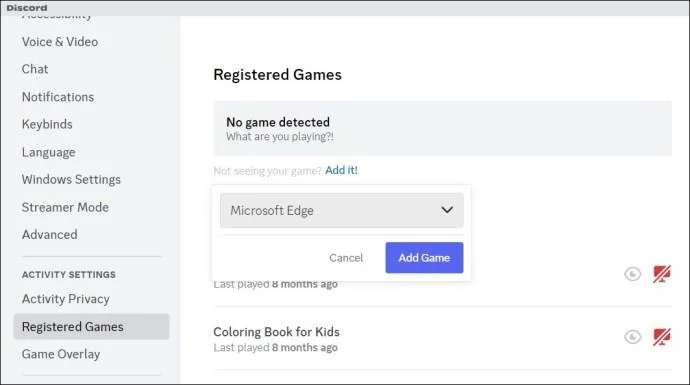
If you are still experiencing the black screen issue while sharing the screen of a particular app or program, you can try adding it to your Discord profile. Here are the steps for the same.
- Open the Discord app and click the gear icon at the bottom.
- Switch to the Registered Games tab and click the Add It link.
- Enter the name of the app or program you want to show during the screen share and click the Add Game button.

6. Clear the Cache
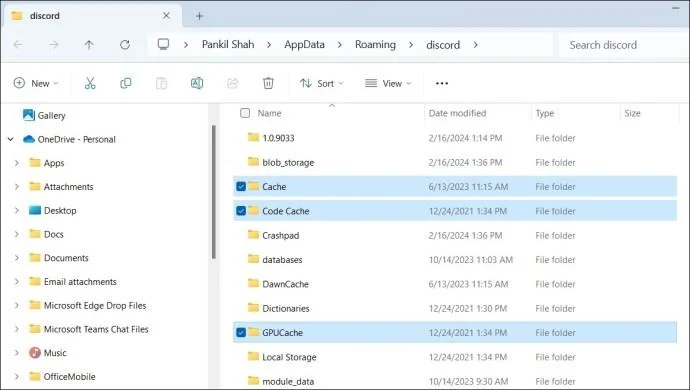
Corrupt or outdated cache data can also cause the Discord app to malfunction on your computer. You can try clearing the existing Discord app cache to see if that solves the issue.
- Press the Windows + R keys to open the Run dialog box.
- Type %appdata%/discord in the box and press Enter.
- Select the Cache, Code Cache, and GPUCache folders.
- Click the trash icon at the top to delete them.

7. Update Graphics Drivers
Discord may be showing a black screen while streaming due to issues with the graphics driver on your PC. So, if nothing works, try updating the graphics driver on your PC to the latest version.
Stream With Clarity
When you rely on Discord to stream games or watch videos with your friends, encountering a black screen can be frustrating. Fortunately, it’s possible to fix this issue with the abovementioned solutions.
FAQs
1. How do I enable streaming on Discord?
Navigate to the server where you want to stream, select a voice channel, and click the Screen option at the bottom left corner.
2. Can I watch Discord stream without joining the channel?
No, you can’t watch a Discord stream without joining the voice channel where the stream is happening.