Get LibreOffice to Recognize Your Java Runtime

Install a compatible Java runtime, enable it in LibreOffice, and troubleshoot an empty JRE list without changing unrelated settings.
Download Outlook for Windows to access Microsoft's full-featured email and productivity client on your desktop. The app syncs seamlessly with Microsoft 365 accounts and works on Windows 10 and 11. This guide covers the exact steps using the Microsoft Store for the most reliable result.
Make sure your PC runs Windows 10 version 1903 or later, or any version of Windows 11. You also need a Microsoft account to sign in after installation. Outlook for Windows installs through the Microsoft Store, so confirm your Store app is updated and your internet connection is stable. No separate installer file is required when using this method.
The free version supports basic email and calendar use. Advanced features such as custom domains and larger storage need a Microsoft 365 subscription.
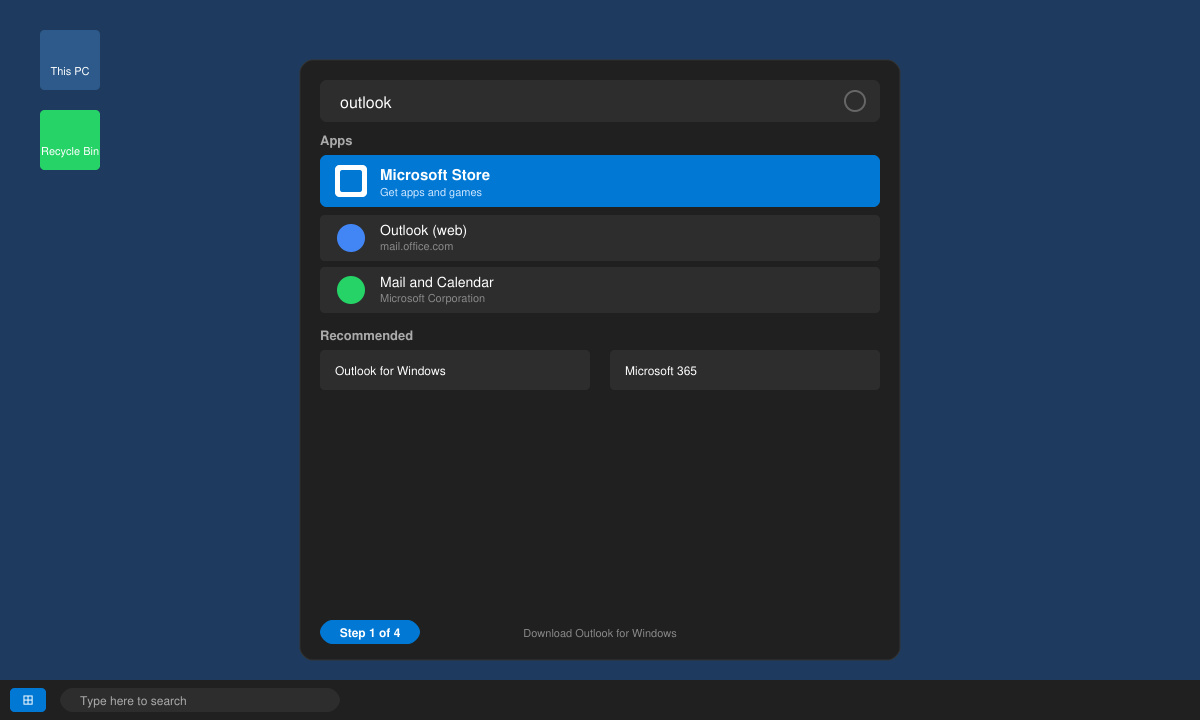
Click the Start button, type “Microsoft Store”, and select the app from the search results. If the Store does not open, go to the Start menu, search for “wsreset.exe”, and run it to refresh the Store cache.
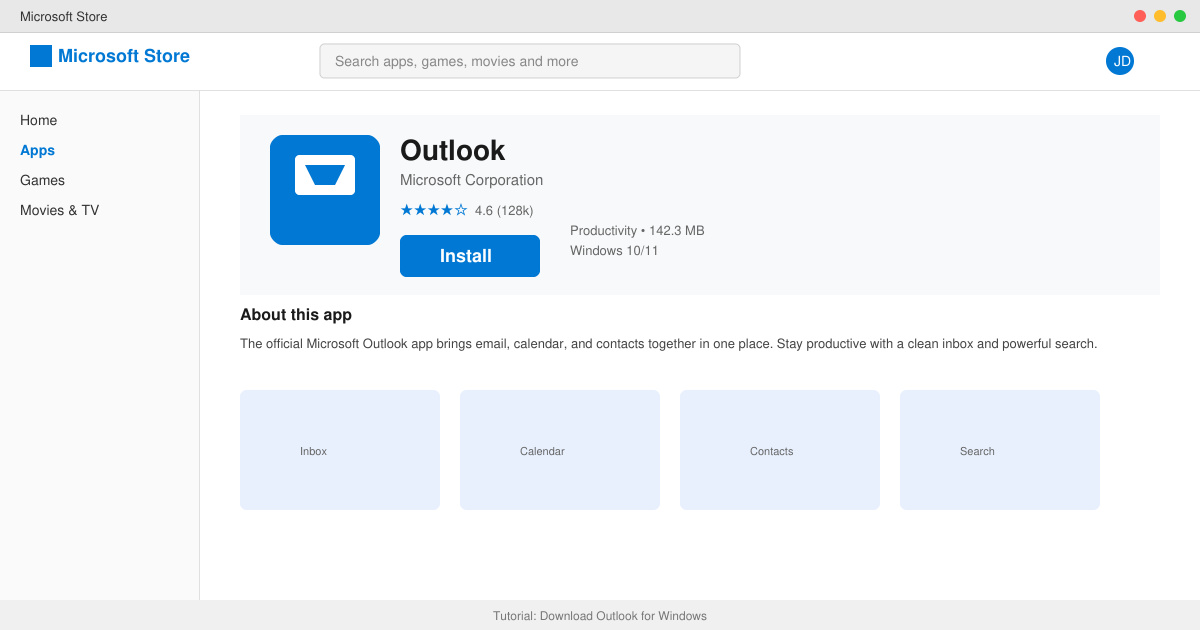
In the Microsoft Store search bar at the top, type “Outlook” and press Enter. Look for the result titled “Outlook” published by Microsoft Corporation with the blue envelope icon.
Click the “Get” or “Install” button on the Outlook listing. The download begins automatically and shows progress in the top-right corner. Wait for the installation to finish; the button changes to “Open” when complete.
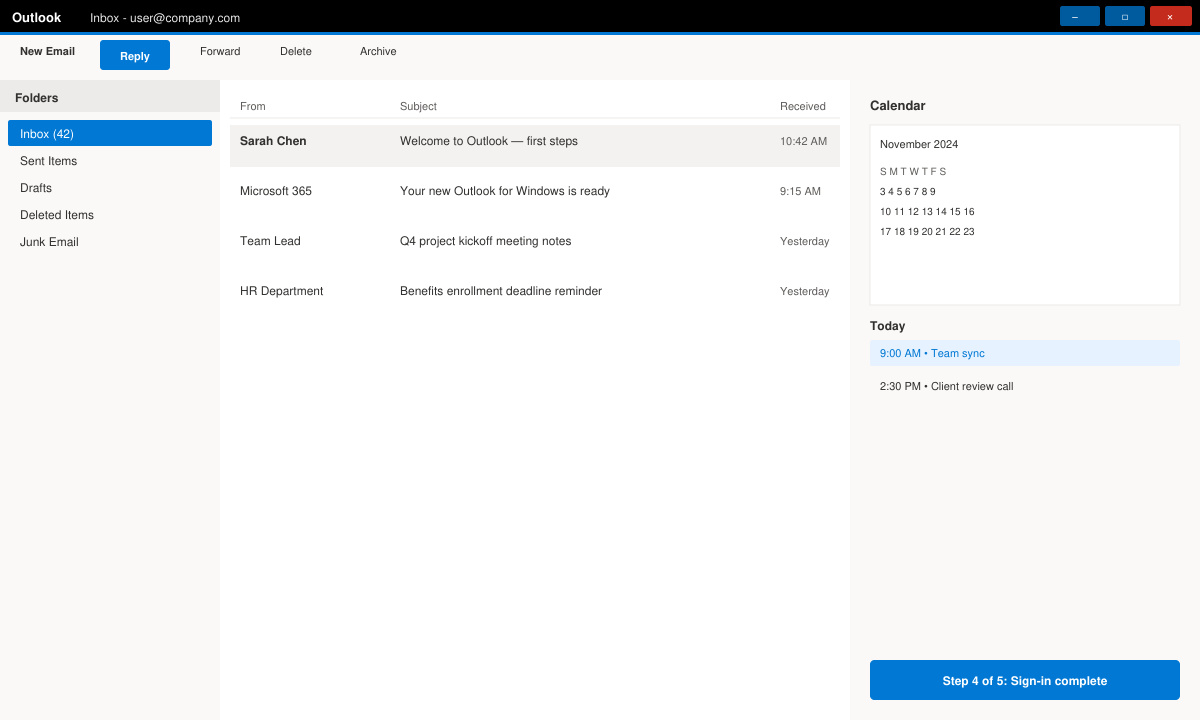
Click “Open” or find Outlook in the Start menu. Enter your Microsoft account email address, follow the prompts to add any additional accounts, and grant the necessary permissions for email and calendar access.
If the Store shows an error during download, restart your PC and try again. Users on managed work devices may need administrator approval or the IT department to enable Store access. When Outlook fails to launch after installation, repair it through Windows Settings > Apps > Installed apps > Outlook > Advanced options > Repair. For persistent problems, uninstall and reinstall directly from the Store.
The basic app installs at no cost. A Microsoft 365 subscription unlocks premium features such as 50 GB mailbox size and priority support.
Microsoft recommends the Store method for automatic updates. Older volume-licensed versions can be deployed via the Office Deployment Tool from the official Microsoft documentation site.
Yes. You can read previously downloaded emails and edit calendar entries offline; changes sync once you reconnect to the internet.
Following the steps above completes the Download Outlook for Windows process quickly and keeps the app updated automatically through the Microsoft Store.
Install a compatible Java runtime, enable it in LibreOffice, and troubleshoot an empty JRE list without changing unrelated settings.
Build a small LibreOffice container, convert office documents without a GUI, and verify PDF output while limiting host-file access.
Reduce oversized LibreOffice presentation files by compressing embedded photos, choosing sensible image settings, and checking slide quality before sharing.
Match LibreOffice’s page dimensions to your printer, check printable margins, and correct scaling before printing a custom-size document.
Replace repeated cell access with bulk range reads and writes, then benchmark the result and protect formulas in large Calc workbooks.
Split a long manuscript into chapters, assemble them in Writer, and keep styles, contents, and export checks consistent.
Use Base’s direct PostgreSQL option to enter your server details, sign in, save an ODB connection file, and troubleshoot common access errors.
Install a font in your Linux user font folder, restart LibreOffice Flatpak, and confirm it appears in Writer without weakening the app sandbox.
Protect your work and isolate network-drive save crashes in LibreOffice on macOS Sonoma with a local-first workflow, permission checks, and targeted tests.
Preserve leading zeros in Calc by setting ID columns to Text during CSV import, checking the preview, and verifying the saved data.








