Get LibreOffice to Recognize Your Java Runtime

Install a compatible Java runtime, enable it in LibreOffice, and troubleshoot an empty JRE list without changing unrelated settings.
Download Zoom for Windows directly from the official source to ensure you get the most stable and secure version for video calls and webinars. This process takes only a few minutes and works on Windows 10 and Windows 11. The steps below cover everything from locating the installer to launching your first meeting.
Zoom remains one of the most reliable platforms for remote work, education, and personal calls because of its low bandwidth requirements and cross-device compatibility. Installing the desktop client instead of using the browser version gives you access to advanced features such as virtual backgrounds, screen sharing with annotation, and meeting recording. Users who Download Zoom for Windows also benefit from automatic updates that keep the app secure against the latest vulnerabilities.
Before starting, make sure your Windows system meets the minimum requirements: a 1.6 GHz processor or faster, 4 GB of RAM, and at least 200 MB of free disk space. An active internet connection is also required for the initial download and any future updates.
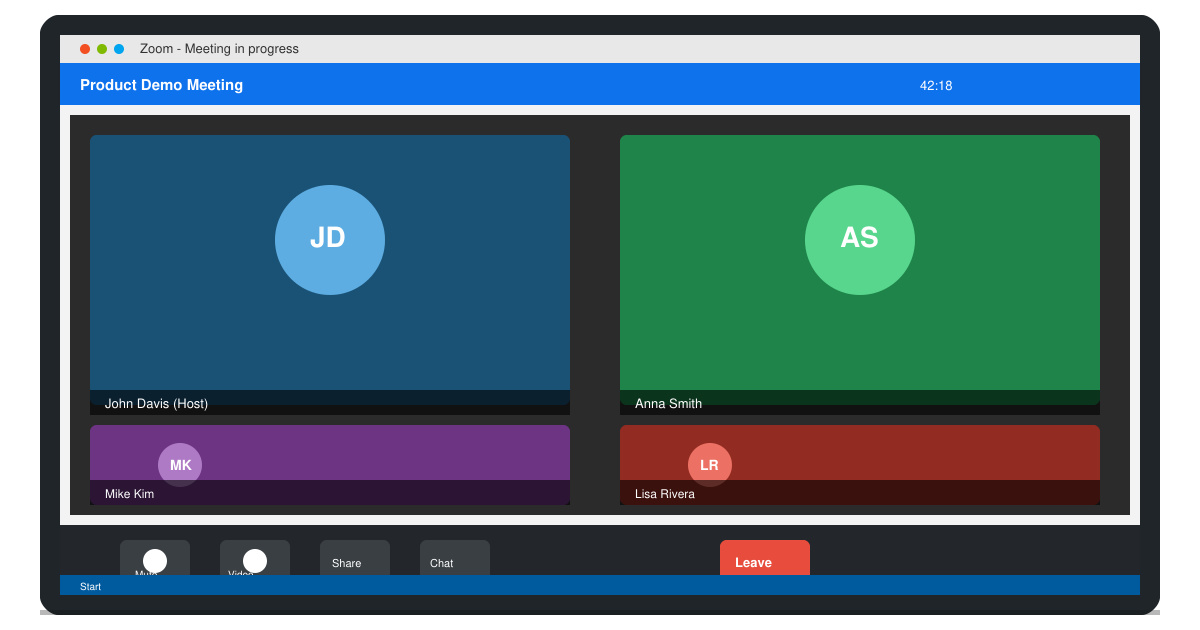
Open your preferred browser and go directly to zoom.us/download. Avoid third-party sites to prevent malware. On the page, locate the section labeled “Zoom Desktop Client” and confirm the operating system shows Windows.
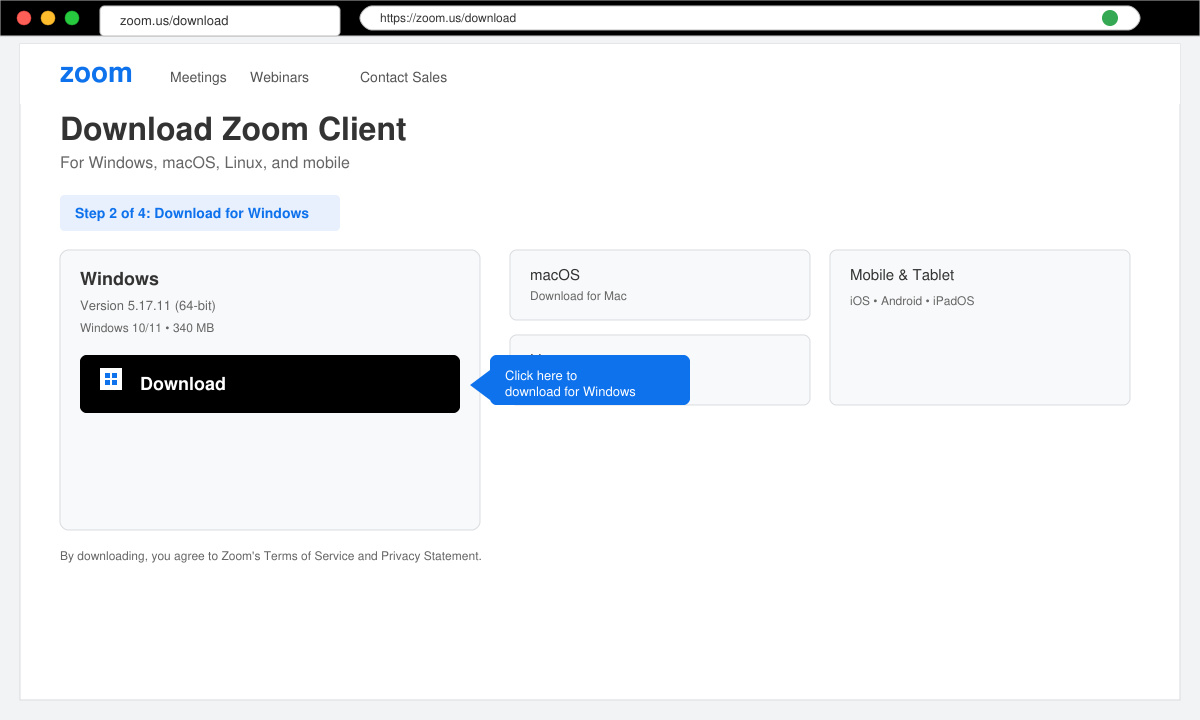
Click the blue “Download” button under the Windows heading. The installer file named ZoomInstaller.exe will begin downloading automatically. Check your browser’s downloads folder if the file does not appear immediately.
Double-click ZoomInstaller.exe. If Windows Defender shows a warning, click “More info” and then “Run anyway.” Follow the on-screen prompts, accepting the default installation location unless you need to change it for specific network policies.
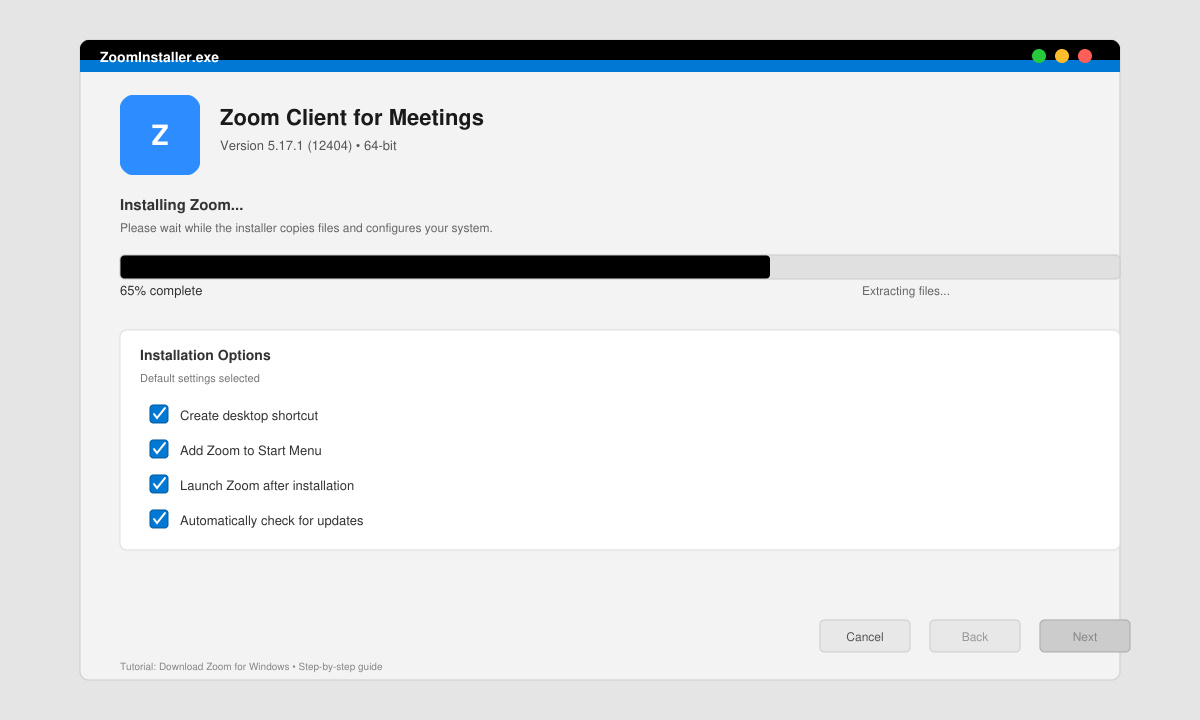
After installation finishes, the Zoom application launches. Enter your email address and password if you already have an account, or click “Sign Up” to create a new free account. Verify your email if prompted.
Click the “New Meeting” button to test the camera and microphone. Adjust audio and video settings in the gear icon before joining any scheduled meetings. The client is now ready for daily use.
If the installer fails to start, temporarily disable any third-party antivirus software and try again. Users on managed corporate devices may need administrator rights; contact your IT department if the installation is blocked by group policy. After Download Zoom for Windows completes, the app should appear in the Start menu. If it does not, search for “Zoom” in the taskbar search field and pin it for quick access. For best performance, keep the application updated through the built-in check for updates feature under the profile picture menu.
Yes. You can install the client and join meetings as a guest, but creating a free account unlocks the ability to host meetings and save recordings locally.
The desktop client supports more features including virtual backgrounds, dual-monitor sharing, and direct calendar integration that the browser version lacks.
Go to Settings > Apps > Installed apps, search for Zoom, and select Uninstall. Then delete any remaining folders in %appdata%\Zoom if you want a clean removal before reinstalling.
Following these instructions ensures you Download Zoom for Windows correctly and avoid common installation pitfalls. Once installed, keep the client updated to maintain security and access the newest collaboration tools.
Install a compatible Java runtime, enable it in LibreOffice, and troubleshoot an empty JRE list without changing unrelated settings.
Build a small LibreOffice container, convert office documents without a GUI, and verify PDF output while limiting host-file access.
Reduce oversized LibreOffice presentation files by compressing embedded photos, choosing sensible image settings, and checking slide quality before sharing.
Match LibreOffice’s page dimensions to your printer, check printable margins, and correct scaling before printing a custom-size document.
Replace repeated cell access with bulk range reads and writes, then benchmark the result and protect formulas in large Calc workbooks.
Split a long manuscript into chapters, assemble them in Writer, and keep styles, contents, and export checks consistent.
Use Base’s direct PostgreSQL option to enter your server details, sign in, save an ODB connection file, and troubleshoot common access errors.
Install a font in your Linux user font folder, restart LibreOffice Flatpak, and confirm it appears in Writer without weakening the app sandbox.
Protect your work and isolate network-drive save crashes in LibreOffice on macOS Sonoma with a local-first workflow, permission checks, and targeted tests.
Preserve leading zeros in Calc by setting ID columns to Text during CSV import, checking the preview, and verifying the saved data.








