Podcasting Trends You Need to Know in 2026: A Beginner’s Roadmap

New to podcasting? Learn the 2026 trends shaping video, discovery, transcripts, AI, analytics, monetization, and a practical launch plan.
Facebook is seen as a place to connect with people and make friends. Friend requests are subtle and can quickly get you into trouble with Facebook. While you may not be banned because of inappropriate friend requests, many people have been blocked from adding friends. And even if it's a mistake, there's no way to unblock it as soon as possible.
Download Facebook for iOS
Download Facebook for Android
On Facebook, "innocent" mistakes can lead to drastic consequences. New people face many obstacles. However, with the tips on making friend requests on Facebook in the following article, you can avoid unintentional "punishment" and know most of the Facebook friend features.
Surely for those who already use Facebook, no one is unaware of how to make friends on Facebook. But for those unfamiliar with Facebook, these are the most basic.
When you're logged into Facebook, you can view all of your pending friend requests via the Friends icon at the top right. If you have a friend request that has not been seen, you will also see a red number overlaying the icon, indicating how many people have sent you friend requests.

Click on that icon to expand the menu showing all pending friend requests and a list of people you may know.
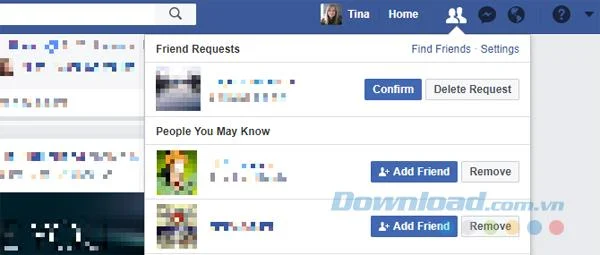
You can also search for people you know, open their profile, and if they confirm friend requests from your community or friends, add them by clicking the +1 Add Friend button on the right hand side their name.

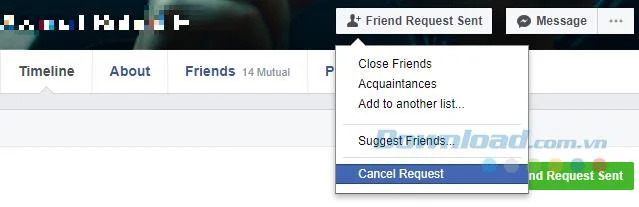
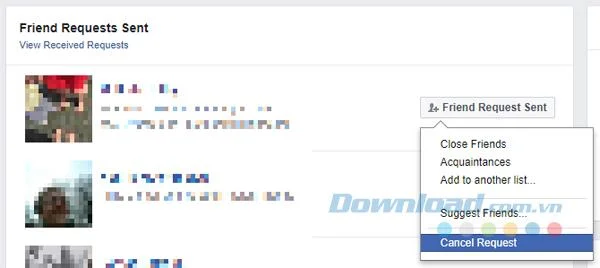
To delete a friend request, go to their profile, hover over the button labeled +1 Friend Request Sent and select Cancel Request from the menu.
You can also delete a friend through their profile or your friends list. Facebook does not notify that person if you do so.
However, instead of unfriending the "terrorist" Newsfeed with silly posts, you just need to unfollow them.
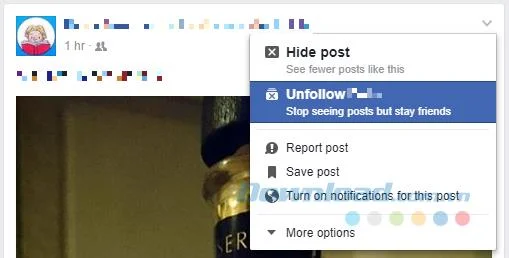
From Newsfeed (Home), you find a post from a friend "too aggressive" and click on the arrow at the top right of the menu to expand the post and click Unfollow ( Unfollow ).
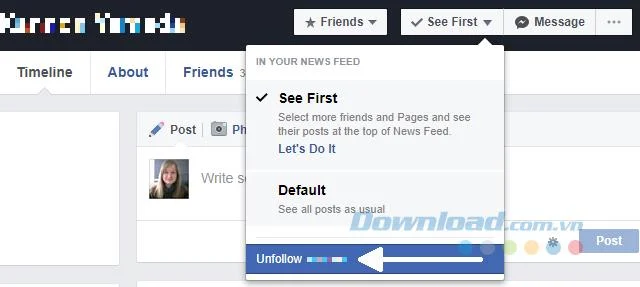
Alternatively, access your friends' profiles, expand the menu right next to your friendship status, and select Unfollow from the bottom.
And with that, you already know all the basics of making friend requests on Facebook. And now let's find out the unwritten rules surrounding sending friend requests.
Facebook wants you to add only people you know in real life. If the friend request is often unanswered or even someone who reports that your friend request is undesirable, Facebook may conclude that you sent a friend request that violates the Community Standard. their community ( Community Standards ), in particular bullying and harassment. Therefore, Facebook may block you from sending friend requests for a period of time.
To avoid being blocked by the reason for adding friends, follow these instructions:
You'll often want to add a new friend, even though you don't have mutual friends on Facebook. And it can be more confusing if you send a notice first, then send a friend request directly. Just make sure you don't add too many people without friends in one go.
If you don't know someone, just want to know what they post on Facebook, and if there's an option to follow them, follow them first rather than add them as a friend. This allows you to see what they are doing, but your Timeline will not be shared with them.
When you delete a friend request, Facebook promises that the sender will not be notified. But they can send you a new request. If you can not get rid of them, you can use the Mark as spam ( Mark as spam ) that will appear after you remove their request to block requests that person's friends.
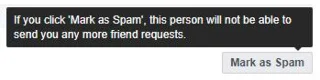
Remember that when you do so, that person may be punished.
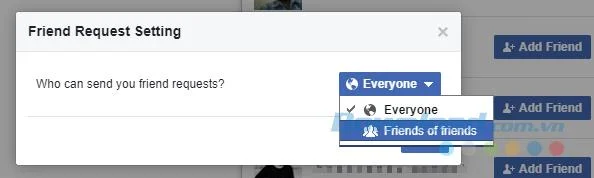
Facebook allows you to limit who can send you friend requests. Applying such restrictions will keep strangers unable to connect with you. From the Ask friends ( Friend Requests ) at the top right, click Settings ( Settings ) and select Everyone ( Everyone ) or Friends of ( Friends of Friends ) from dropdown menu.
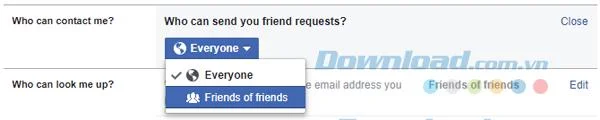
Alternatively, click the arrow at the top right to expand the Facebook menu, select Settings (Settings) > Privacy , and below Who can contact me? ( Who can contact me? ) Click Edit (Edit) and select Everyone or Friends of Friends.
Click the Friends icon at the top, click Find Friends> View Sent Resquests . From here you can cancel pending requests.
Expand the Facebook menu from the top right and select Activity Log . In the menu on the left, click View more (More) under Comments (Comment) to expand all items on Facebook. Click Friends to browse all activities related to adding, accepting and removing friends. Here, you can further refine your privacy settings by choosing who can see your friends list and where your friends activities will show up.
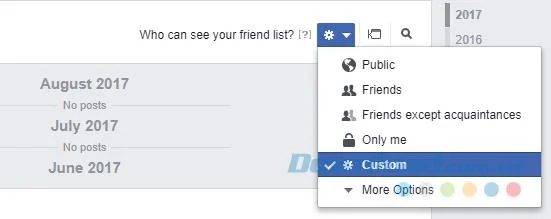
At the top right, you'll see a note stating Who can see your friends list? (Who can see your friend list?) , Click the settings icon on the right to expand the list of options. The explanation hidden under the icon [?] Can help you decide which setting is right for you.
Plus, you can fine-tune where your friends activities can show up. Click on the mail icon to the right of the Friends menu to see your options.
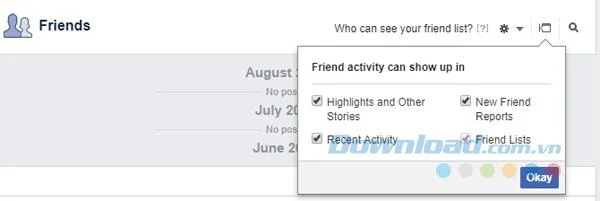
This setting allows you to make friends with someone and hide it from your status updates.
The above is all the most basic information and settings hidden around making friends on Facebook. Hopefully, with the above article, you will avoid unnecessary trouble in this issue.
New to podcasting? Learn the 2026 trends shaping video, discovery, transcripts, AI, analytics, monetization, and a practical launch plan.
A practical UGC masterclass for sourcing, permissioning, briefing, publishing, and measuring customer and creator content without losing authenticity.
Community building can deepen trust, retention, feedback, and advocacy, but it is not a replacement for every marketing channel. Compare the tradeoffs and choose the right model.
Learn what major social platforms have actually confirmed about ranking changes in 2026, what depends on context, and how to adapt without chasing myths.
Learn how to make brand storytelling feel credible, human, and specific—using proof, real tension, ethical customer stories, and a practical authenticity check.
Build a smarter Q4 email strategy by balancing reach, frequency, discounts, automation, deliverability, and measurement for profitable holiday growth.
Learn how to create short-form video that converts by balancing hooks, format, authenticity, CTA, platform fit, and testing across TikTok, Reels, and Shorts.
Why are brands testing KOCs instead of relying only on influencers? Learn what KOCs are, why social commerce favors them, common myths, and how to run a measurable pilot.
Learn a practical TikTok SEO workflow for 2026: find real search demand, match search intent, optimize each video, and measure what improves visibility.
Prepare your e-commerce store for Black Friday with a practical checklist for offers, site speed, checkout, inventory, fulfillment, analytics, security, and support.