How to Boil Broccoli

Master how to boil broccoli perfectly every time with this step-by-step guide. Learn exact timing and techniques for tender, vibrant, nutrient-rich results.
Getting issues running your smart TV for entertainment after a long workday can be frustrating. If your Hisense TV is struggling with system memory issues, you’ve arrived at the right spot for a solution. This article discusses the nitty-gritty of fixing the low system memory issue on a Hisense TV.
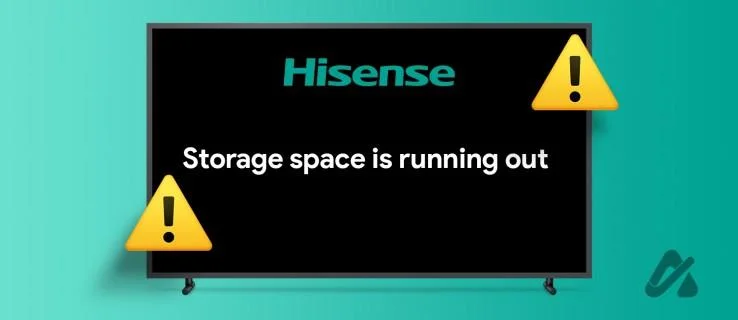
Before troubleshooting, let’s inspect why your Hisense TV has run out of memory. This typically happens when you install too many applications, which eat up all the available onboard storage. Running multiple apps in the background or performing RAM-intensive tasks, such as playing a game, can quickly exhaust the available system memory.
Now that you know the underlying reasons, let’s examine different methods for restoring normalcy to your Hisense TV:
| # | Solution | Description |
|---|---|---|
| 1 | Remove Unnecessary Installed Apps | Deleting unwanted apps to free up space on your Hisense TV. |
| 2 | Clear Application Cache | Clearing cache for apps consuming significant system storage. |
| 3 | Disable Apps From Launching at Startup | Conserving RAM by preventing unnecessary apps from auto-starting. |
| 4 | Check for Updates | Ensuring your TV is running the latest software version to fix bugs. |
| 5 | Perform a Factory Reset | Resetting all settings and installed apps to factory defaults. |
| 6 | Contact Hisense Support | Seeking professional help if the issue persists due to hardware malfunction. |
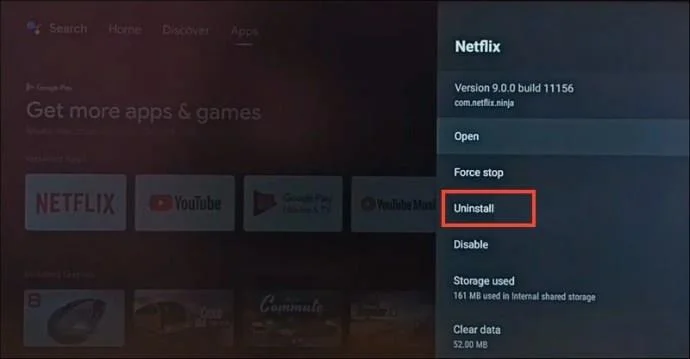
Deleting unwanted apps should be your first step to free up space on your Hisense TV. To delete an app on your Hisense Android TV, long-press an app tile on your home screen to view options and press Uninstall.
Alternatively, you can press the Gear icon in the top-right corner of your home screen to open Settings and locate the unnecessary app to Uninstall it. For necessary apps using significant memory, consider switching to their Lite versions available on the Google Play Store.
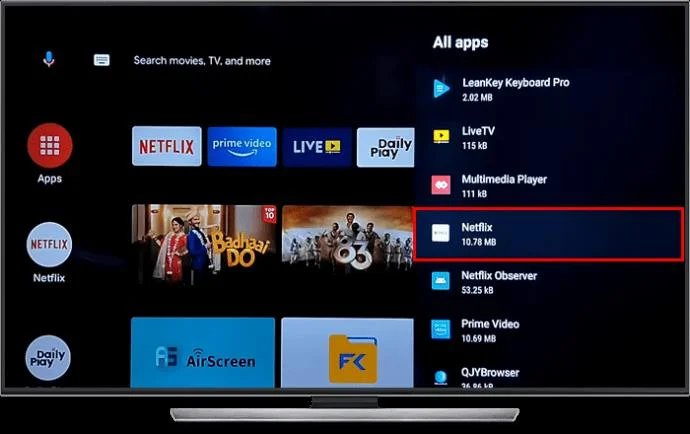
Another quick solution is to clear the cache for apps consuming significant system storage.
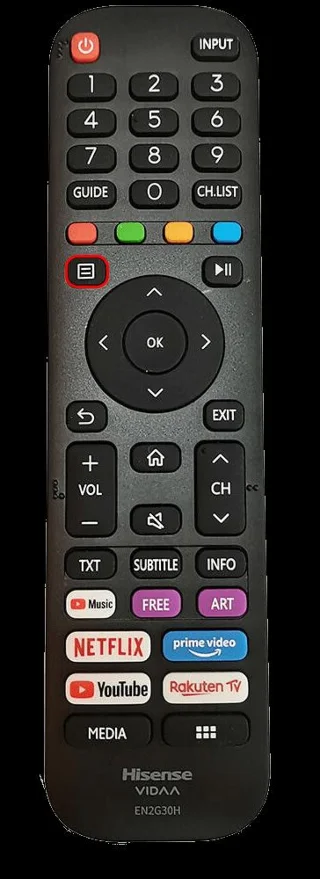
Some apps may automatically start on boot. Disable unnecessary apps from launching at startup to conserve RAM:
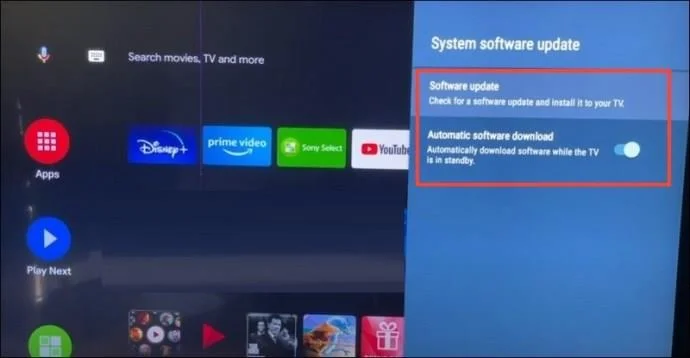
Bugs in the software can trigger low memory warnings. Ensure that your TV is running the latest version:
The System Software Update option is under About in your Hisense TV settings app. Enable Automatic Software Download for seamless updates.
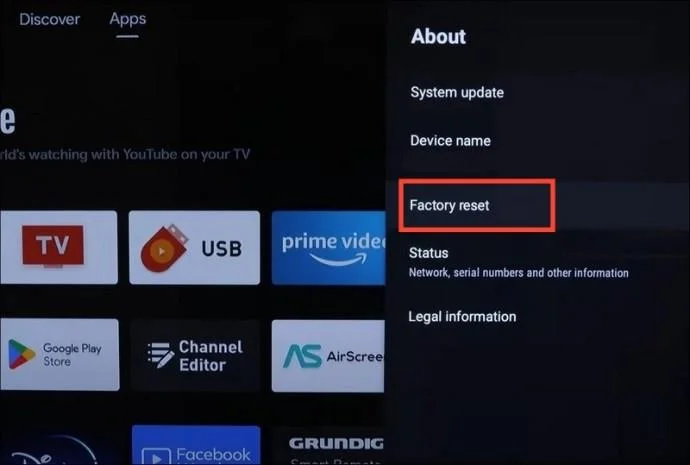
If nothing works, consider a factory reset. Follow these steps:
If the low memory issue reappears despite a reset, it could be a hardware issue. Contact Hisense support for accurate diagnosis. If still under warranty, repairs might be covered.
Having your smart TV’s memory hit the red zone can ruin your entertainment experience. Fortunately, you have numerous options to restore your Hisense TV’s memory, such as cleaning unnecessary apps or seeking professional help. Whether you’re tech-savvy or not, this guide offers effective solutions to resolve the issue seamlessly.
If you're looking for additional help, check out the best Hisense remote TV app for iPhones.
Verify that your TV is plugged in correctly. Additionally, wait a few minutes before attempting to turn it back on with your remote.
Hisense smart TV turns on for a couple of seconds and shows a black screen. What should you do?This usually indicates a hardware issue, but try resetting the TV to determine if it’s a software problem.
Master how to boil broccoli perfectly every time with this step-by-step guide. Learn exact timing and techniques for tender, vibrant, nutrient-rich results.
Learn how to dark mode on Google across Search, Chrome and apps to cut eye strain at night. This guide shows the exact settings to enable Google dark theme in under a minute.
Learn exactly how to add font to Canva with this step-by-step guide. Upload custom fonts through Brand Kit to use them across all your designs in minutes.
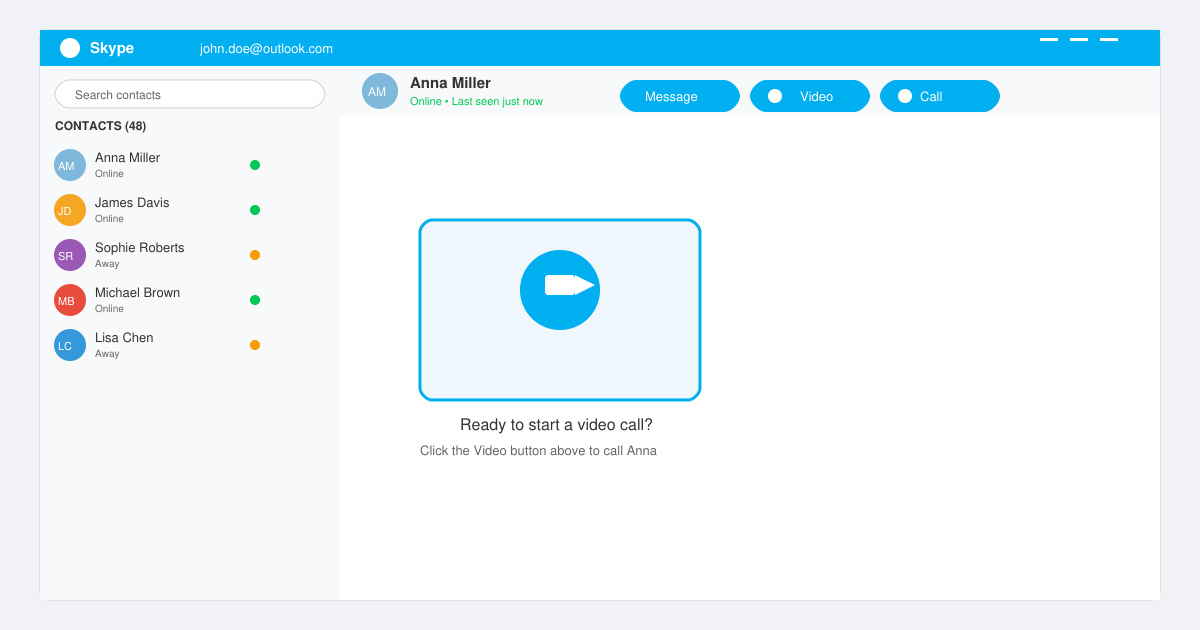
How to Use Skype for free video calls, messaging, and screen sharing. Follow this complete guide to install the app, set up your account, and start communicating in minutes.
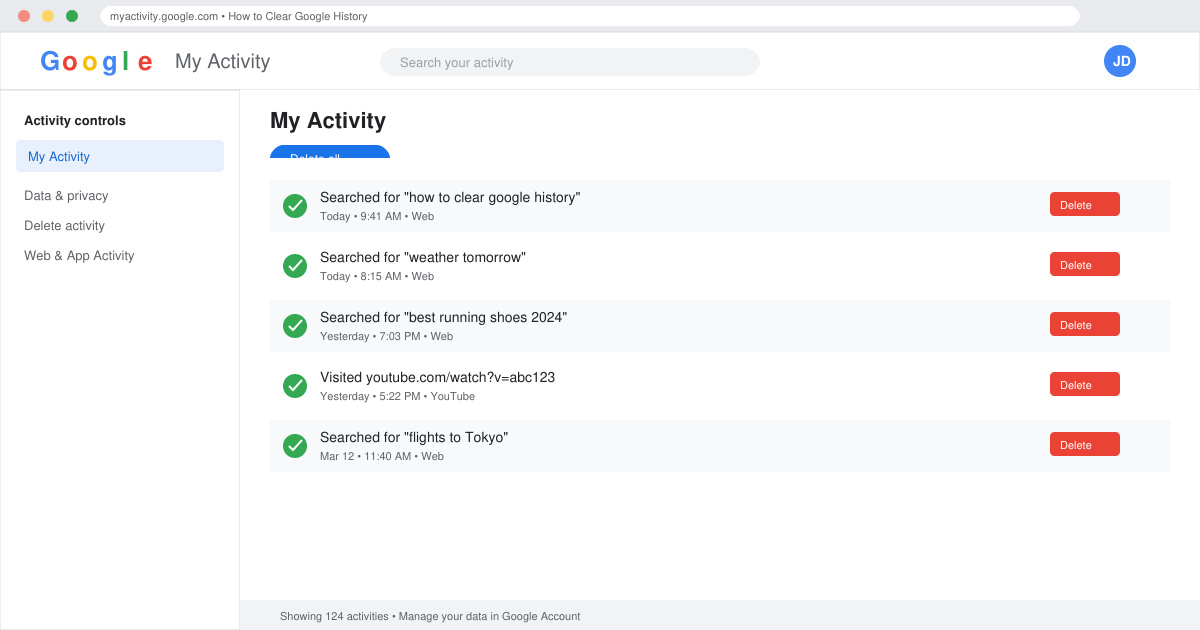
Learn how to clear Google history quickly to protect your privacy. This step-by-step guide shows you how to delete search activity from your Google account on any device.
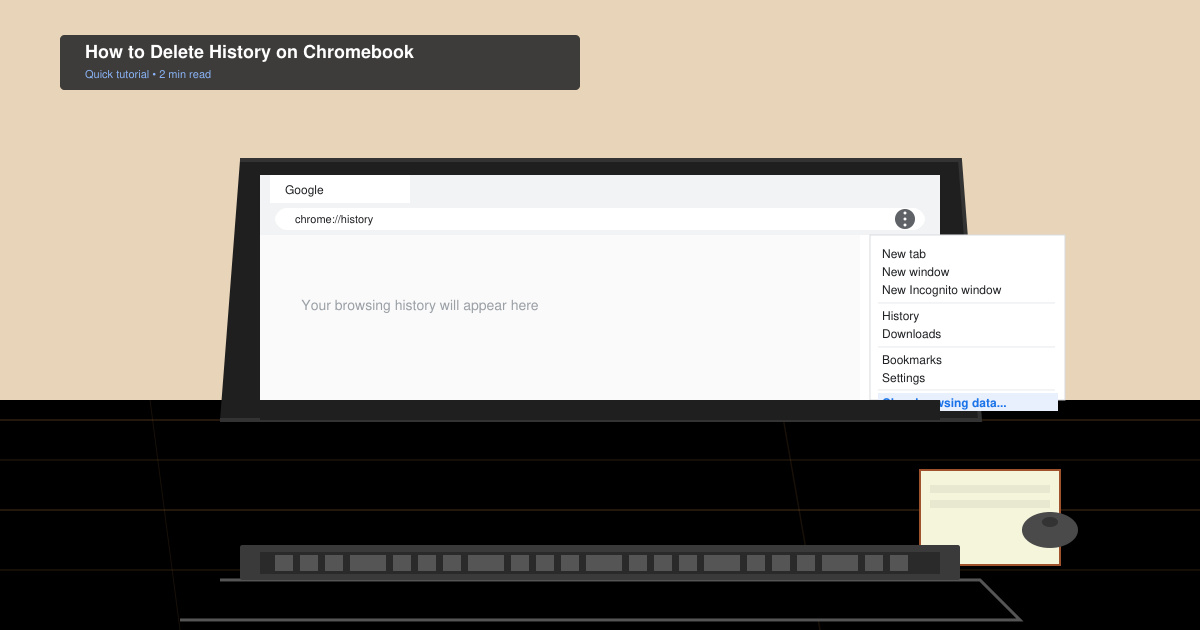
Learn exactly how to delete history on Chromebook to protect your privacy. Follow these precise steps to clear browsing data, cookies, and cached files on your device.
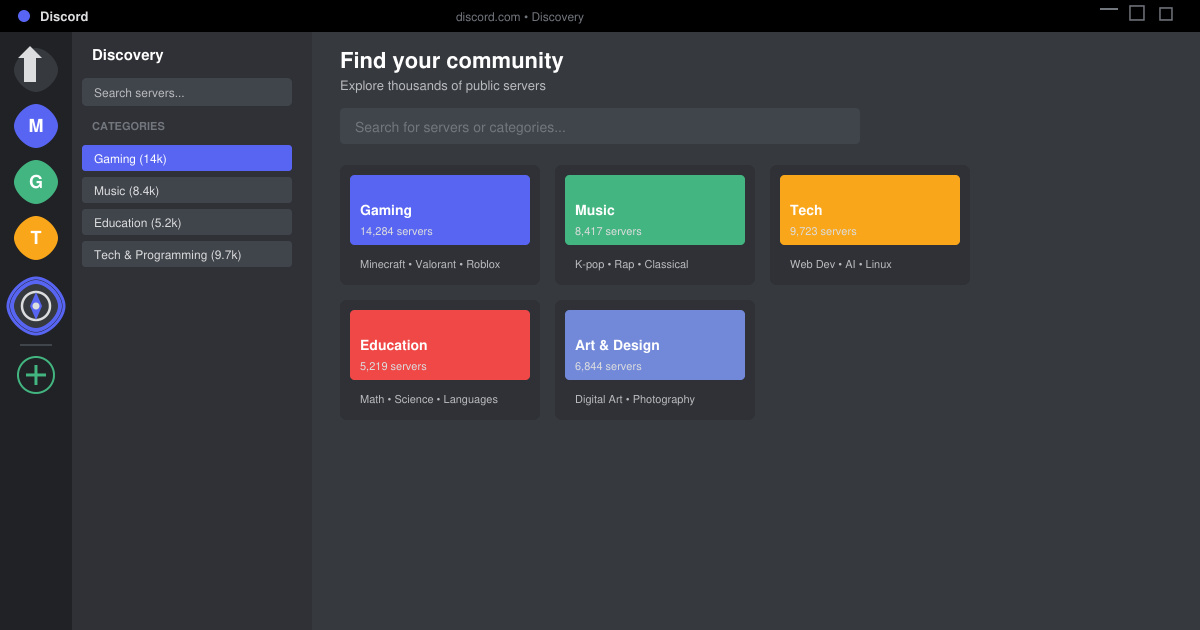
Learn how to find a server on Discord with this clear walkthrough of the built-in Discovery tool and other reliable methods. Join active communities fast.
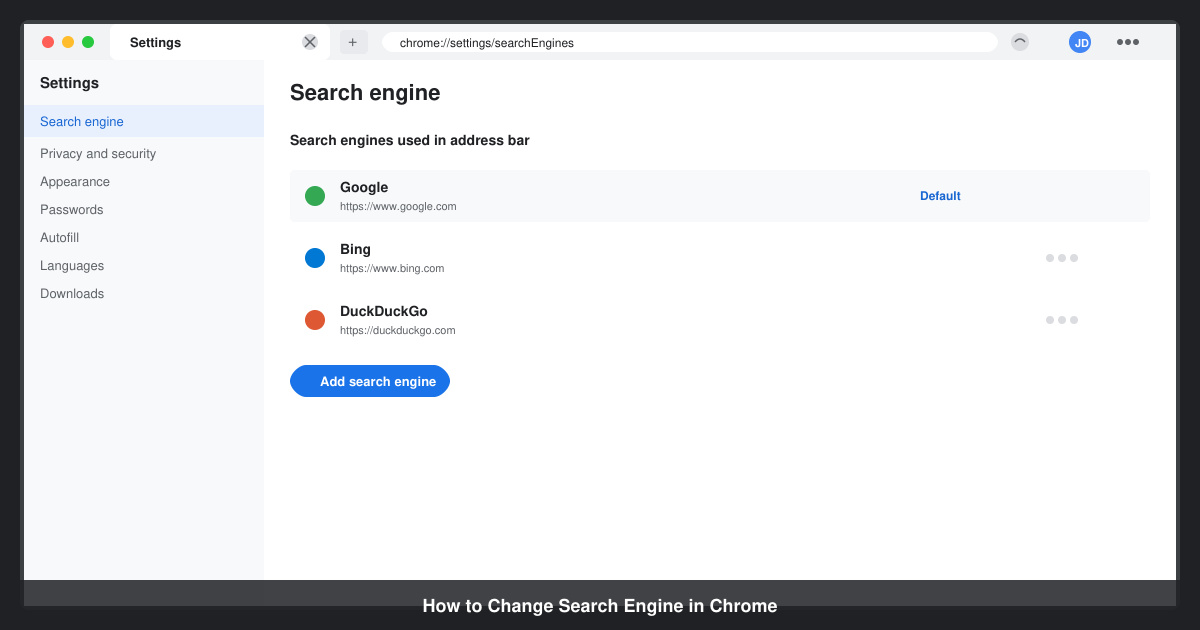
How to Change Search Engine in Chrome takes just a few clicks in Settings. Switch your default provider to Google, Bing, DuckDuckGo or another option and improve search results instantly.
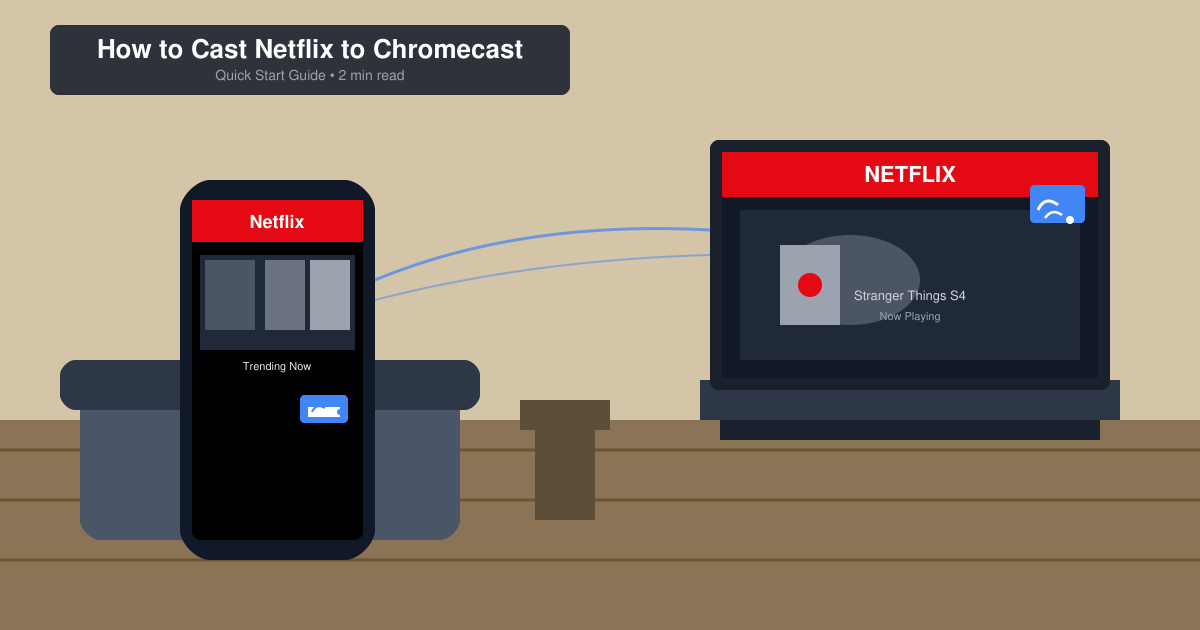
Learn exactly how to cast Netflix to Chromecast from your phone or computer. Follow these steps to stream movies and shows to your TV in minutes.
Learn exactly how to set Google as your homepage on Chrome in under a minute. Follow the precise steps in Chrome Settings to make google.com load when you click the home button.
CharlieRocks -
Is anyone else experiencing issues with the software updates? I’m scared to update because of low memory concerns
Jason F. -
Funny that I’m reading this right now while my TV is buffering. Will definitely try these tips ASAP
Kevin G. -
Just when I thought my TV was outdated, I found this! Can't believe clearing memory made such a significant difference
Daniel B. -
Nice to see a post that helps. It’s easy to overlook system memory, but it can really make or break the experience
George L. -
Haha, I love how tech-savvy we’ve become just to keep our TVs working! But this info is super useful. Thanks!
Vicky D. -
I appreciate the practical tips! I tried them out and my Hisense TV is finally smooth again
Sophie T. -
I really appreciate the tips! I’ve removed some old files and it definitely improved my TV’s performance. Thank you so much
Tim Quick -
I was skeptical at first, but cleaning out the memory really worked! My Hisense TV is performing much better now. Thanks
Stephen 5 -
Couldn’t believe how much space I cleared just by removing unused apps. Thanks for this guide
Olivia L. -
I didn't realize how much junk was on my TV until I followed your guide. Thanks for the clarity
Clara W. -
Appreciate the detailed explanation! I’ll share this with my friends who also have Hisense TVs!
Greg The Gamer -
If anyone is still having issues after following the guide, I recommend doing a factory reset. It worked wonders for my TV!
Alice the Cat -
Such a well-written article! I was feeling overwhelmed with my TV problems, and you made it simple to understand
Paul IT -
Great guide! I’ve been struggling with my low memory for weeks. I’ll be sure to clean it regularly now!
Hannah Joy -
I thought my TV was broken when it started lagging. I'm so glad I found this article! Problem solved
Linda Cat -
Thanks for this guide! I cleared some caches and removed a few apps I never used and my Hisense TV is back to normal. Appreciate the help
Lucy H -
I was basically pleading for a solution; my Hisense TV was a mess! Your advice helped restore its speed. Thanks a ton
John Doe -
Thank you for this article! My Hisense TV was running slow due to low system memory, but your tips helped me free up space. Now it’s running like new
Hannah Tech -
I wonder if these memory issues are common across other brands too? My friend has a Samsung, and she’s been complaining about lag.
MarkTheTechie -
Does anyone else find it funny how a device made for entertainment requires so much maintenance? But this article does help!
Mia Blue -
This was very helpful! I didn’t realize how many apps were taking up space on my Hisense. Cleared a few, and now it’s smooth
Chloe M. -
Does this fix apply to other Hisense models too? I have an older one that’s been slow lately
Zoey C. -
Just wanted to drop a thank you here! Your tips have helped my TV tremendously. Cheers!
MaxTech240 -
Great read! I’d like to know, how often should I check my TV for system memory issues? Is there a regular maintenance routine I should follow?
SammyDigital -
Loved the information. Can you explain more about how to clear temporary files on the Hisense TV? It’s a bit tricky for me
Tommy 123 -
What a lifesaver! Low memory was ruining my streaming experience. Your step-by-step guide made it super easy
Katie 34 -
I know this might not be related, but does anyone else have trouble with Netflix crashing? Could it be memory-related
Catherine V. -
Just finished following the steps, and wow! The change is noticeable. Thank you for sharing such simple solutions.
Emily Brown -
I had no idea that uninstalling unused apps could make such a difference. My Hisense TV is finally smooth. Big thumbs up