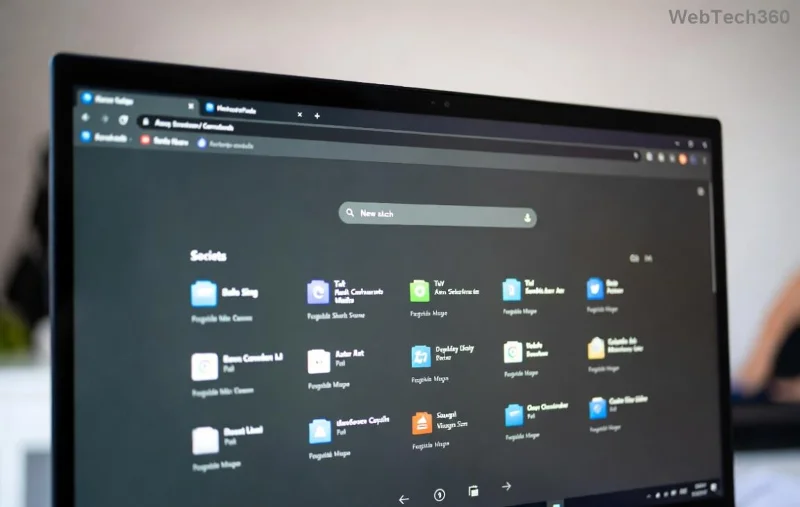
Ever landed on a webpage that feels alien because Microsoft Edge language doesn't match your vibe? Or struggled with date formats and currencies not aligning with your location? You're not alone! Changing Microsoft Edge language and region settings is a game-changer for smoother, more intuitive browsing. Whether you're switching to Spanish for travel prep or tweaking regions for accurate shopping prices, this guide has you covered. ⭐ Let's dive in and make Edge feel like home—quickly and hassle-free.
Why Bother Changing Microsoft Edge Language and Region Settings?
Customizing these settings ensures webpages load in your preferred tongue, translations kick in seamlessly, and regional formats (like dates, numbers, and time) match your needs. Perfect for expats, multilingual users, or anyone jet-setting digitally. Plus, it boosts productivity—no more deciphering unfamiliar interfaces! Ready to transform your browser? 👆 Start with language tweaks.
How to Change Microsoft Edge Language Settings on Desktop (Windows/Mac)
Microsoft Edge, powered by Chromium, makes changing language straightforward via its built-in tools. Follow these steps for the latest version:
- Open Microsoft Edge and click the three-dot menu (⋯) in the top-right corner.
- Select Settings or type
edge://settings/ in the address bar and hit Enter. 🚀
- In the left sidebar, click Languages.
- Under Preferred languages, click Add languages to search and install your choice (e.g., Français, Deutsch).
- Once added, click the three dots next to your language and select Move to the top to prioritize it.
- Toggle Offer to translate pages for auto-suggestions. Restart Edge to apply!
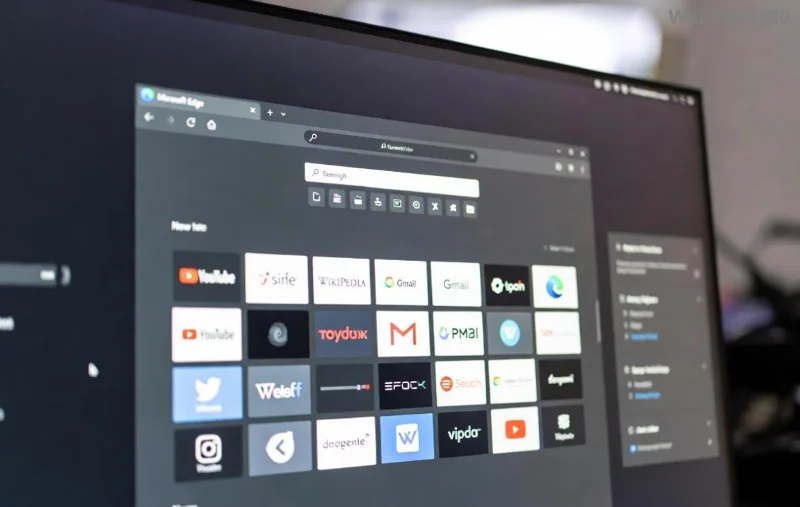
Pro Tip: For full display language change (UI menus), set it as Windows default first via Settings > Time & Language > Language, then sync in Edge. Stuck? We'll cover troubleshooting later. 😊
Adjusting Microsoft Edge Region Settings for Perfect Localization
Region settings control formats like currency (€ vs $), dates (DD/MM vs MM/DD), and measurements. Edge pulls from your OS but offers fine-tuning:
| Platform |
Steps to Change Region |
Key Impact |
| Windows |
Windows Settings > Time & Language > Region > Select country/region |
Updates Edge's number/date formats instantly |
| macOS |
System Settings > General > Language & Region > Region dropdown |
Syncs with Edge for calendars, shopping sites |
| Edge-Specific |
edge://settings/appearance > Customize toolbar (location services) |
Fine-tunes site geolocation |
After changes, refresh pages or restart Edge. Now your Amazon prices show in local currency! Microsoft's official guide confirms these steps work flawlessly.
![Microsoft Edge region and language customization interface]()
Change Language and Region on Microsoft Edge Mobile (Android/iOS)
Mobile users, rejoice! Syncing is even simpler:
- Launch Edge app > Tap profile icon > Settings.
- Go to General > Language.
- Select Add a language, reorder, and enable translation.
- For region: Device Settings > System > Languages & input (Android) or General > Language & Region (iOS). Edge auto-syncs!
🔥 Enable Follow device language for automatic updates. Dreaming of Vietnamese menus on the go? It's just taps away.
Troubleshooting Common Issues with Edge Language and Region Settings
Not sticking? Here's your fix-it kit:
- Language not changing: Clear cache (edge://settings/clearBrowserData) and relaunch. ❌
- Region formats wrong: Check VPN—disable for accurate detection.
- Mobile sync fails: Sign out/in of Microsoft account.
- UI stuck: Update Edge via Help & feedback > About Microsoft Edge.
![Troubleshooting Microsoft Edge language and region settings]()
Still glitchy? Hit edge://settings/reset as a last resort. For deeper dives, check Microsoft Learn.
Bonus: Advanced Tips to Supercharge Your Edge Experience
Want more? Install extensions like Google Translate for on-demand swaps or enable Reading View for multilingual ease. Pair with Windows 11's latest locale packs for ultimate control. 👏 Your browser, your rules!
Changing Microsoft Edge language and region settings opens a world of convenience. Followed the steps? Share in comments how it went! Stay tuned for more Edge hacks to keep your browsing buttery smooth. 🌍