Get LibreOffice to Recognize Your Java Runtime

Install a compatible Java runtime, enable it in LibreOffice, and troubleshoot an empty JRE list without changing unrelated settings.
Outlook Mail relies on a Microsoft account for authentication. Changing the password at the account level updates access across Outlook on the web, the Windows desktop app, and mobile devices. You must know your current password to complete the change. Two-factor authentication, if enabled, will require an additional verification code sent to your phone or authenticator app.
Before starting, make sure you are signed in on a secure network and have access to the recovery email or phone number linked to the account. This prevents lockouts if the new password is forgotten.
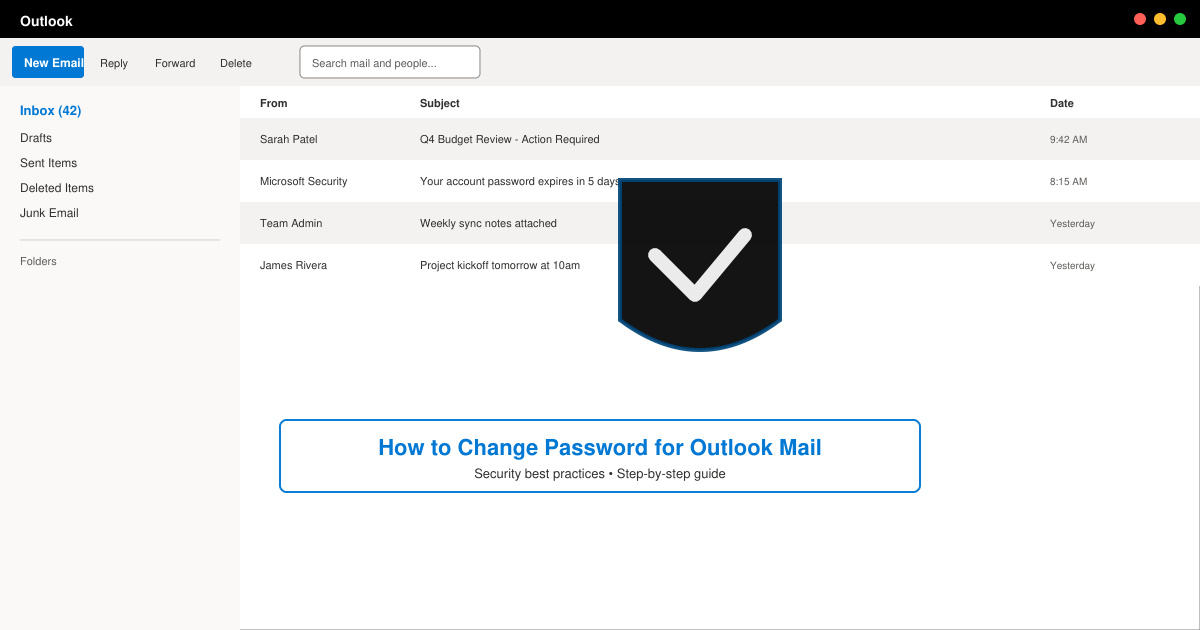
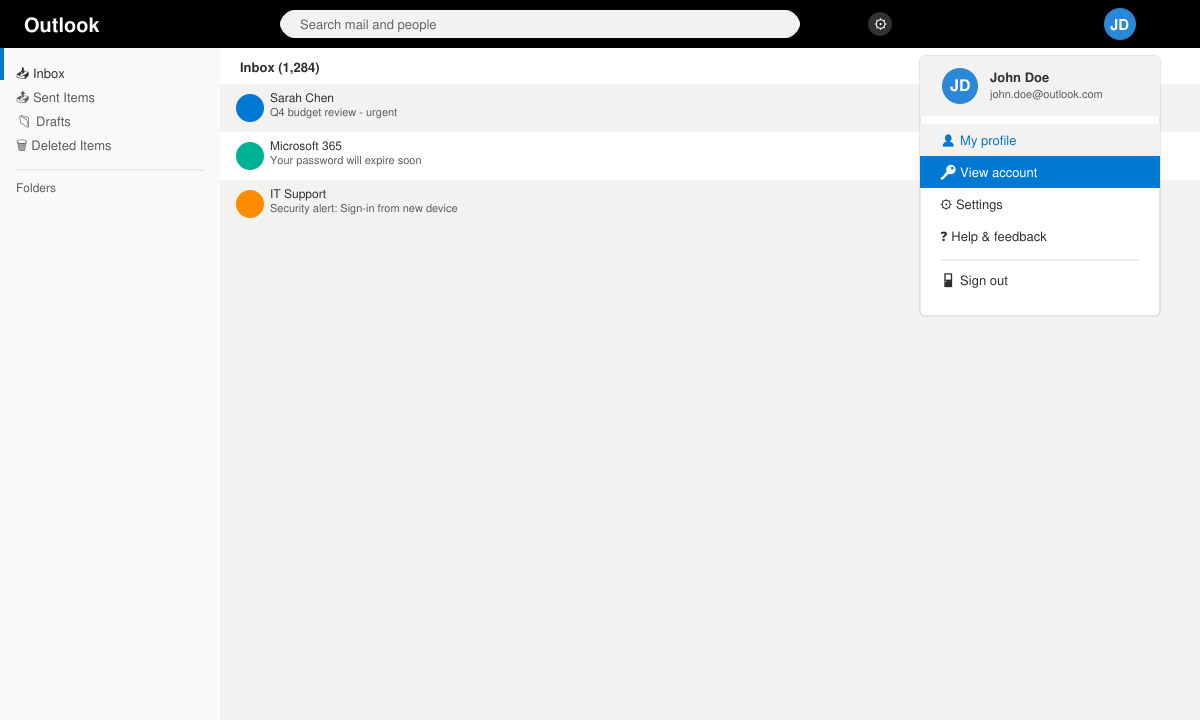
Open your browser and go to outlook.live.com. Enter your Outlook Mail address and current password to reach the inbox. Click your profile picture in the top-right corner and select "View account" to open the Microsoft account dashboard.
On the account dashboard, click the "Security" tab in the left menu. Under the Security basics heading, locate and click the "Change password" link. Microsoft will prompt you to verify your identity if two-factor authentication is active.
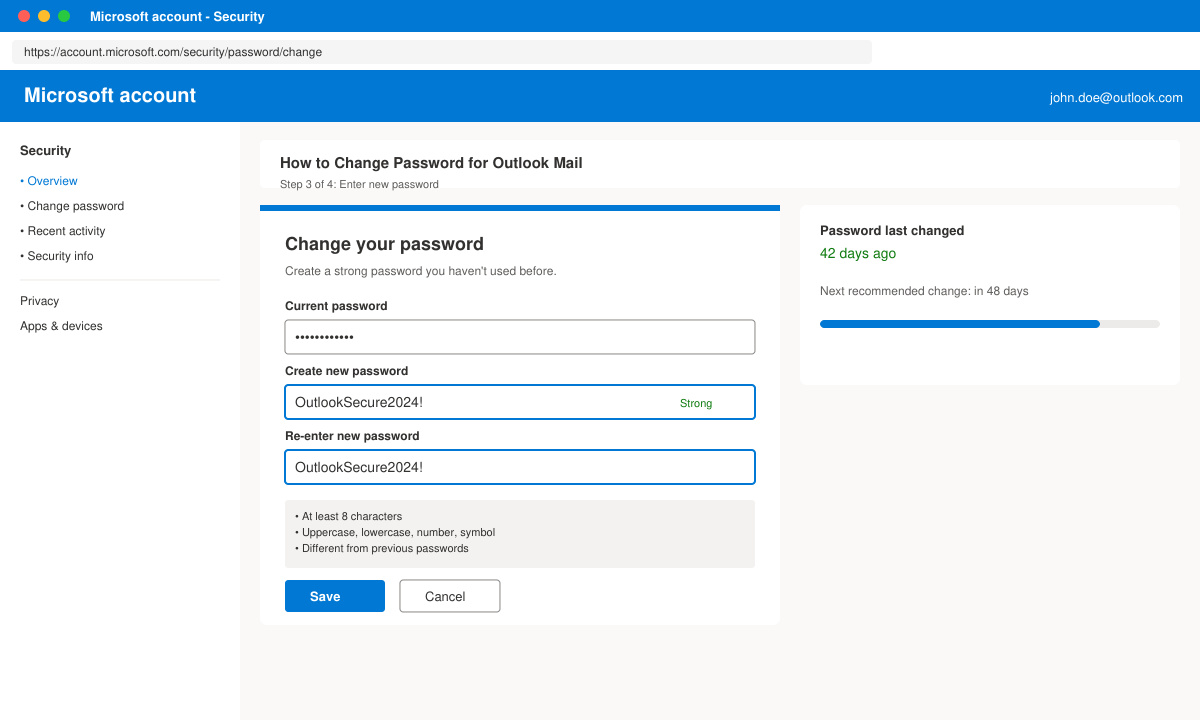
Type your current password in the first field. Create a new password that meets the requirements: at least eight characters with a mix of uppercase, lowercase, numbers, and symbols. Re-enter the new password in the confirmation field and click Save.
If you use the Windows desktop version, open Outlook and go to File > Account Settings > Account Settings. Select your email account, click Change, then update the password field with the new credentials. Click Next and Finish to complete the update.
Sign out of Outlook on every device and sign back in using the new password. Check the mobile Outlook app under Settings > Accounts to ensure the updated password is recognized and no sync errors appear.
No. The mobile Outlook app does not contain a password change option. You must use a web browser on any device to visit the Microsoft account security page and complete the change there.
Microsoft no longer recommends routine password changes unless you suspect your account has been compromised. Enable two-factor authentication and use a strong, unique password instead.
Any app or service using the old password will stop syncing. You must sign out and sign back in with the new password on each connected service, including OneDrive, Teams, and the Xbox app.
Performing How to Change Password for Outlook Mail regularly strengthens account security and maintains uninterrupted access to your email across all platforms.
Install a compatible Java runtime, enable it in LibreOffice, and troubleshoot an empty JRE list without changing unrelated settings.
Build a small LibreOffice container, convert office documents without a GUI, and verify PDF output while limiting host-file access.
Reduce oversized LibreOffice presentation files by compressing embedded photos, choosing sensible image settings, and checking slide quality before sharing.
Match LibreOffice’s page dimensions to your printer, check printable margins, and correct scaling before printing a custom-size document.
Replace repeated cell access with bulk range reads and writes, then benchmark the result and protect formulas in large Calc workbooks.
Split a long manuscript into chapters, assemble them in Writer, and keep styles, contents, and export checks consistent.
Use Base’s direct PostgreSQL option to enter your server details, sign in, save an ODB connection file, and troubleshoot common access errors.
Install a font in your Linux user font folder, restart LibreOffice Flatpak, and confirm it appears in Writer without weakening the app sandbox.
Protect your work and isolate network-drive save crashes in LibreOffice on macOS Sonoma with a local-first workflow, permission checks, and targeted tests.
Preserve leading zeros in Calc by setting ID columns to Text during CSV import, checking the preview, and verifying the saved data.








