Feeling overwhelmed by scattered bookmarks, passwords, and history across multiple accounts? 😊 You're not alone. Microsoft Edge makes it simple to change your Microsoft Edge profile and tweak personal data settings, giving you full control over your browsing experience. Whether for work, personal use, or privacy, mastering profiles keeps everything organized and secure. Let's dive in with easy, actionable steps using the latest Microsoft Edge updates.
What Are Microsoft Edge Profiles and Why Switch Them?
Microsoft Edge profiles act like separate user accounts within the browser. Each holds unique personal data such as bookmarks, history, passwords, extensions, and synced settings. Switching profiles is perfect for:
- 👆 Separating work and play
- ⭐ Sharing your device without mixing data
- 🔒 Enhancing privacy by isolating sessions
Ready to start? Follow these foolproof methods.
Step-by-Step: How to Change Your Microsoft Edge Profile
1. Access Profile Management
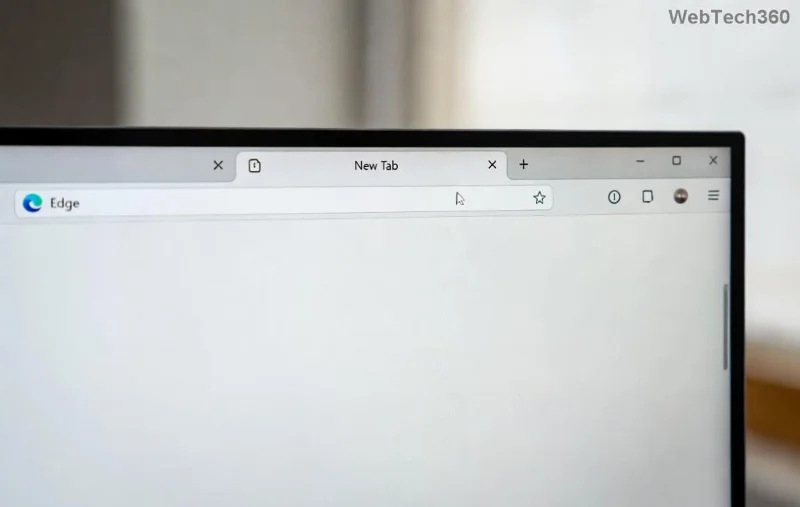
Click your profile icon in the top-right corner (next to the three dots). A dropdown appears with options to switch or manage profiles. No icon? Edge might be in a single-profile mode—head to edge://settings/profiles for quick access.
2. Switch to an Existing Profile
- Click the profile icon 🖼️
- Select another profile from the list
- Edge restarts in the new profile instantly!
3. Create a New Profile for Fresh Personal Data
Want a clean slate?
- From the profile dropdown, hit Add Profile.
- Choose "Work" or "Personal" template ⭐.
- Sign in with a Microsoft account or use guest mode.
- Customize name, color, and icon for easy spotting.
![Creating new Microsoft Edge profile]()
Pro tip: Enable profile sync to back up personal data across devices seamlessly.
Managing and Editing Microsoft Edge Personal Data
Profiles aren't just switches—control your data like a pro. Here's how:
Sync Your Data Across Profiles
| Feature |
How to Toggle |
Benefit |
| Bookmarks & Favorites |
Settings > Profiles > Sync |
Access everywhere |
| Passwords |
Enable in Sync menu |
Secure autofill |
| History & Tabs |
Selective sync options |
No data loss |
| Extensions |
Per-profile install |
Custom setups |
Go to edge://settings/profiles/sync to fine-tune. Turn off sync for sensitive profiles to boost privacy 🔒.
Clear or Edit Personal Data in a Profile
- 1️⃣ Open the target profile.
- 2️⃣ Press Ctrl + Shift + Delete for quick clear.
- 3️⃣ Select data types: browsing history, cookies, etc.
- Hit Clear now!
For granular edits:
- Bookmarks:
edge://favorites/
- Passwords: Settings > Passwords
- Autofill: Settings > Profiles > Payment info
Import/Export Profiles
Switch devices? Export your profile:
- Settings > Profiles > Export bookmarks/passwords.
- Save as HTML/CSV files.
- Import into new Edge via the same menu.
Delete or Merge Profiles Safely
Too many profiles cluttering up? Delete extras:
- Profile icon > Manage profile settings.
- Select profile > Delete (sign out first!).
- Confirm—data is gone forever, so sync backups first ⚠️.
No merge button? Manually copy data via export/import. Keeps things tidy!
Troubleshooting Common Issues
Stuck? Try these fixes:
- Profile won't switch: Restart Edge or clear cache.
- Sync not working: Check Microsoft account status at account.microsoft.com.
- Missing data: Verify sync is on for that profile type.
For official deep dives, visit Microsoft's support: Microsoft Edge Help.
Bonus Tips for Profile Mastery
Level up your setup:
- ⭐ Use keyboard shortcut Ctrl + Shift + M for quick profile switch.
- 😊 Pin profiles to taskbar for one-click access.
- 🔒 Enable Windows Hello for profile lock on shared PCs.
Now you're equipped to effortlessly change your Microsoft Edge profile and curate personal data perfectly. Stay organized, private, and productive—what's your first profile tweak? Experiment today and feel the difference! 👏