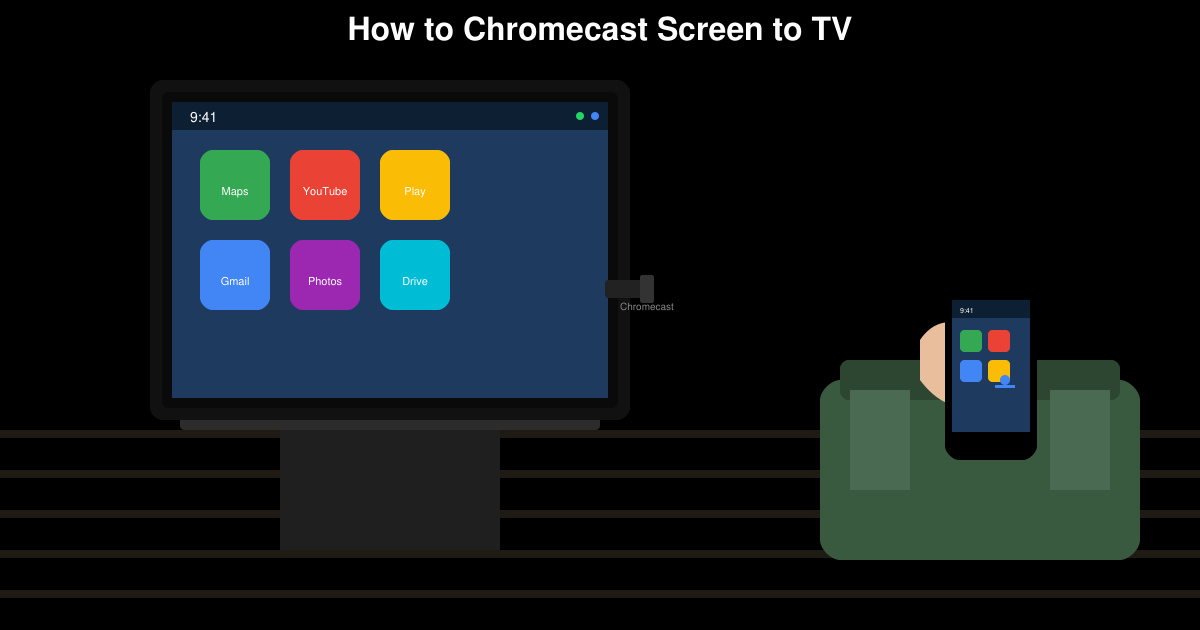
Want to display your smartphone or laptop screen on a larger display? How to Chromecast screen to TV works smoothly with a Google Chromecast device and the right settings on your source device. This guide walks you through the exact process for Android, Windows, and ChromeOS so you can start mirroring quickly and reliably.
What You Need Before You Chromecast Screen to TV
Make sure your Chromecast is plugged into an HDMI port on your TV and connected to the same Wi-Fi network as your phone or computer. Update the Google Home app on your phone and ensure your Chromecast firmware is current through the app. Your source device must also run a supported operating system with screen mirroring enabled in its settings.
How to Chromecast Screen to TV from Android
-
Enable screen mirroring in Quick Settings
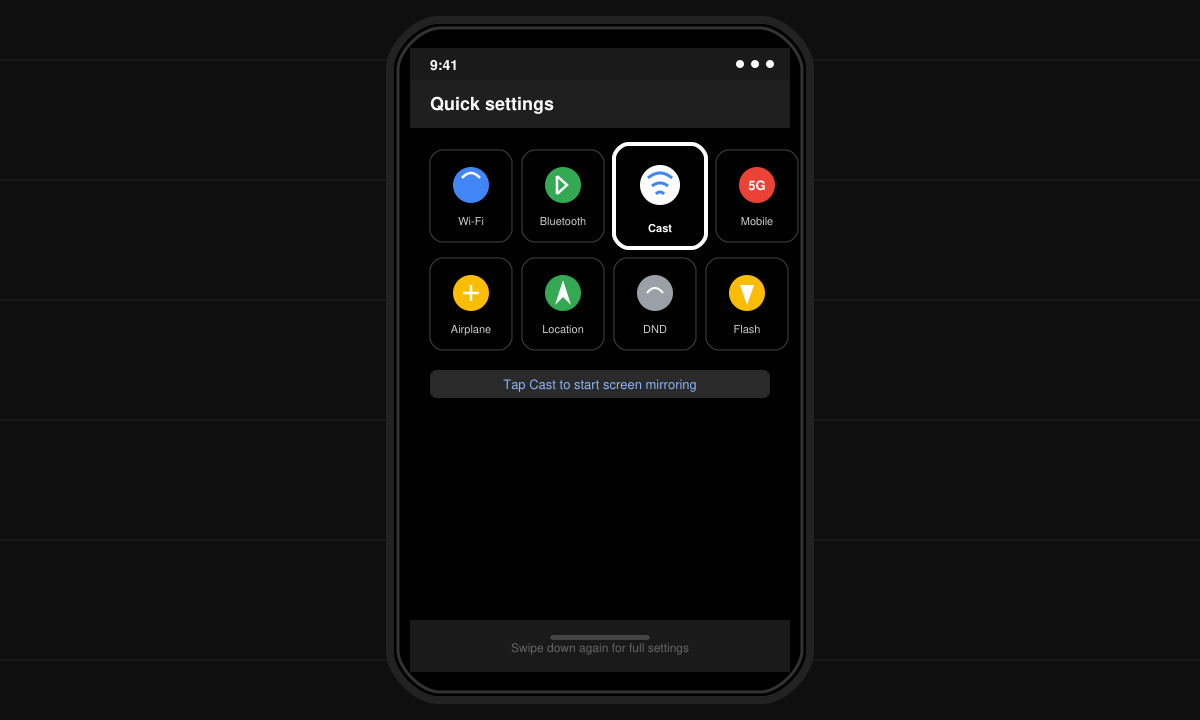
Swipe down twice from the top of your Android screen to open the full Quick Settings panel. Tap the tile labeled Cast, Smart View, or Screen Cast depending on your device brand. Select your Chromecast device from the list that appears.
-
Confirm the connection and adjust display options
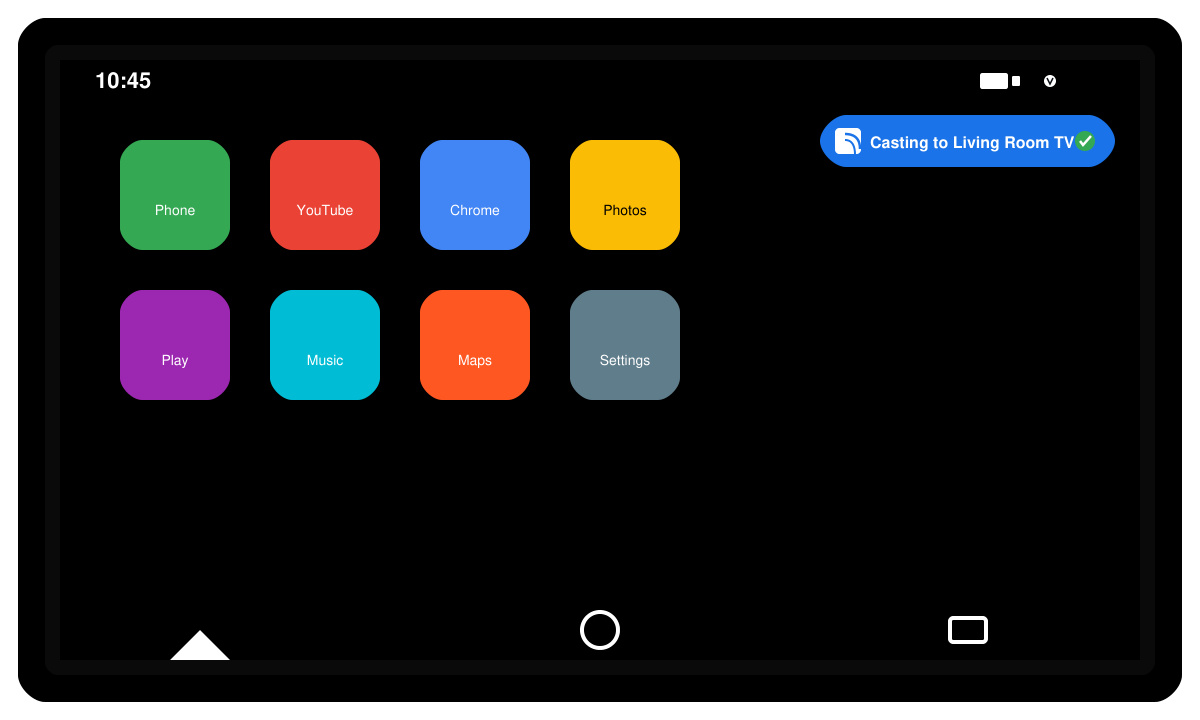
After tapping your Chromecast, wait for the TV to show a connection confirmation code if prompted. Your phone screen should now appear on the TV. Rotate your phone to landscape if you want a wider view for videos or apps.
-
Stop casting when finished
Return to Quick Settings and tap the Cast tile again, then choose Disconnect or Stop Casting. The TV will return to its previous input source automatically.
Chromecast Screen to TV from Windows or ChromeOS
On a Windows laptop, open the Chrome browser and click the three-dot menu, then choose Cast. Select your Chromecast and change the source from a single tab to Desktop to mirror the entire screen. ChromeOS users follow the same menu path inside Chrome or use the built-in Cast icon in the system tray for faster access.
Troubleshooting Tips When Chromecasting Your Screen
- If the Cast tile is missing on Android, restart your phone and confirm both devices are on the 2.4 GHz or 5 GHz Wi-Fi band.
- Black screen on the TV usually means the app you are using blocks mirroring; try opening a different app or enabling developer options to force screen recording permission.
- Audio not playing through the TV? Disconnect and reconnect the cast session, or check that media volume is not muted on your source device.
- Lag or stuttering improves when you move the phone closer to the router and close background apps that consume bandwidth.
Frequently Asked Questions
Can I Chromecast my iPhone screen to TV?
Native screen mirroring from iPhone requires an Apple TV. You can cast specific apps that support Chromecast, but full screen mirroring needs a third-party receiver app on the Chromecast or an adapter.
Does Chromecast support 4K screen mirroring?
Only Chromecast Ultra and newer Google TV devices support 4K output. Your source device must also output at 4K resolution and be connected to a 5 GHz network for stable performance.
Why does my TV show a black screen with sound only?
Some DRM-protected content such as Netflix or banking apps blocks video mirroring. Play non-protected video or use the app’s built-in cast button instead of full screen mirroring.
Conclusion
Once your Chromecast is set up, how to Chromecast screen to TV takes less than a minute on most Android and Windows devices. Keep your firmware updated and both devices on the same network for the most reliable experience.