Stop Unwanted Printing and Downloads in ONLYOFFICE
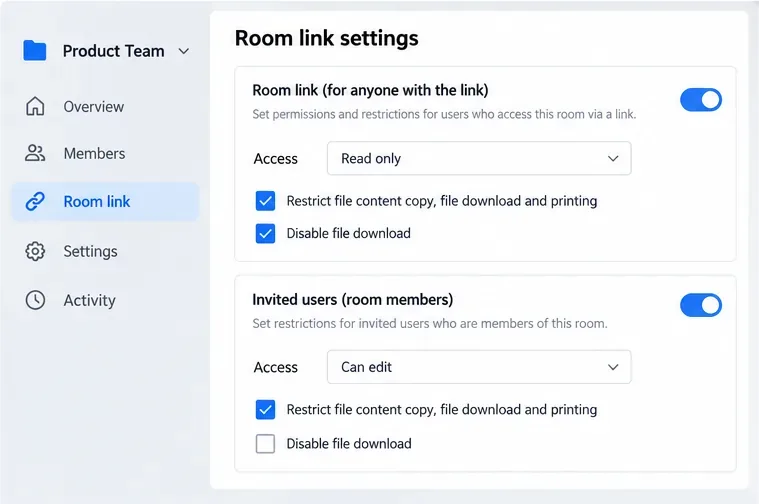
Set print and download limits for ONLYOFFICE links, room members, or Docs API sessions, then verify the restrictions from a recipient account.
If your HP inkjet printer is producing white lines, missing colors, faded areas, or streaks, start with the printer's built-in printhead cleaning tools rather than taking the printer apart. HP's current support guidance for multiple DeskJet, OfficeJet, Tango, and Smart Tank families follows the same basic pattern: print a diagnostic page, run the automated cleaning cycle, inspect the result, and only move to deeper or manual service when the problem remains.
This guide is deliberately model-aware. HP menu names and button sequences vary by printer family, so use the workflow below as a practical reference and confirm model-specific steps in HP Support before removing a printhead or touching internal components.
| Situation | Best first action | Why |
|---|---|---|
| White lines, faded colors, or one color missing | Print a Print Quality Diagnostic page, then run Clean Printhead | It confirms whether the defect looks like a nozzle or print-quality problem before you use extra ink. |
| First cleaning improves the page but does not fully fix it | Run the next cleaning level only if the printer or HP app offers it | HP notes that deeper cleaning uses additional ink. |
| Several cleaning cycles do not help | Wait, then align the printhead and check ink/cartridge conditions | A persistent defect can be alignment-, cartridge-, ink-system-, or hardware-related rather than a simple clog. |
| You are considering wiping or removing the printhead | Stop and check your exact model's HP instructions first | Some printheads are removable and serviceable; others are not meant to be handled by the user. |
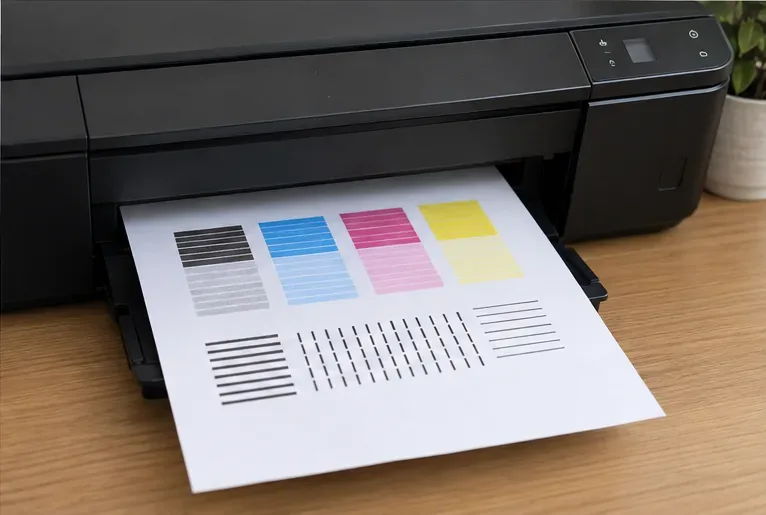
A diagnostic page gives you a baseline. Look for white horizontal gaps, faded blocks, missing colors, broken lines, or patterns that are not straight and connected. HP's Print Quality Diagnostic Report guidance uses test patterns to distinguish printhead reliability problems from alignment issues.
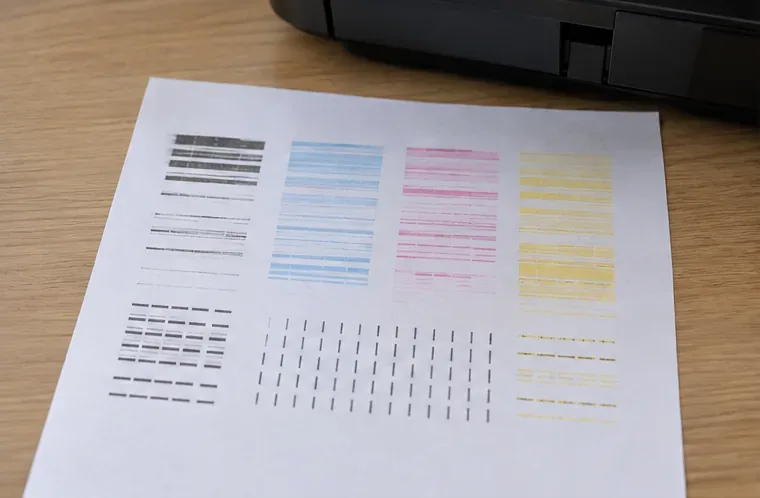
If the color blocks are clean and complete but text or lines are crooked, the better next action may be printhead alignment rather than cleaning. If blocks are streaked, faded, or missing, continue with the cleaning workflow.
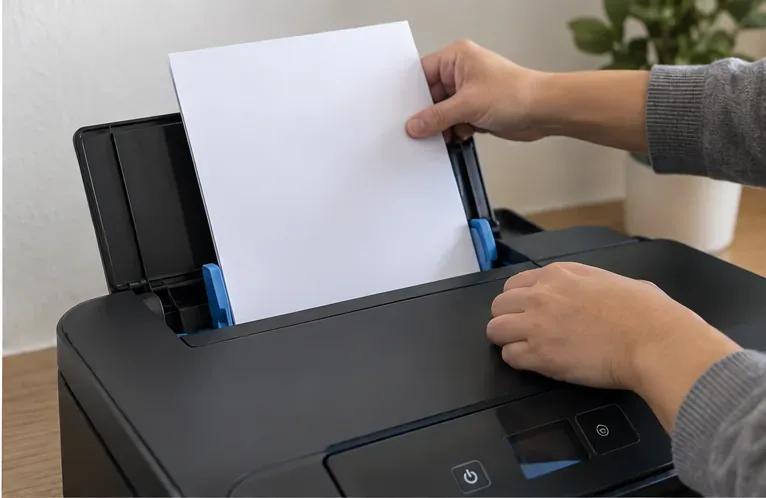
Place several sheets of plain white paper in the input tray and adjust the paper guides so the sheets feed straight. Automated cleaning normally prints one or more test pages, so the printer needs paper available before you start.
Do not open the printer or remove cartridges while the automated cleaning process is running. Let the printer complete the cycle and wait for the test page before judging the result.
On many current HP consumer printers, the software route is to open the HP app or HP Smart, select the printer, then look under Diagnostics, Tools, Print Quality Tools, or Alignment and Maintenance for Clean Printhead or Clean. Exact labels vary by product generation. HP's current DeskJet 2800, 4200, and 4900 print-quality instructions direct users to HP Smart, then Tools > Print Quality Tools > Clean Printhead or Clean.
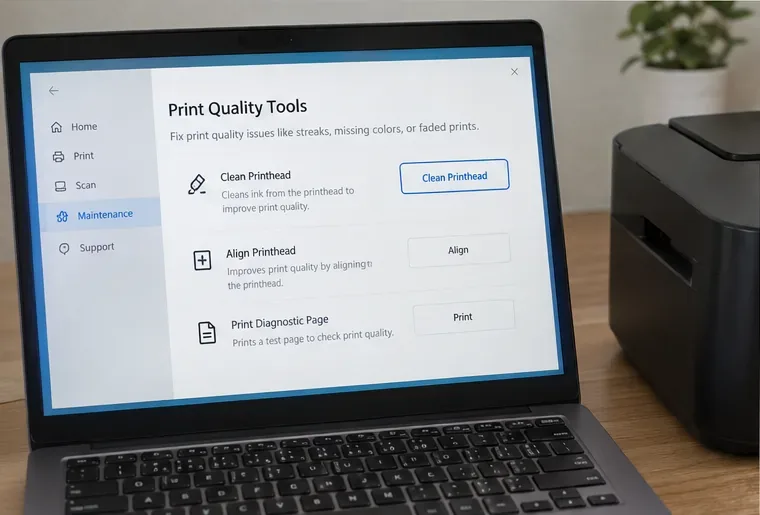
Some printers also expose the command directly on the control panel. For example, HP's OfficeJet 8700 support instructions use Printer Maintenance > Clean Printhead. Other families place the command under Setup, Tools, Troubleshooting, or a similar maintenance menu.
Start with the normal or first-level cleaning. If the printer offers second- and third-level cleaning, use them only when the new test page is still visibly defective.
Compare the new page with the baseline. A successful cleaning should reduce or eliminate white gaps, restore missing color, and make blocks more even. Stop when print quality is acceptable; extra cycles provide no benefit once the defect is gone and they consume additional ink.
If the page is still poor, HP support guidance for several current printer families allows deeper cleaning. For badly clogged printheads, HP advises waiting at least 30 minutes before cleaning again on affected models. See HP's current print-quality troubleshooting guidance for an example of this recommendation.
Repeated cleaning in rapid succession can waste ink. If your model's HP instructions specify a waiting period, follow it. On several current support pages, HP recommends waiting at least 30 minutes before another cleaning cycle when the printhead is badly clogged.
Cleaning is for nozzle and ink-delivery symptoms such as gaps, streaks, and missing colors. Alignment is for straightness and registration problems. If the diagnostic report shows lines that are not straight or connected, use the printer's Align Printhead or Align Printer function instead of assuming the head is still clogged.
If one color remains completely absent, verify that the corresponding cartridge or tank has usable ink and is installed correctly. A cleaning cycle cannot fix an empty cartridge, a cartridge that is not recognized, or a hardware failure in the ink system.
Manual cleaning is not a universal next step. Some HP printers use removable printheads that HP documents as user-serviceable, while others use printheads that should not be removed. Before touching the printhead, search HP Support for your exact model number and a procedure that explicitly describes removal or manual cleaning.
When HP does provide a manual-cleaning procedure, the materials commonly specified include a clean, soft, lint-free cloth and distilled, filtered, or bottled water rather than tap water. HP also warns on applicable models not to touch sensitive electrical connections. One model-specific example is HP's DesignJet printhead troubleshooting procedure, which specifies lint-free material and distilled, filtered, or bottled water for contact cleaning.
Do not improvise with alcohol, household cleaners, sharp tools, compressed air, or aggressive flushing unless your exact HP service instructions call for that method. A printhead contains tiny nozzles and electrical contacts that are easy to damage.
| What you see | Most useful next check |
|---|---|
| White lines through color blocks | Run the built-in printhead cleaning cycle, then reprint the diagnostic page. |
| One color is completely missing | Check that color's ink supply and cartridge/tank status before repeating cleaning. |
| All colors are faint | Check ink levels, print settings, paper suitability, and then run a cleaning cycle if the diagnostic page is also faded. |
| Lines are crooked or doubled | Run printhead alignment rather than repeated cleaning. |
| Prints improve after cleaning, then quickly degrade again | Pause repeated cleaning and consult the model-specific HP support page; the issue may involve the cartridge, ink system, cap station, or printhead hardware. |
| No improvement after all supported cleaning levels | Use HP's model-specific troubleshooting and consider cartridge, printhead, or printer service/replacement. |
There is no useful fixed calendar schedule for normal users. Clean the printhead when print-quality evidence indicates a problem, not simply because a week or month has passed. Many HP printers perform automatic servicing while powered and used normally. Unnecessary manual cleaning wastes ink and creates extra handling risk.
If a printer sits unused for long periods, printing a small color page periodically can help keep ink moving, but the best preventive practice is simple: keep the printer in normal operating condition, replace depleted ink promptly, and shut it down with its Power button so the printer can park and service the printhead correctly.
For these cases, use HP Support, identify the exact printer model, and follow the maintenance path written for that model. That is especially important because HP's consumer inkjet families use different cartridge, tank, and printhead designs even when the print-quality symptoms look similar.
The most reliable way to clean an HP printer head is to diagnose first, use the built-in cleaning utility, inspect the test page, and escalate only when the evidence says you need to. This approach is safer than immediately removing the printhead, uses less ink than blindly repeating deep-clean cycles, and matches the sequence HP documents across many current printer families.
Set print and download limits for ONLYOFFICE links, room members, or Docs API sessions, then verify the restrictions from a recipient account.
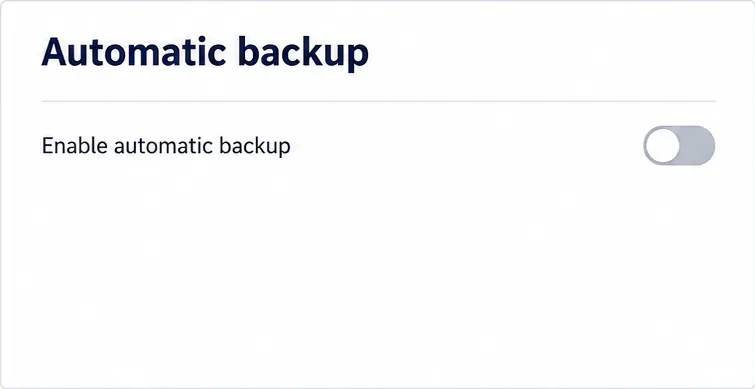
Set a backup destination, schedule, Mail coverage, and retention limit in ONLYOFFICE Workspace, then verify the archive is ready to restore.
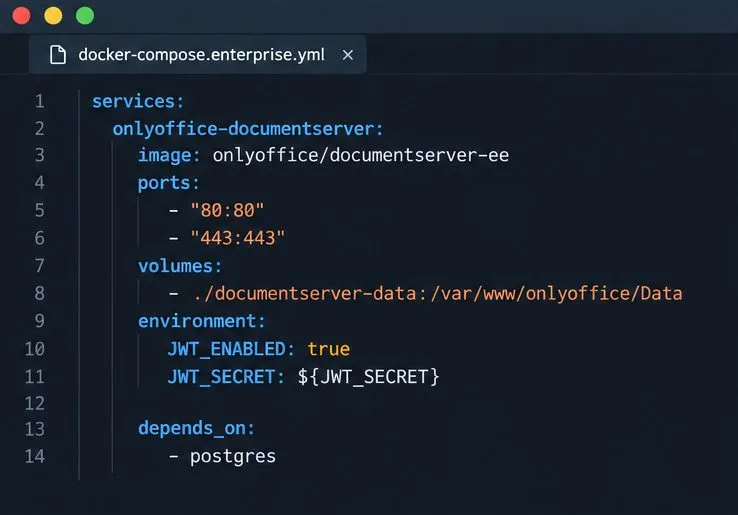
Start the Enterprise Docker Compose stack, persist its license and data, configure JWT safely, and confirm the editors are ready to integrate.
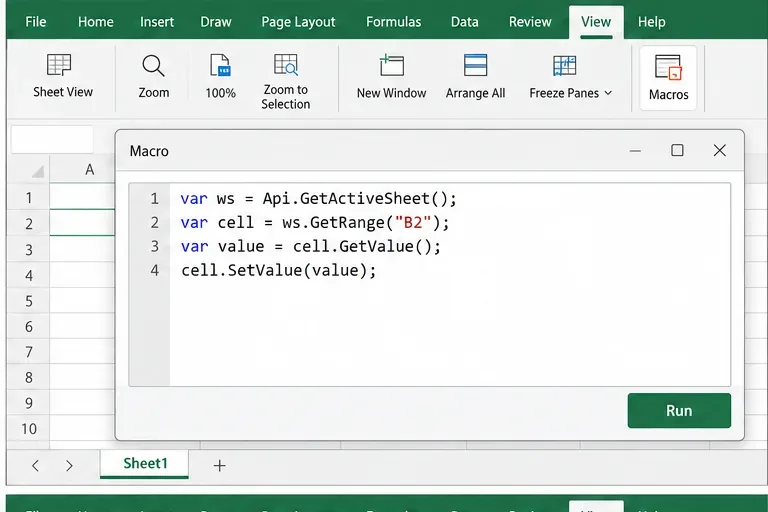
Use an ONLYOFFICE JavaScript macro to remove nonprinting characters and trim extra spaces from a defined spreadsheet range, with a safe review workflow.
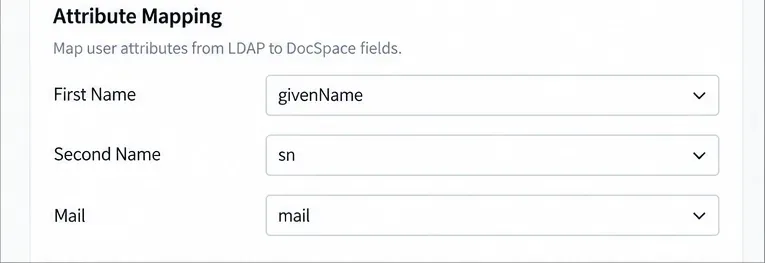
Connect ONLYOFFICE DocSpace to Active Directory or OpenLDAP, import users and groups safely, map account fields, and schedule reliable synchronization.
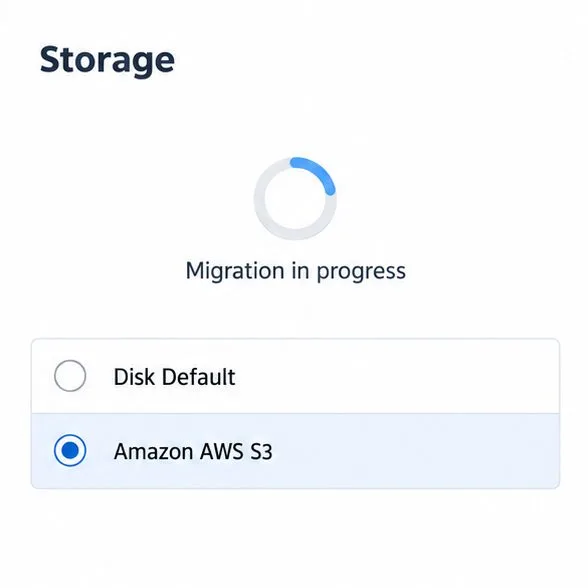
Move portal data from Disk Default to a supported cloud storage provider, or relocate Docker data safely by changing its host volume mapping.
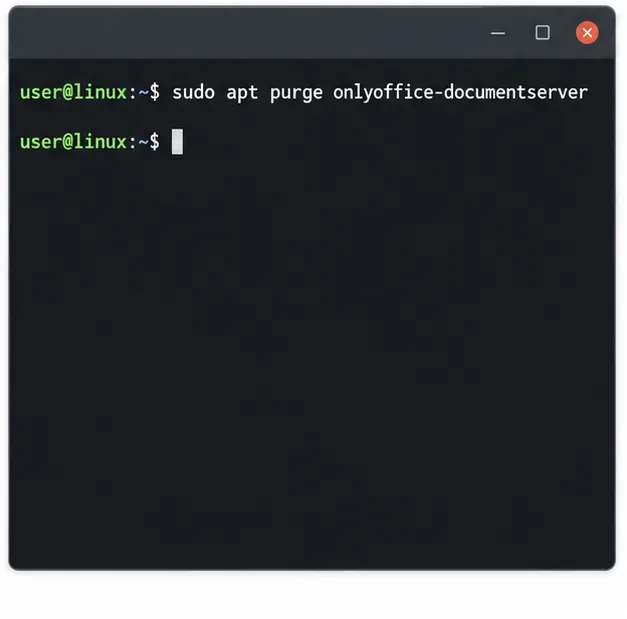
Identify whether Document Server uses a Linux package or Docker, remove only its components, and check remaining data without deleting shared services by mistake.
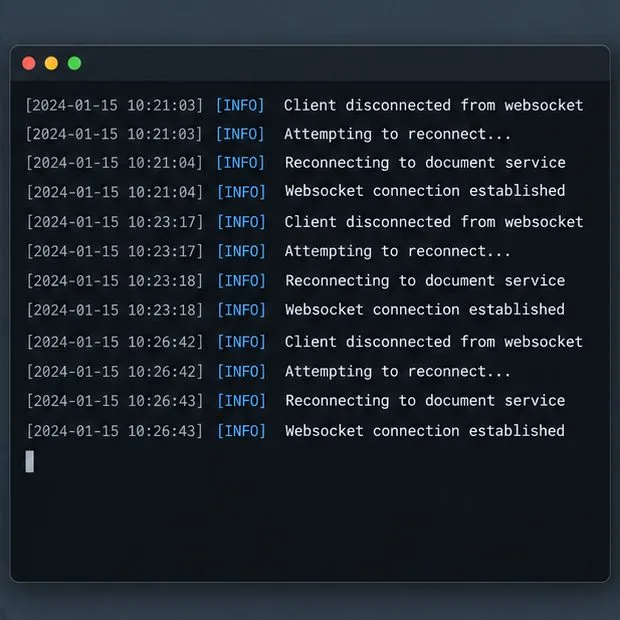
Trace slow collaborative editing to Docker resource pressure, proxy connections, or document load, then choose the fix that matches your measurements.
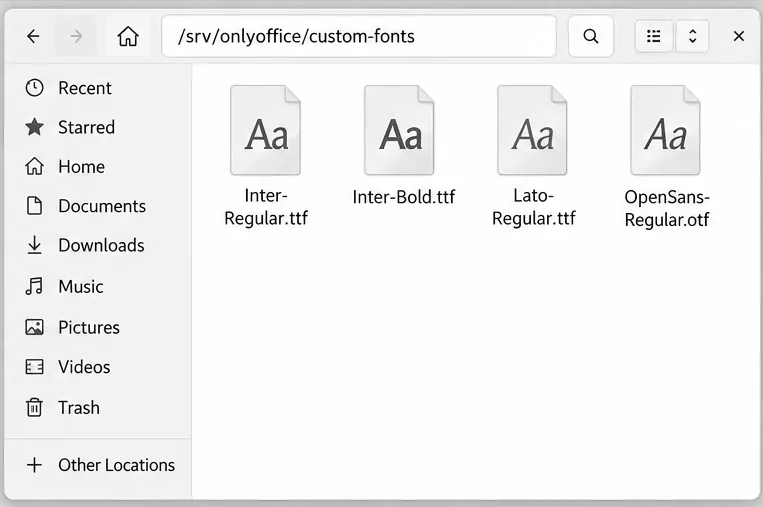
Install custom fonts in ONLYOFFICE Document Server, compare persistent Docker mounts with direct copies, rebuild the font list, and verify the result.
Choose where TLS should terminate, mount a trusted certificate and private key safely, and verify HTTPS access to a Dockerized ONLYOFFICE Docs server.