Get LibreOffice to Recognize Your Java Runtime

Install a compatible Java runtime, enable it in LibreOffice, and troubleshoot an empty JRE list without changing unrelated settings.
How to Clear Cookies in Google Chrome lets you remove stored site data that tracks your activity and sometimes causes login or loading errors. This guide shows the precise menu paths in the current version of Chrome on desktop and Android. You will finish with a clean browser and better control over what websites remember about you.
Cookies store login details, preferences, and tracking information from every site you visit. Over time they can slow down pages or let advertisers follow you across domains. Clearing them regularly keeps Chrome lighter and reduces the chance that old data interferes with new sessions. Make sure you are signed into Chrome with the Google account whose data you want to affect before starting.
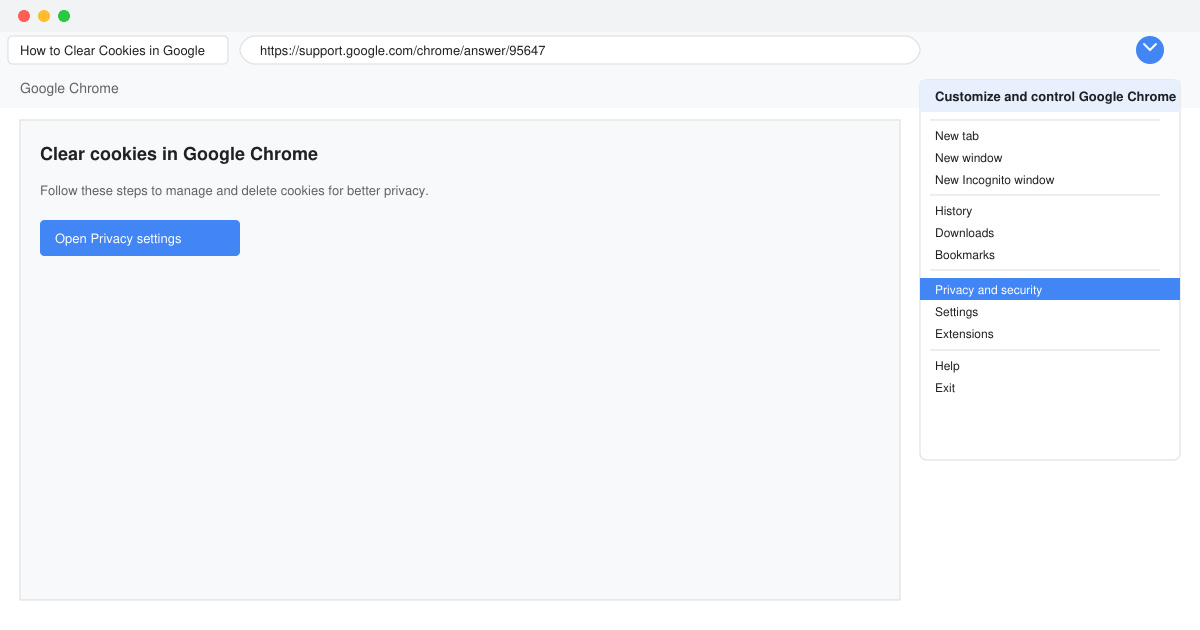
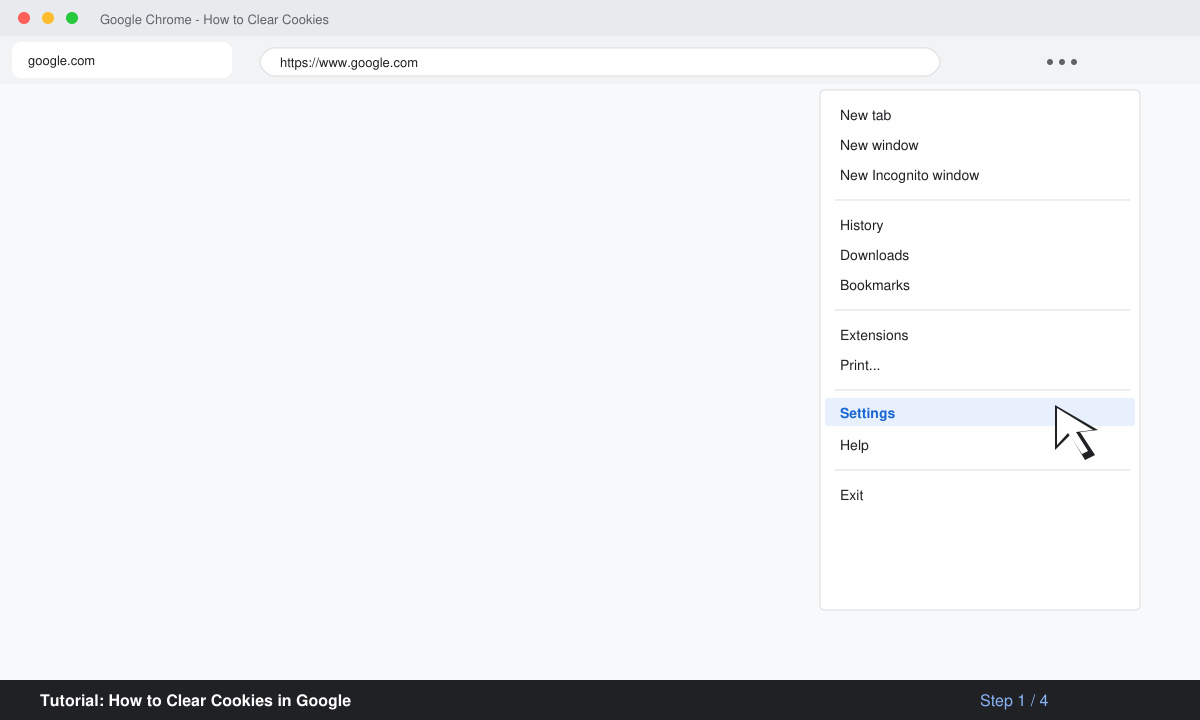
Launch Google Chrome on your computer. Click the three-dot icon in the top right corner, then select Settings from the menu that appears.
In the left sidebar click Privacy and security. On the right side select Clear browsing data.
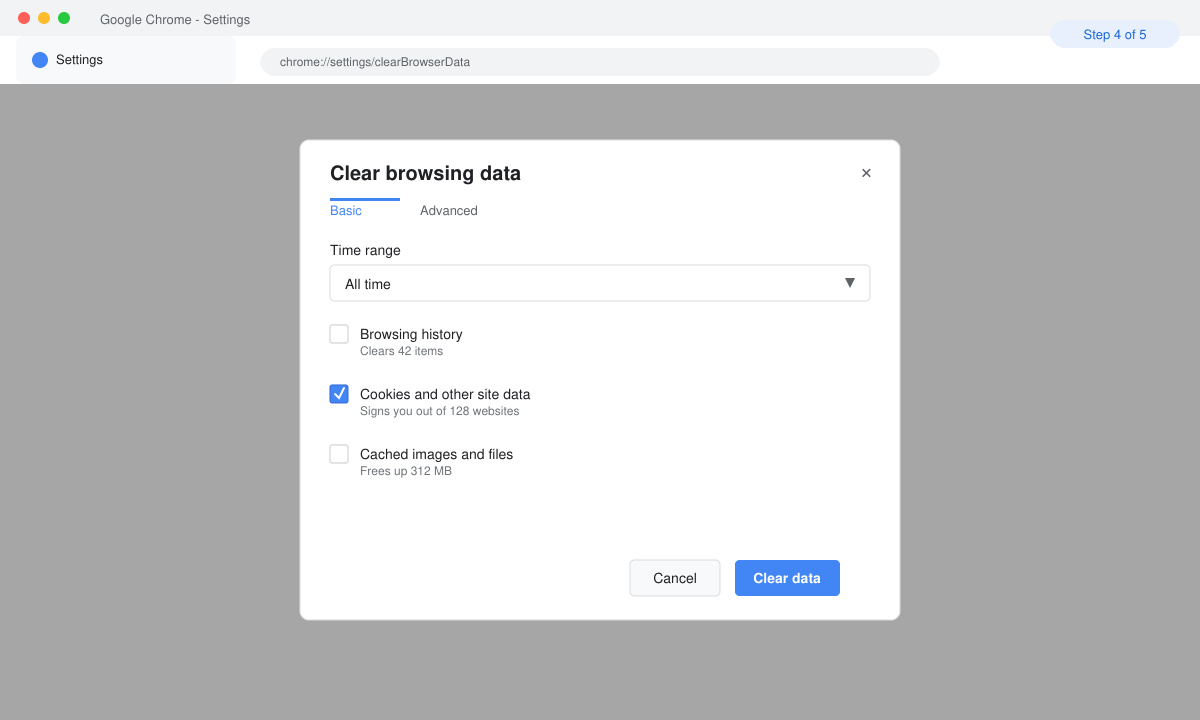
Set the Time range to All time if you want to remove everything. Check the box next to Cookies and other site data. Leave the other two boxes unchecked unless you also want to delete history or cached images.
Click the Clear data button at the bottom. Chrome will immediately delete the selected cookies and show a brief confirmation message.
Open the Chrome app and tap the three-dot menu in the top right. Choose Settings, then Privacy and security, followed by Clear browsing data. Select Cookies and site data, pick All time, and tap Clear data. The process finishes in a few seconds on most phones.
Yes. Any site that relies on cookies for login will require you to sign in again after the process completes.
No. Saved passwords stay in your Google account unless you separately choose to remove them from Password Manager.
Yes. Go to Settings > Privacy and security > Cookies and other site data > See all site data and permissions, then search for the domain and click Remove.
Following these steps removes unwanted tracking files while keeping Chrome fast and private. Repeat the process monthly or whenever you notice unusual behavior on websites.
Install a compatible Java runtime, enable it in LibreOffice, and troubleshoot an empty JRE list without changing unrelated settings.
Build a small LibreOffice container, convert office documents without a GUI, and verify PDF output while limiting host-file access.
Reduce oversized LibreOffice presentation files by compressing embedded photos, choosing sensible image settings, and checking slide quality before sharing.
Match LibreOffice’s page dimensions to your printer, check printable margins, and correct scaling before printing a custom-size document.
Replace repeated cell access with bulk range reads and writes, then benchmark the result and protect formulas in large Calc workbooks.
Split a long manuscript into chapters, assemble them in Writer, and keep styles, contents, and export checks consistent.
Use Base’s direct PostgreSQL option to enter your server details, sign in, save an ODB connection file, and troubleshoot common access errors.
Install a font in your Linux user font folder, restart LibreOffice Flatpak, and confirm it appears in Writer without weakening the app sandbox.
Protect your work and isolate network-drive save crashes in LibreOffice on macOS Sonoma with a local-first workflow, permission checks, and targeted tests.
Preserve leading zeros in Calc by setting ID columns to Text during CSV import, checking the preview, and verifying the saved data.








