Stop Unwanted Printing and Downloads in ONLYOFFICE
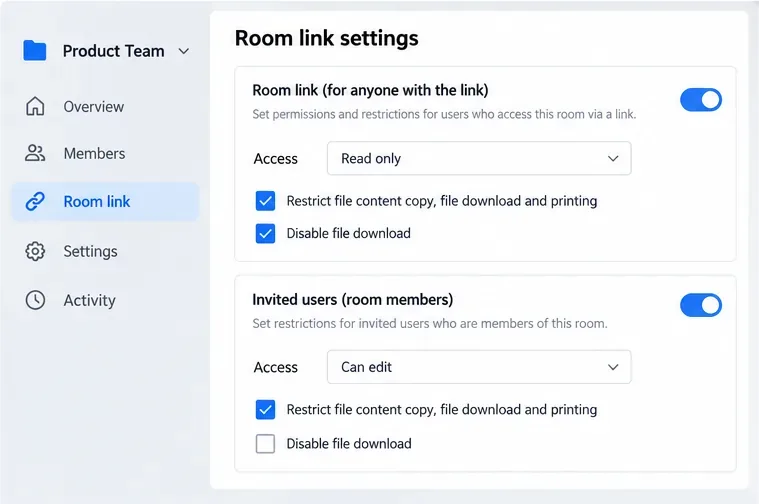
Set print and download limits for ONLYOFFICE links, room members, or Docs API sessions, then verify the restrictions from a recipient account.
Need to clear web history on Chrome for better privacy or to free up storage? Chrome includes built-in tools that let you delete browsing data from the last hour, day, or all time across devices. This guide gives you the precise clicks and menu paths required.
Chrome stores every site you visit, search terms, and cached files. Over time this data can reveal personal activity to anyone with access to your device and can also slow down the browser. Clearing it regularly removes that trail without affecting bookmarks or passwords unless you specifically select those options.
Before starting, make sure you are signed into the correct Google account if you want the deletion to sync across devices, or sign out first if you only want to clear the local copy.
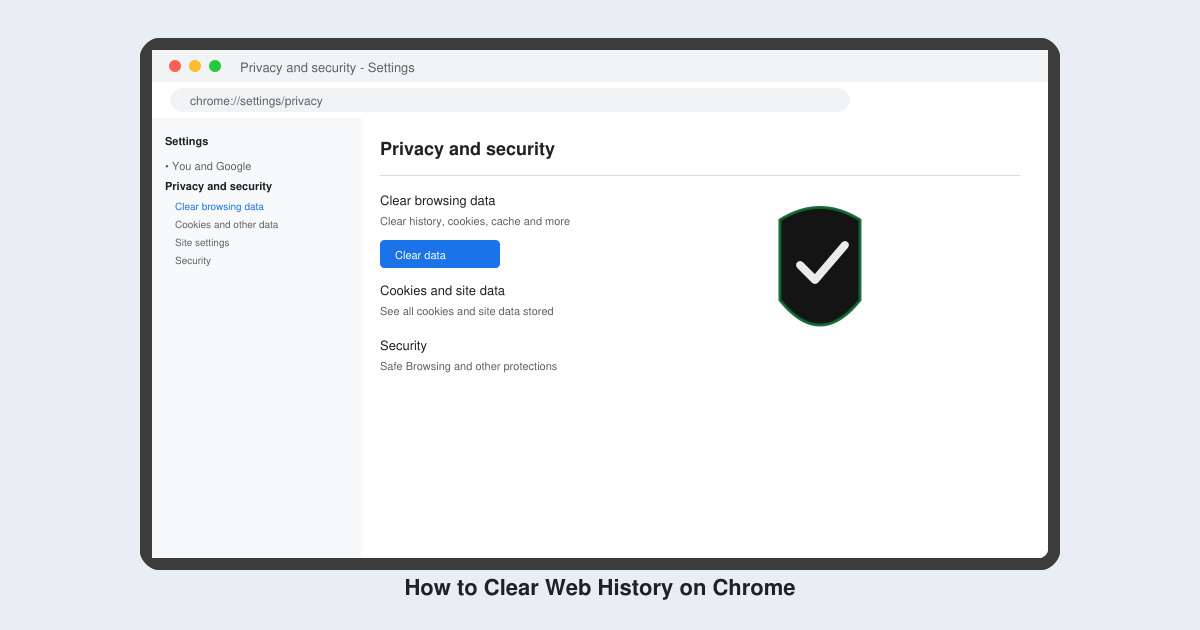
Launch Chrome on your computer. Click the three-dot menu in the top right, select Settings, then click Privacy and security on the left sidebar. Under that section click Clear browsing data.
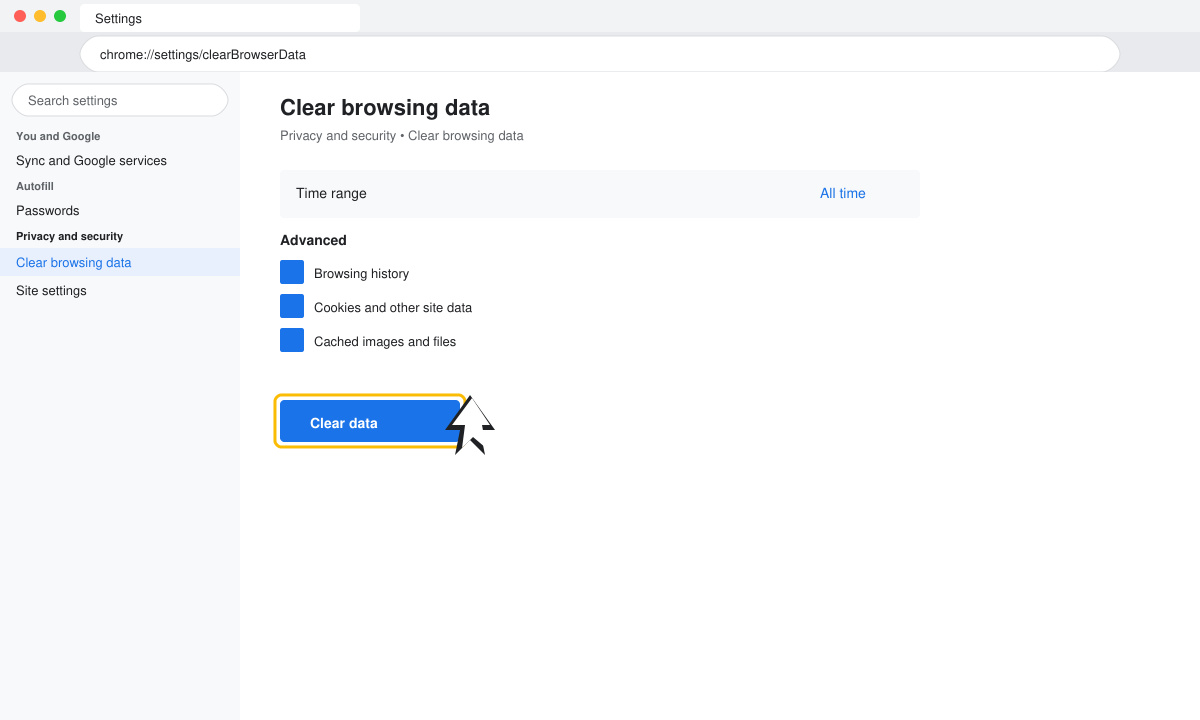
In the pop-up window set the Time range dropdown to All time if you want everything gone. Check the boxes for Browsing history, Cookies and other site data, and Cached images and files. Leave passwords and autofill data unchecked unless you want those removed too.
Click the Clear data button at the bottom. Chrome will immediately remove the selected items and show a brief confirmation message. Close and reopen the browser to verify the history is gone.
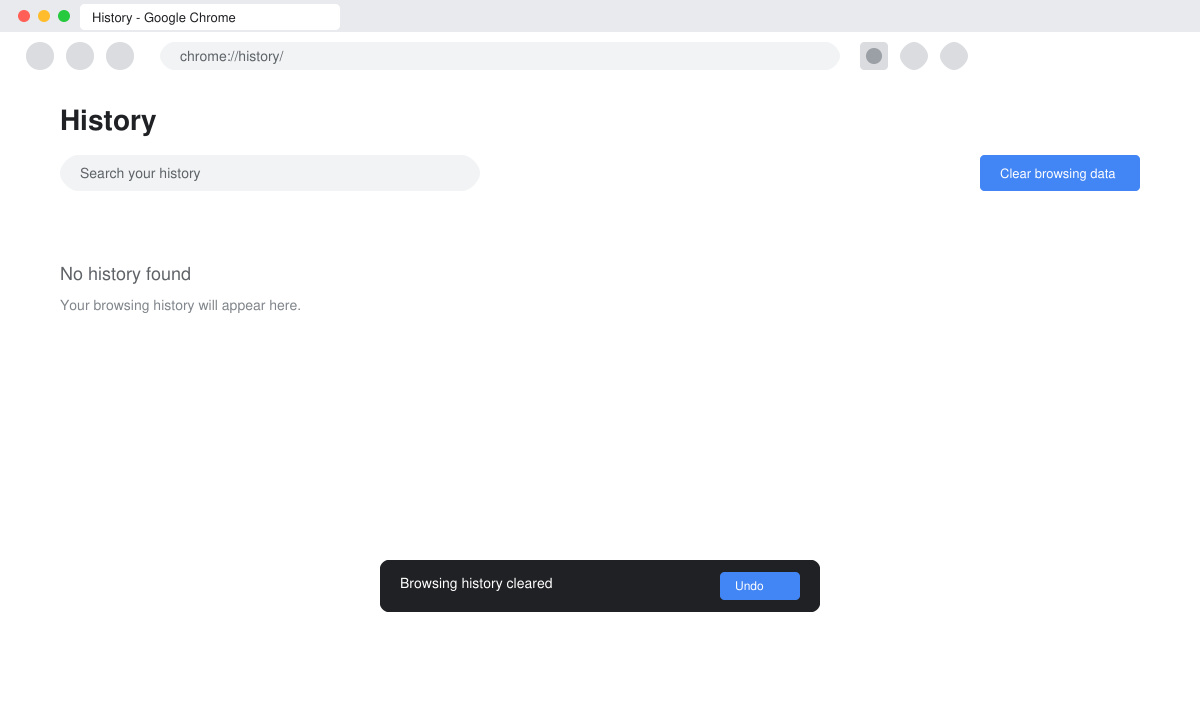
On mobile, open Chrome, tap the three-dot menu, go to History, then tap Clear browsing data at the bottom. Select the same options and tap Clear data to finish.
No. Bookmarks stay unless you specifically check the box for them in the Clear browsing data menu.
Once deleted, the data is gone from Chrome. You would need a previous device backup or synced data from another device to restore it.
No. The steps only affect Chrome. You must repeat the process separately in Edge, Firefox, or Safari.
Clearing web history on Chrome takes less than a minute once you know the exact menu path and keeps your activity private on shared or personal devices.
Set print and download limits for ONLYOFFICE links, room members, or Docs API sessions, then verify the restrictions from a recipient account.
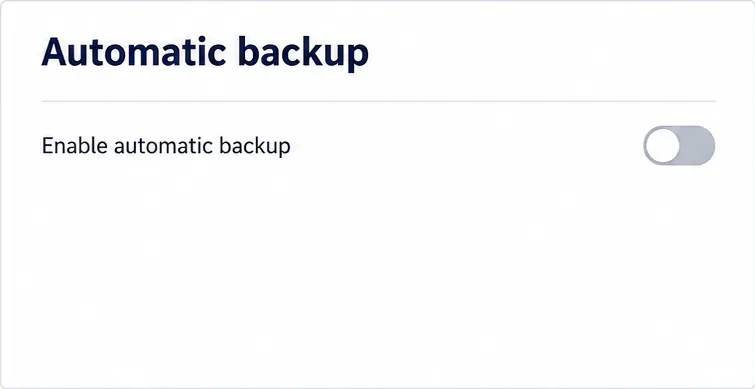
Set a backup destination, schedule, Mail coverage, and retention limit in ONLYOFFICE Workspace, then verify the archive is ready to restore.
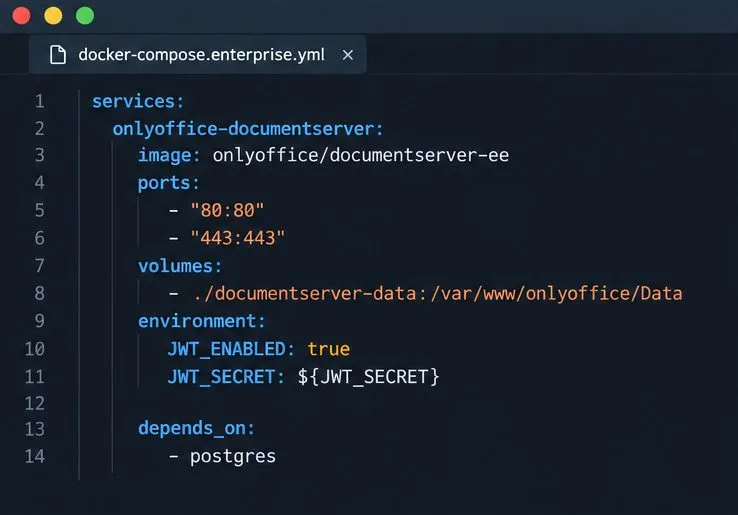
Start the Enterprise Docker Compose stack, persist its license and data, configure JWT safely, and confirm the editors are ready to integrate.
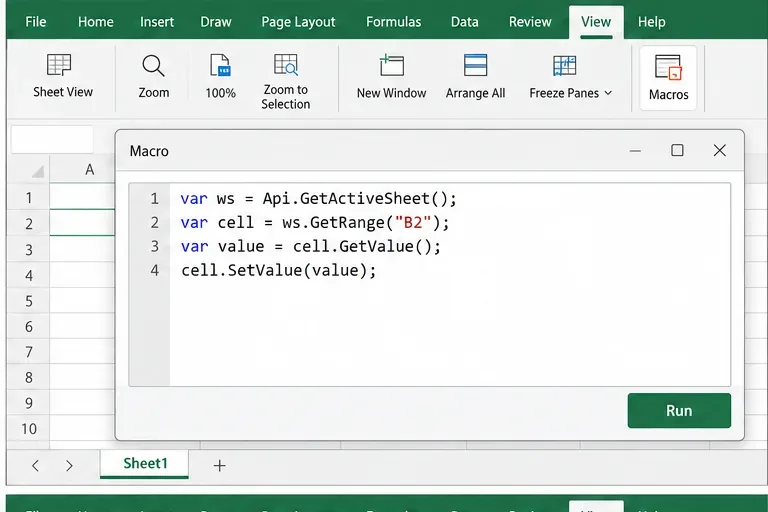
Use an ONLYOFFICE JavaScript macro to remove nonprinting characters and trim extra spaces from a defined spreadsheet range, with a safe review workflow.
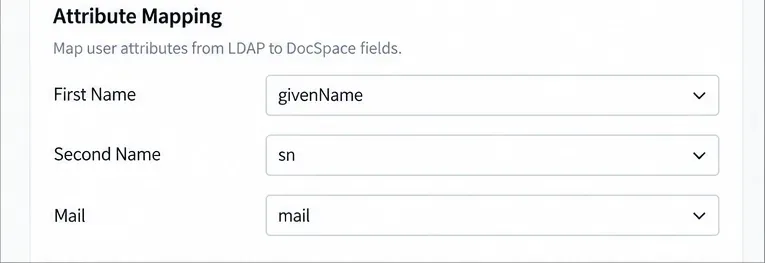
Connect ONLYOFFICE DocSpace to Active Directory or OpenLDAP, import users and groups safely, map account fields, and schedule reliable synchronization.
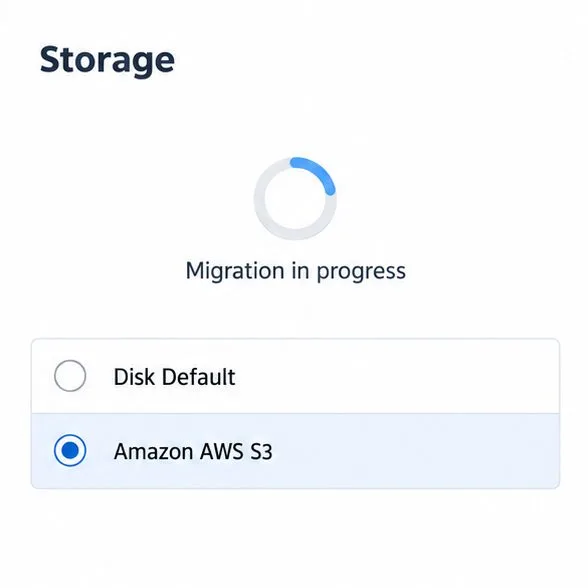
Move portal data from Disk Default to a supported cloud storage provider, or relocate Docker data safely by changing its host volume mapping.
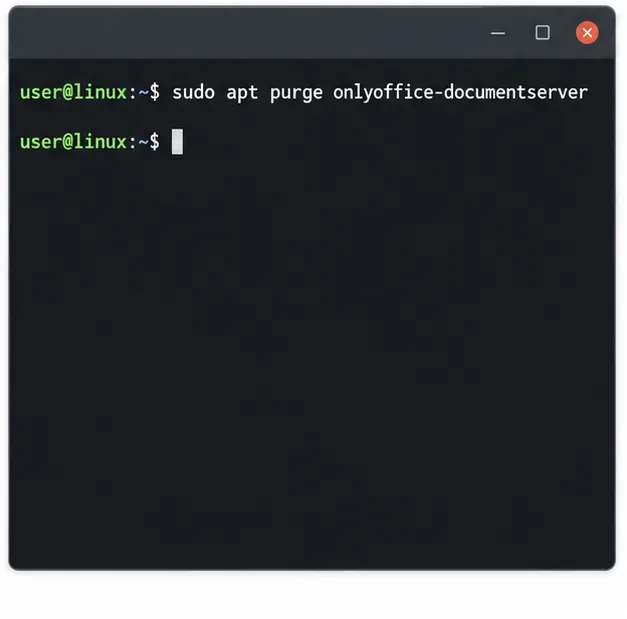
Identify whether Document Server uses a Linux package or Docker, remove only its components, and check remaining data without deleting shared services by mistake.
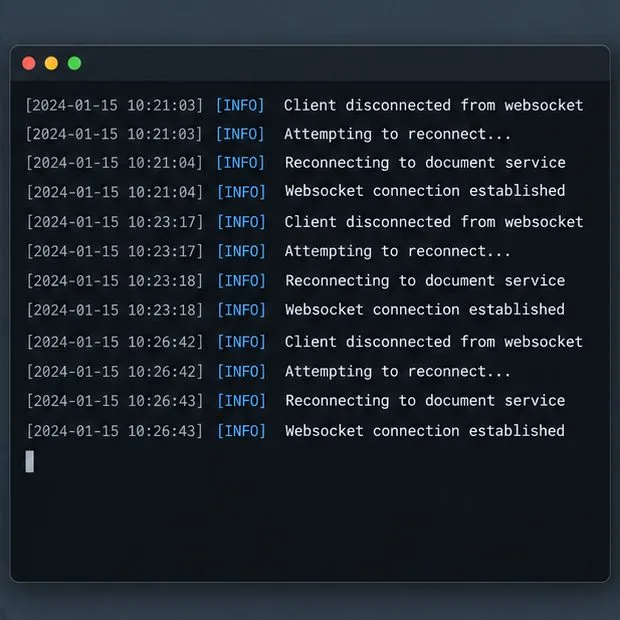
Trace slow collaborative editing to Docker resource pressure, proxy connections, or document load, then choose the fix that matches your measurements.
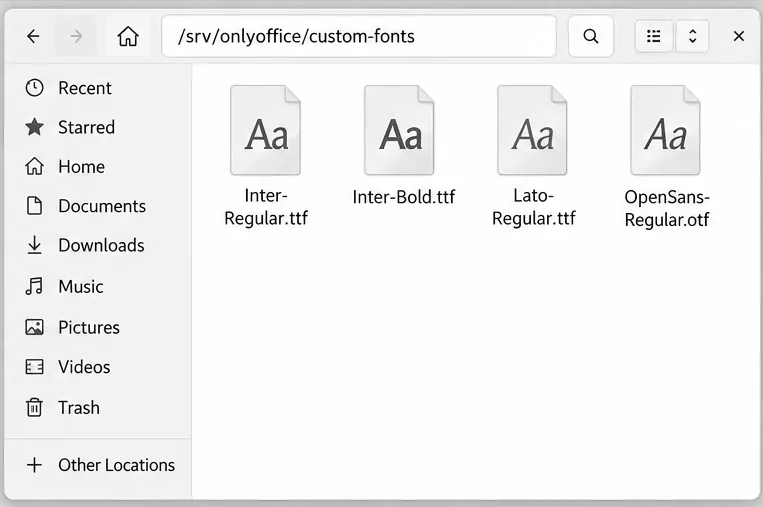
Install custom fonts in ONLYOFFICE Document Server, compare persistent Docker mounts with direct copies, rebuild the font list, and verify the result.
Choose where TLS should terminate, mount a trusted certificate and private key safely, and verify HTTPS access to a Dockerized ONLYOFFICE Docs server.