Get LibreOffice to Recognize Your Java Runtime

Install a compatible Java runtime, enable it in LibreOffice, and troubleshoot an empty JRE list without changing unrelated settings.
Want to remove old search terms, visited sites, and cached files from your browser? Knowing how to clear your browsing history helps protect privacy and can speed up performance. This guide gives precise instructions for the most popular browsers.
Browsers store every site you visit, form entries, and downloaded items by default. Clearing this data stops others from seeing your activity on a shared device and frees disk space. Most people do it monthly or before handing a device to someone else.
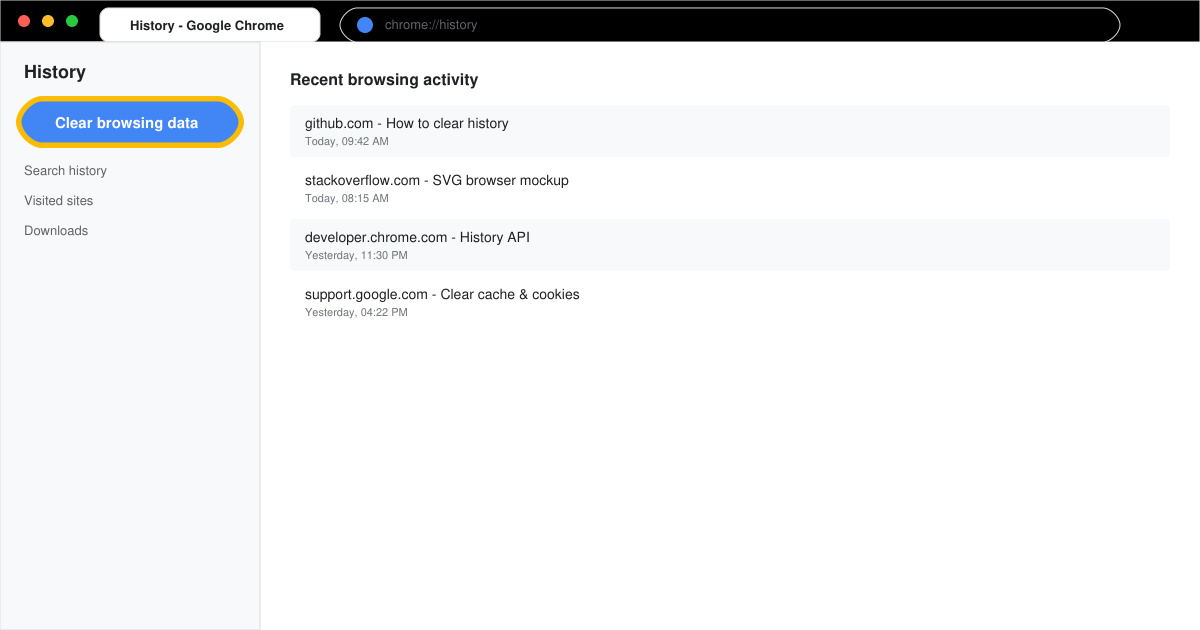
Launch Chrome on your computer. Click the three-dot menu in the top right, select Settings, then click Privacy and security on the left sidebar. Under that section choose Clear browsing data.
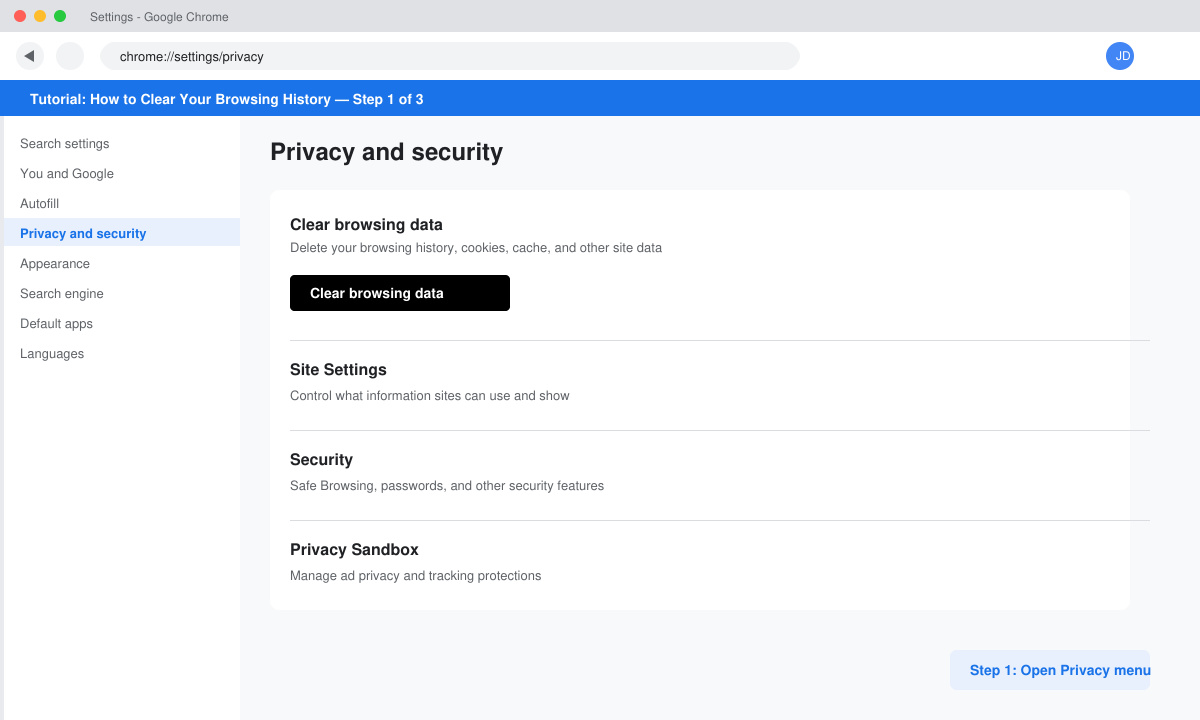
In the new window set Time range to All time. Check the boxes for Browsing history, Cookies and other site data, and Cached images and files. Leave other boxes unchecked unless you want to remove saved passwords or autofill data.
Click the blue Clear data button at the bottom. Chrome immediately deletes the selected items and shows a brief confirmation message at the bottom of the screen.
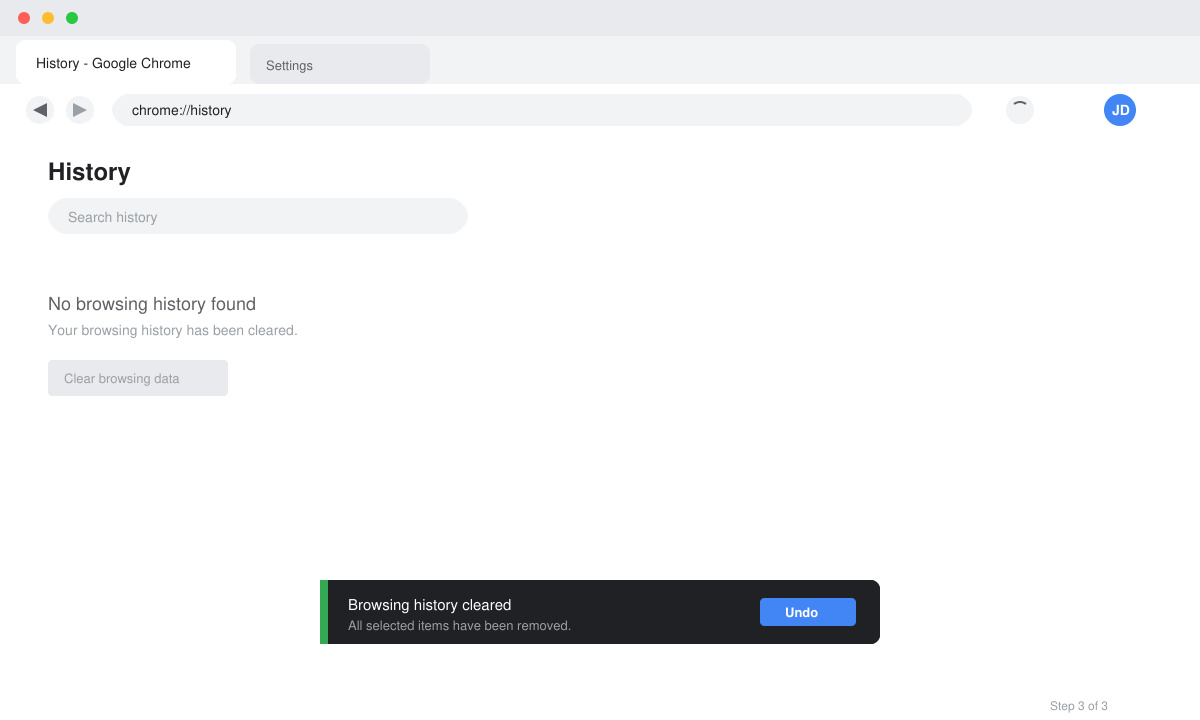
Press Ctrl+H to open the History page. The list should now be empty or show only very recent visits if you chose a shorter time range.
No. Passwords stay saved unless you specifically check the “Passwords and other sign-in data” box in the clear data window.
Yes. In Chrome go to Settings > Privacy and security > Site Settings > View permissions and data stored across sites, then search for the site and remove its data individually.
The steps are similar on Android and iOS. Open Chrome, tap the three-dot menu, go to History, then tap Clear browsing data at the bottom.
Following the steps above lets you clear your browsing history completely in any major browser. Repeat the process whenever you want a fresh start or better privacy control.
Install a compatible Java runtime, enable it in LibreOffice, and troubleshoot an empty JRE list without changing unrelated settings.
Build a small LibreOffice container, convert office documents without a GUI, and verify PDF output while limiting host-file access.
Reduce oversized LibreOffice presentation files by compressing embedded photos, choosing sensible image settings, and checking slide quality before sharing.
Match LibreOffice’s page dimensions to your printer, check printable margins, and correct scaling before printing a custom-size document.
Replace repeated cell access with bulk range reads and writes, then benchmark the result and protect formulas in large Calc workbooks.
Split a long manuscript into chapters, assemble them in Writer, and keep styles, contents, and export checks consistent.
Use Base’s direct PostgreSQL option to enter your server details, sign in, save an ODB connection file, and troubleshoot common access errors.
Install a font in your Linux user font folder, restart LibreOffice Flatpak, and confirm it appears in Writer without weakening the app sandbox.
Protect your work and isolate network-drive save crashes in LibreOffice on macOS Sonoma with a local-first workflow, permission checks, and targeted tests.
Preserve leading zeros in Calc by setting ID columns to Text during CSV import, checking the preview, and verifying the saved data.








