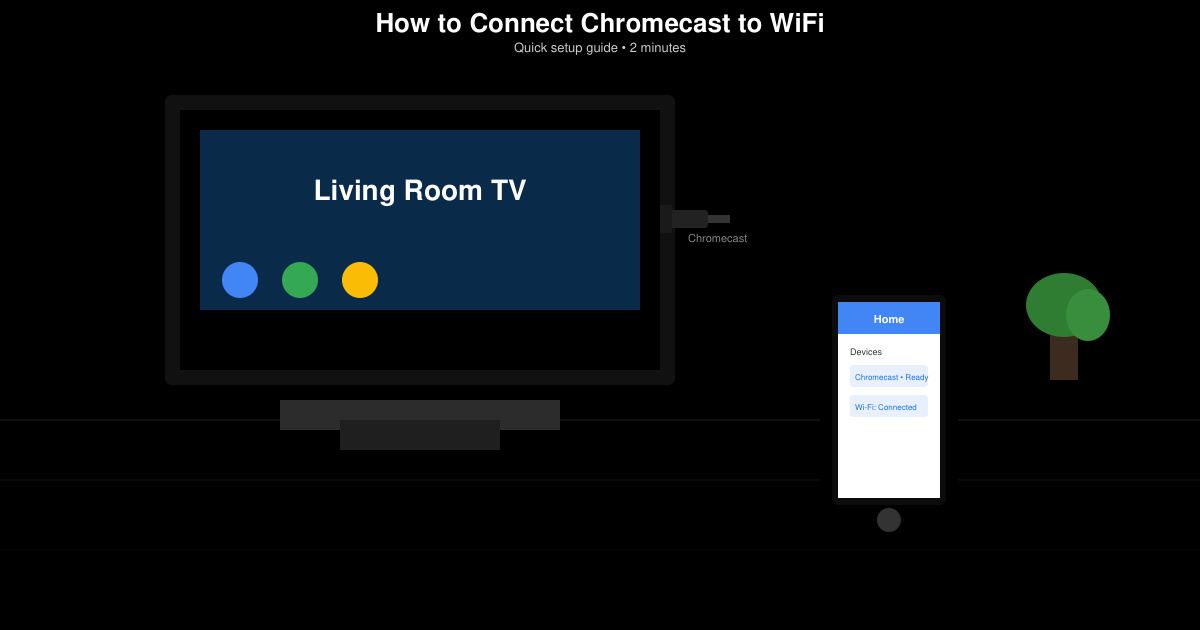
If your new Chromecast won't stream until it joins your home network, this guide shows you precisely how to connect Chrome Cast to WiFi. The process uses the official Google Home app and works for both Chromecast and Chromecast with Google TV models. Follow the steps below to finish the setup in under ten minutes.
What You Need Before Connecting Chrome Cast to WiFi
Make sure your phone or tablet runs Android 8.0 or iOS 14 or later and is already connected to the 2.4 GHz or 5 GHz WiFi network you want the Chromecast to use. Have the power cable and HDMI extender ready, and confirm the TV input is set to the correct HDMI port.
Download the Google Home app from the Play Store or App Store if you have not already installed it. The app handles the entire WiFi configuration for the device.
How to Connect Chrome Cast to WiFi Step by Step
-
Plug in and power on the device
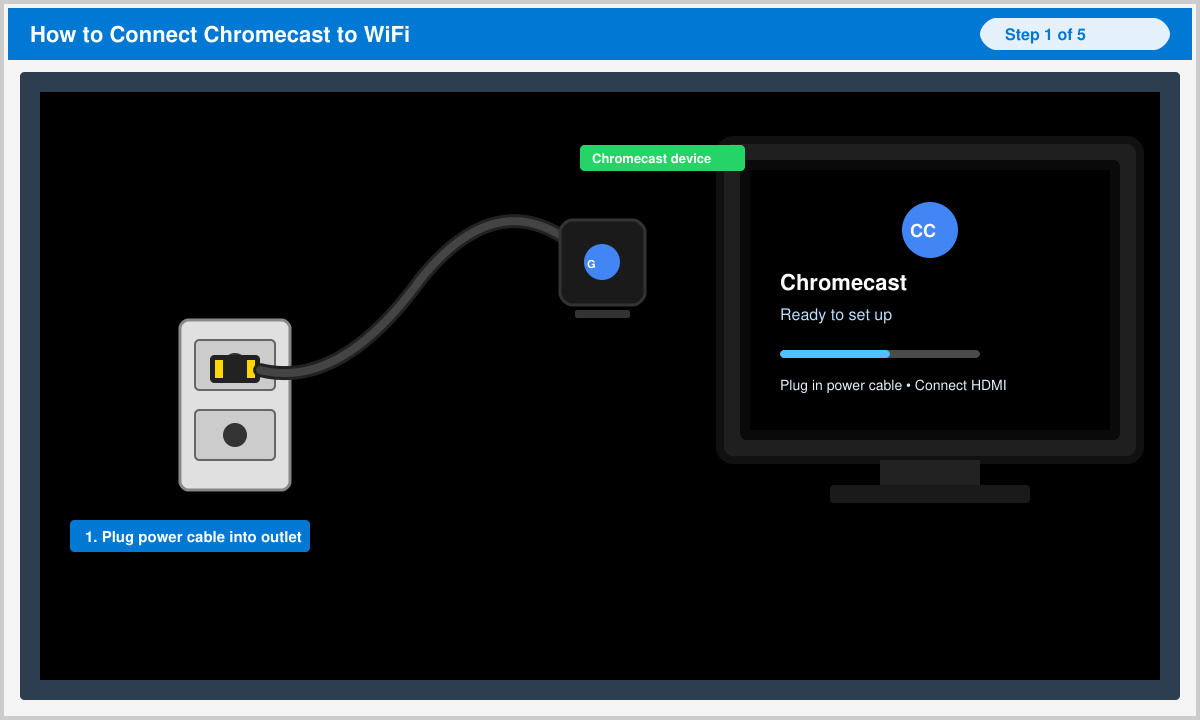
Connect the Chromecast to your TV’s HDMI port, attach the power cable to the device and a wall outlet or USB port on the TV, then switch the TV input to that HDMI source. A setup screen should appear on the TV within 30 seconds.
-
Open the Google Home app and start setup
Launch the Google Home app on your phone, sign in with the Google account you want to use, then tap the + icon in the top left and select “Set up device.” Choose “New devices” and follow the prompt to scan for nearby Chromecast units.
-
Connect Chrome Cast to WiFi during setup
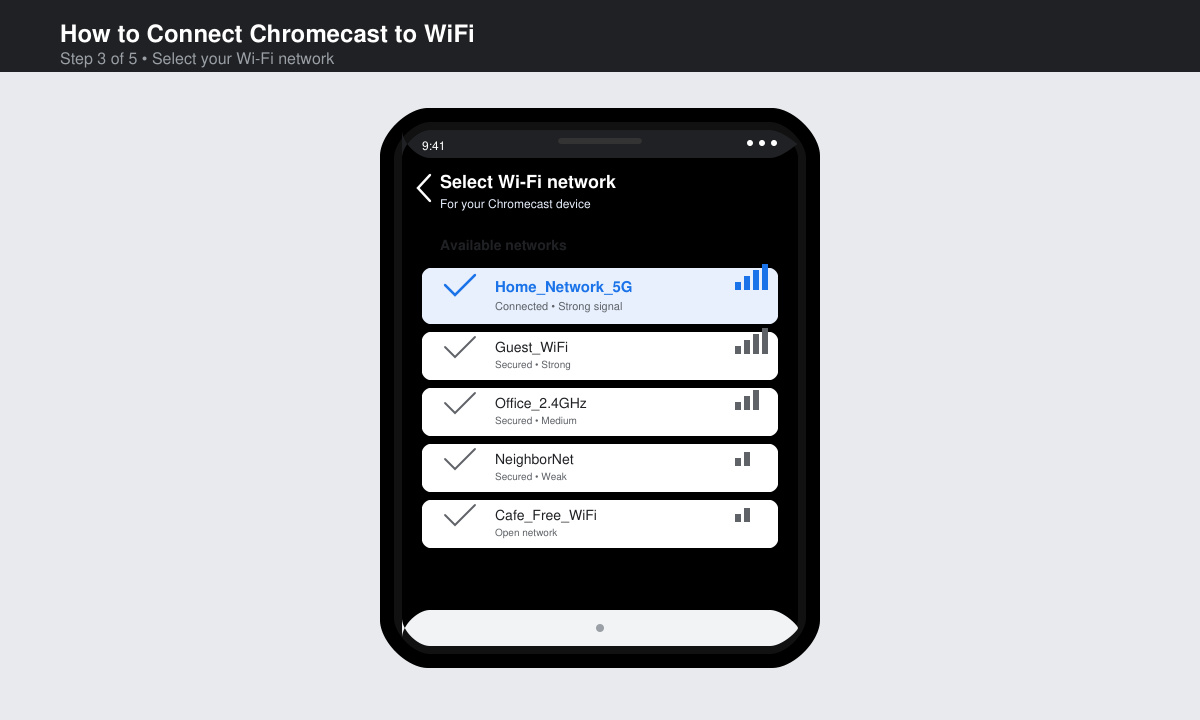
When the app finds your Chromecast, tap it, then tap “Set up” and confirm the code shown on the TV matches the one in the app. On the WiFi selection screen, pick your home network, enter the password exactly as it appears, and tap “Connect.” The device restarts and joins the network.
-
Complete the final setup on the TV
After the device connects, the app guides you through naming the Chromecast and enabling any optional features such as guest mode. Once finished, the TV displays the home screen and your phone can cast content to it.
Troubleshooting When Connecting Chrome Cast to WiFi
- If the device cannot find any networks, restart your router, move the Chromecast closer to the router, and try setup again.
- Should the password entry fail, double-check that you selected the correct network name and that your phone remains connected to the same WiFi while the Chromecast joins.
- For 5 GHz only routers, temporarily enable the 2.4 GHz band or use a dual-band router setting that broadcasts both frequencies under one name.
- Factory reset the Chromecast by holding the button on the device for 15 seconds if previous attempts leave it stuck on the setup screen.
FAQ
Can I connect Chrome Cast to WiFi without the Google Home app?
No. The official Google Home app is required to complete the initial WiFi setup on all current Chromecast models.
Why does my Chromecast keep dropping the WiFi connection?
Common causes include outdated router firmware, interference on the 2.4 GHz band, or the device being too far from the router. Update your router firmware and move the Chromecast closer to improve stability.
Does Chromecast support 5 GHz WiFi networks?
Yes, most recent Chromecast models support both 2.4 GHz and 5 GHz bands. The Google Home app automatically detects and lists compatible networks during setup.
Conclusion
Once you complete the steps above, your Chromecast stays connected to WiFi and is ready for casting from any phone, tablet, or computer on the same network.